
Changing the language of email templates in Shopify is possible, but it is not as straightforward as most merchants expect. In most cases, you need to add the language in Shopify, make sure it is published for your store, and then localise each notification template separately.
I have worked with enough Shopify stores to know this catches people out all the time. A merchant changes their theme language to French or German, previews the storefront, and assumes the order confirmation emails will follow automatically. Then the first customer email still goes out in English.
That happens because Shopify email notifications sit separately from your theme translations. Your storefront language, checkout language, admin language, and notification language are related, but they are not the same thing.
How do I change the language of email templates in Shopify?
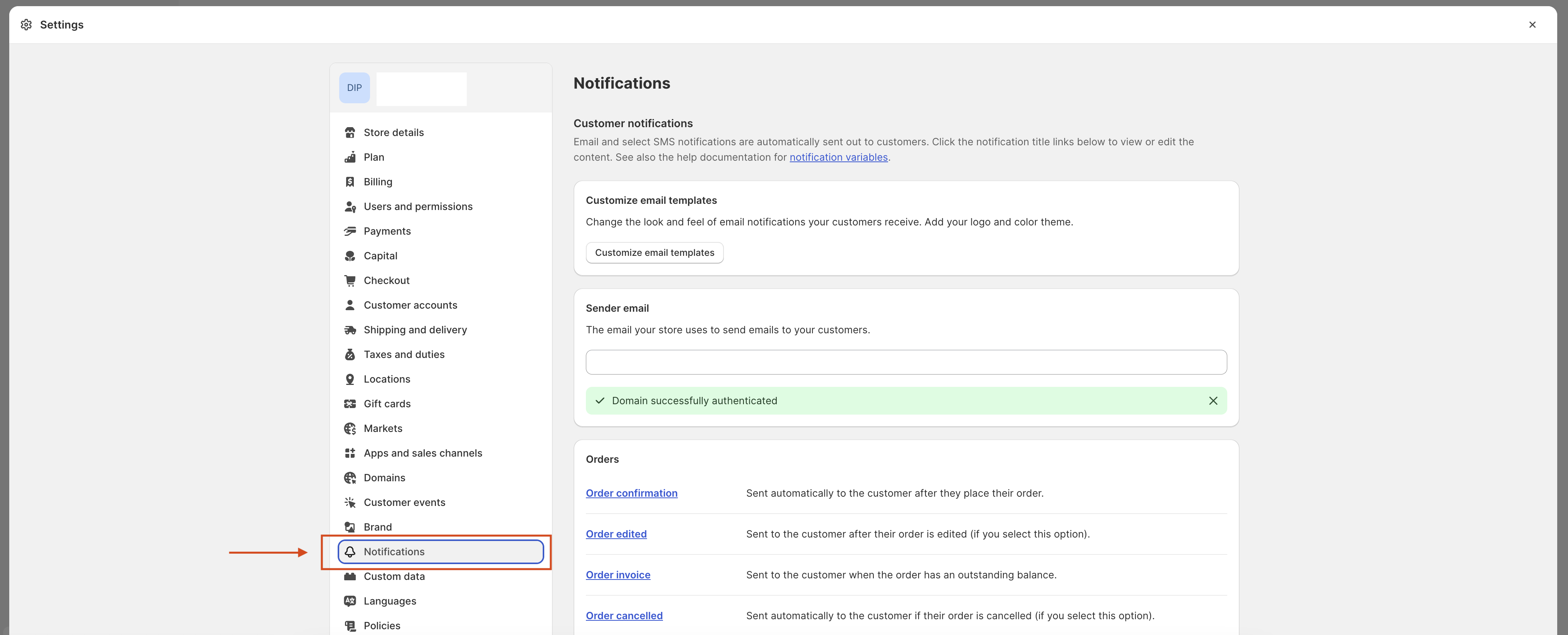
The quickest way is to go to Settings > Languages, add and publish the language you want, then go to Settings > Notifications and localise each email template. Customers will then receive notifications in the language they used at checkout, if that template has been translated.
Here are the exact steps I recommend:
- Open your Shopify admin.
- Go to Settings > Languages.
- Add the language you want to support, such as French, German, or Spanish.
- Make sure the language is published and active for your store.
- Go to Settings > Notifications.
- Choose the notification you want to translate, such as Order confirmation or Shipping confirmation.
- Use the language preview or localisation options to view the email in the target language.
- If needed, edit the default template first and then copy the translated version into your secondary language.
In practice, that last step is where most of the friction happens. Shopify still has limitations when editing non-default language notification code directly, so the workflow is often more manual than it should be.
Why are my Shopify email templates still in English?
Your Shopify email templates are usually still in English because adding a store language does not automatically translate every notification. Shopify can send emails in the customer's language, but only if that notification has an available translation.
This is the part many articles gloss over. In my experience building Shopify apps and helping merchants troubleshoot notification issues, there are usually one of four causes:
- The language was added but not published
- The notification itself was never translated
- The template was customised in the default language only
- Shopify opened the default language code editor instead of the secondary language version
If you have edited the HTML or Liquid of an email before, the default behaviour can get even more confusing. Shopify preserves custom edits, which means changing your theme language later will not always overwrite or translate those changes.
What is the difference between theme language and email template language in Shopify?
The theme language controls your storefront text, while the email template language controls what customers receive in notifications. They are connected through Shopify's localisation system, but they are not the same editable file set.
Your theme language affects product pages, collection pages, cart text, and other storefront elements. Notification templates live under Settings > Notifications and use their own Liquid-based templates. That is why a translated storefront can still send English order confirmations.
If you are also trying to localise checkout-related content, my guide on automatically switching checkout language in Shopify covers the checkout side of the setup. If your issue is specifically the wording after purchase, you might also need my walkthrough on changing the text on the Shopify order confirmation page.
How does Shopify choose which language to send emails in?
Shopify usually sends customer notifications in the language the customer used when placing the order. If French was the active storefront language during checkout, Shopify will try to send the order email in French.
This behaviour is useful, but only when the translated notification exists. If it does not, Shopify can fall back to the primary or default language. That means your multilingual setup can look correct on-site while still producing mixed-language emails.
This matters more than many merchants realise. Email notifications are some of the highest open-rate messages your store sends because they are transactional. If a customer receives an order confirmation or shipping update in the wrong language, it creates friction at the exact moment they want reassurance.
Can I edit secondary language email templates directly in Shopify?
Not reliably. Shopify lets you preview notifications in other languages, but direct code editing for non-default languages is still limited in the admin.
This is one of the biggest gaps in Shopify's native workflow right now. Current merchant reports and Shopify community threads show the same pattern: you select a secondary language, click Edit code, and Shopify often opens the default language template instead.
When I tested this workflow on multilingual stores, the behaviour was inconsistent enough that I would not rely on it for anything complex. Basic previewing works, but full HTML and Liquid editing in a secondary language often needs a workaround.
What workaround actually works?
The most reliable workaround is to edit the default language template first, then copy the code and translate the text while preserving the Liquid variables. After that, paste the translated version into the relevant localisation field or translation workflow.
This sounds clunky because it is. But it is still the safest route if your template contains variables like {{ order.name }}, line item loops, or conditional logic.
My process is usually:
- Edit the default template in English first
- Copy the full HTML and Liquid code
- Translate only the text strings, leaving Liquid tags untouched
- Paste the translated version into the secondary language workflow
- Preview and send a test email before publishing
If you use AI or Google Translate for the text, be very careful. Do not let the tool alter Liquid syntax, punctuation inside variables, or conditional statements. One broken tag can break the entire notification.
What is the best app for translating Shopify email notifications?
The best native starting point is Translate & Adapt, because it is Shopify's own translation tool and fits cleanly into multilingual store setup. For merchants who need more direct control over notification translations, a dedicated translation app can be more practical.
Translate & Adapt is the obvious first stop because it is tightly connected to Shopify's localisation framework. It is best for stores already using Shopify Markets and multiple languages. It will not magically remove every limitation around notification code editing, but it is still where I would start before paying for anything else.
Translate & Adapt vs manual editing
Manual editing gives you more control, while Translate & Adapt gives you a cleaner workflow for standard multilingual content. The right choice depends on how customised your emails already are.
| Option | Best for | Pros | Cons |
|---|---|---|---|
| Translate & Adapt | Most multilingual Shopify stores | Native Shopify tool, simple setup, works with store languages | Still limited for direct secondary-language code editing |
| Manual notification editing | Stores with custom Liquid templates | Full control over HTML, branding, and logic | Easy to break code, slower to maintain, translation workflow is awkward |
| Third-party translation app | Stores with several markets and complex localisation needs | Can offer better secondary-language editing | Extra monthly cost, compatibility varies by app |
If you are comparing tools, Shopify also maintains collections of translation apps via the Shopify App Store. I would still test on one notification first before rolling changes across all templates.
How do I customise Shopify email templates without breaking translations?
The safest method is to keep structural edits minimal, translate text separately, and test every locale individually. The more custom Liquid you add, the harder it becomes to maintain multiple language versions.
Shopify lets you customise branding elements like logo, colours, and footer styling globally. That part is relatively safe because it does not usually interfere with localisation. The risk starts when you edit the notification body, subject line, or conditional Liquid blocks.
Here is what I recommend after seeing merchants accidentally break live order emails:
- Duplicate your code externally before making changes
- Change one template at a time
- Keep a plain-text copy of each language version
- Use test orders and preview emails for every market
- Document which templates were edited manually
If you need to add custom messaging to the cart or post-purchase flow as well, you might find my guide on how to add text to the Shopify cart page useful. It helps keep your pre-purchase and post-purchase messaging consistent.
What happens if I change my theme language after editing email templates?
If you have never customised the email templates, Shopify may update them more cleanly when you change language settings. If you have edited the subject or body, Shopify often preserves those edits rather than retranslating them.
This is still broadly true and it matches what merchants report:
- Unedited templates are more likely to follow Shopify's default language behaviour
- Edited body content can remain in the old language
- Edited titles or subjects often stay exactly as customised
So if you are rebranding a store or switching your primary market, do not assume the notification layer will update itself. I always recommend a full audit of customer notifications after any major language or market change.
How do I test Shopify email templates in different languages?
The best way is to preview the notification in each language, then place test orders in each locale and check the actual email output. Preview alone is not enough if you have edited Liquid or subject lines.
My usual testing checklist looks like this:
- Open the notification under Settings > Notifications
- Use the language preview dropdown if available
- Check the subject line, heading, button text, and footer
- Place a test order while browsing the storefront in that language
- Confirm the received email matches the expected locale
- Check mobile rendering as well as desktop
If you want to verify what Shopify has already sent to customers, see my guide on how to check emails sent to your customers from Shopify. That is especially helpful when you are trying to work out whether the issue is the template itself or the customer locale used at checkout.
Can Shopify Flow send emails based on customer language?
Yes, for automation workflows you can use Shopify Flow logic based on locale fields such as CustomerLocale. This is most useful for custom post-purchase emails and segmented automations, not just standard notifications.
This is a more advanced route, but it is powerful. If a store needs different follow-up emails for English, French, and German customers, Shopify Flow can branch based on locale and trigger the right message. That is especially handy when native notification localisation is not flexible enough.
You can learn more from the official Shopify Flow documentation. If your goal is product-specific messaging rather than just language, my article on customising confirmation emails based on products ordered in Shopify is the better fit.
Which Shopify notifications should I translate first?
The first templates to translate should be the ones customers are most likely to open. Order confirmation, shipping confirmation, and delivery updates usually matter most.
If you are short on time, prioritise these:
- Order confirmation
- Shipping confirmation
- Out for delivery or delivery update emails
- Refund notification
- Abandoned checkout if you use it
Those templates have the biggest impact on trust and support volume. In multilingual stores, a badly translated refund or shipping email can create more tickets than almost anything else.
What are the most common mistakes when translating Shopify email templates?
The most common mistakes are editing the wrong language version, breaking Liquid code during translation, and assuming theme translations cover notifications.
Here are the issues I see most often:
- Translating visible text but not the subject line
- Editing the English template and forgetting to update other languages
- Letting a translator alter Liquid placeholders
- Not testing with a real order in the target locale
- Ignoring fallback behaviour when translations are incomplete
- Forgetting that sender name, reply-to setup, and branding also affect trust
On that last point, if you are still sending from a generic address, fix that too. A translated email from a weak sender identity still feels unprofessional. My guide on getting a custom email address if hosted with Shopify covers that setup.
Is it worth translating Shopify email templates for smaller stores?
Yes, if you sell in more than one language, translating core notifications is absolutely worth it. Even small stores benefit because transactional emails shape trust, reduce confusion, and cut support requests.
You do not need to translate every obscure notification on day one. But if you are actively selling into multiple markets, leaving order and shipping emails in English while the storefront is localised creates a disjointed experience.
In my experience, this is one of those jobs that feels minor until something goes wrong. Then suddenly you are fielding support tickets from customers who cannot understand refund wording or delivery instructions. That is far more expensive than spending an hour getting the key templates right.
My recommended setup for multilingual Shopify email templates
The best setup for most merchants is to use Shopify's native language system first, customise the default template carefully, then localise only the notifications that matter most. Add a translation app only if Shopify's native workflow becomes a bottleneck.
If I were setting this up from scratch today, I would do it in this order:
- Add and publish store languages in Shopify
- Install Translate & Adapt
- Customise global email branding under notifications
- Edit the default language templates for core notifications only
- Translate those templates carefully, preserving Liquid code
- Test each locale with real orders
- Document every custom template for future maintenance
That approach is best for small and mid-sized stores because it keeps complexity under control. If you are operating across several markets with heavy customisation, then it is worth looking at more advanced translation tooling or Flow-based automations.
Useful Shopify resources for email template localisation
The most useful official resources are Shopify's notification customisation docs and localisation docs. They explain the native system, even if they do not fully solve the secondary-language editing limitations.
- Shopify Help: Customising email notification templates
- Shopify Help: Localisation and translation
- Shopify App Store: Translate & Adapt
- Shopify Help: Shopify Flow
If your notification changes also involve tracking details, order edits, or custom confirmation messaging, these related guides can help:
- How to Change the Tracking Number on Automatic Notifications in Shopify
- Editing Customer Orders in Shopify
Final answer: how to change the language of email templates in Shopify
To change the language of email templates in Shopify, add and publish the target language in Settings > Languages, then go to Settings > Notifications and localise each email notification. Shopify will usually send emails in the customer's checkout language, but only if the template has been translated.
The important caveat is that Shopify still does not make direct editing of secondary-language notification code especially smooth. If you have custom templates, the safest method is to edit the default version first, translate the text separately, preserve the Liquid code, and test every locale with real orders before going live.