
Utilizzare la funzionalità “compare at price” di Shopify nel tuo store è un ottimo modo per offrire sconti ai tuoi clienti.
Ti guideremo passo dopo passo su come configurare questa funzione e sfruttarla al massimo.
Che cos’è la funzionalità “compare at price” di Shopify?
I prezzi “compare at” possono essere usati per permettere ai clienti di vedere quanto stanno risparmiando sui tuoi prodotti. Funziona particolarmente bene quando stai facendo una promozione nel tuo store. Quando i consumatori possono vedere visivamente quanto stanno risparmiando, è più probabile che acquistino dal tuo store.
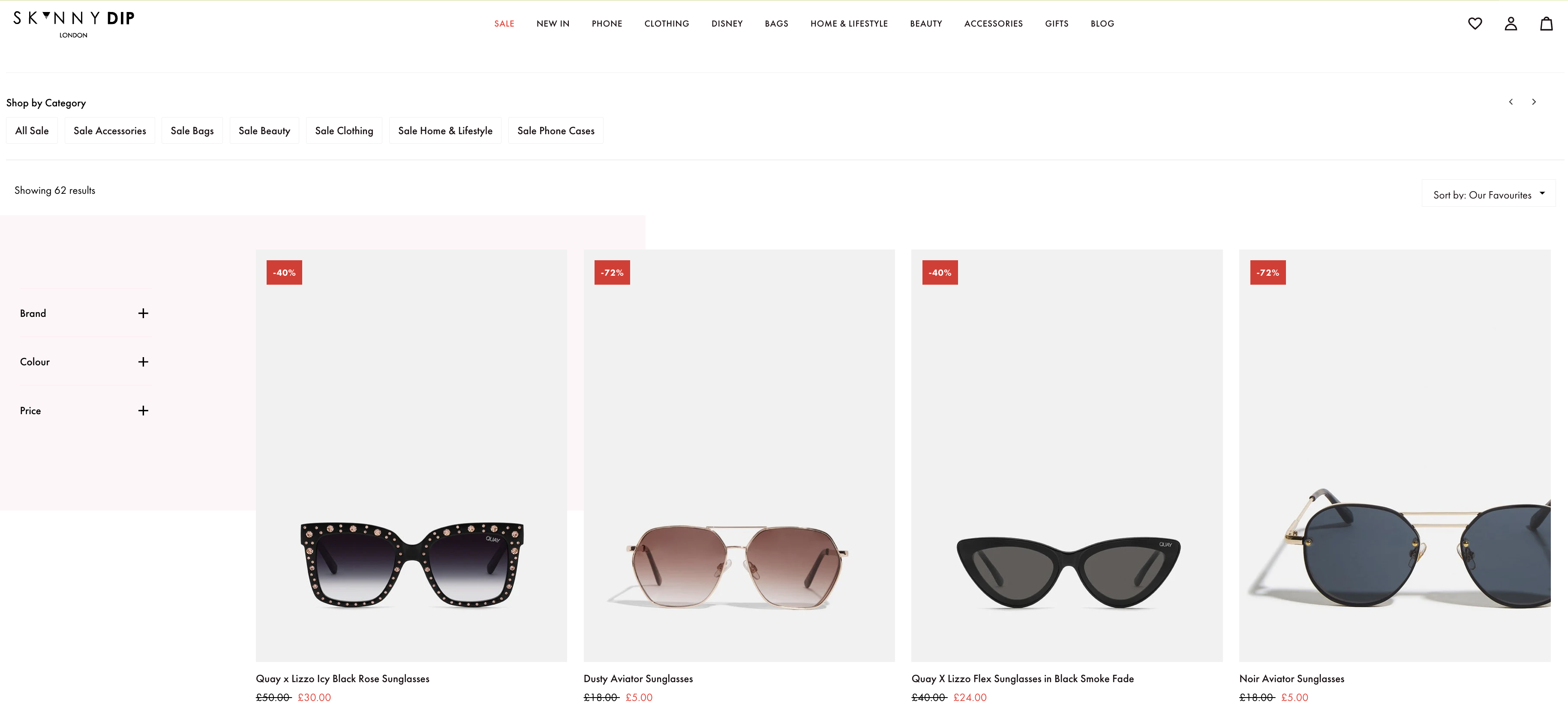
Osservando questo esempio di saldi di Skinny Dip London, puoi vedere che il prezzo originale è stato barrato. Il nuovo prezzo scontato è mostrato in rosso. Qui viene usata la funzionalità “compare at” per attirare l’attenzione dei clienti.
Permette di capire quanto si sta risparmiando e, di conseguenza, rende l’offerta più convincente per i consumatori.
Quando dovresti usare la funzionalità “compare at price” di Shopify?
Ogni volta che vuoi offrire sconti nel tuo store, consigliamo di usare la funzionalità “compare at price”. Gli sconti vengono normalmente utilizzati per aumentare le vendite durante periodi di grande affluenza come il Black Friday e Natale.
Ma ci sono anche altri motivi per cui potresti offrire sconti.
È una buona idea ridurre il prezzo delle scorte che vendono lentamente. Mettere questi prodotti in evidenza nel tuo store è un buon modo per catturare l’attenzione dei clienti. Se vedono che alcuni prodotti sono scontati, potrebbero essere più propensi ad acquistare da te.
Se lanci un nuovo prodotto che i tuoi clienti non conoscono ancora, puoi offrire sconti per generare domanda. Più consumatori potrebbero essere disposti a provare il tuo nuovo prodotto a un prezzo più basso.
Le ricerche mostrano che promozioni e sconti sono stati il principale motivo per cui le persone hanno acquistato online nel 2024, influenzando oltre il 53% degli acquirenti. Questo dimostra quanto sia ancora importante rendere visibile il risparmio per guidare le decisioni d’acquisto.
Usare troppo spesso la funzionalità “compare at price” può avere anche dei contro. Applicare troppi sconti può avere questi effetti negativi:
- Ridurre il valore percepito dei tuoi prodotti
- I clienti acquisteranno solo quando offri sconti
- Far perdere fiducia ai clienti
Usare la funzionalità “compare at price” nel modo giusto è un ottimo modo per aumentare le vendite quando serve, in modo strategico.
Come modificare il “compare at price”?
Vediamo come modificare concretamente la funzionalità “compare at price” in Shopify.
- Vai alla dashboard principale del tuo store
- Seleziona Prodotti dal menu a sinistra
- Seleziona il prodotto per cui vuoi impostare un “compare at price”
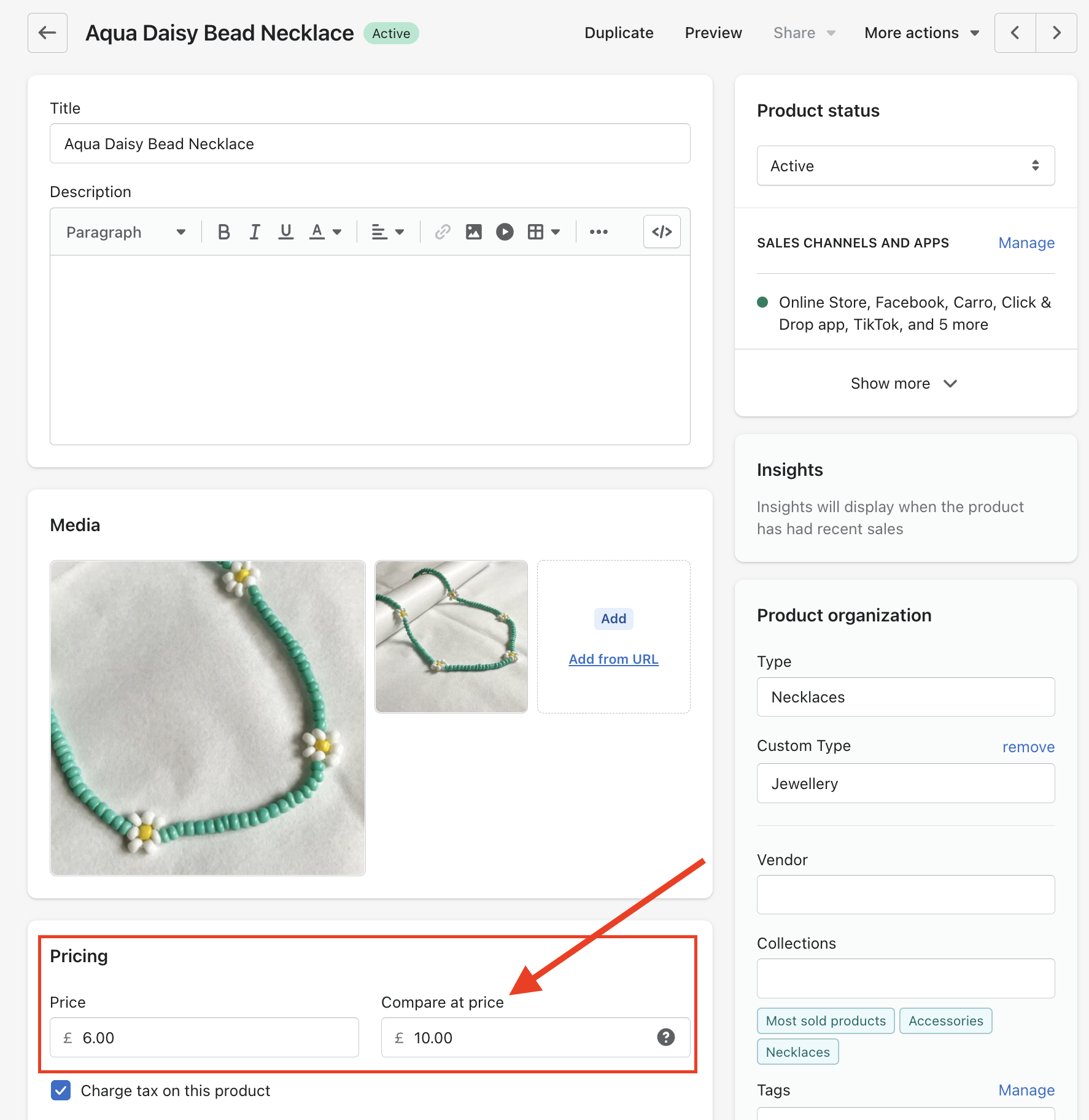
- Vai alla sezione Prezzi dove vedrai i campi ‘price‘ e ‘compare at price‘
- Copia il prezzo originale nel campo “compare at price”
- Inserisci un nuovo prezzo scontato nel campo del prezzo principale e salva
Se ora vai nel tuo negozio online e trovi il prodotto che hai appena modificato, dovresti vedere il “compare at price” barrato e il nuovo prezzo visualizzato.
Il modo in cui viene formattato il “compare at price” dipenderà dalle impostazioni del tuo tema.
Se hai prodotti con varianti, puoi applicare un “compare at price” a una singola variante oppure a tutte. Funziona bene se vuoi abbassare il prezzo delle varianti che ruotano più lentamente.
Se vuoi modificare in blocco i prezzi delle varianti di prodotto, puoi farlo esportando i prodotti in un file CSV, usando l’editor di massa integrato di Shopify oppure utilizzando app specializzate per l’editing dei prezzi in blocco dal Shopify App Store. Puoi anche modificare in blocco i prezzi dei prodotti in Shopify per risparmiare tempo nella gestione di grandi inventari.
Rimuovere i prezzi scontati su Shopify
Quando la tua promozione finisce o vuoi interrompere gli sconti nel tuo store, dovrai riportare i “compare at price” al prezzo originale.
Per rimuovere i prezzi scontati, ti basta invertire i passaggi sopra. Imposta il “compare at price” a £0 e inserisci il prezzo originale nel campo del prezzo principale. Ora nel tuo store dovrebbero comparire i prezzi normali.
Perché il mio “compare at price” non viene mostrato?
Il motivo più comune per cui il “compare at price” non viene mostrato è che deve essere più alto del prezzo scontato. Inserisci il prezzo più alto del prodotto nel campo “compare at price” e il prezzo scontato più basso nel campo “price”. Questo dovrebbe far visualizzare i nuovi prezzi nel tuo store.
Vuoi più vendite? 4 consigli bonus
Se sei arrivato fin qui, significa che vuoi capire come massimizzare le vendite nel tuo store. Ti abbiamo dato 4 consigli bonus per aiutarti.
1. Offerta scontata post-acquisto
Offrire sconti prima che un cliente acquisti aumenta le conversioni. Tuttavia, riduce i ricavi.
Se vuoi ottenere il massimo da una promozione, un’ottima offerta post-acquisto può attirare l’attenzione dei tuoi clienti.
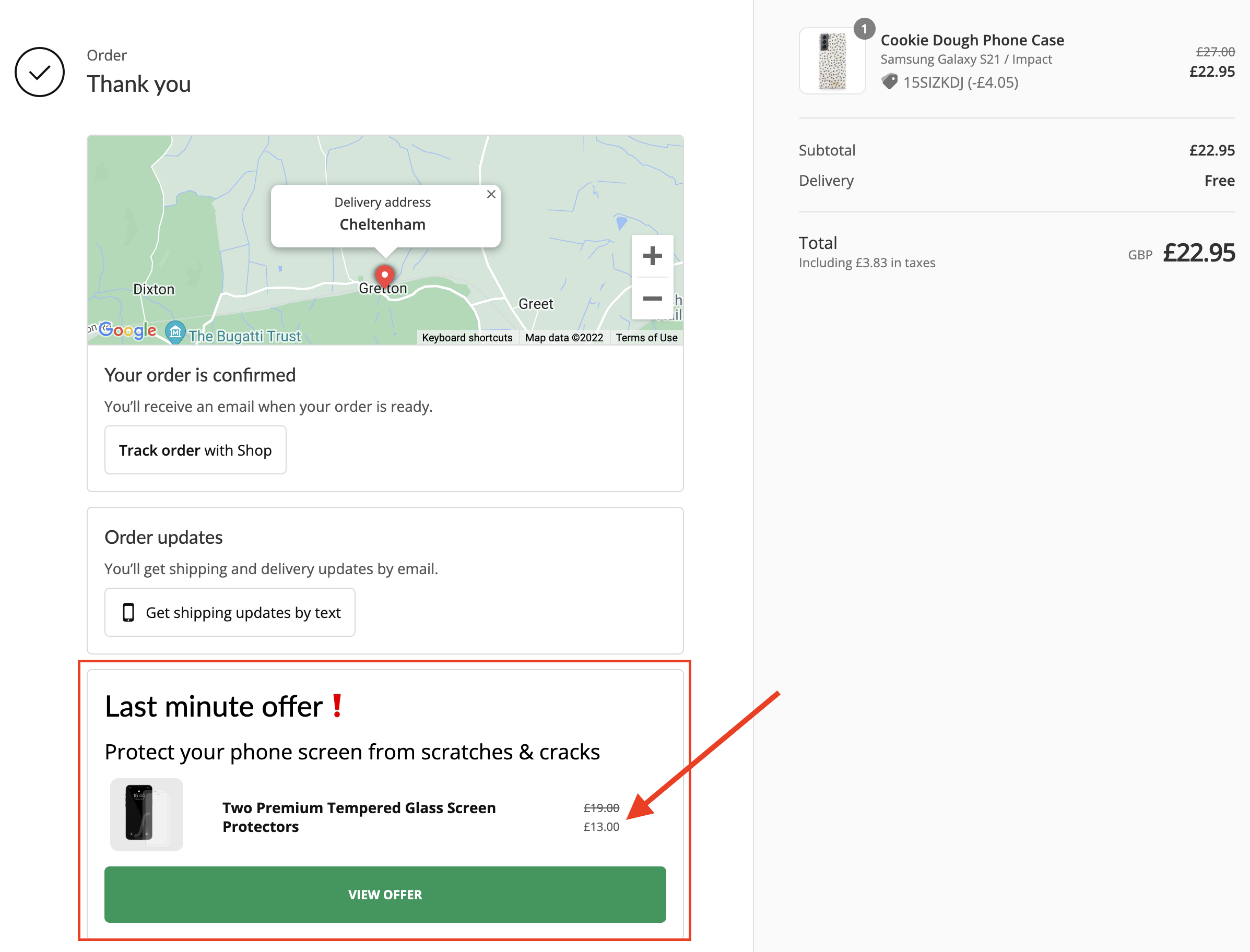
Un’offerta allettante nella pagina di ringraziamento può aumentare subito il tuo valore medio dell’ordine, facendo crescere i ricavi complessivi. SellUp è facile da usare e ti permette di configurare offerte post-acquisto per guadagnare di più.
2. Usa i codici sconto
Sappiamo che questo non usa direttamente la funzionalità “compare at price”, ma utilizzare codici sconto e coupon che i consumatori possono applicare al checkout è un’alternativa.
I codici sconto possono ottenere gli stessi effetti degli sconti “compare at price”, ma offrono anche altri vantaggi.
I codici sconto possono basarsi sui segmenti di clientela. Puoi offrire offerte più personalizzate ai clienti VIP e sconti di benvenuto ai nuovi clienti.
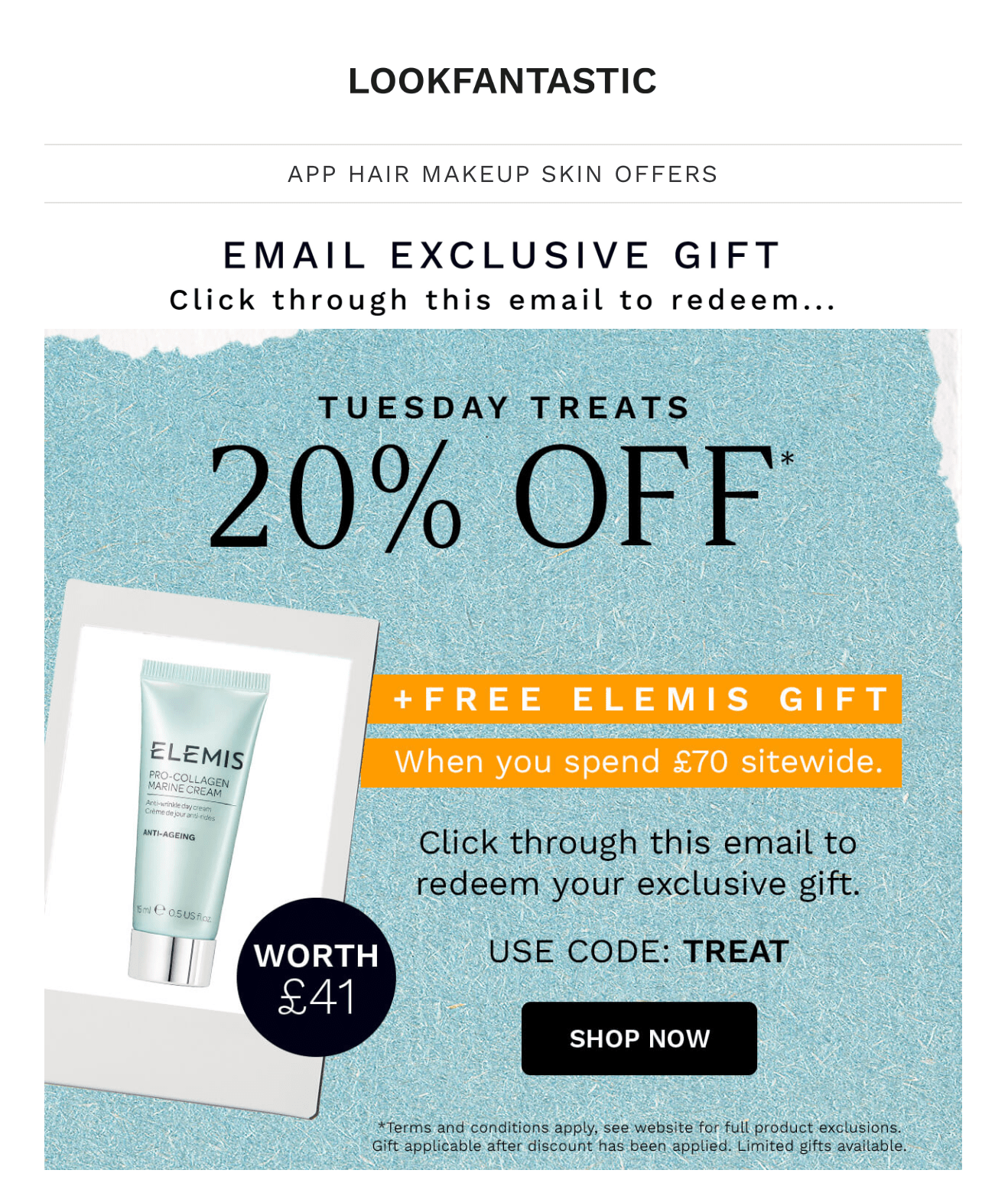
Lookfantastic usa codici sconto via email per aumentare vendite e conversioni.
Puoi anche impostare una soglia minima di spesa per i codici sconto. È utile se vuoi che i clienti spendano una certa cifra prima di applicare il codice.
I codici sconto possono ostacolare la conversione. Può succedere se il cliente deve tornare alla propria email per recuperare il codice: potrebbe distrarsi e non completare l’acquisto.
Per le grandi promozioni, consigliamo uno sconto su tutto lo store, perché è più facile da vedere e rende più semplice convertire.
3. Usa prezzi scontati per bundle di prodotti
Offrire prezzi scontati per bundle di prodotti è un’alternativa agli sconti diretti. Raggruppare i prodotti in upsell è un buon modo per farlo.
Se i clienti possono risparmiare acquistando i prodotti in bundle invece che singolarmente, saranno più propensi ad acquistare dal tuo store.
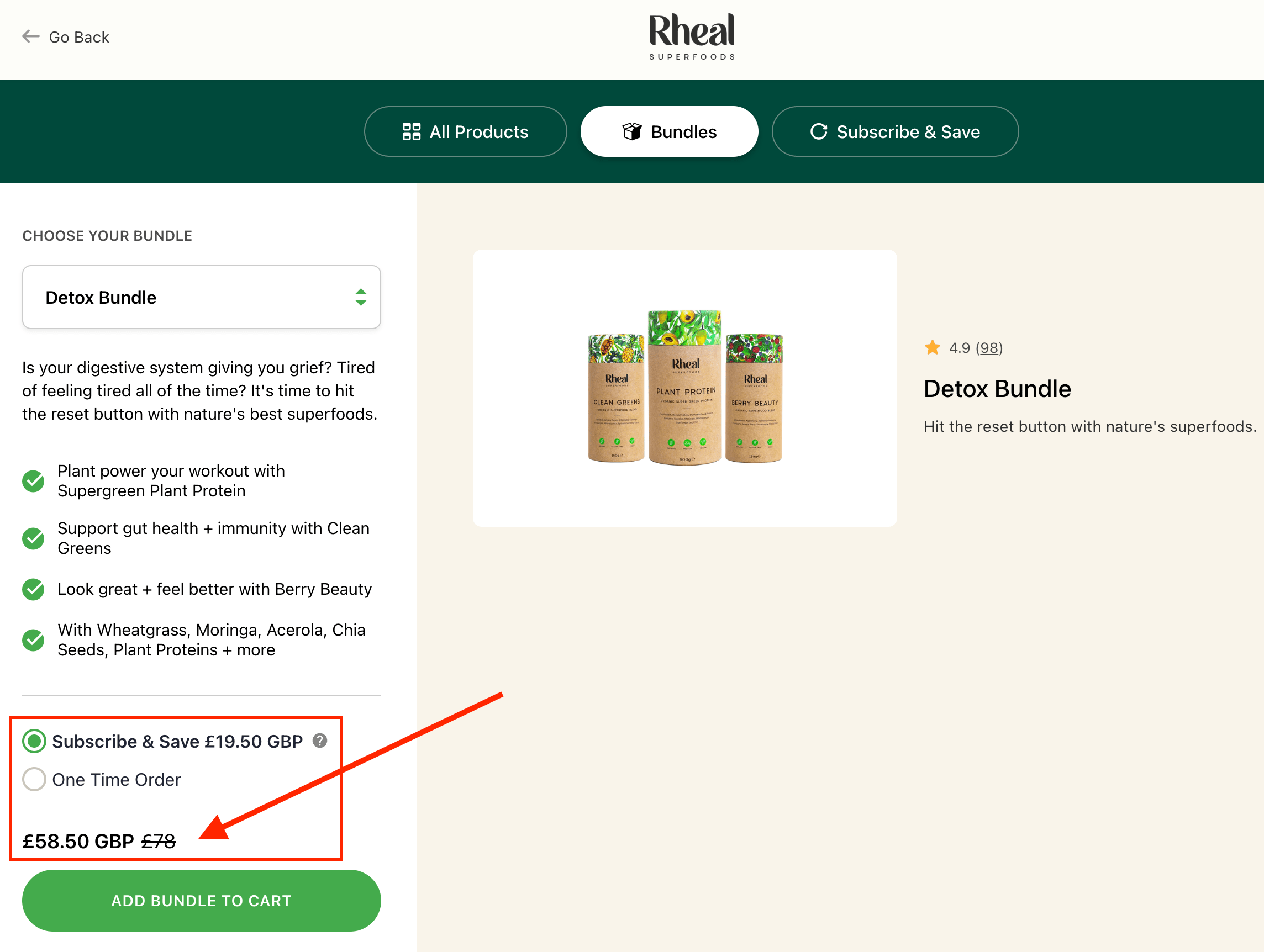
Rheal Superfoods usa bundle di prodotti per creare uno sconto per i clienti.
Con questo approccio, i clienti possono risparmiare sui singoli prodotti e non devono nemmeno preoccuparsi di cercarli uno per uno. Con un bundle, i clienti hanno la sensazione di fare un ottimo affare.
È un metodo eccellente, perché aumenterà il valore medio dell’ordine del tuo store, quindi potresti ottenere più profitto per vendita.
4. Suddividi il prezzo di un prodotto in pagamenti più piccoli
Per gli articoli dal prezzo elevato, i consumatori possono trovare difficile pagare l’intero importo in un’unica soluzione. Offrire ai clienti la possibilità di rateizzare i pagamenti in importi più piccoli è un ottimo modo per aiutarli ad acquistare il prodotto.
I servizi Buy Now, Pay Later (BNPL) hanno registrato una crescita significativa nel 2024 e nel 2025. Solo negli Stati Uniti, la spesa tramite BNPL dovrebbe raggiungere 97,25 miliardi di dollari nel 2025, con oltre 86 milioni di americani che utilizzano questi servizi. Questa flessibilità di pagamento è particolarmente popolare tra i più giovani: Millennials e Gen Z rappresentano oltre il 60% degli utenti BNPL.
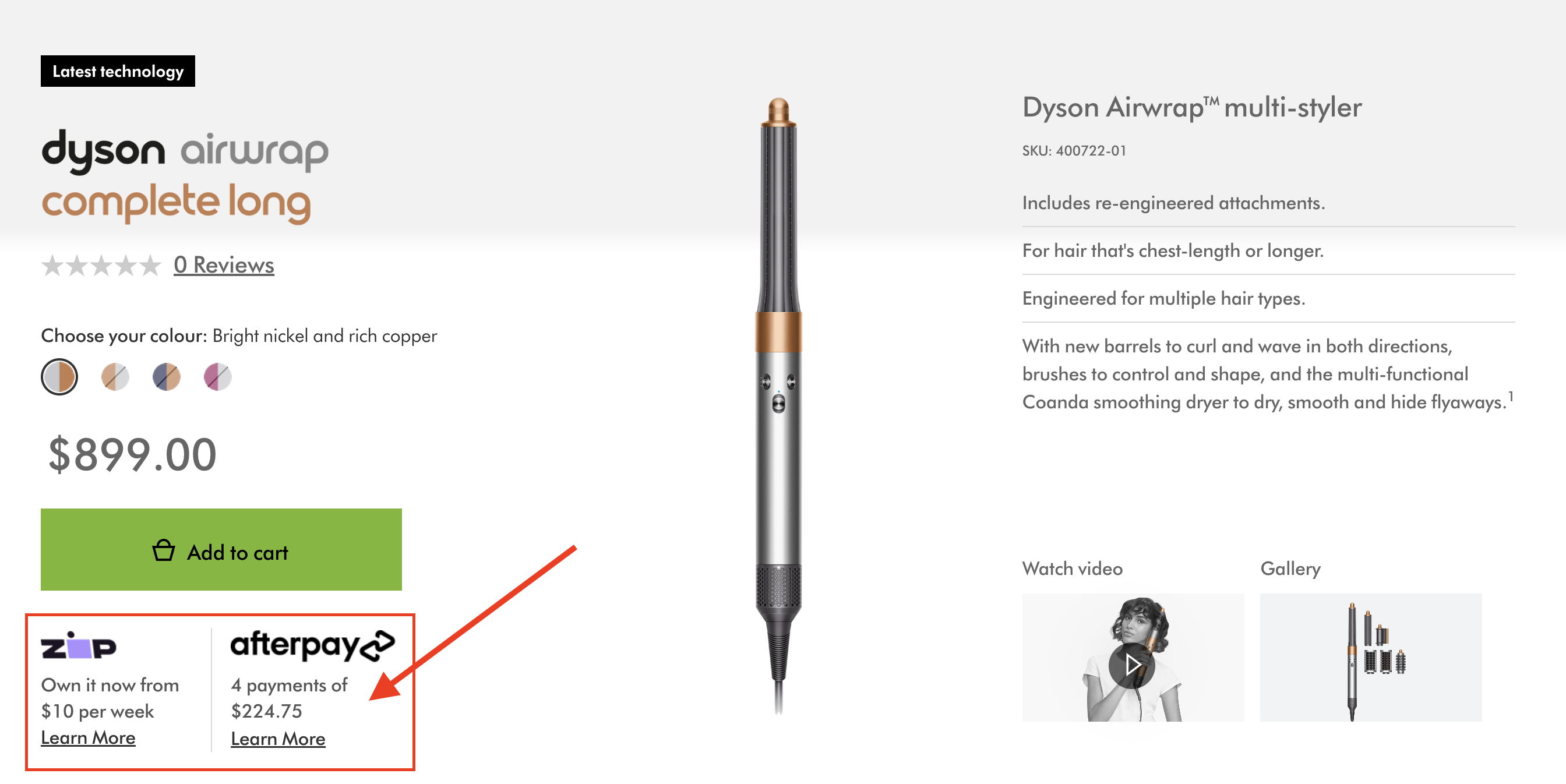
Dyson usa Afterpay così i clienti possono suddividere il pagamento elevato in rate più piccole.
I provider BNPL più diffusi come Klarna, Affirm, Afterpay e Shop Pay offrono un’integrazione fluida con gli store Shopify, rendendo semplice proporre opzioni di pagamento flessibili che possono aumentare conversioni e valore medio dell’ordine.
Concludiamo la funzionalità “compare at price”
Per far crescere le vendite ecommerce nel tuo store Shopify, puoi usare una combinazione di strategie di prezzo e sconto.
Non consigliamo di usare sconti continuamente, ma piuttosto con moderazione e nei momenti in cui vuoi aumentare le vendite, far crescere il tuo database clienti o smaltire stock datato.
Ogni store è diverso, quindi è fondamentale testare strategie differenti per capire cosa funziona meglio per te.
Puoi provare alcuni sconti con la funzionalità “compare at price” per vedere come reagiscono i tuoi clienti.