
Hiding the Add to Cart button on specific Shopify products is usually best done with a custom product template on Online Store 2.0 themes. It is the safest no-code method, it keeps the product live for SEO and merchandising, and it only affects the products you assign to that template.
I have worked on a lot of Shopify stores where merchants needed this for quote-only products, made-to-order items, coming soon launches, or products that should be visible but not directly purchasable. In my experience building Shopify apps and working with theme logic, the biggest mistake is hiding the button visually without thinking about collection cards, quick buy buttons, or the customer journey after the product page.
If you want the short answer, use a separate product template if your theme supports it. If you need more control, use product tags or metafields in your theme code. And if you need to restrict buttons by customer type, location, or login state, an app can make more sense than custom code.
Why would you hide the Add to Cart button on specific Shopify products?
You should hide the Add to Cart button when a product needs visibility but should not be bought directly. Common examples include quote-only products, custom orders, wholesale-only items, and pre-launch products you still want indexed by search engines.
This comes up more often than people think. A merchant might want to keep a product page live because it already ranks in Google, because it is linked from ads or social posts, or because it supports a broader merchandising flow. Removing the whole product is often the wrong move if the page still has marketing value.
Here are the most common use cases I see:
- Custom or personalised products where the customer needs to request a quote first
- Coming soon products that you want to publish early for SEO or launch campaigns
- Discontinued items that still attract search traffic
- B2B or wholesale products visible only for browsing, not direct checkout
- Products with complex shipping or compliance rules that need manual review
- Upsell or bundle components that should not be bought standalone
If you are trying to increase revenue while controlling what is purchasable, it is worth also reviewing how your upsell flow works. I have covered that in How to upsell on Shopify in 2026 and How to Create Shopify Cart Drawer Upsells That Boost AOV.
What is the best way to hide the Add to Cart button on specific products in Shopify?
The best method for most stores is creating a separate product template and hiding the buy blocks in the theme editor. This works especially well on Online Store 2.0 themes and does not require an app.
Shopify itself now points merchants towards the template-based approach because it is cleaner than editing core theme files for one-off products. In practice, it is also easier to maintain. When I test stores with this setup, the template route usually creates fewer problems after theme updates than ad hoc CSS hacks.
That said, there is no single perfect method for every store. Here is how I would choose between them:
| Method | Best for | Skill level | Pros | Cons |
|---|---|---|---|---|
| Custom product template | Most OS 2.0 stores | Beginner | No code, easy to assign, safe | May not cover collection quick-add buttons automatically |
| Theme code by template | Vintage themes or older setups | Intermediate | Flexible, product-specific | Can break during theme edits if done badly |
| Product tag condition | Stores needing simple logic across templates and cards | Intermediate | Scalable, easy to apply in bulk | Relies on theme code changes |
| Product metafield condition | Stores wanting cleaner long-term control | Intermediate | More robust than tags, better for large catalogues | Needs setup and code support |
| App-based restriction | B2B, gated access, customer rules | Beginner | Advanced targeting without custom logic | Extra monthly cost |
How do I hide the Add to Cart button without code on Shopify?
If you use an Online Store 2.0 theme, create a new product template and hide the Buy buttons block. This is the fastest and safest method for most merchants in 2025 and 2026.
This is the method I recommend first because it matches current Shopify search intent and official guidance. It is also the least likely to cause issues with future theme updates.
Step 1: Create a product template
Create a separate product template so only selected products lose their Add to Cart button. Do not edit your default product template unless you want this change site-wide.
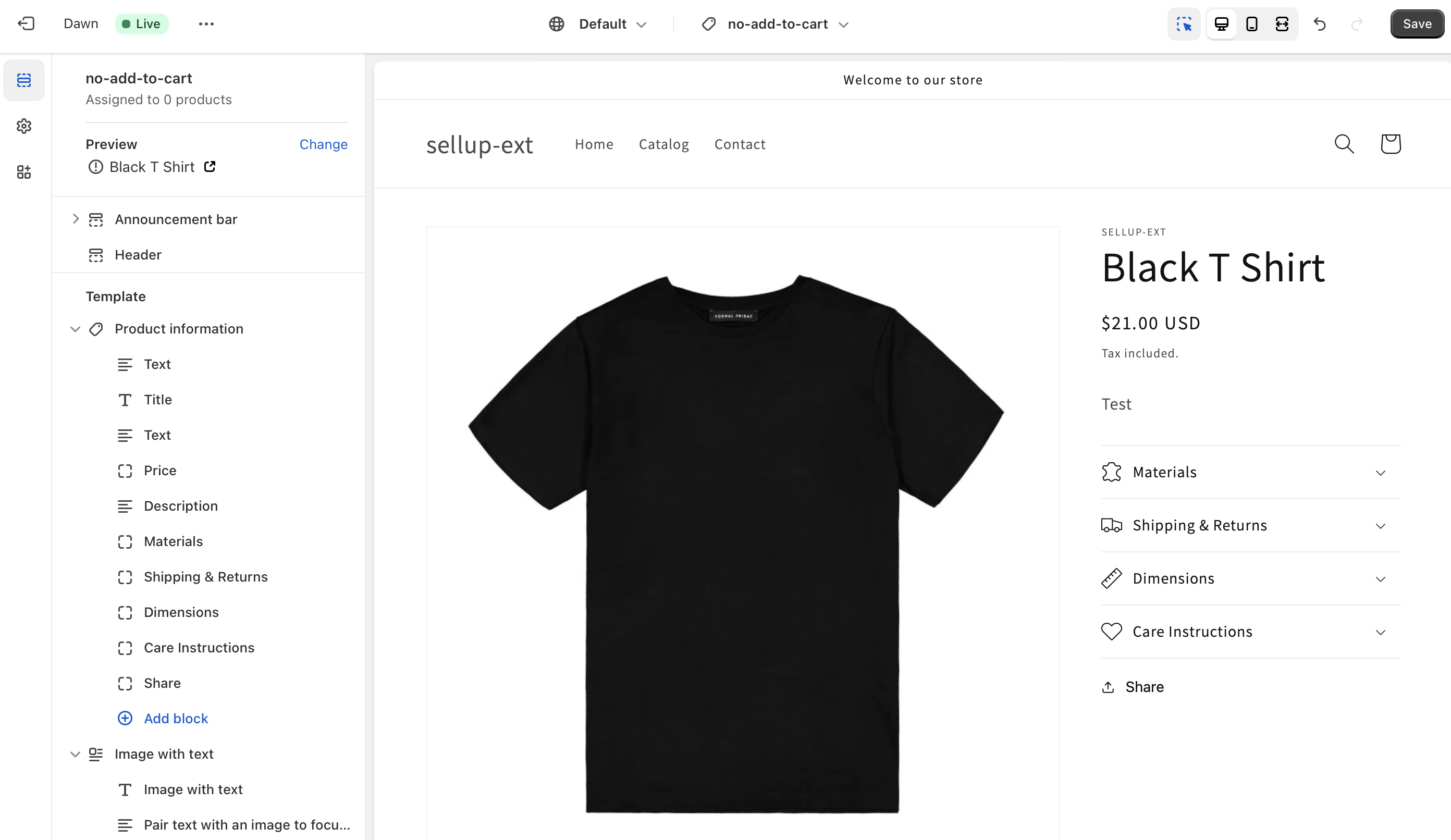
Go to Shopify admin > Online Store > Themes. On your live theme, click Customise, then use the template selector to create a new product template.

Name it something obvious like no-add-to-cart, quote-only, or not-for-sale. Clear naming matters if you have multiple staff members or agencies working in the store later.

Step 2: Hide the buy-related blocks
Hide the Buy buttons block and, if needed, the quantity selector. On many themes, this is enough to remove the main purchase controls from the product page.
Inside the template editor, open the Product information section. Hover over the Quantity selector block and click the eye icon to hide it. Then do the same for the Buy buttons block.

If the product should be enquiry-only or informational, you can also hide the Price block. Some merchants prefer to keep the price visible and replace the buy area with a message like Contact us for a quote or Available on request.
Click Save once you are done.
Step 3: Add a replacement message or CTA
Do not leave an empty gap where the Add to Cart button used to be. Replace it with a clear next step, otherwise conversion drops and customers get confused.
Good replacement options include:
- Contact us for a quote
- Join waitlist
- Available for trade customers only
- Call to order
- Request production timeline
If you need a custom message field on products, this is exactly the kind of workflow I think through when building merchant tools. For stores selling bespoke or customised items, you may also find How to Track Customized Orders in Shopify useful.
How do I assign the hidden-cart template to specific Shopify products?
Assign the new template from the product admin page or use bulk edit for multiple products. This makes the change product-specific without affecting your standard catalogue.
Open a product in Shopify admin > Products. In the Online store section, find the Theme template dropdown and select your new template.
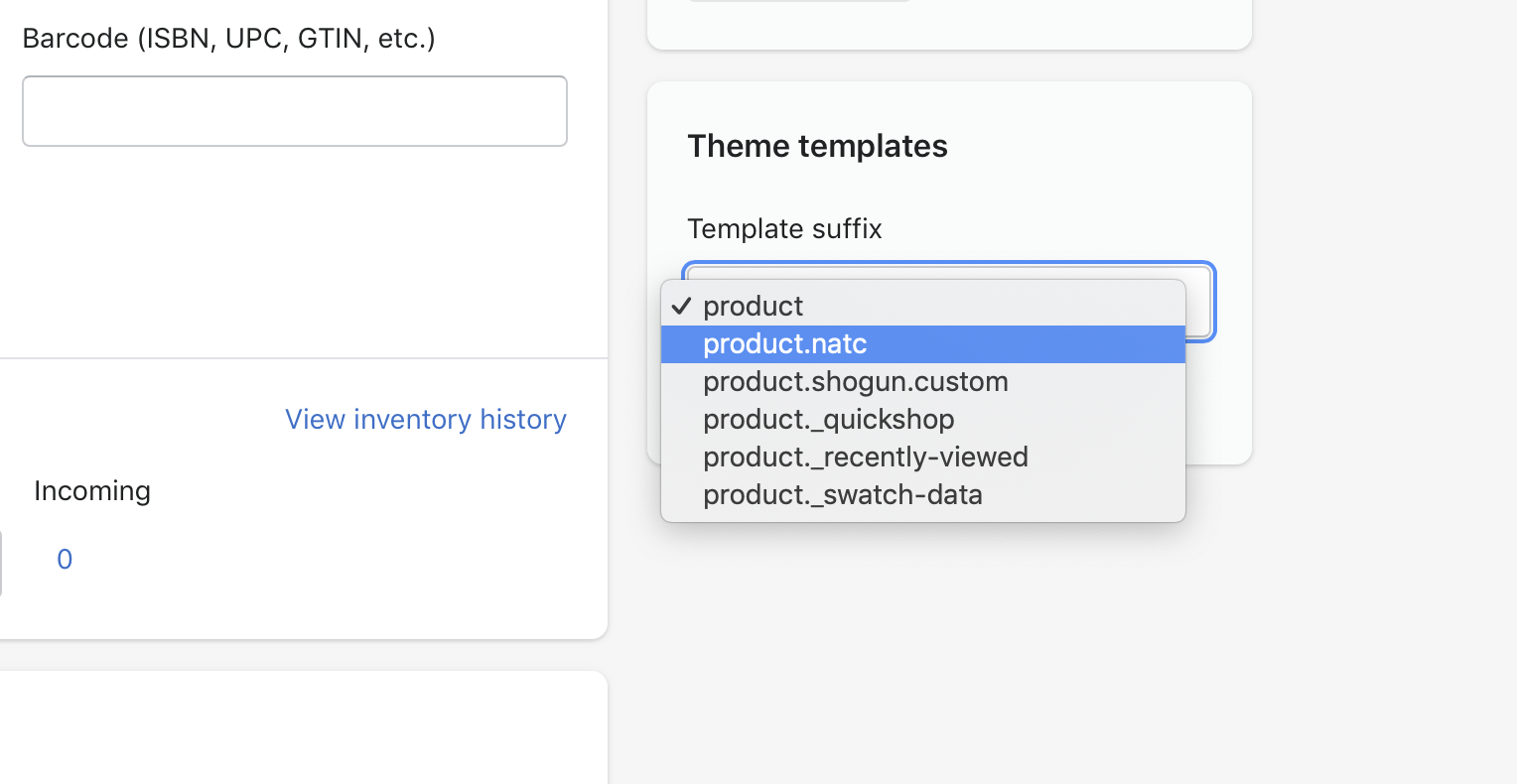
Save the product, then preview it on the storefront. The Add to Cart button should now be gone on that product only.
If you need to update several products at once, use Bulk edit. Select the products, click Bulk edit, add the template column, and assign the new template in one go. For larger catalogues, this is much faster and reduces mistakes.
How do I hide the Add to Cart button in older or vintage Shopify themes?
On older themes, you usually need to duplicate the product template and remove or hide the purchase form in code. Always duplicate your theme first before editing anything.
This method still works, but it is more fragile than the OS 2.0 approach. In my experience, merchants often copy snippets from forums, paste them into the wrong file, and accidentally hide the form on every product. Make a duplicate theme first, test there, and only publish once it works properly.
Theme code method for vintage themes
NOTE: Before editing ANY part of your theme, always duplicate it and test in the duplicate first. This way you will not break or affect your live store.
The first step is to duplicate the Liquid template or section that handles the product page. Depending on your theme, the product page may use a combination of templates, sections, and snippets.
If you are unsure how your theme is structured, Shopify has documentation on theme templates. If you are not comfortable with Liquid, HTML, and CSS, I would strongly consider getting help from a developer or a Shopify Partner.
For example, you might duplicate product.liquid under Templates and create a new template called product.natc. In the original article, natc stood for no add to cart, and that naming still works fine.

The first part is done.
Next, alter the duplicate so it no longer outputs the Add to Cart form. There are several ways to do this. The cleanest is to remove or conditionally skip the form snippet. A quicker but less robust option is to hide the form with CSS.
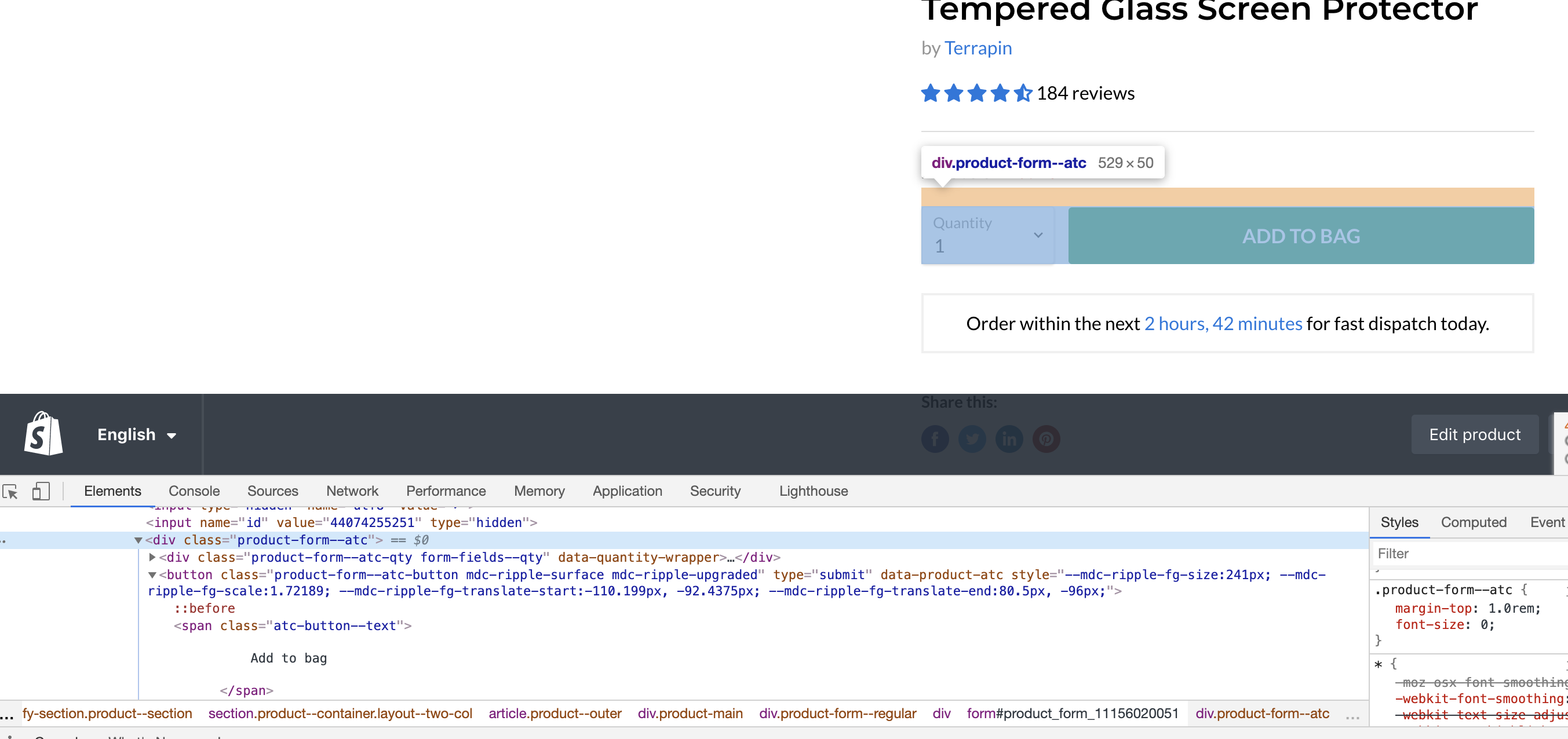
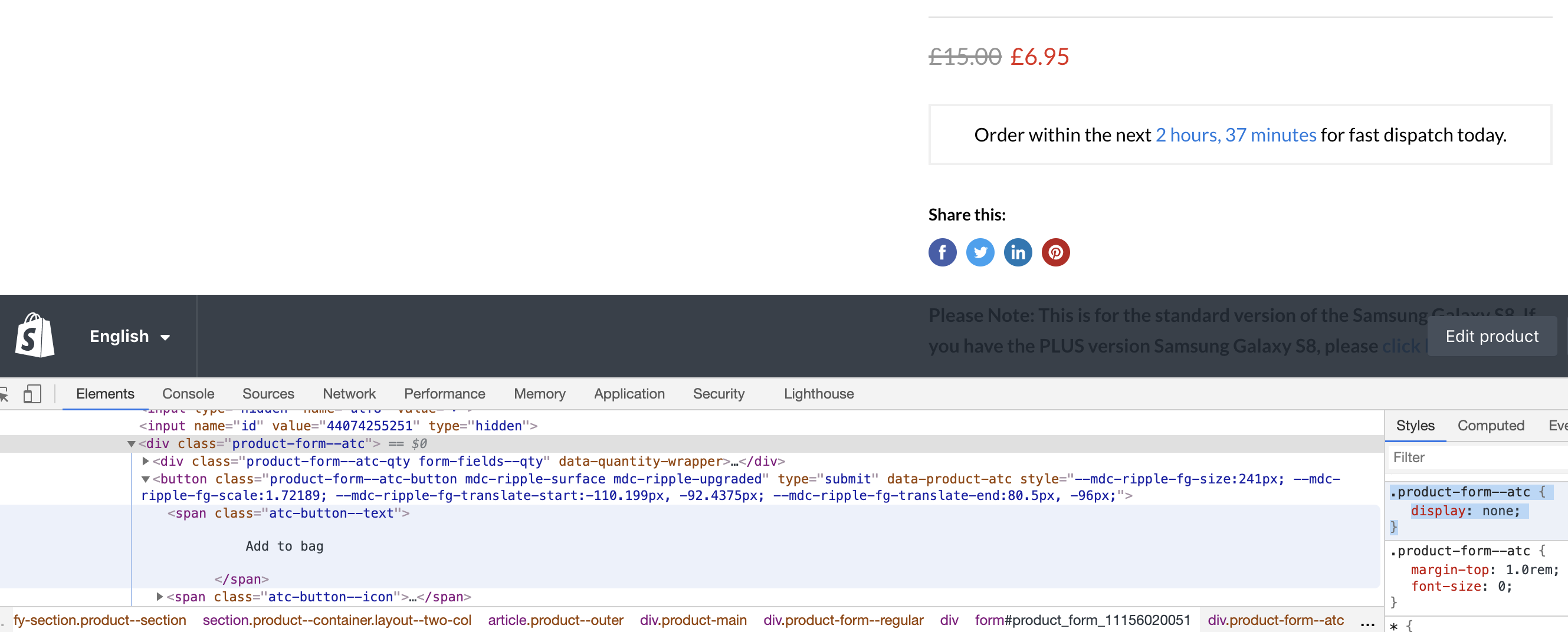
In the original example, adding the following CSS hid the relevant Add to Cart form:
<style>
.product-form--atc {
  display: none;
}
</style>
Adding that CSS at the top of the duplicate template can work if your theme uses that class. However, class names vary by theme, so this is not universal. Inspect your theme output before copying any selector from a tutorial.
Once saved, that duplicate template can be assigned only to products where you want the Add to Cart hidden.
What is the best code-based method for larger Shopify catalogues?
For larger stores, product metafields are usually the best long-term option. Tags also work, but metafields are cleaner, easier to document, and less likely to clash with other workflows.
If you only need this on a handful of products, templates are enough. But if you are managing dozens or hundreds of exceptions, or you want the same logic to affect product pages, collection cards, and quick-add buttons, use a data-driven method.
Option 1: Use a product tag like enquiry-only
A product tag is the fastest scalable solution. Add a tag such as enquiry-only to products, then wrap the Add to Cart output in a Liquid condition.
Example logic:
{% unless product.tags contains 'enquiry-only' %}
  ... add to cart button code ...
{% endunless %}
This can also be applied to collection cards or quick-add buttons. That matters because many modern themes show purchase controls outside the product page itself.
Option 2: Use a boolean product metafield
A boolean metafield is the cleanest developer-friendly approach. Create a product metafield such as custom.hide_add_to_cart and set it to true where needed.
Example logic:
{% unless product.metafields.custom.hide_add_to_cart == true %}
  ... add to cart button code ...
{% endunless %}
I prefer this over tags on stores with more complex workflows because it is explicit. A metafield named hide_add_to_cart is easier to understand than a random operational tag six months later.
If you are already using metafields heavily, you should also think about how AI tools and shopping agents interpret your product data. I covered that in How to Optimize Your Shopify Store for AI Shopping Agents and How to Get Your Shopify Store into ChatGPT.
Do I also need to hide quick add buttons on collection pages?
Yes, often you do. Hiding the Add to Cart button on the product page does not automatically remove quick add, quick buy, or card-level purchase buttons on collection pages and featured product sections.
This is one of the biggest gaps in older tutorials. A merchant follows the steps, the product page looks correct, but customers can still add the item from a collection grid. I have seen this happen a lot on premium themes with card actions enabled.
Check these locations after making your change:
- Collection pages
- Featured collection sections
- Search results
- Predictive search
- Quick view modals
- Related products
If your theme supports card-level quick add, you may need to add the same template, tag, or metafield logic there too. Community threads ranking for this keyword increasingly mention grid view because this is where merchants get caught out.
What should I show instead of the Add to Cart button?
The best replacement is a clear next action. If customers cannot buy, tell them exactly what to do instead.
From a conversion point of view, a blank space is poor UX. In my testing, even a simple message like Contact us for pricing performs better than removing the controls and saying nothing.
| Use case | Best replacement CTA | Why it works |
|---|---|---|
| Quote-only product | Request a quote | Matches buyer intent |
| Coming soon product | Join waitlist | Captures demand before launch |
| B2B-only item | Login for trade pricing | Qualifies the customer |
| Custom made product | Start your custom order | Sets expectation for a guided process |
| Discontinued but indexed product | See alternatives | Redirects traffic to active products |
If your goal is to route customers to alternatives, this is also a good place to use product recommendations or upsells. See How to Cross-Sell Matching Variants and How to Maximize Revenue from Your Shopify Product Pages.
Should I use an app to hide the Add to Cart button?
Use an app if you need rules based on customer type, location, or access conditions. If you just need a few products hidden, an app is usually unnecessary.
Most merchants can solve this with templates or light theme code. But if you need to show or hide Add to Cart based on customer tags, logged-in state, passcodes, or country, an app can save time.
One option mentioned in current search results is LockOn - Restrict Store Content. This type of app can lock the Add to Cart and Buy Now buttons and display custom content instead. That is more powerful than a template if you are effectively running a gated catalogue.
My view is simple: do not add another app unless your rules genuinely require it. Apps are great when they replace complexity, not when they replace a 5-minute template change.
Will hiding the Add to Cart button affect SEO or indexing?
No, not directly. A product can remain fully indexable even if the Add to Cart button is hidden, as long as the page stays published and accessible.
This is one of the main reasons merchants use this tactic. You can keep the product page live for organic traffic while changing its commercial role from direct purchase to enquiry, waitlist, or informational landing page.
That said, think carefully about the page intent. If the page ranks for a transactional keyword but has no buying path, engagement may drop. In those cases, I usually recommend adding one of these:
- Alternative product links
- Related collections
- Lead capture form
- Expected availability date
If the product is unavailable because of timing or fulfilment rules, you may also benefit from adding clearer delivery messaging. We have a related guide on rush order and production options.
What mistakes should I avoid when hiding Add to Cart on Shopify?
The biggest mistakes are hiding the button visually only, forgetting collection pages, and not giving customers an alternative CTA. These issues are easy to miss but can create a poor buying experience.
Here are the main pitfalls I would watch for:
- Only hiding with CSS and leaving the form in the markup. This can be messy and theme-dependent.
- Forgetting quick-add buttons on collection cards and featured sections.
- Editing the default template and accidentally removing Add to Cart from every product.
- Using vague tags that nobody understands later.
- Leaving no replacement message so customers do not know what to do.
- Not testing on mobile, where sticky buy bars may still appear.
- Ignoring dynamic checkout buttons such as Buy Now or Shop Pay buttons.
Also check whether your theme has a sticky Add to Cart bar. Some themes output this separately from the main product form, so it may remain visible even after the main Buy buttons block is hidden.
How do I test that the Add to Cart button is really hidden everywhere it should be?
Test the product page, collection cards, mobile view, and any quick-buy surfaces. Do not assume one change covers every theme component.
My basic testing checklist looks like this:
- Open the product page on desktop
- Open the product page on mobile
- Scroll to check for a sticky add to cart bar
- Visit the product from a collection page
- Check featured product sections on the homepage
- Check search results and predictive search
- Test any quick view modal
- Confirm the product cannot be added through any hidden route
If you are making broader theme changes, it is also worth keeping performance in mind. I have written about that in The Hidden Truth About Shopify Speed Optimization Scams.
Can I hide Add to Cart and still sell the product another way?
Yes. Many merchants hide Add to Cart on the product page but still sell through invoices, draft orders, bundles, sales calls, or controlled upsell flows.
This is especially common for bespoke goods, B2B catalogues, and products that should only be purchased after qualification. In my own work around upsell and conversion tooling, I have seen merchants use product visibility strategically rather than treating every product page as a standard checkout path.
If you are intentionally controlling how products are purchased, make sure the rest of your funnel supports that decision. That could mean a contact form, a quiz, a CRM workflow, or a guided upsell path. Related reading: Free CRM Apps for Shopify and Best CRM for Shopify.
Final thoughts on hiding the Add to Cart button on specific Shopify products
The simplest and best method for most stores is still a dedicated product template. It is quick, safe, and aligned with how modern Shopify themes are built.
If you need more flexibility, move to tags or metafields. If you need customer-based restrictions, consider an app. The key is not just hiding the button, but designing the right next step for the customer.
The original advice in this post still holds up: you absolutely can hide the Add to Cart button without an app. The updated part is that in 2025, you also need to think beyond the product page itself. Check grid view, quick add, sticky bars, and replacement CTAs if you want the setup to be genuinely complete.