If you want to remove the Powered by Shopify text from your store footer, the short answer is yes - you can remove it in a couple of minutes, and you do not need Shopify Plus to do it.
In most stores, the quickest route is to use Edit default theme content and replace the text with a single space. If that does not work, or if you want full removal or custom footer text, editing the theme code is the better option.
As someone who builds Shopify apps and spends a lot of time testing themes, theme settings, and storefront edge cases, I can tell you this is one of the most common small branding tweaks merchants make right after launch. It is simple, safe if done properly, and worth doing if you want a cleaner footer.
For other early-stage store improvements, I would also look at your product page conversion setup and AI visibility. These guides can help next: How to Maximize Revenue from Your Shopify Product Pages and How to Get Your Shopify Store into ChatGPT.
What does Powered by Shopify mean?
Powered by Shopify is the default footer text included in many Shopify themes. It tells visitors that your store runs on Shopify.
This is not a paid badge, a trust seal, or a legal notice. It is simply a default theme string that Shopify themes often render in the footer and, in some cases, on the password page too.
When merchants ask me about it, they usually want one of three things: remove it completely, replace it with their own brand text, or clean up the footer for a more premium look. All three are possible.
Are you required to show Powered by Shopify?
No, you are not required to keep Powered by Shopify visible on your storefront. Removing it is a standard theme customisation and does not break Shopify's terms for normal storefront use.
This is one area where there is a lot of confusion, especially among new merchants. In practice, Shopify itself documents how to remove the message through the admin and theme code, so this is clearly an accepted change.
That said, always edit carefully. If you are changing code, duplicate your theme first so you have a safe backup. I recommend this for any Liquid edit, even tiny ones.
Why do merchants remove Powered by Shopify?
Most merchants remove it for branding reasons. A cleaner footer looks more custom, more intentional, and less like a store that has just gone live.
In my experience building Shopify apps, this matters most for DTC brands, premium stores, and merchants in crowded niches like dropshipping, beauty, jewellery, and homewares. They want every part of the storefront to feel branded, including the footer.
It is not a huge conversion lever on its own, so I would not pretend removing one footer line will suddenly boost sales by 20%. But it does help with presentation, and presentation matters when shoppers are deciding whether to trust a store.
If you are also improving your cart and AOV setup, these may help: How to Create Shopify Cart Drawer Upsells and How to Upsell on Shopify in 2026.
What is the best way to remove Powered by Shopify?
The best method for most stores is Edit default theme content. It is the fastest, requires no coding, and works well on many modern Shopify themes.
If that method does not fully remove the text, leaves an odd gap, or your theme handles the footer differently, use Edit code. That method gives you full control and also lets you replace the text with your own branding.
| Method | Best for | Skill level | What it does | My verdict |
|---|---|---|---|---|
| Edit default theme content | Most merchants | Beginner | Hides the default text by replacing it with a blank space | Best for quick no-code removal |
| Edit theme code | Merchants who want full control | Intermediate | Removes or replaces the footer output directly in Liquid | Best for complete removal or custom text |
How do I remove Powered by Shopify without editing code?
The easiest no-code method is to edit your theme's default content and replace the text with a single space. This usually takes under 2 minutes.
This is the method I recommend first because it is quick, reversible, and low risk. On many themes, it works immediately for the live footer and the password page if you update both fields.
Method 1: Remove Powered by Shopify via Edit default theme content
This method is the simplest option. It hides the text without touching your Liquid files.
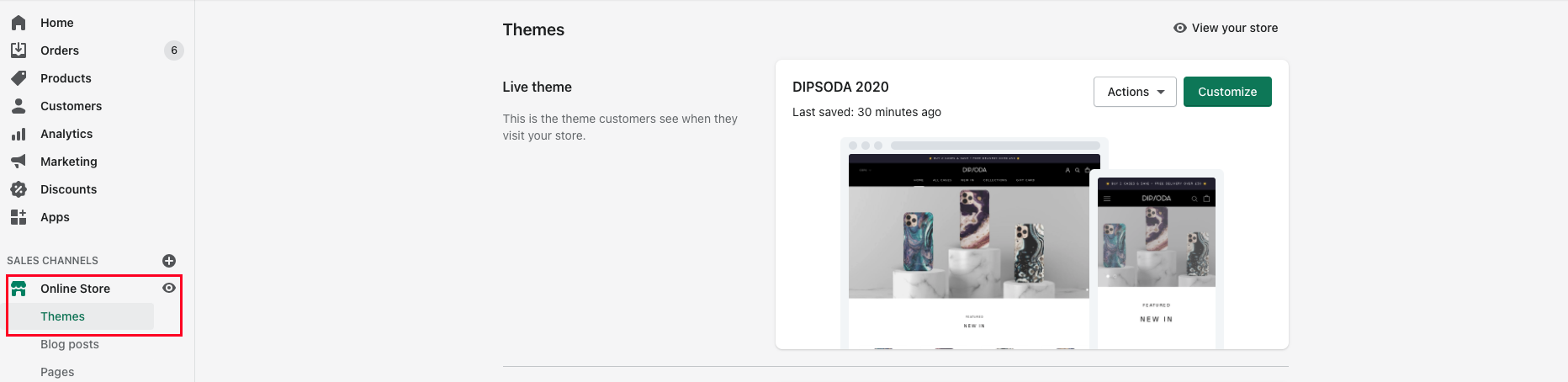
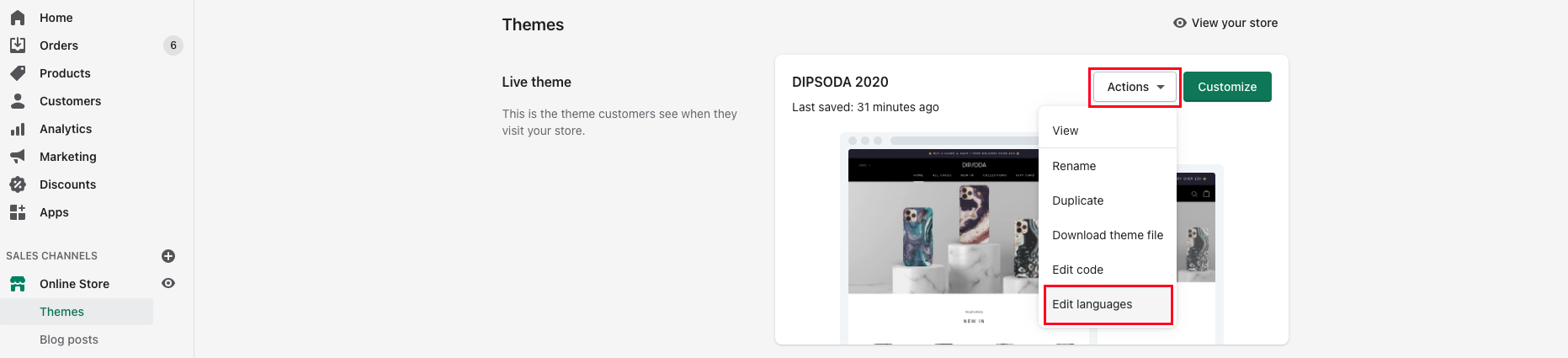
- In your Shopify admin, go to Online Store > Themes.
- Next to your active theme, click the three-dot menu.
- Click Edit default theme content.
- In the search or filter box, type powered.
- Find the field labelled Powered by Shopify.
- Click into the field and press the spacebar once. This replaces the default string with a blank space.
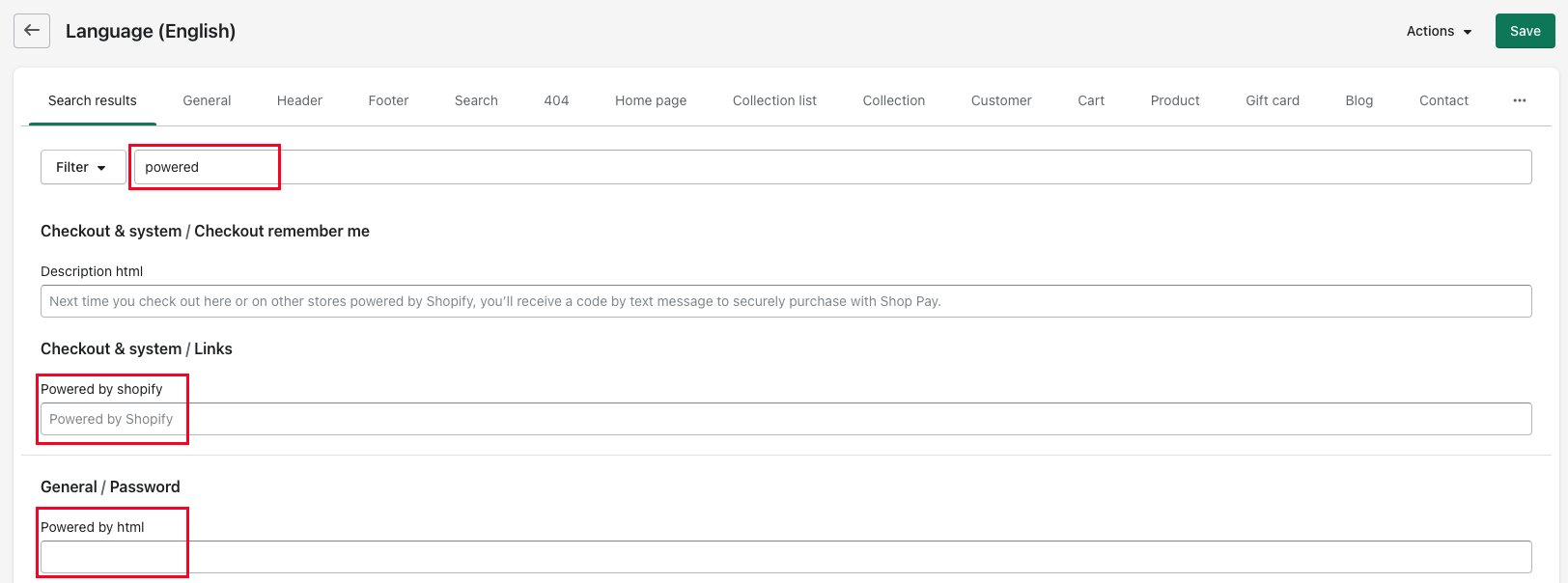
- If your store is password protected, repeat the same step for Powered by Shopify HTML. This affects the Opening soon page.
- Click Save.
If you have followed the steps correctly, the Powered by Shopify text should disappear from your footer. For many merchants, this is all you need.
Why the single-space trick works
The single-space trick works because many Shopify themes pull footer wording from theme language settings. By replacing the text with a blank value, the theme still renders the field, but there is effectively nothing visible to show.
It is a neat workaround and one Shopify itself has documented for years. I still use it regularly when testing fresh dev stores because it is faster than opening code.
When this method might not work perfectly
This method does not always give you complete control. Some themes or heavily customised footers may still render a wrapper, spacing, or a customised translation string somewhere else.
If that happens, move to the code method below. That is also the better route if you want to replace the text rather than just hide it.
How do I remove Powered by Shopify by editing theme code?
The code method removes the output directly from your theme files. It is the most reliable option if the no-code method fails or if you want a cleaner long-term solution.
In my experience, this is often necessary on stores using older themes, heavily customised themes, or themes where the footer markup is split across multiple files.
Method 2: Remove Powered by Shopify via Edit code
This method gives you full control over the footer output. It is slightly more advanced, but still straightforward if you follow the steps carefully.
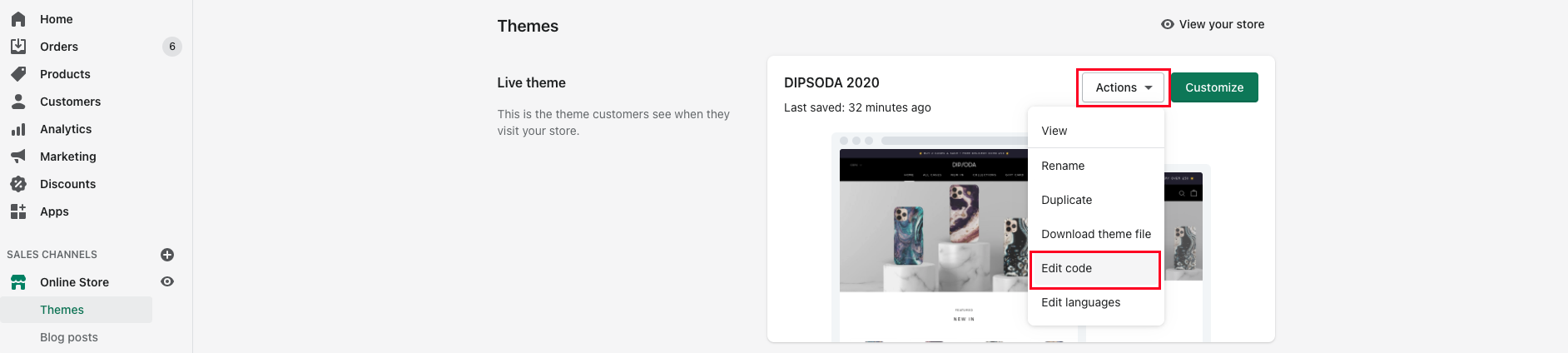
- In your Shopify admin, go to Online Store > Themes.
- Click the three-dot menu next to your active theme.
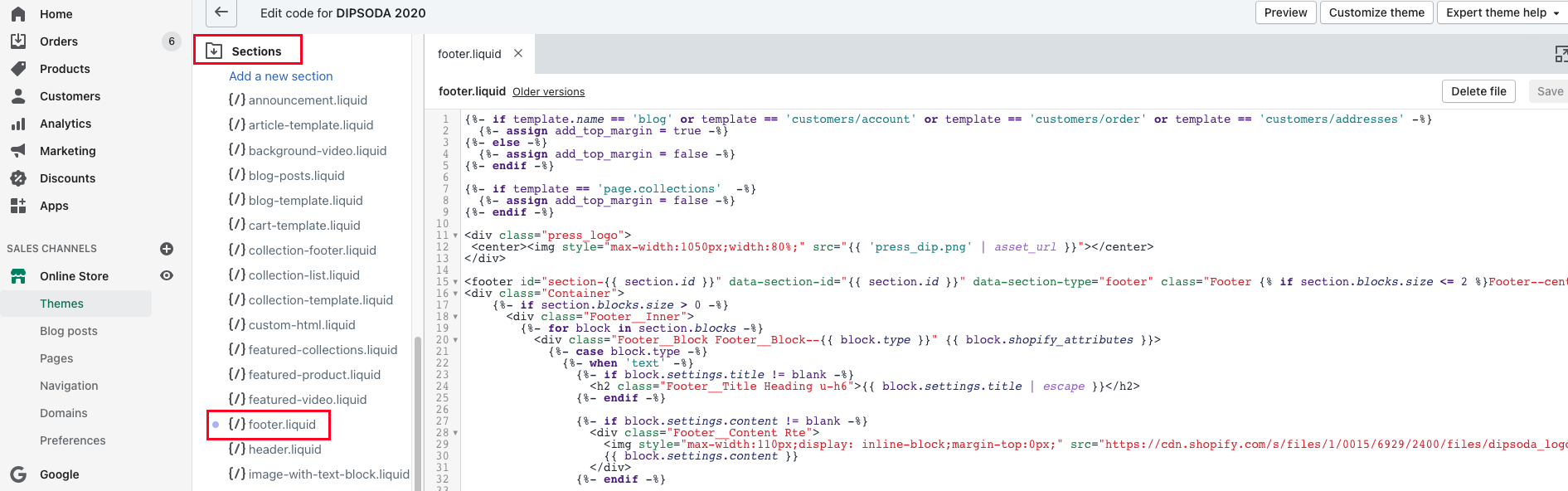
- Select Edit code.
- Before making changes, click Duplicate on your theme if you want a backup copy. I strongly recommend this.
- In the left-hand file tree, open the Sections folder and look for footer.liquid. Some themes may use a different file such as footer-bottom.liquid, theme.liquid, or another footer-related section.
- Use search with Ctrl+F on Windows or Command+F on Mac.
- Search for {{ powered_by_link }} or the phrase powered by.
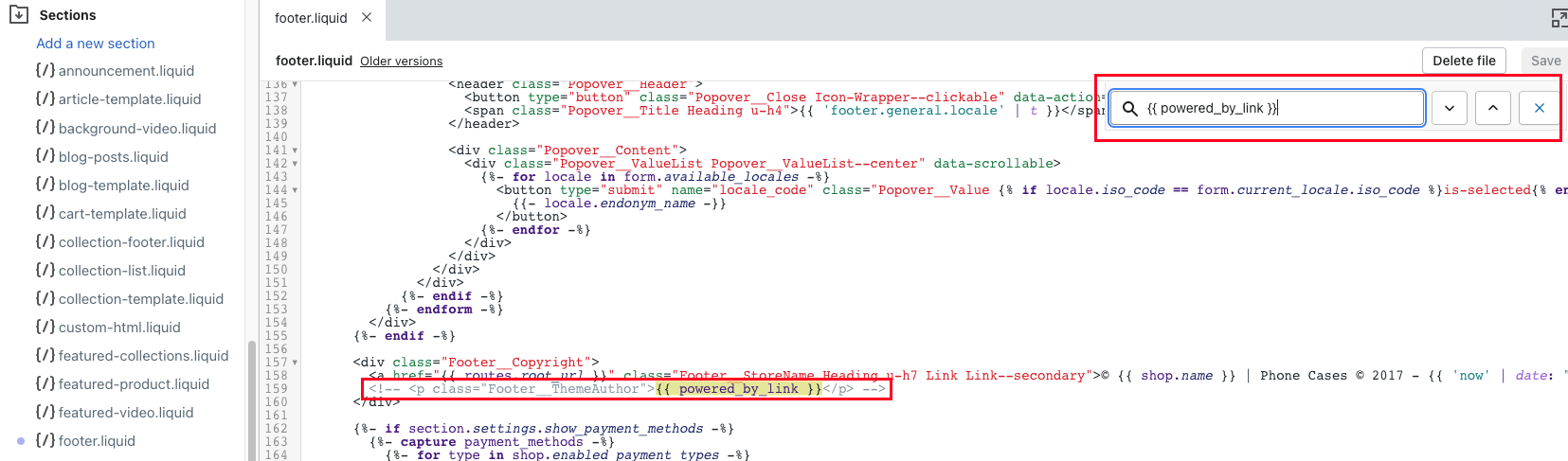
- Delete the line, tag, or block that outputs the link.
- Click Save.
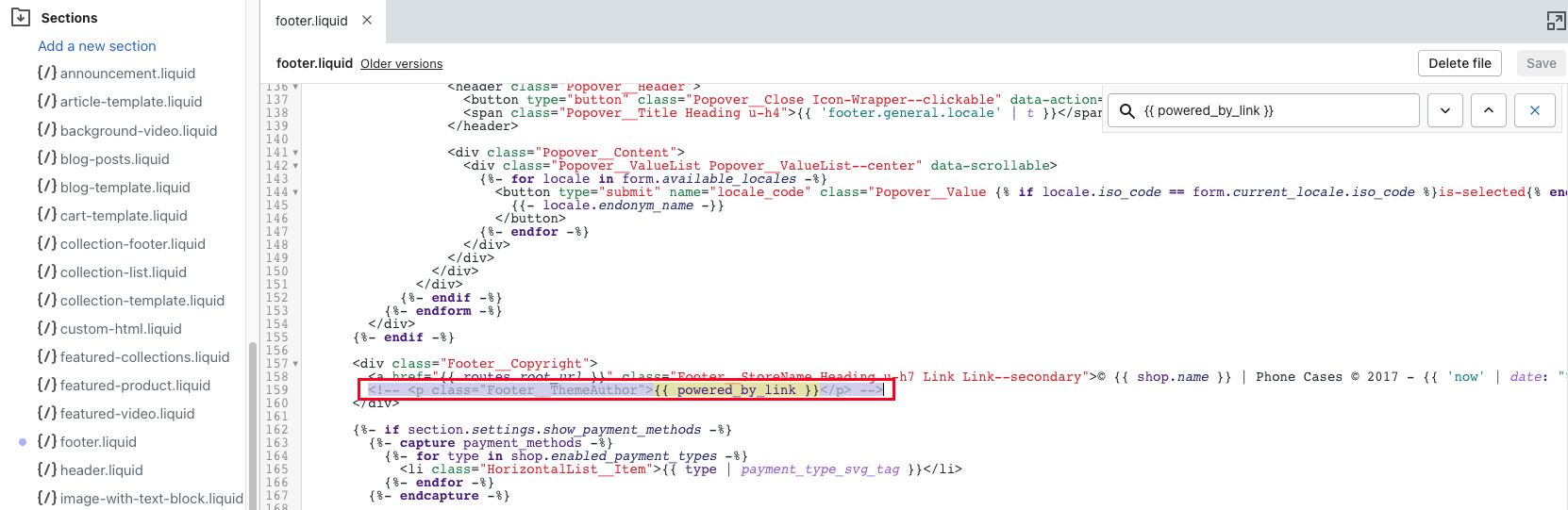
Once saved, refresh your storefront and the footer text should be gone. This is usually the cleanest permanent fix.
Alternative code option: override the variable instead of deleting it
If you would rather not delete code, you can override the variable. This is useful when you want a safer edit that is easy to reverse.
Add this near the top of the relevant footer file:
{% capture powered_by_link %}{% endcapture %}
That captures an empty value, so when the theme tries to print {{ powered_by_link }}, nothing appears.
You can also replace it with your own branded link, such as:
{% capture powered_by_link %}<a target="_blank" rel="nofollow" href="https://yourstore.com">Your brand text</a>{% endcapture %}
Custom footer branding can look more polished than simply leaving a blank gap, especially if your footer otherwise feels sparse.
Which files should I check if I cannot find powered_by_link?
If you cannot find {{ powered_by_link }} in footer.liquid, check other footer-related files or your theme's translation settings. Different themes structure the footer differently.
This is one of the main reasons some tutorials feel outdated. Shopify themes have become more modular over time, especially with Online Store 2.0, so the exact file location can vary.
- footer.liquid - the most common location
- footer-group.json - sometimes used to define sections, though not the actual Liquid output
- theme.liquid - occasionally used in older themes
- footer-bottom.liquid or similar custom section files
- Locales or theme language content, if the text is translation-based
If you are using a premium theme or a customised build, the developer may have replaced Shopify's default variable with plain text or a custom translation key. In that case, search the whole theme for powered rather than only the exact Liquid variable.
How do I remove Powered by Shopify from the password page?
To remove it from the password page, update the Powered by Shopify HTML field in theme content or edit the password template code directly. This matters if your store is still in pre-launch mode.
A lot of merchants forget this step and only remove the footer text from the main storefront. Then they share their password page with suppliers, influencers, or early customers and the Shopify branding is still visible there.
If you use the no-code method, search for powered and blank out both fields. If you use code, check files related to password templates or sections if the text still appears.
Can I replace Powered by Shopify with my own text instead?
Yes, you can replace it with your own footer text. In fact, this is often better than leaving nothing if your footer looks too empty afterwards.
I have seen merchants replace it with a copyright notice, a trust message, or a small brand statement. Good examples include:
- © 2026 Your Brand. All rights reserved.
- Designed for everyday performance.
- Independent British brand.
- Handmade to order in London.
Just avoid cramming the footer with unnecessary slogans. Keep it short, useful, and consistent with the rest of your store voice.
Does removing Powered by Shopify affect SEO or conversions?
No, removing Powered by Shopify has no direct SEO benefit and no guaranteed conversion uplift. It is mainly a branding and presentation change.
Google is not going to rank you higher because you hid one footer link. Likewise, shoppers are not automatically going to buy because it disappeared. But in combination with stronger design, better reviews, cleaner navigation, and faster product pages, it contributes to a more polished experience.
If SEO is your main concern, focus more on site structure, content quality, internal links, and crawlability. These guides are more impactful: How to Optimise Your Shopify Store for AI Shopping Agents and The Hidden Truth About Shopify Speed Optimisation Scams.
What are the most common problems when removing Powered by Shopify?
The most common issues are editing the wrong theme, changing the wrong file, or forgetting the password page. All three are easy to fix.
Here are the problems I see most often when merchants ask for help:
- You edited a draft theme instead of the published one
- The text is cached and you need a hard refresh
- Your theme uses a different footer file
- The text was translated through theme content rather than code
- You removed the text but left spacing behind
- The password page still shows the branding
If changes do not show immediately, refresh in an incognito window. I do this constantly when testing Shopify storefront updates because browser cache can make tiny edits look like they failed.
Should I remove Powered by Shopify on every store?
Usually yes, but not always. For most brands, removing it is worth doing because it makes the footer feel more intentional.
That said, I would not call it essential. If your store is brand new and you still have placeholder copy, weak product pages, or no reviews, those issues matter far more. Footer polish should come after the fundamentals.
If you are still building out your store, this setup guide may help: how to set up a Shopify store. If you are collecting customer data or building better support flows, also see How to Manage Shopify Customer Data Without Losing Sales.
Step-by-step comparison: which method should you use?
Use the no-code method first if you want speed and simplicity. Use the code method if you want complete removal, custom text, or your theme does not behave properly.
| Question | Use no-code method | Use code method |
|---|---|---|
| I do not want to touch code | Yes | No |
| I want the fastest fix | Yes | No |
| I want to replace the text with my own branding | Sometimes | Yes |
| The text still appears after editing theme content | No | Yes |
| I am using a custom or older theme | Maybe | Usually yes |
My recommended process as a Shopify developer
If I were doing this on a live client store, I would start with the language edit, then check the live storefront, password page, and mobile footer. If anything still looked off, I would duplicate the theme and switch to the code method.
That approach is fast and low risk. It also avoids unnecessary code edits on stores where Shopify's built-in content fields already solve the problem.
For merchants who are actively improving conversion rate, I would not stop at the footer. I would also review upsells, social proof, and support visibility. If that is relevant to your store, take a look at How to Upsell Subscription Products on Shopify and How to Cross-Sell Matching Variants.
Final answer: how to remove Powered by Shopify in 2026
The fastest way to remove Powered by Shopify is to go to Online Store > Themes > Edit default theme content, search for powered, and replace the text with a single space. If that does not fully remove it, go to Edit code, find {{ powered_by_link }} in your footer file, and delete or override it.
That is still the best practical answer in 2026. It is simple, supported, and works across most Shopify themes with only minor variations.