Shopify address autocomplete is built in, enabled by default in many checkout setups, and worth checking today. If you want a faster checkout, fewer address errors, and less friction on mobile, this is one of the easiest wins in your Shopify admin.
As someone who builds Shopify apps and spends a lot of time analysing checkout friction, I can say this is the kind of feature merchants often overlook because it feels small. In reality, small checkout improvements stack up fast. A better address form can mean fewer abandoned checkouts, fewer failed deliveries, and less support overhead.
What is Shopify address autocomplete?
Shopify address autocomplete is a checkout feature that suggests verified addresses as customers type. It uses address prediction to help shoppers fill in shipping details faster and more accurately.
In practical terms, the customer starts typing their address into Address line 1, then Shopify surfaces matching suggestions. Once they choose one, the checkout can populate key fields like street, city, state or county, postcode, and country.
Shopify has supported this for years, but in 2026 it is still highly relevant because mobile checkout behaviour has not become any more patient. If anything, shoppers are less willing to wrestle with long forms now than they were a few years ago.
Why should I enable address autocomplete on Shopify?
You should enable address autocomplete because it reduces checkout friction and improves address accuracy. Faster checkout usually means better conversion, especially on mobile devices.
Recent guidance and competitor data around the space consistently points to meaningful gains. A realistic benchmark is that autocomplete can speed up address entry by around 30% and reduce address errors by up to 60%. Even if your own results come in below that, the feature is still an easy optimisation with almost no downside.
In my experience building Shopify apps, merchants often focus on flashy conversion tactics first, like upsells or bundles, while ignoring basic form usability. That is a mistake. If a customer cannot complete checkout smoothly, your upsell strategy does not matter much.
It also helps operationally. Bad addresses lead to returned parcels, reshipping costs, delivery delays, and support tickets. If you process hundreds of orders a month, that admin burden adds up quickly.
For broader checkout optimisation, I would also read How to Maximize Revenue from Your Shopify Product Pages and How to upsell on Shopify in 2026. They pair well with this because conversion gains rarely come from one change alone.
How do I enable address autocomplete on Shopify in 2026?
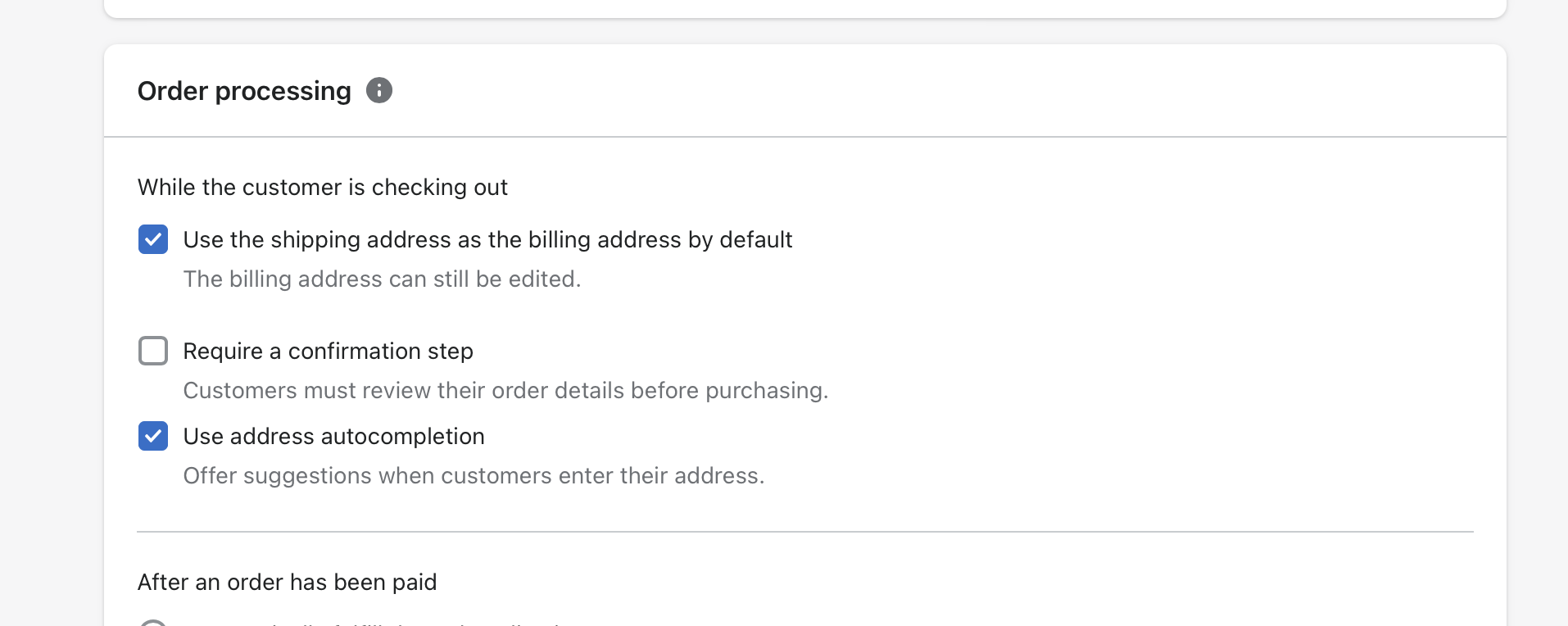
To enable Shopify address autocomplete, go to Settings, open Checkout, launch the checkout editor, and turn on Address autocompletion. In many stores it is already enabled, so the real task is often verifying that it is active and working properly.
Here are the current steps based on Shopify's latest checkout flow:
- From your Shopify admin, go to Settings > Checkout.
- In the Configurations section, click Customize next to the checkout configuration you want to edit.
- In the Checkout and Accounts Editor, click the gear icon to open settings.
- Find the Address autocompletion section. You can scroll or use search if available.
- Toggle Use address autocompletion on.
- Click Save.
If your store already has it on, leave it enabled unless you have a very specific reason to disable it. For most merchants, the default Shopify behaviour is the right choice.
Is Shopify address autocomplete enabled by default?
Yes, Shopify native address autocomplete is generally enabled by default where supported. That said, you should still verify it in your own checkout configuration.
This matters because some merchants assume a feature is live just because Shopify supports it. Then they discover a custom checkout configuration, app extension, or previous admin change has altered the expected behaviour.
When I test stores, I never assume checkout settings are untouched. Always confirm the setting visually and then test it on a real checkout session. That is the only reliable way to know if autocomplete is actually helping customers.
Which countries does Shopify address autocomplete support?
Shopify address autocomplete supports many major countries where Shopify checkout operates, including the US, Canada, the UK, and Australia. Availability can vary by region and checkout context.
Shopify's native autocomplete is powered by Google Places in supported environments, so coverage is broad. For most mainstream English-speaking markets and many international ones, suggestions should appear as expected.
If you sell internationally, test your main shipping markets one by one. Do not rely on assumptions. A merchant shipping mainly to the UK and Ireland may have a different experience from one focused on the US, Germany, and Japan.
For Shopify help on address collection preferences, see Shopify's documentation. For developers working with checkout address suggestions, Shopify also documents the purchase.address-autocomplete.suggest target.
How do I test whether address autocomplete is working?
The best way to test Shopify address autocomplete is to run through your own checkout on desktop and mobile. You should see address suggestions appear as you type into Address line 1.
Here is the process I recommend:
- Add a product to cart on your storefront.
- Proceed to checkout as a customer.
- Start typing a real shipping address into Address line 1.
- Look for a search icon or dropdown suggestions.
- Select a suggested address and confirm whether city, postcode, and other fields populate correctly.
- Repeat the test on mobile, because that is where the feature often has the biggest impact.
In my experience, merchants often test only on desktop and miss problems that appear on phones. Since mobile shoppers are more sensitive to form friction, mobile checkout testing is essential.
What are the real benefits of address autocomplete for conversion?
The main conversion benefit is reduced friction at one of the highest-intent points in the buying journey. Customers who are already at checkout should not be slowed down by avoidable typing.
Autocomplete helps in four ways:
- Faster completion - shoppers type less
- Fewer errors - addresses are standardised and easier to validate
- Better mobile UX - less keyboard fatigue on small screens
- Lower support burden - fewer delivery issues and correction requests
I would not claim this one setting will transform a struggling store overnight. But I would absolutely say it is worth enabling before you spend money on traffic. There is no point paying for more visitors if your checkout still has unnecessary friction.
If you are working on conversion more broadly, these LaunchTip guides are relevant too: How to Create Shopify Cart Drawer Upsells That Boost AOV, How to upsell on Shopify leveraging AI, and The Hidden Truth About Shopify Speed Optimization Scams.
What is the best practice for address fields on Shopify checkout?
The best practice is to use autocomplete on Address line 1 and keep Address line 2 manual. This reduces parsing mistakes and gives customers control over flat, unit, or apartment details.
This is one of the more useful practical details missing from a lot of short guides. Address line 1 should be the trigger field. Address line 2 should usually stay manual for apartment numbers, suites, and extra delivery instructions.
Why? Because secondary address information is often messy and inconsistent. If you try to over-automate it, you can create bad data rather than clean data.
What if Shopify's native address autocomplete is not enough?
If native autocomplete is not enough, use a Shopify app or a Checkout UI Extension. This is usually relevant for Shopify Plus stores, custom checkout experiences, or merchants who need more control over validation and coverage.
Most standard stores should start with the native feature. But if you need support for customer account forms, billing address flows, special country logic, or custom checkout behaviour, third-party tools can help.
Which Shopify apps can add or extend address autocomplete?
Several Shopify apps add autocomplete beyond the default checkout experience. The best option depends on whether you need native checkout support, account forms, Google API control, or Shopify Plus compatibility.
| App | Best for | Key notes |
|---|---|---|
| Address IQ Autocomplete | Shopify Plus merchants | Google Places integration, advanced checkout use cases, 14-day trial mentioned in current market data |
| Checkout Address Autocomplete by Omega | Budget-conscious stores | Free plan available, supports shipping and billing, usually requires your own Google API key |
| Google Address Autocomplete by HulkApps | Non-checkout form autocomplete | Useful for address forms outside native checkout, setup varies by theme and use case |
I would only install an app if you actually need functionality beyond Shopify's built-in behaviour. Do not add app complexity just because an app exists. Every extra app can affect maintenance, compatibility, and support load.
There are also specialist providers like Autoaddress for merchants with more advanced address verification needs, and some custom integrations for Plus using checkout extensions.
When should Shopify Plus merchants use Checkout UI Extensions?
Shopify Plus merchants should consider Checkout UI Extensions when they need custom address suggestion logic inside checkout. This is the modern route for advanced checkout customisation.
Shopify now supports extension targets such as purchase.address-autocomplete.suggest. That gives developers a proper framework for delivering suggestions for delivery, billing, or pickup address forms.
As a Shopify app developer, I strongly prefer this extension-led approach over old workarounds. It is more maintainable, more aligned with Shopify's platform direction, and less likely to break during checkout updates.
Do I need a Google Places API key for Shopify address autocomplete?
No, not for Shopify's native checkout autocomplete. But yes, many third-party autocomplete apps require your own Google Places API key.
This is an important distinction. Shopify's built-in feature is handled natively, so standard merchants usually do not need to touch Google Cloud at all. If you install an app that relies on Google Places API or Geocoding API, that app may ask you to create and connect your own key.
If you do need one, the usual setup looks like this:
- Go to Google Cloud Console.
- Create a project.
- Enable Places API and Geocoding API.
- Create an API key.
- Restrict the key by domain and API type for security.
- Add billing. Google typically offers monthly free credit, which is often enough for smaller stores.
- Paste the key into your Shopify app's settings.
If you are not technical, be careful here. An unrestricted API key is a bad idea. I have seen merchants accidentally expose keys and then wonder why they are getting unexpected usage charges.
Why is address autocomplete not working on my Shopify store?
If Shopify address autocomplete is not working, the most common causes are unsupported regions, conflicting checkout customisations, or app-related issues. The fix usually starts with a simple checkout test.
Here are the most common reasons I would check first:
- The setting is disabled in your checkout configuration
- You are testing the wrong field instead of Address line 1
- The country or address format is not returning suggestions as expected
- A checkout customisation or extension is interfering
- A third-party app is misconfigured
- Your Google API key is invalid, restricted incorrectly, or out of quota if you use an app-based solution
- Browser or console errors are blocking script execution in custom implementations
If you are using native Shopify checkout autocomplete and it suddenly stops working, remove variables one by one. Test in an incognito window, switch devices, and review recent checkout changes. If the issue is app-related, disable the app temporarily and retest.
Is address autocomplete worth it for small Shopify stores?
Yes, address autocomplete is worth it even for small stores because the setup effort is tiny and the upside is immediate. It is one of the rare checkout improvements that is both simple and high impact.
For a new merchant doing only a handful of daily orders, the main benefit is conversion and professionalism. For a larger merchant doing hundreds of monthly orders, the benefit expands into fewer fulfilment mistakes and less support admin.
That is why I see it as a baseline optimisation rather than an advanced tactic. It belongs in the same bucket as checking your mobile product pages, validating discount logic, and keeping customer data workflows clean. On that last point, this guide may help: How to Manage Shopify Customer Data Without Losing Sales.
How does address autocomplete compare with app-based solutions?
Shopify's native autocomplete is best for most merchants, while app-based tools are better for custom forms or advanced workflows. The right choice depends on how much control you actually need.
| Option | Pros | Cons | Best for |
|---|---|---|---|
| Shopify native autocomplete | Built in, simple, no separate API setup for most stores, low maintenance | Less custom control, limited to supported checkout contexts | Most Shopify merchants |
| Third-party app | Can support extra forms, customer accounts, billing, country rules | May require API key, extra cost, possible compatibility issues | Stores with custom requirements |
| Checkout UI Extension | Flexible, modern, aligned with Shopify's platform direction | Developer work required, often Plus-oriented | Shopify Plus and advanced builds |
My honest view is simple: start native, then escalate only if you hit a real limitation. That approach keeps your checkout cleaner and easier to maintain.
What other checkout improvements should I make alongside address autocomplete?
Address autocomplete works best as part of a wider checkout optimisation plan. If you want the biggest impact, combine it with other low-friction improvements.
The changes I would prioritise next are:
- Test checkout on mobile every month
- Review shipping clarity so there are no surprise costs
- Reduce discount confusion at checkout
- Use smart upsells before the final step, not during form completion
- Keep post-purchase support data organised
Relevant guides here on LaunchTip include How to Stop Double Discounts on Shopify, How to Track Customized Orders in Shopify, and When to Upgrade Your Store to Shopify Plus.
How do I enable address autocomplete on Shopify quickly?
The quick version is this: go to Settings, open Checkout, customise your checkout, switch on Address autocompletion, save, and test. If it is already on, your job is to confirm it works properly on desktop and mobile.
That is the real answer most merchants need. But the more strategic answer is that address autocomplete is not just a convenience feature. It is a practical checkout optimisation that can improve conversion, reduce delivery errors, and make your store feel more polished.
In my experience, the best Shopify stores are rarely winning because of one giant trick. They win because they remove friction everywhere they can. Address autocomplete is one of those easy, worthwhile fixes.