


If you need to know how to quickly bulk upload product images to Shopify, the fastest options are either Shopify's native CSV import for smaller catalogues or a bulk image upload app for hundreds or thousands of files. In my experience building Shopify apps and working with merchants on catalogue setup, apps are far quicker when you need to match images by SKU, barcode, or filename without spending hours editing spreadsheets.
Shopify can absolutely handle bulk image imports, but the best method depends on where your images are stored, how many products you have, and whether you are uploading images to new products or existing ones. If you only have 20 to 100 images, the native route is fine. If you have 1,000 or 10,000, you will usually want automation.
I have rewritten this guide to reflect what is actually working now, including the methods merchants are discussing in Shopify Community threads, what specialist apps do better than CSV, and the small mistakes that cause imports to fail.
What is the quickest way to bulk upload product images to Shopify?
The quickest way to bulk upload product images to Shopify is to use a bulk image upload app that matches images to products by SKU, barcode, or filename. For smaller jobs, the quickest free method is to upload files to Shopify and import image URLs via a product CSV.
Right now, this is the real split I see in practice. Shopify CSV imports are free but slower, because you need publicly accessible image URLs first. Apps are faster at scale because they can pull from Google Drive, Dropbox, ZIP files, or your computer and assign images automatically.
Some tools claim speeds of up to 5,000 images per hour, which is believable if your filenames are clean and your product data is already structured properly. The bottleneck is rarely Shopify itself. It is usually your file naming, inconsistent SKUs, or missing product handles.
Which bulk upload method should you choose?
The best method depends on your catalogue size and workflow. Use Shopify CSV for free, controlled imports and use an app for speed and automation.
If I were advising a merchant today, I would use this simple rule. For a one-off import of a modest catalogue, stick with native Shopify tools. For repeated uploads, replacements, seasonal catalogues, or thousands of images, use an app and save yourself the manual work.
| Method | Best for | Pros | Cons |
|---|---|---|---|
| Shopify Files + CSV | Small to medium catalogues, budget-conscious stores | Free, native, reliable, no extra app needed | Manual, slower, needs image URLs first |
| Bulk upload app | Large catalogues, existing products, repeated imports | Fast, auto-matching, supports Drive/Dropbox/ZIP | Usually paid, setup still matters |
| Manual product editing | Very small stores with a few products | Simple for a handful of items | Not worth it once you scale past a few dozen images |
If your store is already live, I would also think about whether you are adding new images, replacing old ones, or reordering galleries. That affects which app or import format is best.
How do I bulk upload product images to Shopify for free?
You can bulk upload product images to Shopify for free by uploading image files to Shopify Admin > Content > Files and then referencing those URLs in a product CSV. This is Shopify's native method and still the best free option.
This is the method from your original article, and it is still relevant. The difference is that merchants often underestimate how much spreadsheet work is involved once they move beyond a small batch.
How do I upload image files into Shopify admin?
You can upload image files directly into Shopify's file library and then reuse those URLs in products, pages, and CSV imports. This is the easiest starting point if your images are still on your computer.
- Go to your Shopify admin
- Open Content > Files
- Click Upload files
- Select your image files from your device
- Once uploaded, copy each file URL
Your original post mentioned uploading up to 20 files at once. Shopify's interface changes over time, so I would always treat UI limits as flexible and check the current admin behaviour. The key point is that Shopify Files gives you hosted URLs, and those URLs are what the CSV import needs.
If you are only dealing with a few dozen images, this works well enough. If you are dealing with hundreds, it becomes repetitive very quickly.
How do I use a CSV to import product images into Shopify?
To import product images via CSV, add each image URL to the relevant Image Src field in your product CSV and then import that file through Products > Import. Shopify will fetch the hosted images and attach them to the correct products.
Shopify's official product CSV documentation is still the best reference for the required format: Shopify product CSV guide. You should also review Shopify's file upload documentation here: uploading and managing files.
The most important rule is this: your image must already live at a public URL. That URL can come from Shopify Files, Amazon S3, Dropbox, Google Drive in some workflows, or another public host. Shopify cannot import a local file path from your laptop.
As a practical tip, I usually tell merchants to create one product manually first, export it, and use that export as a template. It is the quickest way to understand how Shopify expects image rows to be structured.
How do multiple images per product work in Shopify CSV imports?
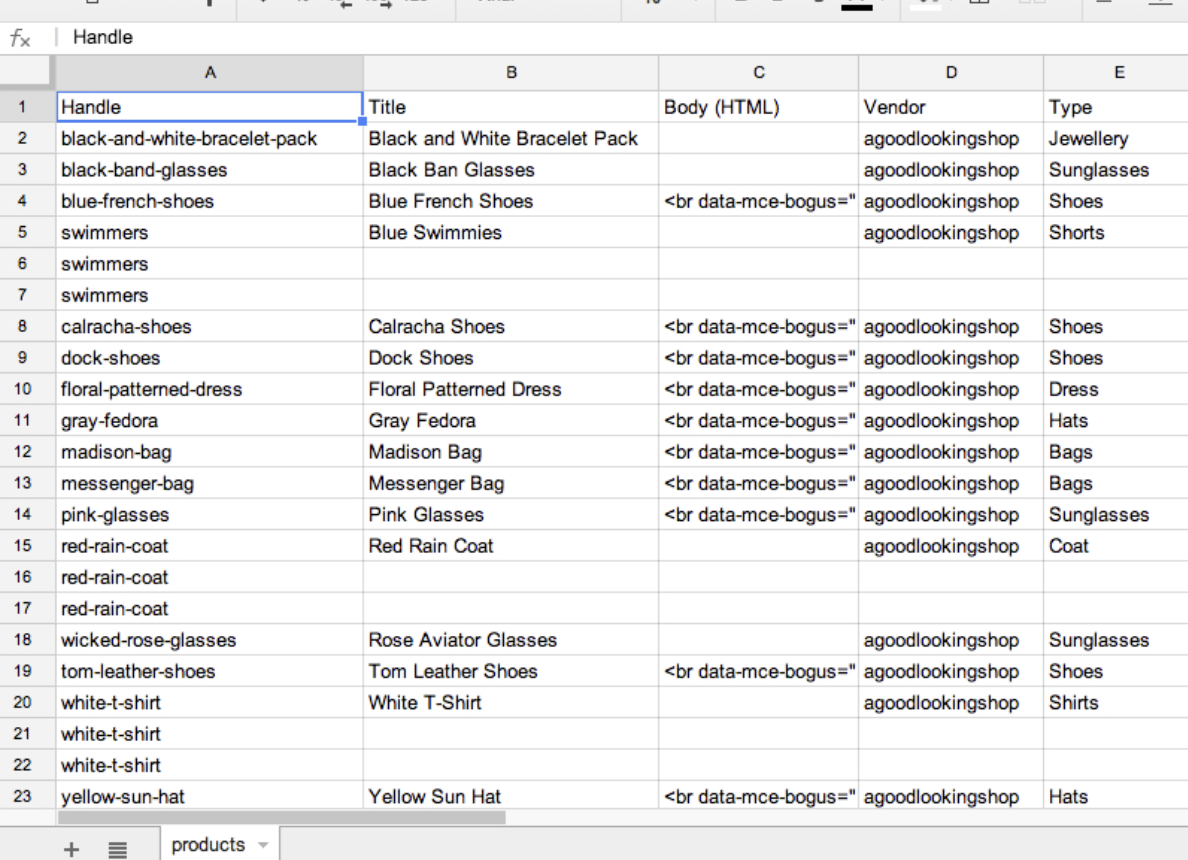
Multiple images per product are supported, but the CSV structure needs to be correct. In most cases, you repeat the product handle on additional rows and attach another image URL for each extra image.
This is where many imports go wrong. Merchants often assume one row equals one product and all images can be stuffed into a single cell. Depending on the import structure you are using, Shopify expects additional image rows tied to the same handle.
Shopify supports a large number of media items per product, and your source data noted up to 250 images per product. That is more than enough for most stores, but if you are importing a lot of variant imagery, organisation matters.
- Use the same handle for all image rows belonging to one product
- Make sure the Image Src URL is public and valid
- Keep filenames consistent so you can audit mistakes later
- Test with 5 to 10 products first before importing the full catalogue
What is the best app for bulk uploading product images to Shopify?
The best app for bulk uploading product images to Shopify depends on your source files and matching method. For most large imports, the strongest options are Matrixify, PicManager Bulk Image Upload, CS Smart Bulk Image Upload, and Uploado.
These tools solve the biggest weakness of the native CSV workflow. They help you map images to products automatically based on SKU, barcode, or filename patterns like ABC123_1.jpg and ABC123_2.jpg. That can turn a half-day admin task into a 10-minute job.
| App | Best for | Matching method | Standout feature |
|---|---|---|---|
| Matrixify | Large catalogues and structured imports | CSV with hosted URLs | Can support workflows at 5,000 images/hour |
| PicManager Bulk Image Upload | Simple SKU-based image assignment | SKU in filename | ZIP uploads and unmatched image reporting |
| CS Smart Bulk Image Upload | Drive and Dropbox workflows | SKU, barcode, title | Pre-import preview and image resizing |
| Uploado | Replacing or updating images at scale | SKU or barcode | Handles tens of thousands of files |
There are other tools in this category too, but these are the ones most closely aligned with the search intent behind this keyword. Merchants are not just asking whether bulk upload is possible. They want the fastest practical workflow.
Is Matrixify the best choice for very large image imports?
Matrixify is one of the best choices for very large Shopify imports when you are comfortable with structured data and want control. It is especially useful when products, variants, images, and metadata all need updating together.
I have seen Matrixify used most often by agencies, migration projects, and larger stores because it is built around robust import and export workflows. If your catalogue is messy, Matrixify will not magically clean it up, but it gives you the power to process a lot of data efficiently.
You can learn more on the app listing here: Matrixify on the Shopify App Store. Their own tutorial on image imports is also useful: How to bulk upload images to Shopify from your computer.
Are SKU-based image upload apps easier than CSV?
Yes, SKU-based image upload apps are usually easier than CSV if your filenames are organised properly. If your files are named something like TSHIRT-BLACK-S_1.jpg, many apps can assign them automatically.
This is why I always recommend cleaning up filenames before you start. A simple naming convention can save hours later. It also makes it much easier to replace images, reorder galleries, or diagnose why certain items did not match.
Apps such as PicManager Bulk Image Upload, CS Smart Bulk Image Upload, and Uploado are designed around this exact workflow.
How should I name image files for faster Shopify imports?
The best way to name image files for Shopify bulk uploads is to use the product SKU or barcode, plus an optional sequence number for image order. A format like ABC123_1.jpg and ABC123_2.jpg is ideal.
This is one of the simplest improvements you can make. In my experience, naming discipline matters more than the app you choose. If your files are called things like final-new-use-this-one.jpg or IMG_4829.jpg, you are creating work for yourself.
- Use SKU-first naming where possible
- Add _1, _2, _3 to control image position
- Avoid spaces and random punctuation
- Keep variant logic consistent across the catalogue
- Test one product family before processing all files
Good naming also helps if you later want to optimise your product pages, add variant-specific galleries, or improve merchandising. If you are working on conversion after the import, our guides on maximising revenue from your Shopify product pages and Shopify cart drawer upsells are worth reading next.
How do I bulk upload images for existing Shopify products?
You can bulk upload images for existing Shopify products by matching files to products using handles, SKUs, or barcodes through a CSV or image upload app. For existing catalogues, apps are usually the cleaner option because they reduce the risk of overwriting unrelated product data.
This is an important distinction. If your products already exist and you only want to attach or replace media, a full product CSV can feel clumsy. You may end up exporting product data, editing only image fields, and reimporting more columns than necessary.
Apps built for image management often let you:
- Add new images to existing products
- Replace old images in bulk
- Delete outdated images
- Preview matches before import
- Exclude mismatches or unmatched files
If your store has custom order workflows or complex product options, it is worth checking how media changes affect those processes too. We have covered adjacent operational workflows in how to track customised orders in Shopify and how to add a rush order or production option.
What are the most common bulk image upload mistakes in Shopify?
The most common mistakes are broken image URLs, incorrect handles, messy filenames, and importing too much at once without testing. Most failures are preventable with a small pilot batch.
I have seen merchants blame Shopify when the actual issue was a Dropbox link that was not truly public, or a CSV where the handle did not exactly match the product. Bulk imports are unforgiving when your source data is inconsistent.
- Using private or invalid URLs instead of public image links
- Mismatched product handles in the CSV
- Unstructured filenames that apps cannot map cleanly
- Uploading giant unoptimised files that slow processing
- Skipping a test batch and importing the entire catalogue first
- Overwriting live product data unintentionally during CSV imports
Another common issue is image performance. Uploading images is only half the job. If they are oversized, your product pages can become sluggish. If speed matters, read our piece on Shopify speed optimisation scams so you know what actually improves performance and what is just sales fluff.
How can I make Shopify product images load faster after uploading?
To make Shopify product images load faster, use compressed files, sensible dimensions, and clean source assets before import. Bulk uploading quickly is helpful, but uploading optimised images is what protects page speed and conversion rate.
As a rule, I would resize and compress before import rather than dumping original camera files into Shopify. Many merchants upload 8MB lifestyle images when a much smaller web-optimised version would look identical on the storefront.
- Export product images in web-friendly dimensions
- Compress large JPG or WebP files before upload
- Keep aspect ratios consistent across collections
- Use clear alt text where possible for accessibility and SEO
If you are thinking beyond Google and want your catalogue to be more machine-readable for AI shopping experiences too, our guides on optimising your Shopify store for AI shopping agents and getting your Shopify store into ChatGPT are highly relevant.
Can I bulk upload images from Google Drive, Dropbox, or my computer?
Yes, you can bulk upload images from Google Drive, Dropbox, or your computer, but Shopify itself does not directly bulk match local files to products without a URL-based workflow. That is why specialised apps are so popular.
Native Shopify imports expect public URLs. If your files are only sitting on your desktop, you first need to host them somewhere or use an app that bridges that gap. This is exactly why Matrixify and similar tools rank well for this topic.
For example:
- Google Drive is supported by some image upload apps
- Dropbox is supported in certain app workflows
- ZIP uploads are common in SKU-matching apps
- Desktop files can be uploaded via app-specific workflows or hosted first
If your workflow depends on cloud storage, check the app listing carefully before installing. Support for file sources, variant images, and replacement logic varies more than merchants expect.
Step-by-step: what is the fastest practical workflow for most merchants?
The fastest practical workflow for most merchants is to clean filenames first, test on a small batch, and then use either a SKU-matching app or Shopify Files plus CSV depending on scale. Preparation is what makes the upload fast.
- Audit your catalogue and confirm each product has a reliable SKU or handle
- Rename image files consistently, such as SKU_1.jpg, SKU_2.jpg
- Choose your method:
- Use Shopify Files + CSV for smaller free imports
- Use an app for hundreds or thousands of images
- Run a test import on 5 to 10 products
- Check image order, product matching, and variant behaviour
- Process the full catalogue once the test looks correct
- Review storefront performance and fix any oversized images
This is the workflow I would use myself on a merchant store today. It is simple, scalable, and avoids the most common import disasters.
So, what is my recommended method?
My recommendation is simple: use Shopify's native CSV method if you want a free solution and your catalogue is manageable, but use a dedicated bulk image upload app if speed matters. For large catalogues, apps are usually the better choice.
Your original article was correct that there are two core methods: upload files in Shopify admin or use a CSV. What has changed is that the competitive SERP now clearly shows merchants also want app-based shortcuts, especially for thousands of images and existing product catalogues.
If I were handling a catalogue refresh for a merchant today, I would only use the manual Shopify Files route for small batches. Anything larger, I would structure around SKUs and use a purpose-built app. It is faster, less error-prone, and far easier to repeat later.
And once your images are in place, the next step is making those product pages convert. If that is your focus, start with how to upsell on Shopify and how to cross-sell matching variants.


