


Speeding up your Shopify theme usually comes down to four things: choosing a lightweight theme, reducing app and script bloat, optimising images and fonts, and testing with the right tools. In my experience building Shopify apps and auditing storefronts, the biggest wins rarely come from one magic tweak. They come from removing unnecessary weight page by page.
If you searched for how to speed up your Shopify theme, you probably want practical fixes rather than vague advice. That is exactly what this guide covers. I will show you what matters most in 2026, what is outdated, what is safe to change, and where merchants often make their store slower while trying to optimise it.
Speed matters for two reasons. First, slow pages lose sales. Second, site speed affects SEO and discoverability, especially through Google's Core Web Vitals and the growing importance of AI-driven search experiences. If you are also working on visibility in AI search, read How to Get Your Shopify Store into ChatGPT: Step-By-Step Guide and How to Optimize Your Shopify Store for AI Shopping Agents.
Why is my Shopify theme slow?
A Shopify theme is usually slow because of third-party scripts, oversized media, bloated code, and too many features loading on every page. The theme itself is often only part of the problem.
When I test slow Shopify stores, the biggest culprit is usually not Shopify's infrastructure. It is the stack merchants add on top: apps injecting JavaScript, tracking pixels, sliders and animations, custom code snippets, and large hero media. Shopify's own platform is fast. The storefront gets slow when too much is layered onto it.
Shopify's own guidance on web performance focuses on LCP, CLS, and INP. These are the three Core Web Vitals that matter most for real-world experience. INP replaced FID and you should aim for under 200ms for good responsiveness. You can read Shopify's official documentation at Shopify Help Centre and developer best practices at Shopify.dev.
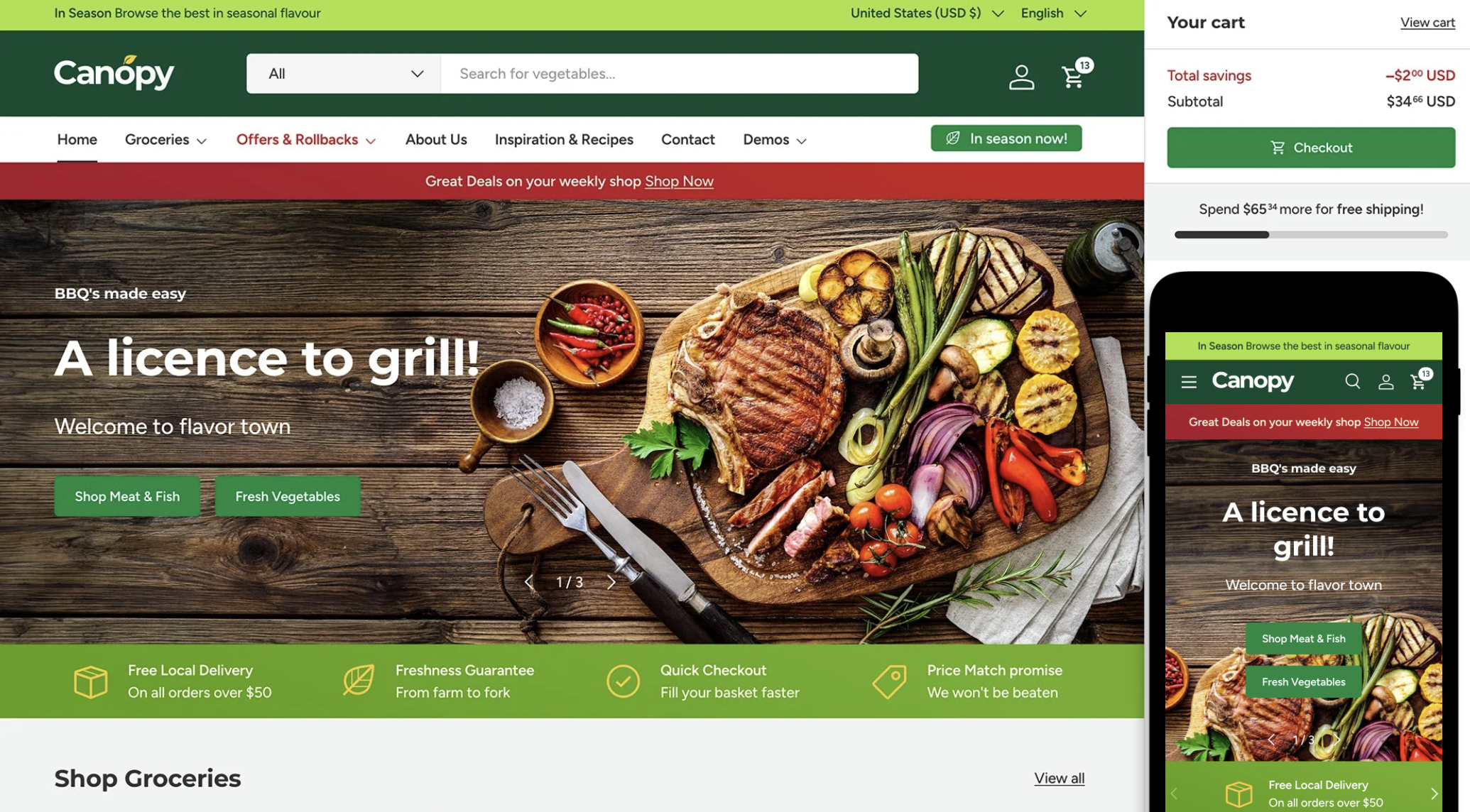
One useful benchmark is this: if your store is slow even on an uncustomised theme preview, the theme choice may be the issue. If it was fast before you installed apps and custom sections, the problem is probably your implementation rather than the base theme.
How do I measure Shopify theme speed properly?
The best way to measure Shopify theme speed is to combine real-user data from Shopify with lab tools like PageSpeed Insights, Lighthouse, and waterfall analysis. Do not rely on one score alone.
Too many merchants obsess over a single Lighthouse score. That is useful, but it is not the whole story. In practice, I use a mix of:
- Google PageSpeed Insights for mobile and desktop lab testing
- Lighthouse in Chrome DevTools
- Shopify's speed and web performance reporting in admin for real-user monitoring
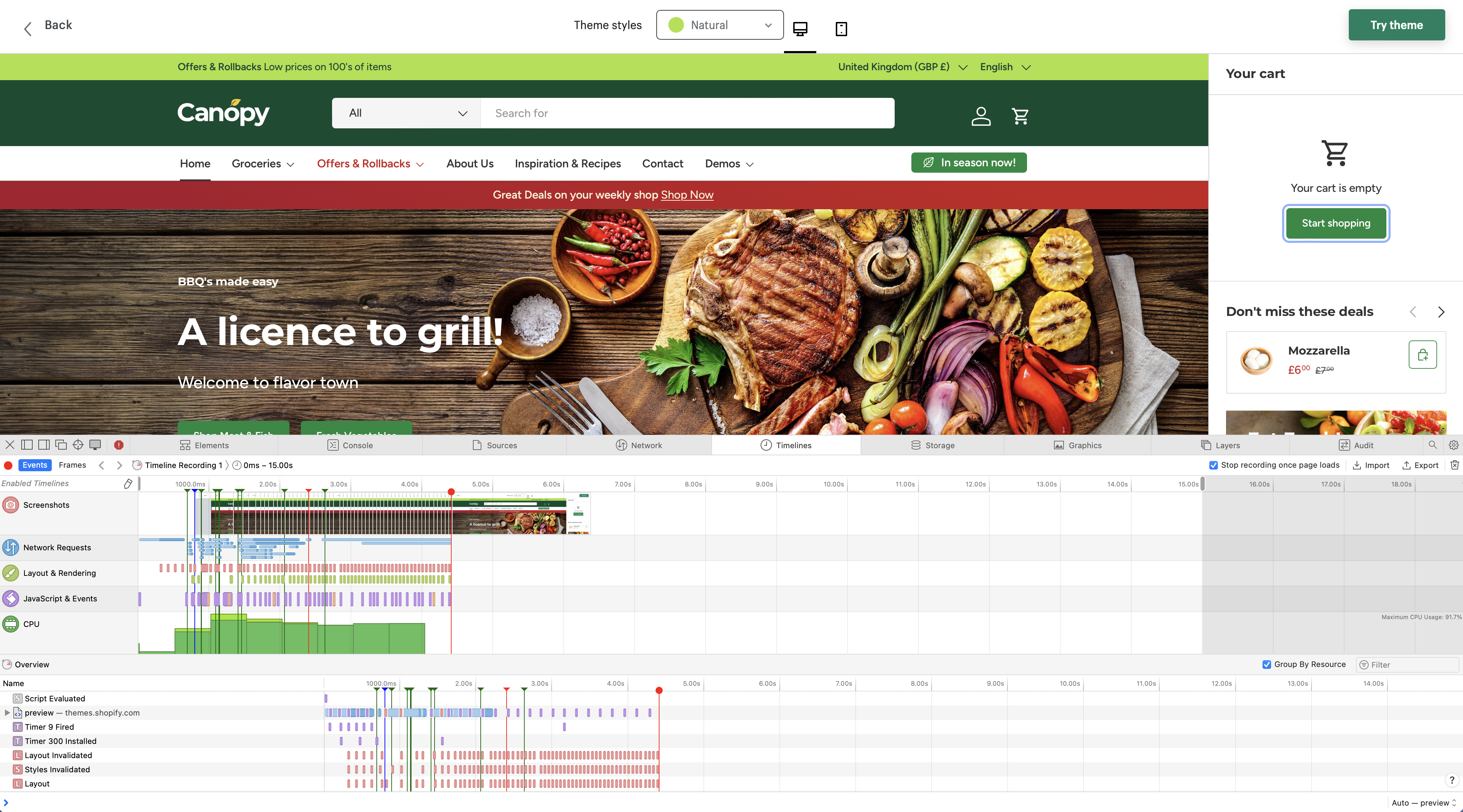
- Chrome Network tab and waterfall charts to identify blocking assets
- Chrome Coverage to find unused CSS and JavaScript
- Shopify Theme Inspector for Liquid rendering bottlenecks
The most important thing is to test home page, collection page, and product page separately. A store can have a decent home page score but still be painfully slow on product pages because of review widgets, upsell blocks, personalisation tools, and variant logic.
When I run audits, I also test in an incognito window on throttled mobile. This gives a much more honest picture than a warm desktop session on fast office Wi-Fi. If your mobile product page feels laggy, that is usually where the commercial damage is happening.
What is the fastest way to speed up a Shopify theme?
The fastest way to speed up a Shopify theme is to remove or conditionally load third-party apps and scripts. This is usually the highest-impact fix.
The average Shopify store uses a surprisingly high number of apps, and each app can add scripts, stylesheets, API calls, event listeners, and DOM mutations. In my experience, removing two or three low-value apps often beats weeks of micro-optimising CSS. This is also why I always tell merchants to be ruthless about app ROI.
If an app only matters on product pages, it should not be loading on the home page, cart, blog, and collection templates. If an app has been uninstalled, check whether it left behind code snippets in your theme. Leftover app code is one of the most common causes of hidden Shopify bloat.
| Fix | Typical impact | Difficulty | Best for |
|---|---|---|---|
| Remove unused apps | High | Low | Stores with 10+ apps installed |
| Conditionally load app scripts | High | Medium | Stores using page-specific tools |
| Compress and resize images | High | Low | Image-heavy stores |
| Upgrade to an OS 2.0 theme | High | Medium to High | Older themes and legacy custom builds |
| Defer non-critical JavaScript | Medium to High | Medium | Customised themes |
| Remove unused theme features | Medium | Low | Feature-heavy premium themes |
Should I switch to a faster Shopify theme?
Yes, if your current theme is old, bloated, or still slow before major customisation, switching themes can be the most efficient fix. Sometimes optimisation is less cost-effective than rebuilding on a better foundation.
Shopify's newer Online Store 2.0 themes are generally much better for performance than older themes. They support more modular sections, better app extension patterns, and cleaner asset loading. Shopify also requires Theme Store themes to hit a minimum performance threshold in benchmark testing, which gives you a better baseline than many old custom themes.
In practical terms, look for themes with minimal DOM depth, limited JavaScript reliance, SVG icons, built-in lazy loading, and no unnecessary gimmicks. Shopify's Dawn remains a strong reference point because Shopify built it with performance in mind.
If you are deciding whether to rebuild or keep patching your current setup, compare the cost of optimisation against the cost of migration. I have seen merchants spend weeks polishing a weak theme when a move to a cleaner OS 2.0 theme would have delivered a better result faster.
What should I check before buying a Shopify theme?
Test the demo theme before purchase and inspect how much it loads without your apps. A fast demo is not a guarantee, but a slow demo is a warning sign.
- Run the demo through PageSpeed Insights
- Check mobile performance first
- Inspect the number of requests and JavaScript payload size
- Look for excessive sliders, popups, mega menus, and animated sections
- Test collection and product pages, not just the home page
If you are on Shopify Plus or growing quickly, theme performance becomes even more important because small delays can affect a lot more revenue. This pairs well with our guide on when to upgrade your store to Shopify Plus.
How do I optimise images in Shopify without hurting quality?
The best image optimisation strategy is to resize before upload, compress aggressively but sensibly, use Shopify's CDN, and lazy load non-critical images. Large images are still one of the easiest speed wins.
Shopify already serves images through its CDN and supports modern formats in supported browsers. That helps, but it does not fix everything. If you upload a giant 4000px image for a small mobile slot, you are still making the browser do unnecessary work.
My usual rules are simple: limit hero images, avoid GIFs where possible, and always define width and height to reduce layout shift. Replacing a heavy GIF with a static image or lightweight video can improve both LCP and CLS.
- Compress images before upload with tools like TinyIMG or ShortPixel
- Use Shopify image sizing properly rather than loading original files everywhere
- Add loading="lazy" to below-the-fold images
- Use fetchpriority="high" for the main above-the-fold hero image when appropriate
- Keep only one major hero image if possible
For Liquid image output, Shopify's image helpers and responsive image patterns are usually better than hardcoded image URLs. If your theme is older, updating image markup can produce surprisingly quick wins.
How do I reduce JavaScript in a Shopify theme?
Reduce JavaScript by removing app code, deferring non-essential scripts, and replacing JavaScript interactions with CSS or native browser features where possible. Less JavaScript usually means better responsiveness.
Shopify's developer best practices are clear on this point: JavaScript should be progressive enhancement, not the foundation for basic shopping tasks. Customers should be able to browse products, choose variants, and add to cart without a mountain of script-driven UI getting in the way.
One of the classic improvements from the original article still holds up: replacing blocking script patterns with non-blocking ones where safe. But this needs nuance. You should not blindly add async to everything. Some scripts depend on order, and some need to run before others.
- Audit every script loaded in theme.liquid and section files
- Remove scripts that support features you no longer use
- Conditionally load scripts by template, section, or page type
- Use defer for scripts that should preserve execution order after parsing
- Use async more carefully for truly independent scripts
- Move non-essential third-party tags into a better-managed setup such as Google Tag Manager where appropriate
In my experience, defer is safer than async for many theme scripts because it preserves execution order. Async is useful, but only when the script does not depend on anything else and nothing depends on it.
Also check whether your theme is loading the same library more than once. Duplicate sliders, carousels, and utility libraries are more common than they should be on customised stores.
How do I conditionally load Shopify app scripts?
Load app assets only on the templates where they are needed. This is one of the highest ROI changes you can make.
If a review widget only appears on product pages, wrap its output in logic so it only renders there. If a size chart is only used for one collection, do not load it globally. This sounds obvious, but I still see stores loading upsell widgets, review scripts, and quiz logic sitewide.
As a Shopify app developer, I think this matters even more now because app experiences are richer and more modular than they were a few years ago. That is good for merchants, but it also means load order, dependencies, and where extensions render matter more than ever.
If your store relies heavily on upsell or product page enhancements, make sure those tools are not dragging down your main buying journey. Related reading: How to Create Shopify Cart Drawer Upsells That Boost AOV, How to upsell on Shopify in 2026, and How to Maximize Revenue from Your Shopify Product Pages.
How do I optimise CSS and fonts in Shopify?
Optimise CSS by removing unused rules, inlining critical styles where sensible, and keeping fonts simple. Fonts and CSS can quietly damage both LCP and CLS.
A lot of themes ship with CSS for features that are never used. If your theme has gone through several redesigns, chances are there is a lot of dead CSS hanging around. Tools like Chrome Coverage can help you identify this, and developers can use tools such as PurgeCSS during a proper build process.
Fonts are another common issue. Custom fonts can look great, but each additional font family and weight adds cost. I generally recommend one font family if possible, WOFF2 where available, and font-display: swap to prevent invisible text during load.
- Use font-display: swap on custom font declarations
- Prefer system fonts when branding allows
- Preload only the most important font files
- Do not preload every font weight and style
- Remove CSS tied to deleted apps and sections
One underrated fix is reducing animation-heavy CSS on mobile. Fancy transitions, parallax effects, and reveal animations can make a site feel premium in a desktop demo, but on low-powered phones they often feel sluggish.
How do I optimise Liquid and Shopify-specific theme code?
Optimise Liquid by simplifying loops, reducing expensive logic in global sections, and paginating large outputs. Liquid problems are less visible than image or script issues, but they matter.
Theme performance is not just about front-end assets. Liquid rendering can also slow down page generation, especially on collection pages and heavily customised headers. I have seen navigation menus, mega menus, and metafield-heavy section logic become the hidden bottleneck.
Here are the Shopify-specific fixes I look for first:
- Paginate collections instead of rendering huge product lists at once
- Avoid heavy loops in headers, drawers, and global snippets
- Be careful with repeated metafield lookups inside loops
- Render only what is needed above the fold
- Use section-specific assets rather than loading everything globally
Online Store 2.0 helps here because sections can be more modular, but merchants still need to be careful. A modular theme can still become slow if every section carries its own CSS, JavaScript, and data payload on every page.
What theme features should I disable to improve speed?
Disable any feature that does not directly help conversion. Sliders, popups, animations, and social feeds are often expensive and often not worth it.
This is where honesty matters. Many stores are carrying decorative features that looked impressive in a demo but add little commercial value. If a feature hurts speed and does not increase conversion, it is a liability.
The usual suspects are:
- Auto-rotating slideshows
- Video backgrounds above the fold
- Instagram or social feed embeds
- Announcement bars stacked with timers and effects
- Mega menus with lots of image thumbnails
- Scroll-triggered animations on every section
I usually tell merchants to keep slideshows to 2-3 slides maximum, or better yet replace them with a single strong static hero. For seasonal effects, use lightweight implementations. For example, if you want a festive visual touch without adding another app, see How to Add a Falling Snow Effect To Your Shopify Store: No App Required.
Does Google Tag Manager make Shopify faster?
Google Tag Manager does not automatically make Shopify faster, but it can make tracking easier to manage and help reduce messy script placement. Used badly, it can still become a dumping ground.
I generally prefer a clean, documented tagging setup over random snippets pasted into theme files. Google Tag Manager can help centralise scripts, but it is not a magic performance tool. If you load ten third-party tags through GTM, you still loaded ten third-party tags.
The benefit is governance. You can better control when tags fire, who manages them, and whether they belong on all pages. That said, if your analytics stack is bloated, the right answer may be to remove tools rather than reorganise them.
Should I use AMP on Shopify?
Most stores do not need AMP in 2026, but it can still make sense for certain content-heavy mobile experiences. For most merchants, fixing the main theme is a better use of time.
AMP is no longer the default answer it once was. Shopify themes and mobile browsers are much better than they were years ago, and a fast native storefront is usually the better long-term route. Still, if you have a strong mobile content strategy, AMP can be worth testing.
If you want to explore it, the original recommendations are still relevant: Shop Sheriff and Fire AMP are established Shopify App Store options.


My view is simple: do not use AMP to avoid fixing a slow theme. Use it only if it supports a specific channel or content strategy.
What are the best tools for Shopify speed optimisation?
The best Shopify speed tools are the ones that help you find bottlenecks quickly and verify real improvements. You need both diagnostics and monitoring.
| Tool | What it helps with | Why I use it |
|---|---|---|
| PageSpeed Insights | Core Web Vitals and lab diagnostics | Best starting point for benchmarking |
| Lighthouse | Detailed local testing | Useful during development and QA |
| Chrome DevTools Network | Waterfall and blocking resources | Shows what is actually slowing the page |
| Chrome Coverage | Unused CSS and JS | Great for identifying dead weight |
| Theme Inspector | Liquid rendering issues | Useful for Shopify-specific bottlenecks |
If you are considering hiring help, be careful. There are a lot of vague speed optimisation offers in the Shopify ecosystem. Some are excellent, but many just run a report and make cosmetic changes. We covered this in more detail here: The Hidden Truth About Shopify Speed Optimization Scams.
What is my step-by-step Shopify theme speed checklist?
If you want a practical order of operations, start with apps and media, then move to scripts, CSS, Liquid, and theme architecture. This sequence gives the fastest wins with the lowest risk.
- Benchmark current performance on home, collection, and product pages
- Audit installed apps and remove anything non-essential
- Check for leftover app code from previously removed apps
- Compress and resize images, especially hero media
- Add lazy loading to below-the-fold images
- Set width and height attributes to reduce CLS
- Limit fonts and add font-display: swap
- Defer or conditionally load non-critical JavaScript
- Remove unused CSS and JavaScript
- Disable theme features you do not actually use
- Optimise Liquid loops and collection pagination
- Retest after every major change rather than changing everything at once
That last point is critical. If you change ten things at once, you will not know what helped and what broke. In my own app and theme testing, I prefer small controlled changes with before-and-after measurements.
When should I hire a developer to speed up my Shopify theme?
You should hire a developer when the issues involve Liquid rendering, app conflicts, custom JavaScript dependencies, or theme architecture problems. Basic image and app cleanup can often be done in-house.
If your store is heavily customised, speed work can get technical quickly. Things like script execution order, section-level asset loading, and Liquid bottlenecks are easy to get wrong. I always recommend backing up your theme before any edits and working on a duplicate theme first.
As a rule of thumb, merchants can usually handle image optimisation, feature cleanup, and app pruning. But if you are editing theme.liquid, restructuring scripts, or debugging app leftovers, a developer is often the safer route.
And if your store relies on custom order logic, personalisation, or add-ons, make sure performance fixes do not break the buying flow. Related guides that often overlap with speed-sensitive builds include How to Track Customized Orders in Shopify and How to Add a Rush Order or Production Option to Your Shopify Store.
What actually works best in 2026?
In 2026, the most effective Shopify speed strategy is still simplicity. Lightweight themes, fewer apps, smaller media, less JavaScript, and disciplined testing beat clever hacks almost every time.
That is the main lesson I keep seeing across merchant stores and app builds. You do not usually need a secret trick. You need a cleaner storefront. The stores that feel fastest are usually the ones that make fewer technical demands on the browser.
If I were prioritising from scratch today, I would do this in order: pick a fast OS 2.0 theme, keep app count lean, optimise media aggressively, load scripts only where needed, and test every change against real metrics. That is still the most reliable way to speed up your Shopify theme without sacrificing conversion.


