


Minifying JS and CSS on Shopify is still worth doing, but the best approach in 2025 is a bit different from the old advice. Shopify already minifies many asset files when served correctly, so the real job is making sure your theme files, inline code, and custom additions are set up in a way that lets Shopify help rather than getting in the way.
In my experience building Shopify apps and working with merchant themes, speed issues are rarely caused by one giant problem. They usually come from lots of small inefficiencies: extra apps, bloated theme code, oversized images, render-blocking CSS, and unoptimised scripts. Minification is one of the easiest wins if you handle it properly.
This guide shows you how to minify JS and CSS on your Shopify store in 2 steps, what Shopify already does automatically, and when manual minification is actually worth your time.
What is minification?
Minification is the process of removing unnecessary characters from code without changing how it works. Whitespace, comments, line breaks, and redundant formatting are stripped out so the browser has less to download.
For Shopify stores, minification usually applies to CSS, JavaScript, and sometimes HTML output. A minified file does the same job as the original, but it is smaller and faster to transfer.
Typical minification changes include removing spaces, shortening syntax where safe, deleting comments, and compressing code structure. On CSS files, that can often mean file size reductions of 20 to 30%. On JavaScript, reductions can be even bigger depending on how verbose the original file is.

Why should I minify JS and CSS on Shopify?
You should minify JS and CSS to reduce file size and improve loading efficiency. Smaller assets can help pages render faster, improve Core Web Vitals, and create a smoother customer experience.
Speed affects revenue. Even small delays can reduce engagement, especially on mobile where many Shopify stores get the majority of their traffic. Faster stores usually convert better, and they also tend to perform better in search because speed feeds into usability signals.
That said, I want to be realistic here. Minification alone will not rescue a slow Shopify store. If your theme is loading ten app scripts, multiple sliders, huge images, and a pile of tracking tags, minifying one stylesheet will not magically fix Lighthouse scores.
In my experience, minification works best as part of a wider performance cleanup. If you are also reviewing apps, compressing images, reducing third-party scripts, and fixing layout shifts, then minification becomes a worthwhile supporting optimisation. If you want a broader view of speed issues, read The Hidden Truth About Shopify Speed Optimization Scams.
Does Shopify already minify CSS and JavaScript automatically?
Yes, Shopify automatically minifies many asset files when they are served through the theme asset pipeline. This is especially true for standard .css and .js assets loaded with Shopify's Liquid asset filters.
This is the part many older guides miss. Shopify has improved its handling of storefront assets over the years, so manual minification is not always necessary. If your CSS and JS files live in the Assets folder and are loaded using code such as {{ 'theme.css' | asset_url | stylesheet_tag }} or {{ 'theme.js' | asset_url | script_tag }}, Shopify will generally serve compressed versions.
Where things get messy is with inline CSS, inline JavaScript, third-party scripts, Liquid-generated code, or older theme structures. Those cases often still need manual attention. I see this a lot on stores that have been edited by multiple freelancers over several years.
If you are on a modern Online Store 2.0 theme, there is a good chance Shopify is already handling more than you think. The goal is to avoid duplicating work and focus on the files Shopify is not optimising for you.
How do I minify JS and CSS on my Shopify store in 2 steps?
The 2-step process is simple: first back up your theme and identify which files need attention, then minify or restructure those files so Shopify can serve them more efficiently. This is the safest and most practical workflow for most merchants.
Below is the process I recommend when testing a Shopify theme.
Step 1: How do I back up my theme and find the right files?
Start by duplicating your live theme before changing anything. Then open the code editor and review the files in your Assets folder, plus any inline code in layout and section files.
Go to Online Store > Themes in your Shopify admin. On your current theme, click Actions > Duplicate. Always work on the duplicate first. I never skip this step, because even a tiny CSS or JS mistake can break a storefront.
Next, click Actions > Edit code on the duplicated theme. The main places to inspect are:
- Assets for CSS and JS files
- layout/theme.liquid for global script and stylesheet loading
- sections and snippets for inline CSS or JavaScript
- app embeds and app snippets for third-party script injections
Look for files such as theme.css, base.css, component-*.css, theme.js, and any custom files like custom.js or custom.css.liquid. Also check whether your theme is loading multiple separate files that could be consolidated.
A quick rule I use is this: if the file is already a standard asset and loaded through Shopify's asset filters, it may already be minified on delivery. If it is inline, generated dynamically, or pasted in from an app setup guide, it deserves closer inspection.
Step 2: How do I minify CSS and JavaScript safely?
Minify the files Shopify is not already optimising, and update your references carefully. For CSS, that often means converting older patterns into Shopify-friendly assets. For JavaScript, it usually means minifying custom code and reducing file count where sensible.
There are two practical routes here: let Shopify handle as much as possible, or use a minifier tool for custom code. I usually combine both.
How do I minify CSS on a Shopify theme?
The easiest CSS optimisation on Shopify is to make sure your stylesheet is structured in a way Shopify can compile and compress properly. Older .css.liquid files can often be improved by moving to .scss.liquid or standard asset files where appropriate.
On many older themes, you may find files ending in .css.liquid. These can work, but they are often part of an older setup. A common method is to rename a file like custom.css.liquid to custom.scss.liquid, then update the theme reference so Shopify compiles it correctly.
For example, if your theme is loading a stylesheet in theme.liquid, you may need to update the reference after renaming. Always test this on a duplicate theme first, because syntax errors in SCSS will stop compilation.
- Open the CSS file in Assets
- Duplicate the file before editing
- If appropriate, rename filename.css.liquid to filename.scss.liquid
- Update the file reference in theme.liquid or wherever it is loaded
- Preview the duplicated theme and check styling across key templates
Another option is to use a dedicated CSS minifier before pasting the code back into your asset file. Tools like cssnano and TinyIMG CSS Minifier can reduce whitespace and simplify output. This is especially useful for custom CSS blocks copied in over time.
In practice, I only recommend manual CSS minification if you have large custom stylesheets, legacy theme code, or inline CSS that has grown out of control. For a clean modern theme, the gains may be modest.

How do I minify JavaScript on a Shopify theme?
Shopify already minifies many JavaScript asset files automatically, so manual JS minification is mostly for custom scripts, older themes, or inline code. The biggest wins often come from reducing unnecessary scripts rather than compressing them.
This is important: minified JavaScript is not the same as efficient JavaScript. A 200 KB script that is minified is still a 200 KB script doing work in the browser. If that script is unused, duplicated, or render-blocking, the better fix is often to remove or defer it.
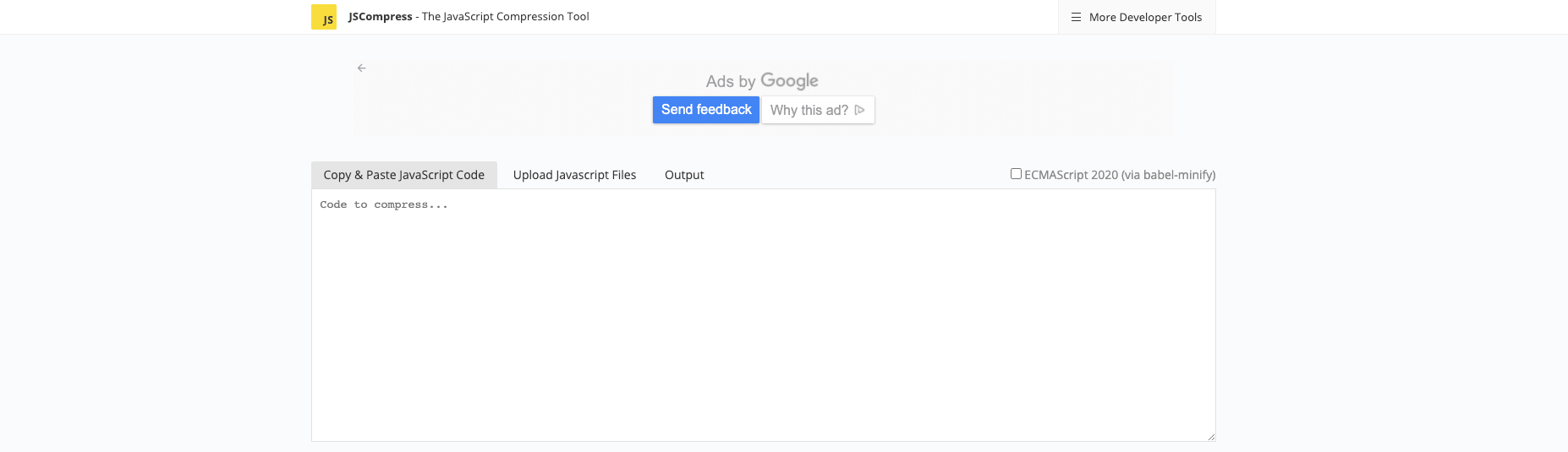
For custom JS files, I normally use a tool such as JSCompress or Terser. Paste in the code, minify it, and replace the original in your duplicate theme. If you have several tiny custom JS files, consider combining them into one file to reduce requests, but only if that does not make maintenance harder.
- Find custom JS files in Assets
- Check whether they are actually needed
- Minify the code using a tool like JSCompress
- Replace the file in your duplicate theme
- Test product pages, cart, collection filters, and any interactive elements
If your JavaScript contains Liquid variables inside the file, be careful. Liquid-generated JS can break during manual minification if the tool rewrites syntax in a way that clashes with Shopify templating. In those cases, I often move dynamic values into data attributes or JSON script tags and keep the asset file itself static.
What is the best way to check whether minification is already happening?
The best way to check is to inspect the live asset file in your browser and compare what is served versus what exists in the code editor. You can also use PageSpeed Insights and browser DevTools to verify file size and compression.
Open your storefront, right-click, and inspect the page. In the Network tab, reload the page and click on CSS or JS assets. If the served file appears compressed into a single line or a much smaller transfer size, Shopify is probably already minifying it.
You can also test your store with Google PageSpeed Insights and review opportunities related to unused CSS, unused JavaScript, and render-blocking resources. Those often matter more than simple minification.
When I audit stores, I care about three things more than the word “minified”: how much code is shipped, how much of it is used, and when it loads. That gives you a more honest picture of performance.
Should I use an app to minify Shopify files?
An app can help if you want a more hands-off workflow, but it is not always necessary. For many stores, manual cleanup plus Shopify's built-in asset handling is enough.
Some merchants prefer a one-click option, especially if they are not comfortable editing theme code. MinifyMe is one example often mentioned for file optimisation workflows.

You can view it here: MinifyMe. I should note that the verified URL provided points to a Shopify App Store category page rather than a dedicated listing, so double-check the current listing before installing.
My honest view as an app developer is this: do not install a speed app just because a homepage promises a perfect score. Some apps are useful, but others add more scripts, duplicate functionality, or make claims that are impossible to verify. Again, the real gains usually come from theme hygiene and script discipline.
What is the difference between minifying, compressing, and combining files?
Minifying removes unnecessary code characters, compression reduces transfer size during delivery, and combining merges multiple files into fewer requests. They are related, but they are not the same thing.
| Technique | What it does | Best use case | Main caution |
|---|---|---|---|
| Minification | Removes spaces, comments, and formatting from code | Custom CSS and JS files | Can break code if done carelessly |
| Compression | Reduces transfer size with methods like gzip or Brotli | Server delivery and browser transfer | Usually handled by the platform |
| Combining files | Merges multiple files into one | Older themes with many small requests | Can hurt caching flexibility |
| Deferring or async loading | Loads scripts later or without blocking rendering | Non-critical JavaScript | Can break dependencies if done badly |
In 2025, combining files is less universally beneficial than it used to be because modern browsers and protocols handle multiple requests better. I still do it occasionally, but only when a theme is loading lots of tiny files inefficiently.
What mistakes should I avoid when minifying Shopify CSS and JS?
The biggest mistakes are editing the live theme, minifying Liquid-generated code blindly, and assuming minification will solve every speed issue. A careful workflow matters more than aggressive compression.
- Do not edit your live theme first - always duplicate it
- Do not minify code you do not understand - especially app snippets or Liquid-heavy files
- Do not remove comments that contain licensing requirements
- Do not combine files blindly - this can create caching and dependency issues
- Do not ignore testing - check mobile menus, variant pickers, cart drawers, and checkout-related flows
I have seen merchants shave a few kilobytes off a stylesheet and accidentally break product page layouts. I have also seen stores obsess over minification while leaving massive image files and abandoned app scripts untouched. Prioritisation matters.
What else should I optimise alongside minification?
The best Shopify speed improvements come from a combination of asset optimisation, app restraint, and better storefront architecture. Minification is only one piece of the puzzle.
Here is the shortlist I usually recommend after minification:
- Compress and resize images properly
- Remove unused apps and leftover app code
- Reduce third-party scripts such as chat widgets, heatmaps, and duplicate tracking tools
- Audit unused CSS and JS with PageSpeed Insights
- Optimise product pages for conversion, not just speed scores
If your goal is more revenue rather than just a prettier Lighthouse report, pair technical improvements with conversion work. These guides will help:
- How to Maximize Revenue from Your Shopify Product Pages
- How to Create Shopify Cart Drawer Upsells That Boost AOV
- How to Upsell on Shopify in 2026
- How to upsell on Shopify leveraging AI
- AI-powered upsells: the future of ecommerce conversion
If you are also thinking about how technical optimisation affects discoverability in AI search, this is worth reading too: How to Optimize Your Shopify Store for AI Shopping Agents and How to Get Your Shopify Store into ChatGPT.
Is minifying JS and CSS worth it for every Shopify store?
Yes, but only in proportion to the problem. If your store has bulky custom assets or an older theme, minification is a sensible optimisation. If your store is already lean and modern, the gains may be relatively small.
My rule of thumb is simple. If you can reduce code safely with minimal risk, do it. But do not spend hours minifying files that Shopify already handles while ignoring bigger issues like app bloat, slow media, or poor theme structure.
For most merchants, the smartest path is:
- Duplicate the theme
- Check which CSS and JS files Shopify is already minifying
- Manually minify only custom or inline assets that need it
- Test thoroughly
- Move on to larger speed wins next
That is the practical answer I would give any merchant today. Minification still matters, but in modern Shopify, it is no longer a mysterious hack. It is just one clean-up task in a broader performance strategy.


