

If you accidentally deleted Shopify Liquid code or a theme template, you can usually recover it by restoring a previous file version, copying the missing file from a duplicate or fresh theme download, or using a backup app. The fastest fix depends on whether the file still exists, whether it was a default theme file, and whether you have a duplicate theme available.
I have broken and repaired more Shopify themes than I care to admit, both on my own development stores and while building Shopify apps that interact with theme code. In my experience, most accidental deletions are recoverable, but the right recovery method changes depending on what file was deleted, how the theme was edited, and whether the theme came from Shopify or a third-party seller.
If you are editing code often, I also recommend reading The Hidden Truth About Shopify Speed Optimization Scams because a surprising number of merchants end up deleting or mangling theme files after following bad advice from freelancers, AI snippets, or random forum posts.
How do I recover accidentally deleted Shopify Liquid code or templates?
The quickest answer is this: use Recent Changes if the file still exists, and copy the file from a fresh or duplicate theme if the file is completely gone. Shopify keeps a revision history for many code edits, but deleted files often need to be recreated manually or replaced from another theme copy.
Here is the recovery order I use in real stores:
- Check Recent Changes in the code editor for the affected file.
- Check duplicated themes, unpublished themes, and backups in Online Store > Themes.
- Download a fresh copy of the theme and copy the missing file back.
- Contact the theme developer if it is a paid or heavily customised third-party theme.
- Use a backup app if you already had one installed.
This search query is usually urgent. If your store is broken right now, start with the file that triggered the error and avoid publishing any new theme until you have a clean working copy.
What should I do first if I deleted a Shopify theme file?
The first thing to do is stop editing the live theme and confirm exactly what is missing. Do not panic-publish another theme until you know whether the problem is one deleted section, one template, or a wider theme issue.
In practical terms, I recommend this checklist:
-
Identify the missing file name such as
theme.liquid,main-product.liquid,product.json, orbase.css. - Check whether the store front-end is down or only one page type is affected.
- Duplicate the current theme immediately so you preserve the current state before trying fixes.
- Open an unpublished duplicate for testing rather than editing the live theme.
That last point matters. In my experience, merchants often make recovery harder by trying three or four fixes directly on the published theme. A duplicate gives you a safe sandbox.
Can Shopify restore deleted code with Recent Changes?
Yes, Shopify can restore many edited files through Recent Changes, but only if the file still exists in the code editor. This is the best option for recently overwritten Liquid files and one of the fastest ways to roll back bad edits.
Shopify's code editor keeps revision history for many theme file edits. If you replaced a file's contents with broken code, or deleted code inside a file but did not delete the file itself, you can often restore an earlier version in a couple of clicks.
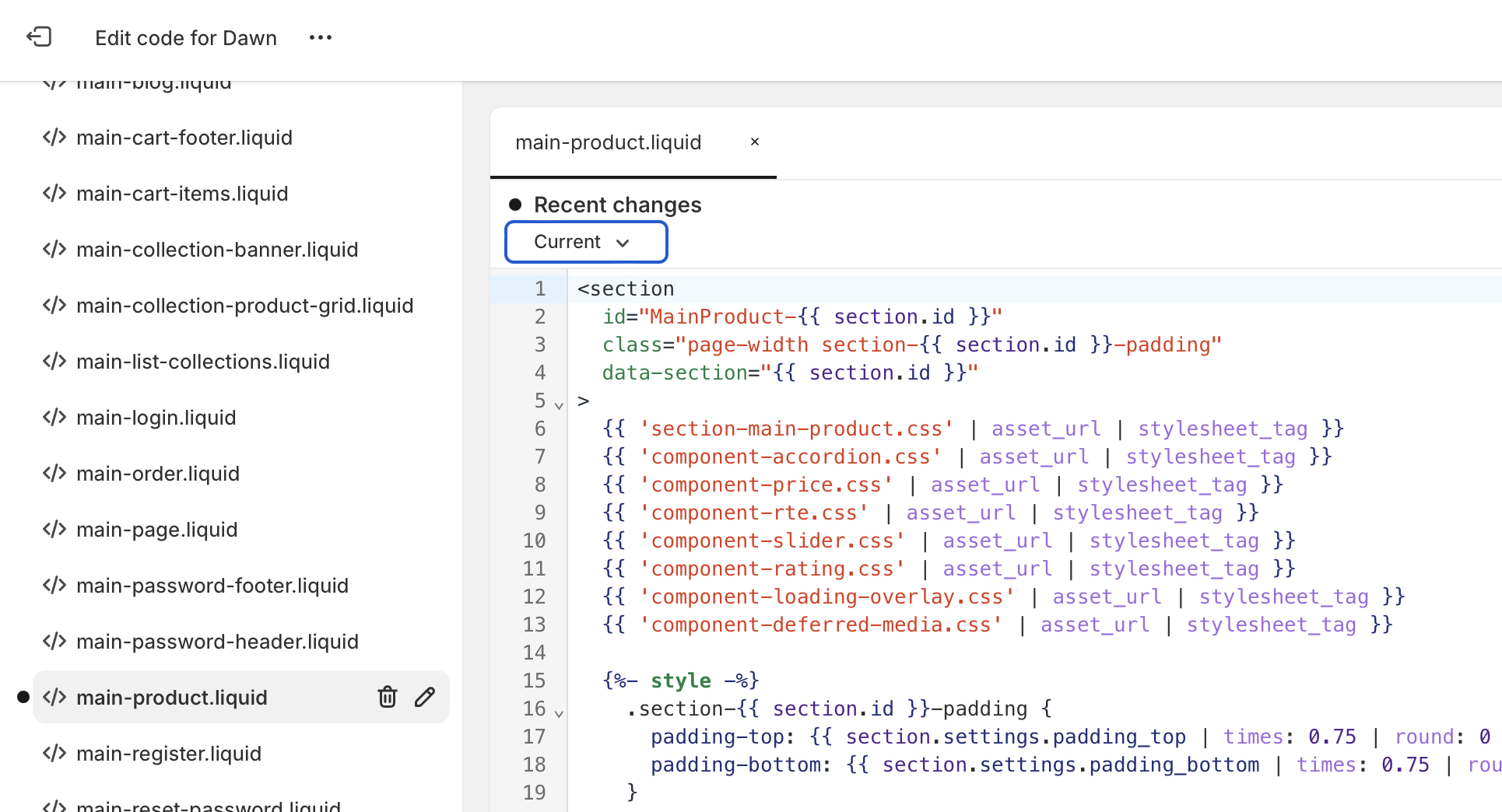

Here is how to use it:
- Go to Shopify Admin > Online Store > Themes.
- On the affected theme, click ... or Actions, then Edit code.
- Open the file you changed.
- Click Recent Changes.
- Select a version from before the mistake.
- Review it carefully and click restore or copy the previous code back in.
This works best for .liquid, JSON templates, sections, and snippets that still exist. If the file is completely missing from the sidebar, Recent Changes usually will not help because there is no file left to open.
Shopify community threads regularly recommend this approach for merchants who accidentally overwrote files, and it is still the fastest native recovery method in 2025 and 2026. You can also review Shopify's own theme architecture documentation at Shopify.dev if you need to confirm where a file belongs.
What if the Shopify Liquid template was deleted completely?
If the file was deleted completely, you usually need to recreate it or copy it from another version of the theme. Shopify cannot always magically undelete missing theme files, especially if there is no duplicate or backup available.
This is where many merchants get stuck. They read advice about version history, open the editor, and then realise the file is gone from the Templates, Sections, Snippets, Assets, or Layout folders. At that point, the practical fix is to get a clean copy of the same file from the same theme version.
The source of that clean file can be:
- A duplicate theme already in your store
- An unpublished backup theme
- A fresh download from the Shopify Theme Store
- A ZIP file saved locally
- The theme developer or support team
- A backup app snapshot
If you use a Shopify free theme such as Dawn, Sense, Craft, or Refresh, getting a clean copy is usually straightforward. If it is a paid third-party theme, it can be more complicated because file names, settings schema, and section structure may differ by version.
How do I restore a missing Shopify template from a fresh theme copy?
The safest manual recovery method is to upload a clean copy of the same theme and copy the missing file into your current theme. Do not publish the fresh theme immediately unless you are intentionally replacing your current design.
This is still the core method I recommend when a template or section has vanished.
Step 1: Download or re-upload the original theme
Get the closest possible match to your current theme version. If you bought the theme from the Shopify Theme Store, you can often re-download it. If it came from a third-party marketplace, use your original ZIP file or contact the vendor.
Step 2: Add it as an unpublished theme
Upload the theme but do not publish it. You only need it as a source for the missing file.
Step 3: Find the missing file in the fresh copy
Open the unpublished theme's code editor and locate the missing file. Common examples include theme.liquid, cart.liquid, main-collection-product-grid.liquid, product.json, or a snippet used by an app block.
Step 4: Recreate the missing file in your live theme
Create a new blank file of the same type and exact same name in your current theme. Then paste the clean code into it and save.
Step 5: Test before publishing anything
Preview the theme, test the affected pages, and make sure any customisations or app embeds still work.
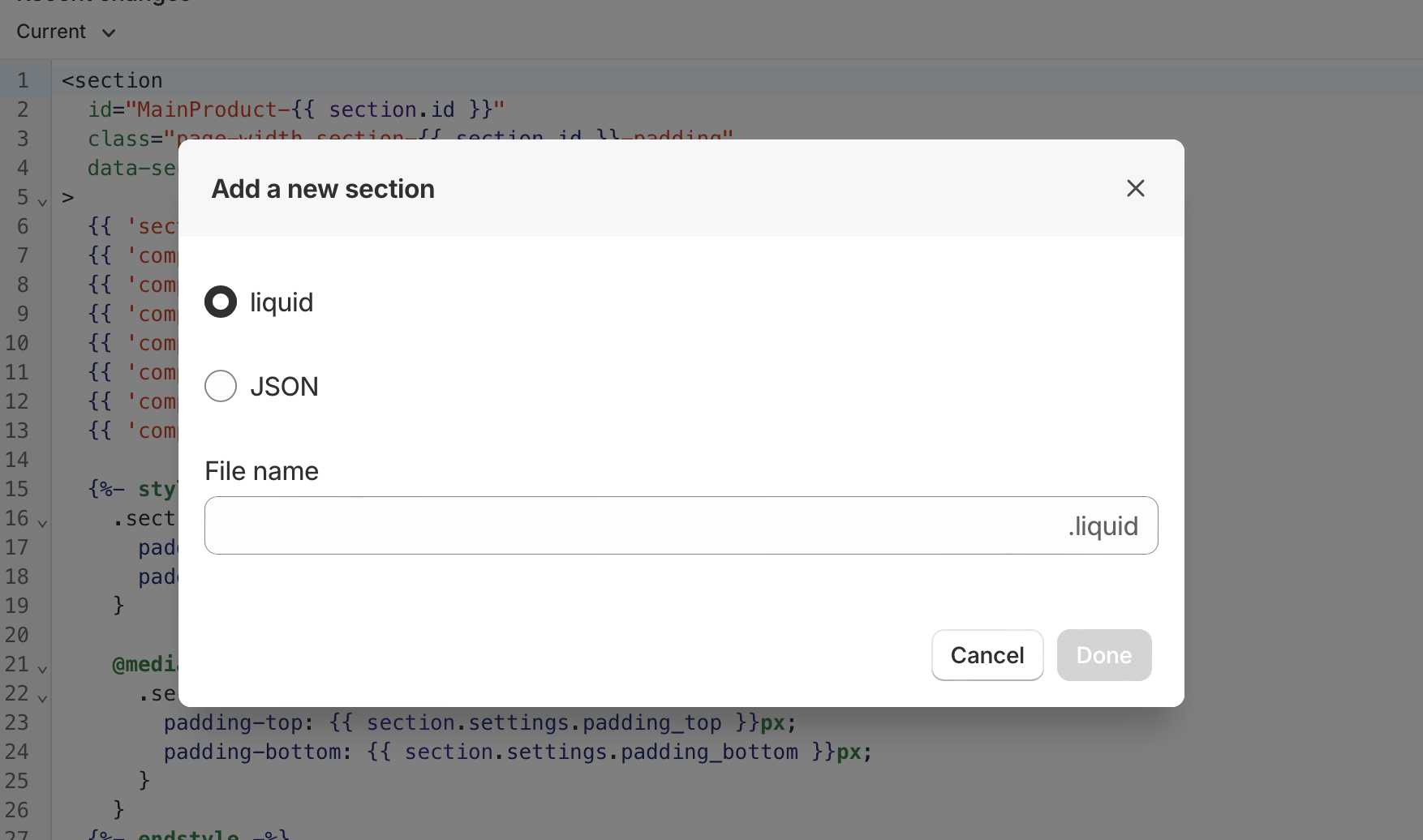
This is the same core recovery process from the original article, but I would add one important warning from experience: copying a file from the wrong theme version can create new errors. A section may depend on snippets, schema settings, CSS classes, or JSON templates that only exist in that version.
Which Shopify files are easiest and hardest to recover?
Default Liquid templates and sections are usually easier to recover than customised assets or app-generated files. The hardest files to restore are the ones tied to a specific theme version, app integration, or heavy custom work.
| File type | Recovery difficulty | Best recovery method | Common risk |
|---|---|---|---|
Layout files like theme.liquid
|
Medium | Recent Changes or fresh theme copy | Breaking global scripts, apps, and analytics |
Templates like product.json or older product.liquid
|
Medium | Duplicate theme or fresh download | Missing sections or invalid template references |
| Sections and snippets | Medium to high | Recent Changes, duplicate theme, backup app | Dependencies on other snippets or settings |
| Assets like CSS or JS | High | Backup, duplicate theme, manual recreation | Version history may be limited or unavailable |
| App-generated files | High | Reinstall app or contact app support | Residual broken references after reinstall |
| Custom-coded files from a developer | Very high | Git, local backup, developer copy, backup app | Permanent loss if no backup exists |
One nuance worth mentioning is that older forum advice often references files like theme.css.liquid or cart.liquid. Modern Online Store 2.0 themes use more JSON templates and a more modular sections-based architecture, so recovery may involve multiple related files rather than one template alone.
What if I use a paid Shopify theme or a third-party theme?
If you use a paid theme, the best source for a missing file is the exact same theme version. Theme support can often provide the original file, which is better than guessing or copying from a newer release.
This matters because paid themes change over time. A file from version 8 may not behave properly in version 10 if the theme developer changed section settings, JavaScript hooks, or schema blocks. I have seen merchants restore one missing file only to trigger five new errors because they copied from a mismatched version.
If you bought a theme from the Shopify Theme Store, contact the theme developer through the theme listing or support channel. If it came from ThemeForest or another marketplace, use the support portal there. Be ready to share:
- Your theme name and version
- The missing file name
- Whether the theme was customised
- Any error messages
If your theme is heavily customised, it may be smarter to restore only the missing base file and then reapply custom code carefully. Replacing the whole theme can wipe out changes to upsells, custom badges, or product page tweaks. If that sounds familiar, you might also find How to Maximize Revenue from Your Shopify Product Pages useful before making broader theme changes.
Can I recover deleted Shopify theme code from duplicates or backups?
Yes, duplicated themes are one of the best safety nets in Shopify. If you duplicated your theme before editing, recovery is usually simple because you can copy the exact file from the duplicate.
Shopify merchants often forget that unpublished themes are still valuable. I frequently find that a store already has an old draft theme, a seasonal duplicate, or a pre-app-install backup sitting in the Themes page. Those are often enough to recover the missing file without downloading anything new.
Check for:
- Theme duplicates you created before edits
- Old unpublished themes
- Staging themes used by developers
- Backup exports stored locally
If you do find a duplicate, compare file contents rather than replacing the entire theme. That usually preserves your latest settings and content.
What are the limitations of Shopify's native recovery options?
Shopify's built-in recovery tools are helpful, but they are not full version control. If a file is fully deleted or heavily customised, native recovery may not be enough.
These are the main limitations I see in practice:
- Recent Changes may not be available for every scenario.
- Deleted files may not have a simple undelete button.
- Assets and app-generated files can be awkward to restore.
- Fresh theme downloads may not match your current version exactly.
- Theme settings and code are not the same thing - restoring one does not always restore the other.
This is why serious Shopify builds should really use a more disciplined workflow. Shopify supports theme development with Shopify CLI and GitHub integration for themes. If a developer is making regular code changes on your store, that should be the baseline, not editing production files at random.
What backup apps can help recover deleted Shopify code?
Backup apps are the best insurance policy if multiple people touch your store. They are especially useful when freelancers, apps, or internal staff make changes without documenting them.
I still think the best prevention is a duplicate theme plus sane development workflow, but backup apps are genuinely useful for non-technical merchants. Two relevant options are below.
How good is Undo for Shopify recovery?
Undo is useful for merchants who want broad change tracking and quick restores. It is best for stores where lots of content changes happen outside theme code too.

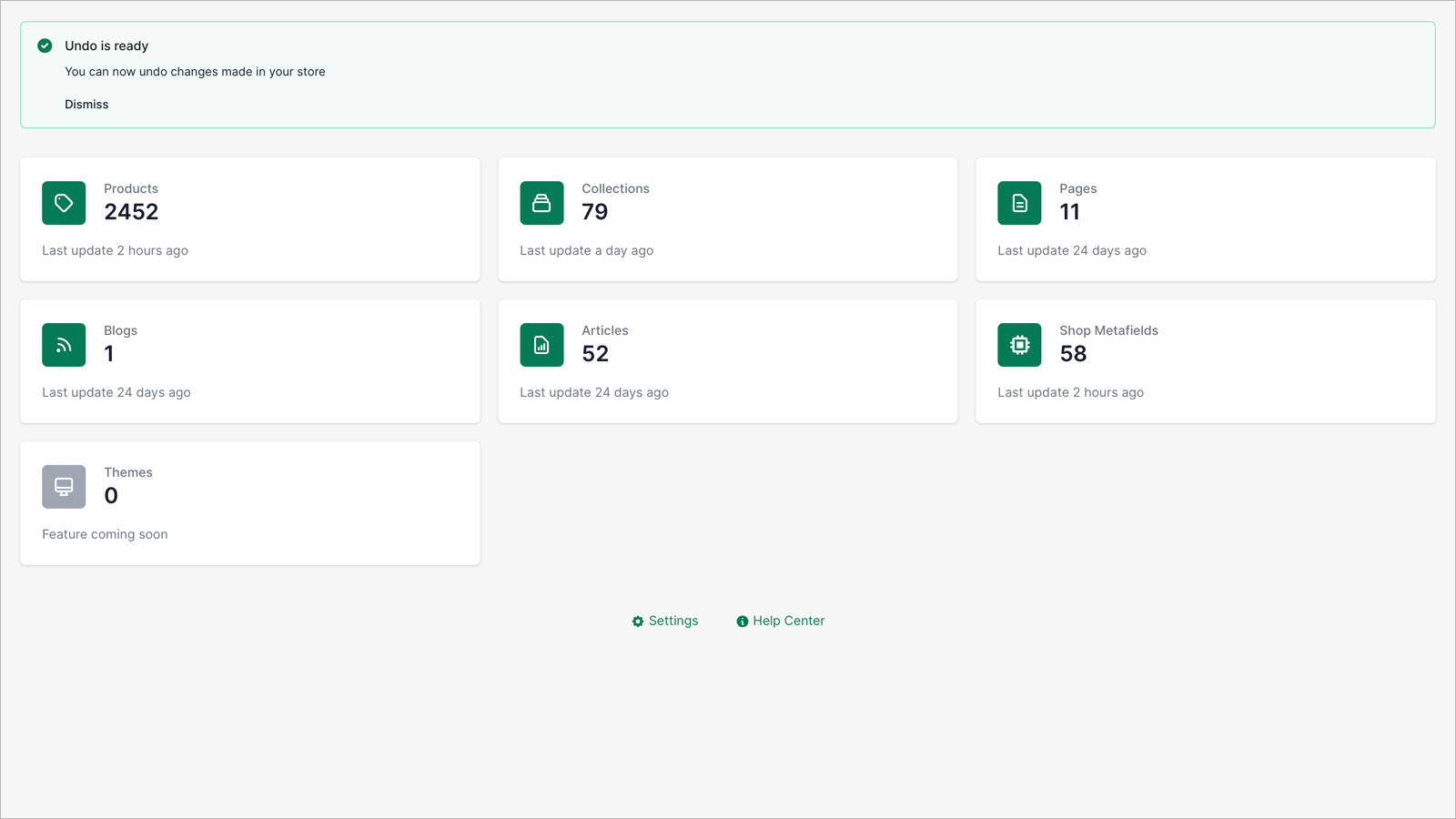
The app is designed to help recover accidental changes across store data, not just theme files. That can be handy if the same person who deleted code also changed products, collections, or pages. For merchants who do not use Git or local backups, that extra safety layer is worth considering.
Is ThemeWatch better for theme-specific backups?
ThemeWatch is more focused on theme monitoring, backups, and change visibility. It is a strong fit if your main concern is theme code and third-party edits.
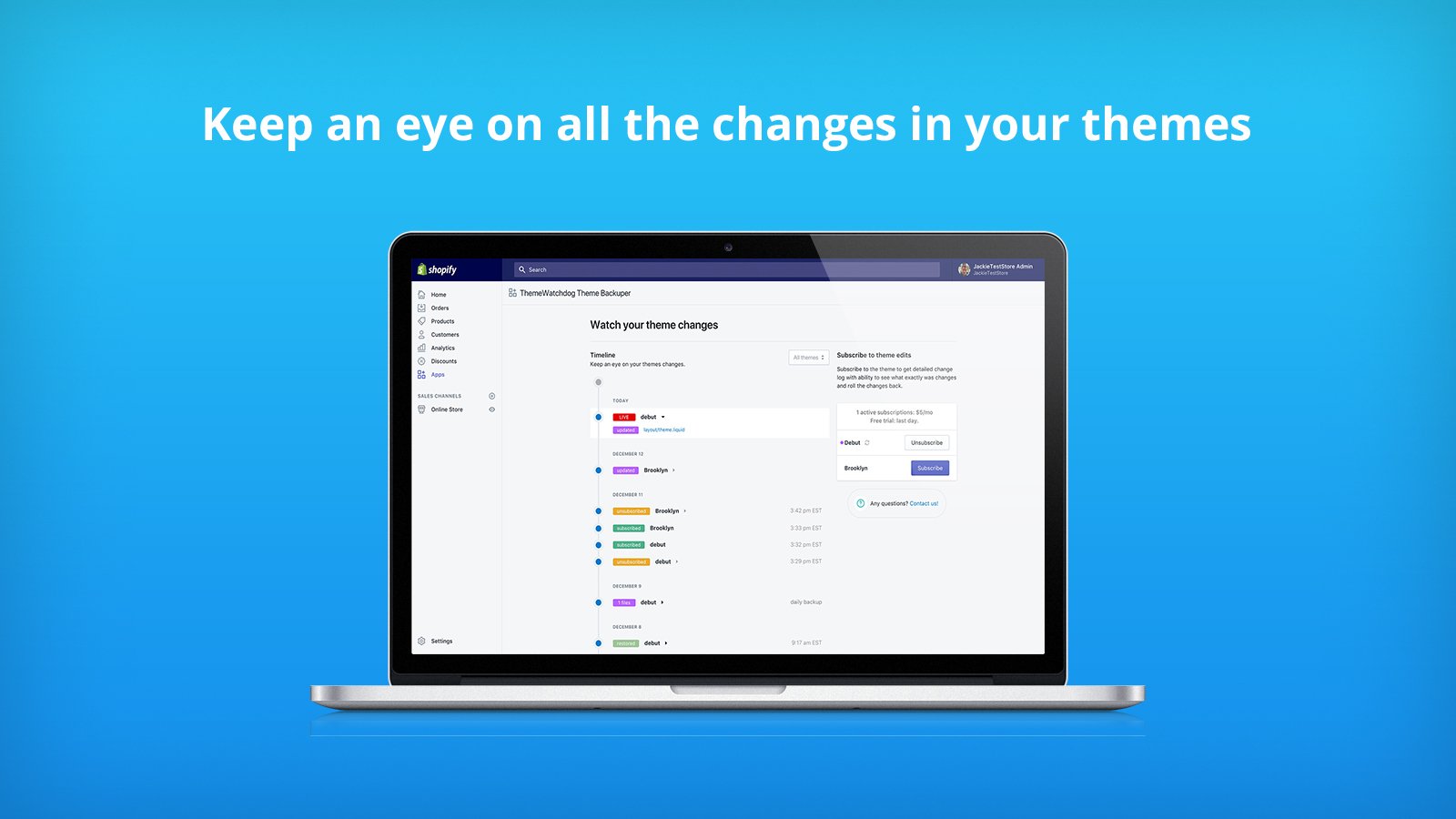
ThemeWatch can help you monitor what changed, when it changed, and restore previous theme states. In my experience, this is particularly useful when merchants install several apps in a short period and then discover the theme no longer behaves as expected.
| App | Best for | Main strength | App Store |
|---|---|---|---|
| Undo | Broader store recovery | Tracks and restores more than just theme changes | View app |
| ThemeWatch | Theme-specific protection | Theme backups and change tracking | View app |
Neither app replaces good workflow, but both are better than having no recovery plan at all.
How do I prevent deleting Shopify Liquid code in future?
The best prevention is to never edit your live theme without a backup or duplicate. If your store matters commercially, treat theme code like production software.
Here is the prevention stack I recommend:
- Duplicate the theme before every meaningful edit.
- Test on an unpublished theme first.
- Use Shopify CLI and GitHub for developer work.
- Document every custom file and snippet.
- Limit staff and app access to theme edits.
- Use a backup app if multiple people work in the store.
In my experience building Shopify apps, the biggest risk is not one accidental deletion. It is untracked changes from multiple sources - a freelancer tweaks a section, an app injects code, a merchant pastes AI-generated Liquid, and nobody knows what changed. That is how a simple missing snippet turns into a full-day debugging job.
If you are using AI tools to generate code or content for your store, I would also read How to Optimize Your Shopify Store for AI Shopping Agents and How to Get Your Shopify Store into ChatGPT. AI can speed things up, but bad code suggestions still break themes every week.
When should I restore the whole Shopify theme instead of one file?
You should restore the whole theme when multiple files are broken, app code is tangled throughout the theme, or you no longer trust the current codebase. If only one file is missing, restoring that file alone is usually safer.
I normally restore the whole theme only when one of these is true:
- Several templates or sections are missing
- The theme was edited by multiple unknown parties
- App uninstall leftovers are causing repeated errors
- The codebase is so messy that patching one file is risky
- You already have a clean, recent duplicate theme
If you go down that route, compare settings, app embeds, tracking scripts, and custom snippets carefully. Replacing the theme may fix the missing file but remove CRO elements, review widgets, or upsell placements. If upsells matter to your store, you may want to review How to Create Shopify Cart Drawer Upsells That Boost AOV and How to Upsell on Shopify in 2026 before switching themes.
What is my recommended recovery workflow for most merchants?
For most merchants, the best workflow is duplicate first, try Recent Changes second, then copy the file from a clean theme copy. This gives you the highest chance of recovery with the lowest risk of making things worse.
| Situation | Best next step | Why |
|---|---|---|
| You deleted code inside an existing file | Use Recent Changes | Fastest native rollback |
| The file is missing completely | Copy from duplicate or fresh theme | Most reliable replacement method |
| You use a paid theme | Get the file from the exact theme version | Avoids version mismatch errors |
| You have many store collaborators | Use a backup app | Better visibility and recovery history |
| Multiple files are broken | Restore a clean duplicate theme | Faster than piecemeal fixes |
That is the practical answer behind most ranking forum threads too. The difference is that forum replies are often fragmented, whereas in real life you need a repeatable process.
Should I hire a Shopify developer to recover deleted code?
If the deleted file is custom, revenue-critical, or tied to complex app integrations, hiring a developer is often the fastest route. If it is a standard theme file and you have a duplicate, you can usually handle it yourself.
You should probably get help if:
- Checkout, cart, or product pages are broken
- You do not know which file is missing
- The theme has extensive custom code
- There are Liquid syntax errors after restoring the file
- Apps stopped working after the deletion
As a rule of thumb, if the store is actively losing sales, paying for an hour of competent Shopify help is cheaper than guessing. If the issue touches order notes, custom product workflows, or personalisation logic, our own article on tracking customised orders in Shopify shows how quickly small code changes can affect operational workflows too.
Final practical advice from experience
Most deleted Shopify Liquid files are recoverable, but speed and caution matter. Your best chance of a clean recovery is using the exact same theme version and testing fixes in a duplicate first.
When I test recovery workflows on development stores, the merchants who recover fastest are the ones who already have a duplicate theme, a backup habit, and a clear record of custom code. The ones who struggle are usually editing the live theme, copying snippets from random forum posts, and trying to patch a paid theme with files from a different version.
If you remember only one thing, make it this: duplicate before you edit. It is the simplest Shopify habit that saves the most headaches.