
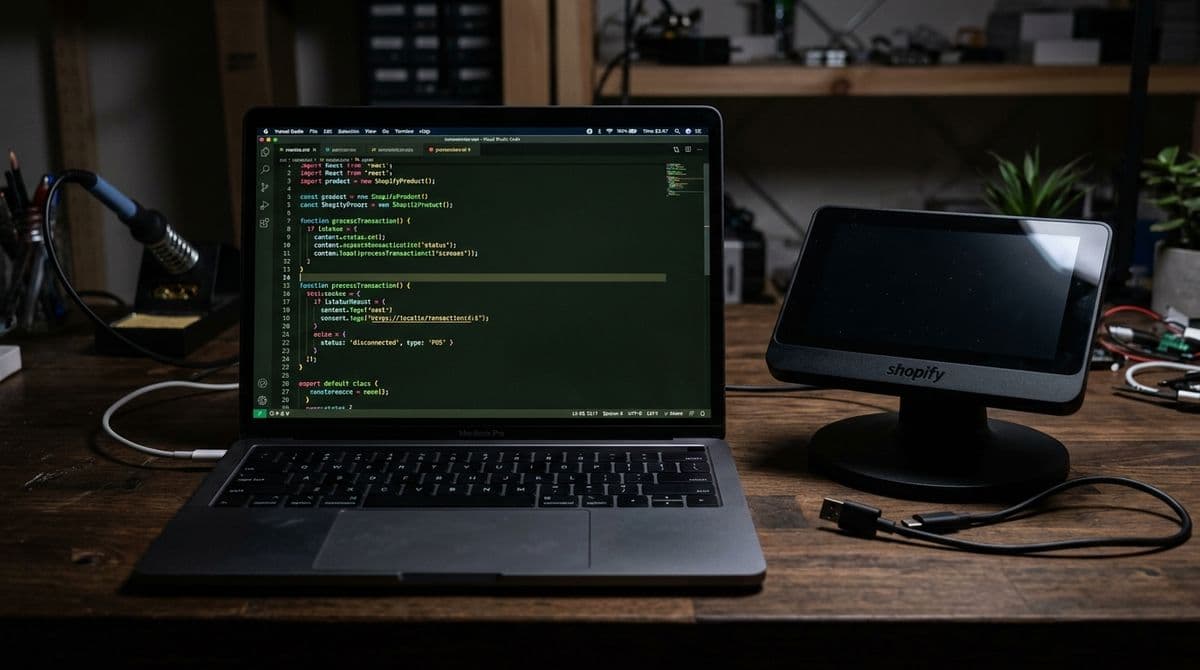
Seeing the message "Sorry, this shop is currently unavailable" in Shopify usually means your store is blocked by a billing issue, domain or DNS problem, theme or app conflict, or a wider Shopify outage. The good news is that in most cases, you can identify the cause in 10 to 30 minutes if you troubleshoot in the right order.
I have worked in the Shopify ecosystem for years as an app developer, and I have seen this error from both sides - as a merchant support issue and as a developer trying to rule out whether an app, theme change, or platform problem caused the downtime. In my experience, the biggest mistake is jumping straight into random fixes. A structured checklist is much faster.
This guide walks you through exactly how to fix the Shopify unavailable error in 2026, what causes it, and what to do if the problem is affecting only your store or Shopify as a whole.
If you are also tightening up your store’s technical setup more broadly, you may want to read The Hidden Truth About Shopify Speed Optimization Scams and How to Get Your Shopify Store into ChatGPT: Step-By-Step Guide.
What does "Sorry, this shop is currently unavailable" mean in Shopify?
This error means visitors cannot access your Shopify storefront normally. In practice, it usually points to an account, domain, DNS, theme, app, or platform-level availability problem.
It does not always mean your whole business is broken. Sometimes the issue is limited to your custom domain while your myshopify.com URL still works. Other times, the admin is accessible but the storefront is not. That distinction matters because it tells you where to start.
When I test this issue for merchants, I always check three versions of the store URL: the custom domain, the www version, and the myshopify.com URL. If one works and another fails, you are usually looking at a domain configuration problem, not a full Shopify shutdown.
What are the most common causes of a Shopify store being unavailable?
The most common causes are unpaid billing, expired domains, broken DNS records, Shopify outages, and recent theme or app changes. These account for the vast majority of cases I have seen.
Competitor articles often list broad possibilities, but the practical reality is that a handful of causes appear again and again. Here is the shortlist I would check first.
| Cause | How common it is | Typical symptom | Best first check |
|---|---|---|---|
| Billing or plan issue | Very common | Store unavailable after trial ends or payment fails | Shopify admin billing section |
| Domain expired | Common | Custom domain stops working suddenly | Whois lookup and registrar account |
| DNS misconfiguration | Very common | Store works on myshopify URL but not custom domain | A record and CNAME check |
| Shopify outage | Occasional | Many stores affected at once | Shopify Status and Downdetector |
| Theme conflict | Common after changes | Issue starts after publishing a new theme | Revert to backup theme |
| App conflict or script problem | Common on customised stores | Issue starts after installing or updating an app | Review recent app changes |
| Browser cache or extension issue | Surprisingly common | Store unavailable only for you | Incognito mode test |
How do I fix the Shopify unavailable error step by step?
The fastest way to fix this error is to check billing, Shopify status, domain settings, browser issues, and then recent theme or app changes in that order. That sequence rules out the highest-probability causes first.
Below is the exact troubleshooting flow I would use on my own store.
- Log into Shopify admin and confirm your account is active.
- Check billing status to make sure your plan has not lapsed and your payment method has not failed.
- Check Shopify Status and Downdetector to rule out a platform outage.
- Test your myshopify.com URL separately from your custom domain.
- Verify DNS records, including the A record and CNAME.
- Check if your domain has expired.
- Open the site in incognito mode and clear cache and cookies.
- Review recent theme changes and publish a backup theme if needed.
- Review recent app installs or updates.
- Contact Shopify Support with screenshots and a timeline if the issue remains unresolved.
How do I check if my Shopify billing caused the error?
If your Shopify subscription is unpaid, expired, or your card has failed, your store can become unavailable until the billing issue is fixed. This is one of the first things to verify.
Go to your Shopify admin and review your plan status, billing history, and payment method. This is especially important if you recently finished a free trial, changed cards, or had a failed renewal. I have seen stores go offline simply because an old company card expired and no one noticed the billing email.
If you cannot access the storefront but can access the admin, billing is one of the strongest suspects. Resolve any failed payment, confirm the charge has gone through, and then test the storefront again after a few minutes.
What billing issues should I look for?
The key billing problems are expired cards, failed charges, trial expiry, and frozen stores. These are the most common account-related triggers.
- Expired free trial with no paid plan selected
- Failed subscription payment due to card issues
- Frozen or paused account status
- Billing email ignored by a former team member or agency
Is Shopify down right now?
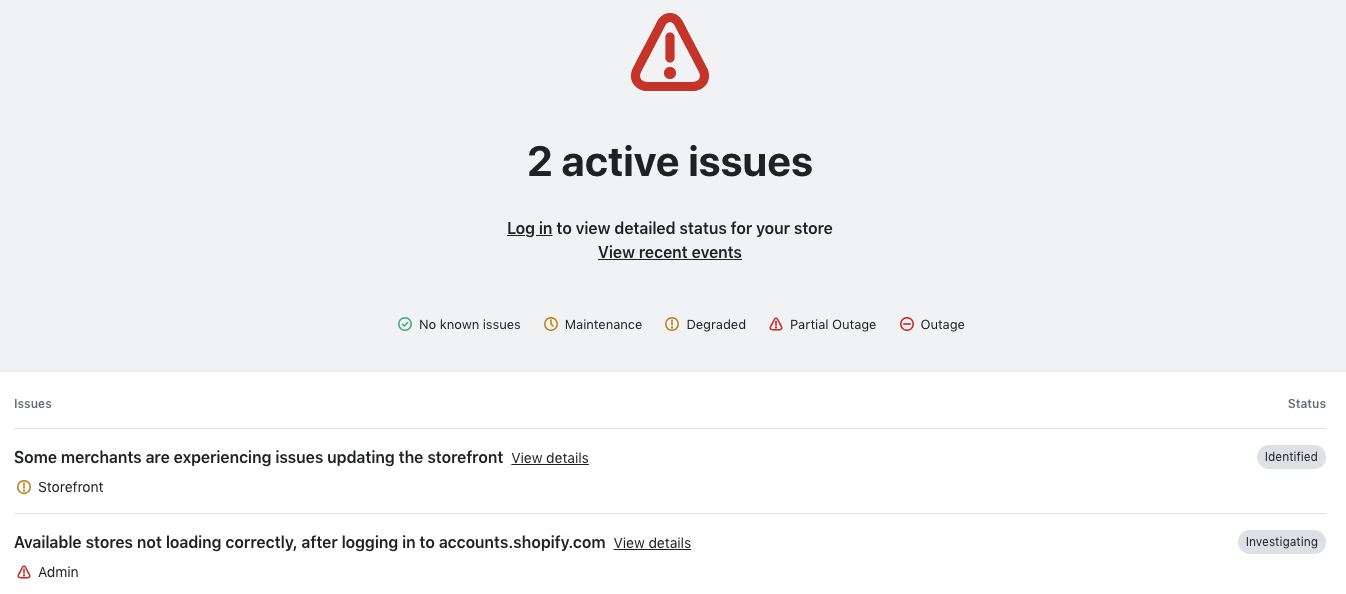
If Shopify is having a platform-wide issue, there is usually nothing to fix on your side. You need to confirm the outage and wait for Shopify to resolve it.
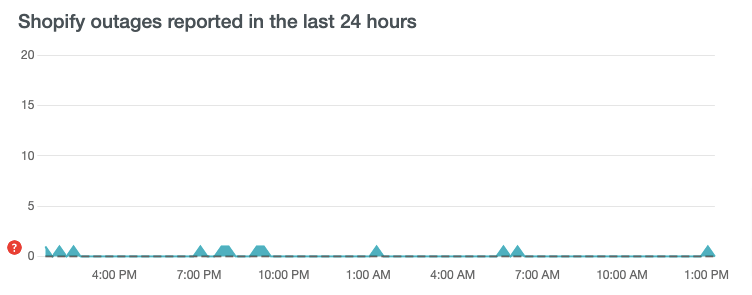
Your first stop should be the Shopify Status page. I also recommend checking Downdetector because it often shows spikes in merchant reports before official status pages are fully updated.
If you want a third signal, search for "Shopify down" on X or other social platforms and look for a sudden cluster of complaints from multiple merchants. If many stores are affected at once, it is almost certainly not your theme or your apps.
How can I tell if it is just my store or all Shopify stores?
If your myshopify.com URL works but your custom domain does not, it is likely your store setup. If many merchants are reporting problems and both admin and storefront are unstable, it is more likely a Shopify outage.
In my experience, this one comparison saves a lot of time. Test your store from a different device and network as well. That helps separate a local browser issue from a real storefront problem.
How do I fix Shopify domain and DNS problems?
Domain and DNS issues are one of the biggest reasons a Shopify store appears unavailable, especially after switching domains or changing DNS settings. If your custom domain is misconfigured, visitors can hit an error even though your store itself still exists.
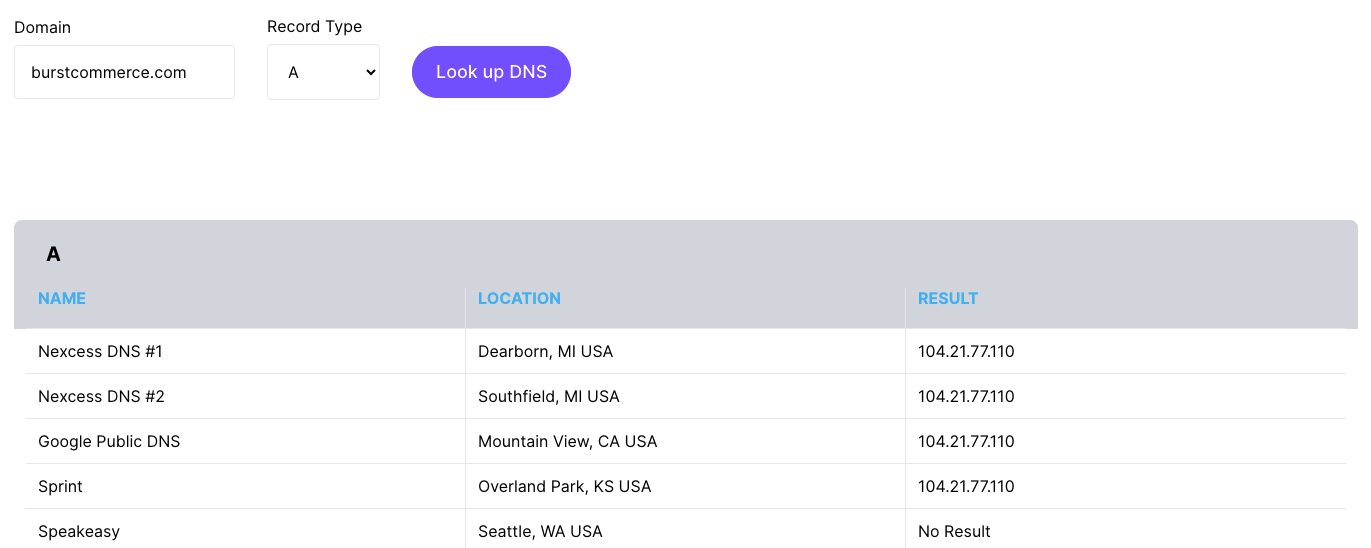
For most Shopify stores using a third-party domain, your DNS should point to the standard Shopify records. The usual setup is:
- A record pointing to 23.227.38.65
- CNAME record for www pointing to shops.myshopify.com
If those are wrong, missing, or conflicting with old records, your domain may not load properly. I have seen merchants accidentally leave old A records from a previous host in place, which creates inconsistent behaviour across devices and regions.
What should I check in my Shopify domain settings?
You should check whether the domain is connected, whether DNS has propagated, and whether the domain itself is still active. These three checks cover most domain-related failures.
- In Shopify admin, go to Settings > Domains.
- Confirm your primary domain is connected.
- Use a DNS checker such as DNS Checker to test global propagation.
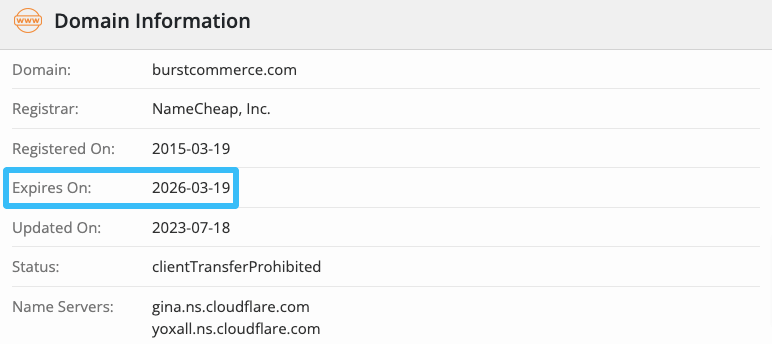
- Use a Whois tool such as Who.is to check whether the domain has expired.
- Make sure there are no conflicting A, AAAA, or CNAME records at your registrar.
DNS changes can take time. While many updates propagate within a few hours, Shopify still advises allowing up to 48 hours in some cases. If you changed records recently, patience may be part of the fix.
What if my domain has expired?
If your domain has expired, renew it with your registrar immediately. An expired domain can make your Shopify store look completely offline even when the Shopify account itself is fine.
This happens more often than merchants expect, especially when the domain was bought by a former freelancer, agency, or employee. I always recommend enabling auto-renew and making sure the renewal emails go to a monitored inbox.
Could my browser cache or extensions be causing the problem?
Yes, sometimes the store is only unavailable to you because of cached files, cookies, or a browser extension conflict. This is a quick test and worth doing before making bigger changes.
Open your store in incognito or private mode. If it loads there, the issue is probably local to your browser. Clear cache, cookies, and site data, then disable any recently added extensions.
I have personally seen privacy extensions, aggressive ad blockers, and stale cached redirects make a healthy Shopify store look broken. If the site works on mobile data but not your desktop browser, that is another clue that the issue is local rather than platform-wide.
Can a Shopify theme cause the store unavailable error?
Yes, a broken or badly implemented theme change can make your storefront unusable, especially if the issue started right after publishing a new theme. In that case, reverting to a previous version is often the fastest fix.
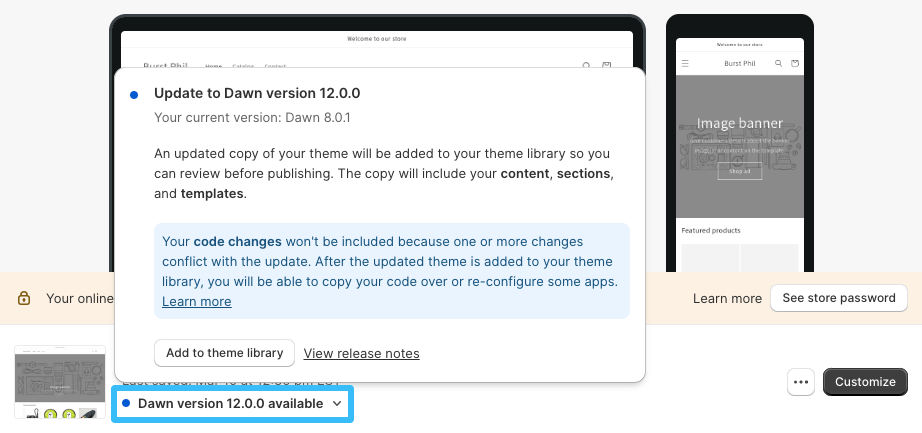
Go to Online Store > Themes and review your live theme and theme library. If you recently published a new theme or made code edits, publish an older backup version and test again. This is one of the safest troubleshooting steps because it is reversible and usually takes less than a minute.
When I help merchants diagnose this, I always ask one question first: what changed right before the error started? If the answer is "we published a new theme", you already have a strong lead.
How do I restore a previous Shopify theme version?
You can restore a previous theme by publishing a backup from your theme library. If the backup works, the problem is very likely in the current live theme.
- Go to Online Store > Themes.
- Scroll to the Theme library.
- Find a previous working theme copy.
- Click Publish.
- Retest your storefront on both desktop and mobile.

If your theme is heavily customised, be careful not to overwrite important work without documenting what changed. I recommend keeping a simple change log for every theme deployment, even on small stores.
Can Shopify apps break storefront availability?
Yes, apps can sometimes cause storefront issues, especially apps that inject scripts into the theme, modify checkout-adjacent behaviour, or rely on outdated theme app extension logic. It is not the most common cause, but it is absolutely possible.
As someone who builds Shopify apps, I can say this clearly: good apps should fail gracefully. But in the real world, old snippets, abandoned app code, or conflicts between multiple apps can still create serious problems. This is especially true on stores that have installed and removed many apps over time.
Go to Settings > Apps and sales channels and review any recent installs, removals, or updates. If the error started after adding an app, disable it if possible and test again. Also check whether the app left old theme code behind.
If you are trying to keep your store leaner and more stable overall, my guides on How to upsell on Shopify in 2026 and How to Create Shopify Cart Drawer Upsells That Boost AOV explain how to add conversion features without overloading your theme with too many moving parts.
What should I do if the error started after a recent change?
If the error started right after a theme edit, app install, domain update, or plan change, reverse that change first. The timing usually tells you more than any generic troubleshooting list.
In my experience, the fastest diagnosis often comes from building a timeline. Ask yourself:
- Did I change DNS records today?
- Did I publish a new theme?
- Did I install or remove an app?
- Did my card expire or did a billing payment fail?
- Did the issue start after editing code?
If the answer is yes to any of those, start there before doing anything more complicated. Most store availability issues have a very recent trigger.
How do I contact Shopify Support effectively?
If you have checked billing, status, domain, browser, theme, and app changes and the issue remains, contact Shopify Support with clear evidence. Good information speeds up the resolution.
Use the Shopify Help Centre and be ready to provide:
- Your store URL
- Screenshots of the error
- The exact time the issue started
- Whether the myshopify.com URL works
- Whether you tested incognito mode
- Any recent theme, app, billing, or domain changes
I always tell merchants to avoid sending a vague message like "my store is down". A short, precise report gets better support. Something like this works much better: "Our custom domain shows 'shop unavailable' since 10:40 BST. myshopify URL works. Billing is active. DNS was changed this morning. Incognito test still fails."
How can I prevent my Shopify store from becoming unavailable again?
You can reduce the risk of future downtime by tightening billing, domain, theme, and app management processes. Prevention is much easier than emergency recovery.
Shopify itself is highly reliable, but most availability problems I see happen at the store level. They are usually caused by small operational gaps rather than dramatic technical failures.
| Prevention step | Why it matters | How often to check |
|---|---|---|
| Enable domain auto-renew | Prevents silent expiry | Once, then quarterly review |
| Use a current billing card | Avoids failed subscription payments | Monthly |
| Keep backup themes | Makes rollback fast | Before every major change |
| Limit unnecessary apps | Reduces conflicts and script bloat | Quarterly |
| Document changes | Helps identify the cause quickly | Every deployment |
| Monitor uptime | Alerts you before customers complain | Continuous |
If you are making bigger changes to your store setup, I also recommend reading When to Upgrade Your Store to Shopify Plus and How to Manage Shopify Customer Data Without Losing Sales. Strong operations are often what separate stable stores from fragile ones.
What is the best quick checklist for fixing this error in 2026?
The best quick checklist is: billing, Shopify status, myshopify URL, DNS, domain expiry, incognito mode, backup theme, recent apps, then Shopify Support. That order gives you the highest chance of finding the issue quickly.
- Check billing and plan status
- Check Shopify Status
- Check Downdetector
- Test custom domain vs myshopify URL
- Verify A record: 23.227.38.65
- Verify CNAME: shops.myshopify.com
- Check domain expiry
- Clear cache and test incognito mode
- Revert to a backup theme
- Review recent app changes
- Contact Shopify Support with evidence
Final thoughts from my experience as a Shopify app developer
Most Shopify unavailable errors are fixable without a developer, but only if you diagnose them in the right order. The biggest wins come from ruling out the simple causes first.
In my experience building Shopify apps and helping merchants troubleshoot storefront issues, the root cause is usually not mysterious. It is often a domain record, an expired card, a recent theme change, or a temporary Shopify issue. The merchants who solve it fastest are the ones who keep calm and work through a checklist instead of changing five things at once.
If you want to make your store more resilient and more profitable once it is back online, I would also read How to Maximize Revenue from Your Shopify Product Pages and How to Optimize Your Shopify Store for AI Shopping Agents. Uptime matters, but so does what happens after the visitor lands.