Shopify Bundles is the easiest way to create fixed bundles and multipacks inside Shopify without code or a third-party workaround. If you want to package multiple products as one offer, track stock properly, and manage everything from your admin, the native app is the best place to start.
In my experience building Shopify apps and working with merchants on upsells, cross-sells, and bundle logic, the native bundles app is a strong option for simple bundle offers. It is free, it works directly inside Shopify admin, and it avoids a lot of the inventory headaches that older manual bundle methods created.
That said, it is not the right tool for every bundle strategy. If you need mix-and-match bundles, advanced discount logic, or a full build-a-box flow, you will hit limitations fairly quickly. I will show you exactly how to create bundles using the native Shopify app, what it does well, where it falls short, and when you should use something more flexible.
What is the Shopify Bundles app?
Shopify Bundles is Shopify's free first-party bundle app for creating fixed bundles and multipacks. It lets you combine products into a single bundle product while keeping inventory linked to the underlying items.
Shopify Bundles is available on all Shopify plans and is built specifically for merchants who want a native setup rather than a custom theme hack. Because it uses Shopify's own bundle infrastructure, it is generally cleaner and more reliable than creating a fake bundle product manually and trying to keep stock in sync yourself.
If you have ever created a bundle as a normal product and then had to manually adjust component stock after every sale, you will appreciate this. Inventory updates happen against the individual products, which is the main reason I recommend the native app for straightforward bundle offers.


How do I create bundles using the native Shopify Bundles app?
To create bundles using the native Shopify Bundles app, install the app, open Bundles in your Shopify admin, click Create bundle, select the products, configure variants or quantities, and save the new bundle product. The whole process usually takes 5 to 10 minutes for a basic bundle.
Here is the current workflow based on Shopify's latest documentation and what merchants are seeing in admin now.
Step 1: Install Shopify Bundles
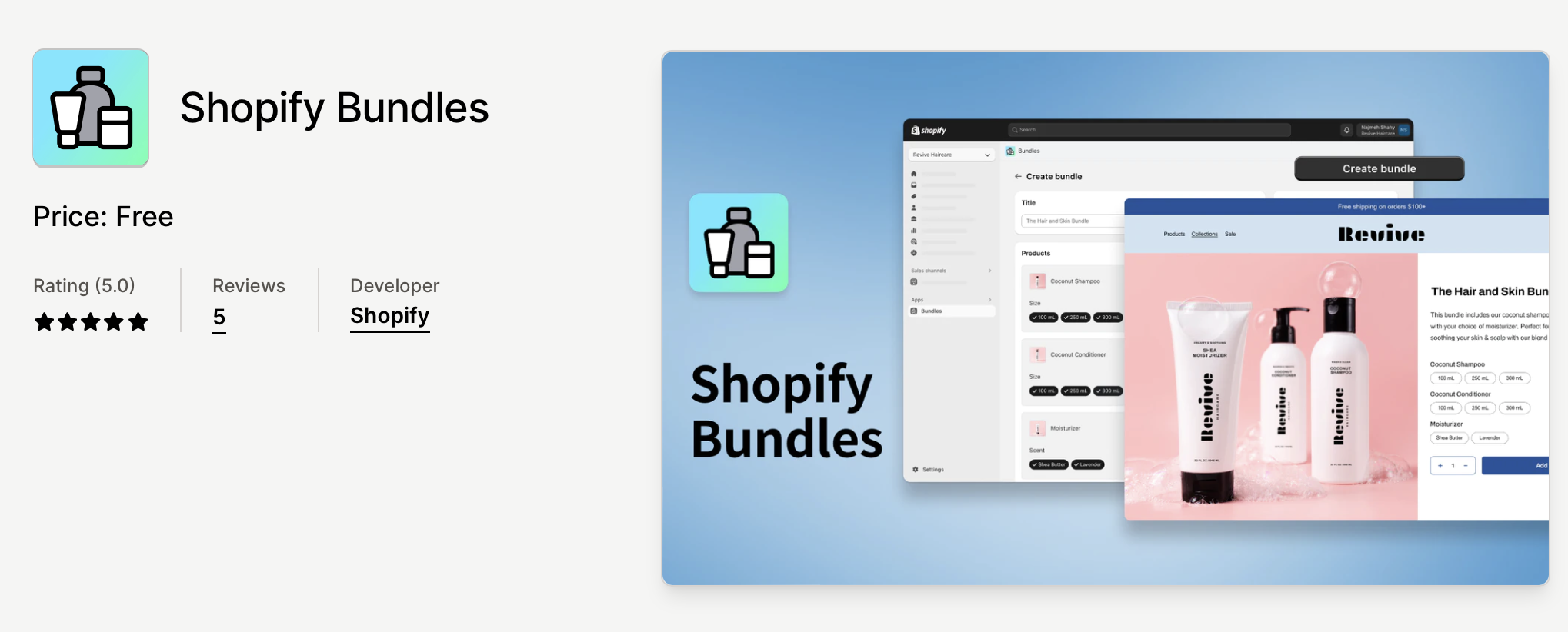
You first need to install the app from the Shopify App Store. The app is free and published by Shopify.
Go to Shopify Bundles on the Shopify App Store, then click Install. Shopify will redirect you into your admin and ask you to confirm the installation.
If you prefer, you can also search for the app from the Shopify App Store or from the Apps area in your admin. Once installed, Bundles appears as its own section in the left-hand menu for most stores.
Step 2: Open Bundles and click Create bundle
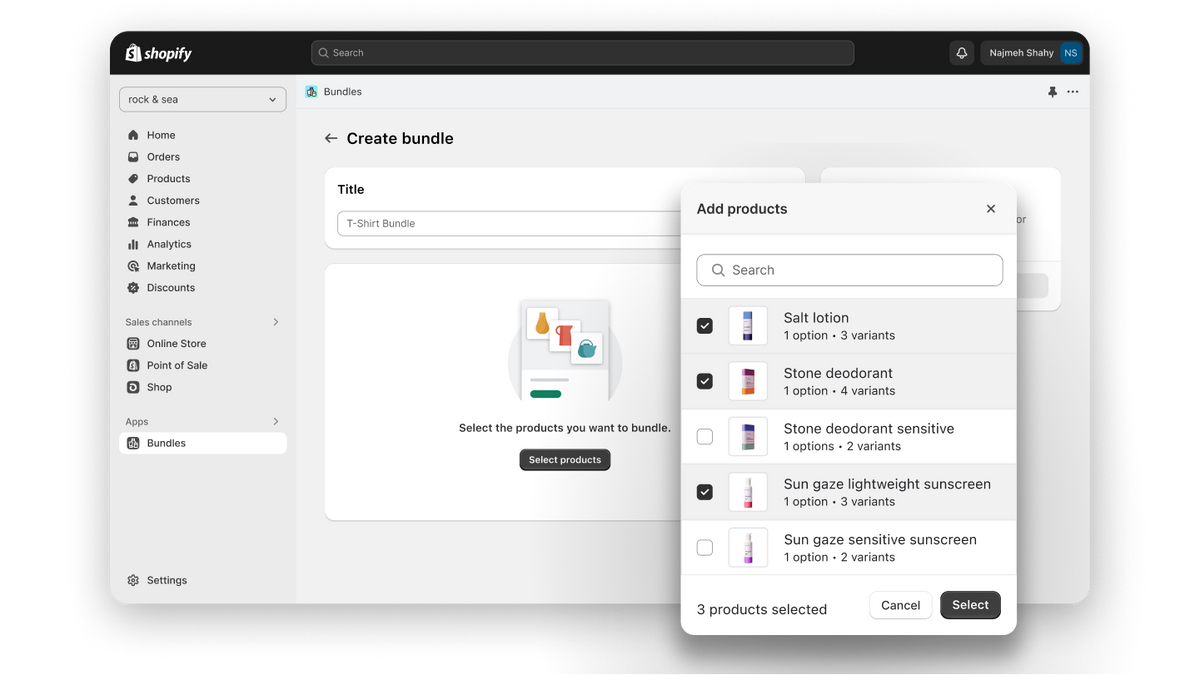
After installation, open Bundles from your Shopify admin and click Create bundle. This starts the native bundle setup flow.
Shopify keeps this part refreshingly simple. You are not building a discount rule first and you are not editing theme code. You are creating a proper product with bundle logic behind it.
Step 3: Add a bundle title and choose products
The next step is to name your bundle and select the products you want to include. A good bundle title should be clear, benefit-led, and easy to understand at a glance.
For example, instead of naming a bundle "Starter Pack 01", use something like Daily Skincare Routine Bundle or 3-Pack Running Socks. In my experience, descriptive names convert better because customers instantly understand what they are buying.
Click Select products, choose the items you want in the bundle, then click Select. Shopify will create a standalone bundle product that combines those underlying products and their eligible variants.
Step 4: Configure quantities, variants, and options
You can then adjust product quantities, choose which variants are included, and in some cases expose quantity as an option. This is where you decide whether the bundle is a fixed set or more like a multipack.
For each component, you can usually do the following:
- Increase the quantity of a product inside the bundle
- Select or deselect specific variants
- Use Add quantity as an option where relevant
- Duplicate a product to create a multipack-style bundle
This is one of the better parts of the app. It gives you enough control for standard bundles without becoming overly technical for non-developers.
Step 5: Save and complete the bundle product details
Once the bundle components are set, click Save and continue, then fill out the product details just as you would for any other product. This includes the description, media, product type, tags, status, and sales channel publishing.
The bundle product should be treated like a proper merchandising page, not just a technical setup. Add strong images, explain what is included, and make the savings obvious if you are pricing the bundle below the combined item total.
I also recommend reviewing the product page on your live theme before pushing traffic to it. Some themes display bundle option selectors more clearly than others, and a quick quality check can save you from conversion issues later.
Step 6: Publish the bundle and test checkout
Before you consider the job done, publish the bundle to the right sales channels and run a test order. This is the step many merchants skip, and it is where avoidable issues tend to show up.
Make sure the bundle is available on the channels you actually use. Then add it to cart, check the line items, confirm pricing, and verify that component inventory reduces as expected after a test order.
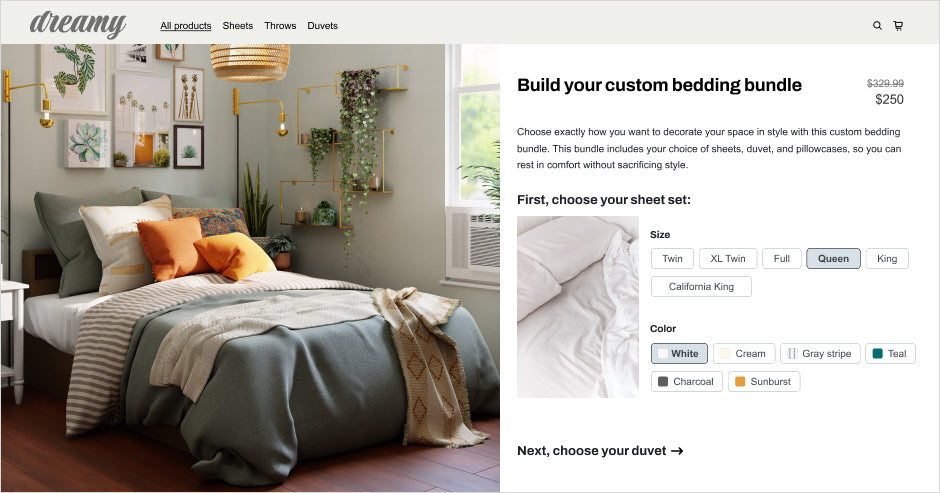
What are the exact steps to create a bundle in Shopify Bundles?
The exact steps are simple: open Bundles, create a bundle, select products, configure options, and save. If you want the short version you can follow, use this checklist.
- From Shopify admin, click Bundles.
- Click Create bundle.
- Enter a title for the bundle.
- Click Select products.
- Choose the products to include, then click Select.
- Optionally adjust quantities and variants.
- Optionally use Add quantity as an option or duplicate a product for a multipack.
- Click Save and continue.
- Add the rest of the product details, including description and media.
- Set Publishing and Status as needed.
- Click Save.
If you are new to bundle strategy generally, it is also worth reading our guides on mix and match bundles, product kits, and build-a-box bundles. Those formats often need more flexibility than the native app provides.
What types of bundles can I create with Shopify Bundles?
The native Shopify Bundles app supports fixed bundles and multipacks. It does not handle true mix-and-match bundles in the way most merchants mean it.
A fixed bundle is a pre-defined group of products sold together as one offer. A multipack is usually multiple units of the same product or a repeated component setup, such as a 3-pack of candles or 6-pack of socks.
If you want customers to choose any 3 products from a larger collection, or build their own gift box with conditional rules, the native app is usually too limited. For that, you will need a specialist app or a custom implementation using Shopify's bundle-related APIs.
| Bundle type | Supported by Shopify Bundles? | Best use case |
|---|---|---|
| Fixed bundle | Yes | Routine sets, starter kits, coordinated product sets |
| Multipack | Yes | 2-pack, 3-pack, 6-pack offers |
| Mix-and-match bundle | No, not fully | Pick any X items from a group |
| Build-a-box | No, not fully | Custom gift boxes, subscription-style selection flows |
| Advanced upsell bundle with dynamic rules | No | Conditional offers, cart-driven recommendations |
What are the current limitations of the native Shopify Bundles app?
The biggest limitation is that Shopify Bundles is built for simple native bundling, not advanced bundle merchandising. It works well for straightforward offers, but there are hard limits around complexity, variants, and channel support.
Based on Shopify's help documentation and what is currently available, these are the main constraints merchants should know before committing to it.
- Fixed bundles support up to 30 components
- Dynamic bundle support exists in Shopify's broader bundle ecosystem, but the native app is primarily used for fixed bundles and multipacks
- Bundles can have a maximum of 3 options and 100 variants total
- Each component can support up to 2000 units
- Order details show the individual item SKUs, not a separate bundle SKU in the way some ERPs expect
- Bundle weight is derived from the component products, not a custom bundle weight
- Support across sales channels can be more limited than standard products depending on setup
In practice, the 100 variant cap is the one that catches merchants most often. If you combine products with lots of size, colour, or flavour variants, the bundle can become unmanageable quickly.
That is why I usually tell merchants to keep native bundles focused and intentional. A small number of well-converting bundles nearly always performs better than trying to recreate a complex product configurator with a tool that was never designed for it.
How does inventory work with Shopify Bundles?
Inventory in Shopify Bundles is linked to the underlying component products, which means stock adjusts automatically when a bundle sells. This is one of the app's strongest features.
Shopify uses the inventory of the products inside the bundle rather than making you manage a separate stock pool for the bundle product itself. If one component goes out of stock, the bundle can become unavailable depending on your setup and product availability rules.
Real-time inventory sync is the main reason many merchants move away from manual bundle products. In my experience, this reduces overselling risk significantly, especially for stores with fast-moving SKUs or bundles that share stock with standalone products.
If inventory accuracy matters to your operation, native bundles are far safer than creating a normal product called "Bundle" and pretending it represents three other products behind the scenes. That older method still exists in blogs and forums, but it is usually a poor long-term solution.
Can I offer discounts on bundles with the native app?
Yes, you can offer discounts on bundles, but the bundle pricing strategy depends on how you structure the product. In most cases, the bundle product itself carries the offer and the customer sees the bundle as a single purchasable item.
The simplest method is to price the bundle product lower than the sum of its components. For example, if three products total £60 individually, you might price the bundle at £49 to create a clear savings message.
You can also combine bundling with Shopify's discount tools depending on your promotion strategy. If discounts are central to your offer structure, you might also want to review our guide on tiered discounts in Shopify and combining discount codes with free shipping.
One thing to watch is margin leakage. When I test bundle offers, I always calculate the effective discount after any sitewide promotions, free shipping thresholds, and upsell incentives. A bundle that looks profitable at first glance can become much less attractive once stacked promotions kick in.
Is Shopify Bundles the best option for every store?
No, Shopify Bundles is best for simple bundle setups, not every store. It is ideal if you want a free, native, low-maintenance solution for fixed bundles and multipacks.
I would strongly consider the native app if your store fits most of these conditions:
- You want simple product bundles without code
- You care about accurate inventory syncing
- You do not need customers to build highly customised bundles
- You want a free app maintained by Shopify
- Your products do not create excessive variant combinations
I would look elsewhere if you need customer choice, advanced bundle rules, or more aggressive merchandising. For example, stores selling gift sets, meal boxes, beauty routines, or snack selections often need more than fixed bundles. In those cases, a dedicated bundle app or custom storefront logic usually performs better.
| Scenario | Native Shopify Bundles | Third-party bundle app |
|---|---|---|
| Simple fixed bundle | Excellent fit | Usually unnecessary |
| Multipack offer | Excellent fit | Usually unnecessary |
| Pick any 3 from collection | Weak fit | Better fit |
| Build your own gift box | Weak fit | Better fit |
| Complex conditional discounts | Weak fit | Better fit |
| Lowest possible cost | Best fit | Extra monthly fee |
How do I optimise a bundle product page so it actually converts?
A bundle page converts best when the value is obvious, the contents are clear, and the savings are easy to understand. The technical setup matters, but the merchandising matters just as much.
In my experience, merchants often spend all their time creating the bundle and almost none improving the page. That is a mistake. A bundle with poor copy and weak visuals will underperform even if the setup is technically perfect.
Use a clear bundle title
The best bundle titles explain what the customer gets and why it matters. Avoid internal names or vague labels.
Examples that tend to work better:
- Starter Skincare Bundle
- Winter Running Essentials Pack
- 3-Pack Everyday Tees
Show what is included above the fold
Customers should not have to guess what is inside the bundle. List every included item clearly and use images that reflect the actual contents.
State the savings plainly
If the bundle saves money, say so directly. A line like Save 18% compared with buying separately is more persuasive than leaving customers to do the maths.
Explain who the bundle is for
Good bundle pages frame the offer around a use case. For example: first-time buyers, gifting, travel, or replenishment.
If your bundle strategy overlaps with add-ons or upsells, our guides on product add-ons and cart upsells can help you increase AOV further without overcomplicating the bundle itself.
What common mistakes should I avoid when creating Shopify bundles?
The most common mistakes are choosing the wrong bundle type, overcomplicating variants, and forgetting to test the live storefront. Most bundle issues I see are not technical bugs, they are setup and merchandising problems.
- Using native bundles for mix-and-match use cases when a specialist app is needed
- Creating too many variant combinations and hitting bundle limits
- Not checking inventory behaviour after a test order
- Publishing without reviewing the product page on desktop and mobile
- Failing to explain the value of the bundle clearly
- Discounting too aggressively and damaging margins
One practical tip: create one or two bundles first, not ten. Launch them, track conversion rate, AOV, and attach rate for a couple of weeks, then expand based on what customers actually buy.
How can I track bundle performance in Shopify?
You can track bundle performance by monitoring sales, conversion rate, average order value, and bundle-specific product analytics inside Shopify. The key is to compare bundle products against standalone products, not just look at total revenue.
I usually recommend watching these metrics first:
- Bundle conversion rate
- Average order value before and after launch
- Units per transaction
- Bundle revenue share
- Inventory impact on component products
If a bundle gets traffic but low conversion, the problem is often page presentation or pricing. If it converts but hurts margin, the issue is usually discount structure or shipping cost. If it barely sells at all, the offer may simply not be compelling enough.
For stores where bundles and upsells are part of a wider AOV strategy, I find it useful to review bundle performance alongside post-purchase and cart offers rather than in isolation. Bundles are one lever, not the whole conversion system.
What is my verdict on using the native Shopify Bundles app?
Shopify Bundles is worth using if you want a free, native, reliable way to create fixed bundles and multipacks. For simple use cases, it is genuinely good and far better than old manual bundle workarounds.
In my view, the app is best for small to mid-sized stores that want to increase AOV without introducing another monthly app bill or a complicated frontend experience. It is especially useful for starter kits, curated sets, replenishment packs, and multipacks.
Where it falls short is flexibility. If your bundle strategy depends on customer choice, advanced logic, or highly customised merchandising, you will outgrow it. But for the keyword this article targets, and for the majority of merchants asking how to create bundles using the native Shopify app, the answer is straightforward: install Shopify Bundles, create a fixed bundle, test the page carefully, and keep the setup simple.
If you want to install it now, go directly to Shopify Bundles. For Shopify's official documentation, see Shopify's Bundles help guide, the broader product bundles documentation, and the Shopify developer docs on bundles if you need a more advanced implementation.