
You cannot manually click a native Delivered button in Shopify admin for standard orders. In most cases, Shopify only shows Delivered when carrier tracking updates it, or when a tracking app or API-based workflow pushes that status back into Shopify.
That is the short answer, and it is also the part many ranking pages gloss over. In my experience building Shopify apps and helping merchants troubleshoot fulfilment workflows, the real issue is not just changing a label. It is getting reliable delivery confirmation into Shopify so customers see the right status and your support team is not chasing parcels manually.
If you are trying to work out how to update the order status to delivered in Shopify, this guide covers what is actually possible in 2026, what is not, and the best workarounds depending on how you ship orders.
Can I manually mark an order as delivered in Shopify?
No, not natively in the same way you can mark an order as fulfilled. Shopify’s core order flow goes from Unfulfilled to Fulfilled, while the Delivered state depends on tracking updates from supported carriers or external systems.
This is why so many merchants end up in Shopify Community threads asking the same question. They have handed over the parcel, the customer has received it, but the admin still does not clearly show Delivered. That is not usually user error. It is a platform limitation.
According to Shopify help documentation and repeated answers in community discussions, there is no universal manual Delivered toggle for merchants using unsupported carriers or manual delivery methods. If you use a supported carrier and a valid tracking number, Shopify can update delivery automatically. If you do not, you need a workaround.
Why is my Shopify delivery status not updating?
The most common reason is that Shopify has not received a valid carrier delivery update. If the tracking number is missing, incorrect, unsupported, or not refreshing properly, the order can stay stuck as fulfilled or in transit.
When I have tested this with merchants, the issue usually falls into one of five buckets:
- The carrier is not supported by Shopify tracking updates
- The tracking number was entered incorrectly
- The carrier was not detected properly when fulfilment was created
- The tracking sync is delayed or has failed temporarily
- The order was fulfilled manually without usable tracking data
Shopify supports a large number of carriers, but support is not the same as perfect synchronisation on every shipment. Even with major carriers like FedEx, USPS, UPS, DHL Express, Canada Post, and Sendle, I have seen edge cases where the tracking status in Shopify lags behind the carrier’s own page.
If your delivery status is not updating, start by checking the tracking link itself outside Shopify. If the carrier page shows delivered but Shopify does not, you are likely dealing with a sync issue rather than a fulfilment issue.
How does Delivered status work in Shopify?
Delivered is a tracking event, not a core order status you can freely edit. Shopify treats fulfilment and delivery as related but separate concepts.
That distinction matters. A merchant can mark an order as fulfilled because the parcel has been dispatched. But delivered usually means the carrier has confirmed the shipment reached the customer. In other words, fulfilment is your action, while delivery is normally the carrier’s confirmation.
This is also why customer emails and the order status page behave differently depending on the tracking data available. If you want to improve that customer experience further, I would also look at customising the Shopify order status page and updating the text on the Shopify order confirmation page so expectations are clearer.
What is the best way to update an order to Delivered in Shopify?
The best method is to add valid tracking from a supported carrier and let Shopify update the delivery status automatically. If that is not possible, the next best options are editing the fulfilment, resetting the fulfilment, using tags, or using a tracking app.
Here is the practical hierarchy I recommend to merchants:
| Method | Can show Delivered in Shopify? | Best for | My verdict |
|---|---|---|---|
| Supported carrier + valid tracking | Yes, automatically | Most stores | Best option overall |
| Edit fulfilment and refresh tracking | Sometimes | Orders with stale or incorrect tracking | Worth trying first |
| Cancel fulfilment and re-fulfil | Sometimes | Broken tracking setups | Useful fallback |
| Manual tags like Delivered | No native Delivered state | Local delivery or unsupported carriers | Best internal workaround |
| Tracking apps | Often yes, depending on app and sync | Multi-carrier stores | Best for scale |
| API fulfilment events | Yes, developer route | Custom workflows and larger operations | Best for technical teams |
How do I add or update tracking so Shopify can mark it as delivered?
Add the tracking number to the fulfilment record and make sure Shopify recognises the correct carrier. If the carrier supports tracking sync, Shopify can then update the order when the parcel is delivered.
This is still the cleanest route for most merchants because it works with Shopify’s existing order status page and notification flow.
How to send a tracking number
Go to the order, open the fulfilment, and add or correct the tracking details. This gives Shopify the best chance of pulling delivery updates from the carrier.
- Go to Orders in your Shopify admin
- Select the order you want to update
- Go to Fulfilled and then choose Add tracking
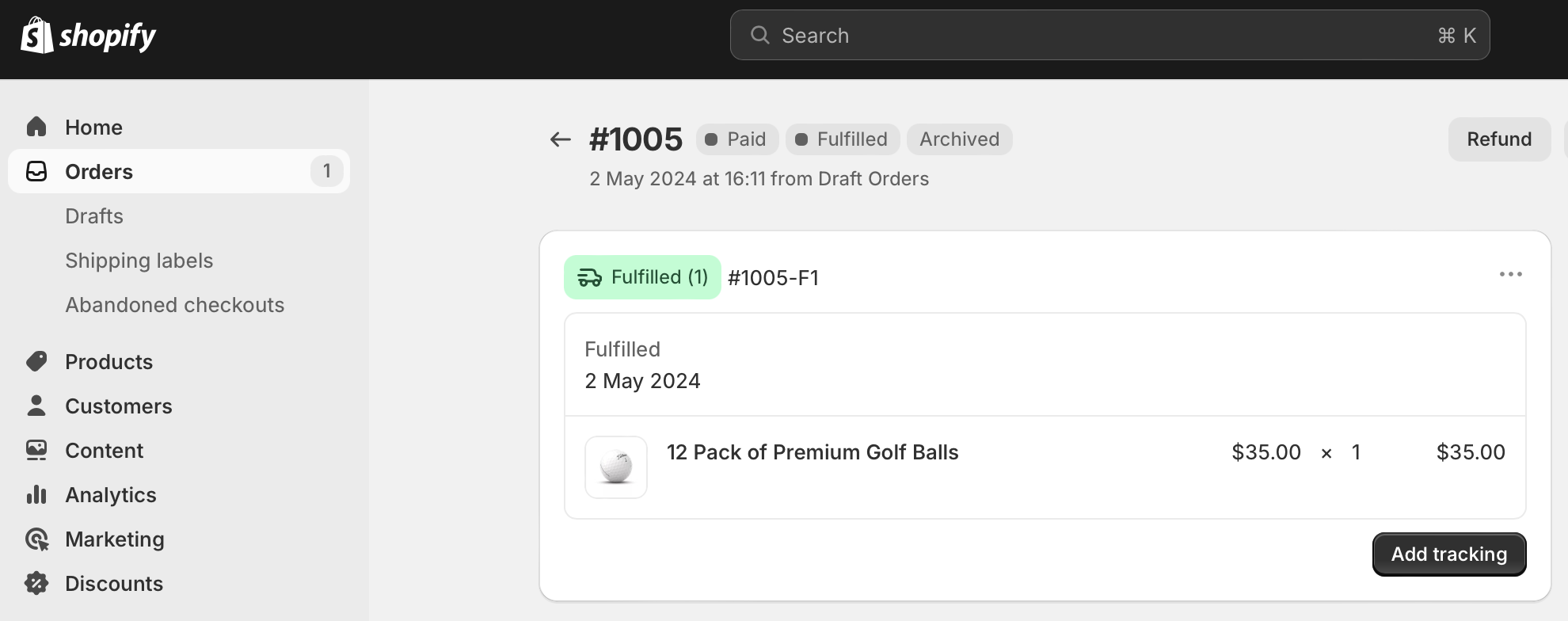
- Enter the tracking number and select the shipping carrier if Shopify does not detect it automatically. If your carrier is unsupported, add the full tracking URL provided by the carrier
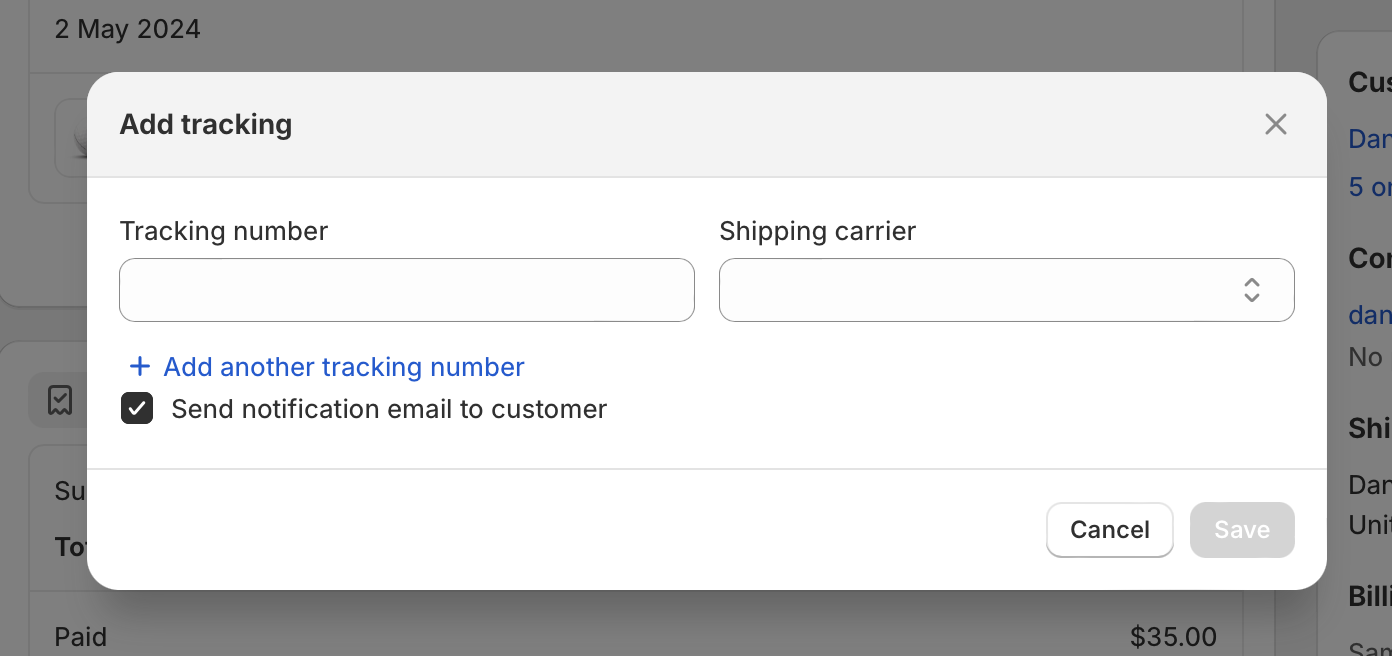
- Tick or untick Send notification email to the customer depending on whether you want Shopify to email them immediately
- Save your changes
If you need to change the tracking number on an existing fulfilment, this related guide on changing the tracking number on automatic notifications in Shopify will help. I recommend checking that before cancelling and recreating fulfilments, especially if the order has already triggered customer emails.
How do I refresh a stuck delivery status in Shopify?
Try editing the fulfilment first, then re-adding or correcting the tracking data. If that fails, cancel the fulfilment and create it again with the correct tracking details.
This is one of the most useful updates from recent community answers. Merchants often assume they must fully unfulfil the order, but in many cases you can use the three-dot menu in the Fulfilment section and choose Edit fulfilment. That lets you update the carrier or tracking details without starting from scratch.
- Open the order in Shopify admin
- Scroll to the Fulfilment section
- Click the three-dot menu next to the fulfilment
- Choose Edit fulfilment
- Check or replace the tracking number and carrier
- Save the changes and wait for Shopify to refresh tracking
If the tracking still does not update, your next option is more aggressive:
- Open the fulfilment menu
- Choose Cancel fulfilment if appropriate for your workflow
- Return the order to an unfulfilled state
- Re-fulfil it with the correct tracking number and carrier
This can fix stale tracking connections, but be careful. Re-fulfilling an order can trigger notifications and affect internal reporting, so I only recommend it when the tracking record is clearly wrong or broken.
What should I do if I use local delivery or an unsupported carrier?
If Shopify cannot receive a carrier delivery event, you will need a workaround. The most practical options are manual order tags, notes, apps, or automation tools.
This is common for local couriers, hand deliveries, niche regional carriers, and some B2B fulfilment setups. In those cases, Shopify may never display a true Delivered state on its own because there is no carrier event to sync.
For smaller stores, I usually suggest a simple internal process:
- Add an order tag such as Delivered
- Use staff notes or timeline comments for proof of delivery
- Send a manual email or SMS confirmation if needed
- Use saved views in Orders to filter delivered tags
This does not create a native Delivered status, but it does give your team a consistent workflow. If you sell items with longer lead times or delivery windows, it also helps to show delivery expectations earlier in the journey. For that, see our guides on showing an estimated delivery date on Shopify and showing delivery estimates based on customer location.
Should I use an app to mark orders as delivered?
Yes, if you ship at scale, use multiple carriers, or need better tracking reliability. A good tracking app can be the difference between clean delivery data and a support inbox full of where-is-my-order messages.
In my experience building Shopify apps, merchants often try to solve this with manual admin work for too long. That is fine when you ship ten orders a week. It becomes painful at fifty a day, and it becomes unsustainable beyond that.
Apps can help by syncing tracking updates from more carriers, improving branded tracking pages, and sometimes pushing delivery events back into Shopify or at least into your support workflow.
| Option | Best for | Strength | Limitation |
|---|---|---|---|
| AfterShip | Multi-carrier tracking | Strong carrier coverage | Advanced features may require paid plans |
| ParcelPanel | Branded tracking and notifications | Good customer-facing tracking experience | Sync behaviour depends on carrier quality |
| ShipStation | Shipping ops and label workflows | Useful for larger fulfilment teams | Can be more than small stores need |
I am not going to pretend every app solves every tracking edge case, because they do not. But if you rely on unsupported carriers or you need more dependable delivery events, an app is usually the most realistic non-developer fix.
How do developers update Delivered status via the Shopify API?
Developers can create fulfilment events with a delivered status using Shopify’s APIs. This is the most flexible method if you have a custom logistics setup or want to automate delivery updates in bulk.
For custom apps, middleware, or ERP integrations, Shopify supports fulfilment-related events through its developer APIs. Depending on your stack and API version, you may use the REST Admin API or a GraphQL fulfilment mutation to create or update fulfilment events with a status such as delivered.
If you are technical, start with Shopify’s developer docs for fulfilment events and fulfilment orders:
This route is best for high-volume stores, 3PL integrations, or merchants with local delivery systems that already know when a parcel has been completed. You can also pair API updates with automation tools like Make or Zapier if you want no-code or low-code delivery tagging workflows.
How do I handle delivered orders internally if Shopify cannot show Delivered?
Use tags, views, notes, and automation to create your own delivered workflow. This is not as elegant as native tracking, but it is often the most robust option for manual fulfilment models.
Here is a simple process I have seen work well for small and mid-sized stores:
- Fulfil the order in Shopify as normal
- Add tracking if available, even if Shopify cannot fully sync it
- When delivery is confirmed externally, add a Delivered tag
- Optionally trigger an internal email, Slack message, or customer email
- Use filtered order views for Fulfilled but not Delivered-tagged and Delivered-tagged
If you use Shopify Flow, you can automate parts of this process on eligible plans. For example, a flow can react to tags, notes, or app events to keep your team aligned. It is not the same as changing Shopify’s native delivery state, but it gives you operational clarity.
What are the benefits of manually tracking delivered orders?
Even without a native Delivered button, having a manual process still improves customer experience and internal reporting. The goal is not perfection. The goal is fewer missed updates and fewer support tickets.
- Customer satisfaction: Customers stay informed and trust your fulfilment process more
- Transparency: Clear delivery updates reduce where-is-my-order queries
- Professionalism: Your post-purchase experience feels more organised
- Flexibility: You can handle local couriers and unsupported carriers
- Control: Your team decides how and when delivery is confirmed
In my experience, merchants underestimate how much post-purchase clarity affects repeat purchases. A delivered confirmation is not just logistics admin. It influences trust, reviews, and support costs.
What happens if I mark an order as delivered on Shop?
Shop app experiences can reflect tracking updates differently from your Shopify admin, but they still rely heavily on tracking data. Marking something in one place does not always mean the admin order will gain a native Delivered state.
This is an important point because merchants often conflate the Shop app customer experience with the Shopify admin order record. They are connected, but not identical. If your goal is operational accuracy inside admin, rely on fulfilment data, tags, or apps rather than assuming Shop will solve it automatically.
What is my recommended workflow for most Shopify stores?
For most stores, the best workflow is supported tracking first, fulfilment editing second, and tags or apps as the fallback. That gives you the highest chance of accurate delivery data without unnecessary complexity.
Here is the workflow I would use in practice:
- Always add tracking when fulfilling orders
- Make sure Shopify has the correct carrier selected
- If the order gets stuck, use Edit fulfilment to refresh the tracking data
- If that fails, consider cancelling and re-fulfilling the order carefully
- For unsupported carriers, use a Delivered tag and a standard operating procedure
- If volume is growing, install a tracking app or build an API-based workflow
That is the most realistic answer to how to update the order status to delivered in Shopify. There is no magic admin toggle for every case, but there is a reliable process depending on your fulfilment setup.
Frequently asked questions about Delivered status in Shopify
These are the quick answers merchants usually need when they are troubleshooting delivery updates.
Can I mark an order as delivered through Shopify admin?
Usually not with a simple native button. Shopify normally updates Delivered through carrier tracking or external systems, not a manual admin toggle.
Can Shopify automatically send a delivered notification?
Yes, if the carrier tracking is supported and updates correctly. Shopify can send shipment updates such as out for delivery and delivered when it receives those events.
Why does my order show fulfilled but not delivered?
Because fulfilled means dispatched, while delivered means carrier-confirmed receipt. If there is no delivery event, Shopify may stop at fulfilled.
Can I use a manual tracking URL?
Yes, you can add a full tracking URL for unsupported carriers. However, that does not guarantee Shopify will convert the order into a native Delivered state.
Is tagging an order as Delivered enough?
It is enough for internal operations, but not the same as Shopify’s tracking-based delivery state. For many local delivery businesses, though, it is the cleanest workaround.
Final thoughts
Shopify still does not offer a universal manual Delivered button, and that is the root of the confusion. If you use supported carrier tracking, Shopify can update delivery automatically. If you do not, you need to rely on edited fulfilments, re-fulfilment, tags, apps, or API workflows.
In my experience, the best merchants treat this as a post-purchase systems problem rather than a one-off admin task. Get the tracking data right, build a fallback process for unsupported deliveries, and your order statuses become far less frustrating to manage.
If your fulfilment setup is getting more complex, I would also review related post-purchase workflows like splitting orders into multiple shipments and adding a new shipping carrier in Shopify. Those often sit upstream of the same delivery-status problems.