
You can add text to your Shopify cart page in two main ways: by editing your theme code for full control, or by using Shopify's built-in theme settings and apps for a faster, lower-risk setup. In most stores I work on, the right option depends on how custom the message needs to be, where it should appear, and whether the merchant wants to avoid touching Liquid files.
I build Shopify apps and spend a lot of time inside cart templates, cart drawers, and checkout-adjacent UX. In my experience, small cart messages can have an outsized impact when they reduce confusion, reinforce delivery expectations, or push shoppers towards a higher average order value.
If you only want to show something simple like Free shipping over £50, a theme edit may take five minutes. If you want something more flexible like rotating notices, upsell prompts, trust messaging, or dynamic cart content, an app is usually the better long-term choice.
Why add text to your Shopify cart page?
Adding text to the cart page is useful because it gives shoppers context right before checkout. The cart is where hesitation shows up, so a well-placed message can answer questions, reduce friction, and improve conversion.
Common examples include free shipping thresholds, dispatch times, gift note instructions, return policy reminders, or a short promotional message. I have also seen merchants use cart text to explain made-to-order lead times, customisation limits, and same-day despatch cut-offs.
If you sell personalised or made-to-order products, cart messaging becomes even more important. It can prevent support tickets and reduce order mistakes before they happen. That is especially relevant if you are also managing custom order workflows, which I covered in this guide to tracking customised orders in Shopify.
What are the 2 best methods to add text to the Shopify cart page?
The two best methods are editing your theme code and using theme settings or an app. The code route gives you the most control, while the no-code route is safer and easier for most merchants.
| Method | Best for | Difficulty | Flexibility | Risk level |
|---|---|---|---|---|
| Edit theme code | Precise placement and custom styling | Medium to high | Very high | Medium |
| Theme settings or app | Beginners and fast implementation | Low | Medium to high | Low |
In practice, I usually recommend theme edits for developers and apps for busy merchants. If a store owner says, “I just want this live today without breaking anything”, I almost always point them towards the second option.
How do I add text to the Shopify cart page by editing theme code?
You can add text to the Shopify cart page by opening your cart template or cart section file and inserting HTML or Liquid where you want the message to appear. This is the most flexible method and works well if you want exact placement.
Before you edit anything, duplicate your live theme. I cannot stress this enough. A broken cart means lost sales, and I have seen merchants accidentally remove key form elements while making what looked like a tiny content change.
- In Shopify admin, go to Online Store > Themes.
- Click the three dots beside your current theme, then choose Edit code.
- Look for cart-related files. On modern themes, these are often sections/main-cart-items.liquid, sections/main-cart-footer.liquid, or sections/main-cart.liquid. On older themes, you may still see templates/cart.liquid.
- Use your browser inspect tool to identify where you want the text to appear, such as above the cart items, below the subtotal, or near the checkout button.
- Paste your message as HTML or Liquid.
- Save and preview the change on your duplicated theme first.
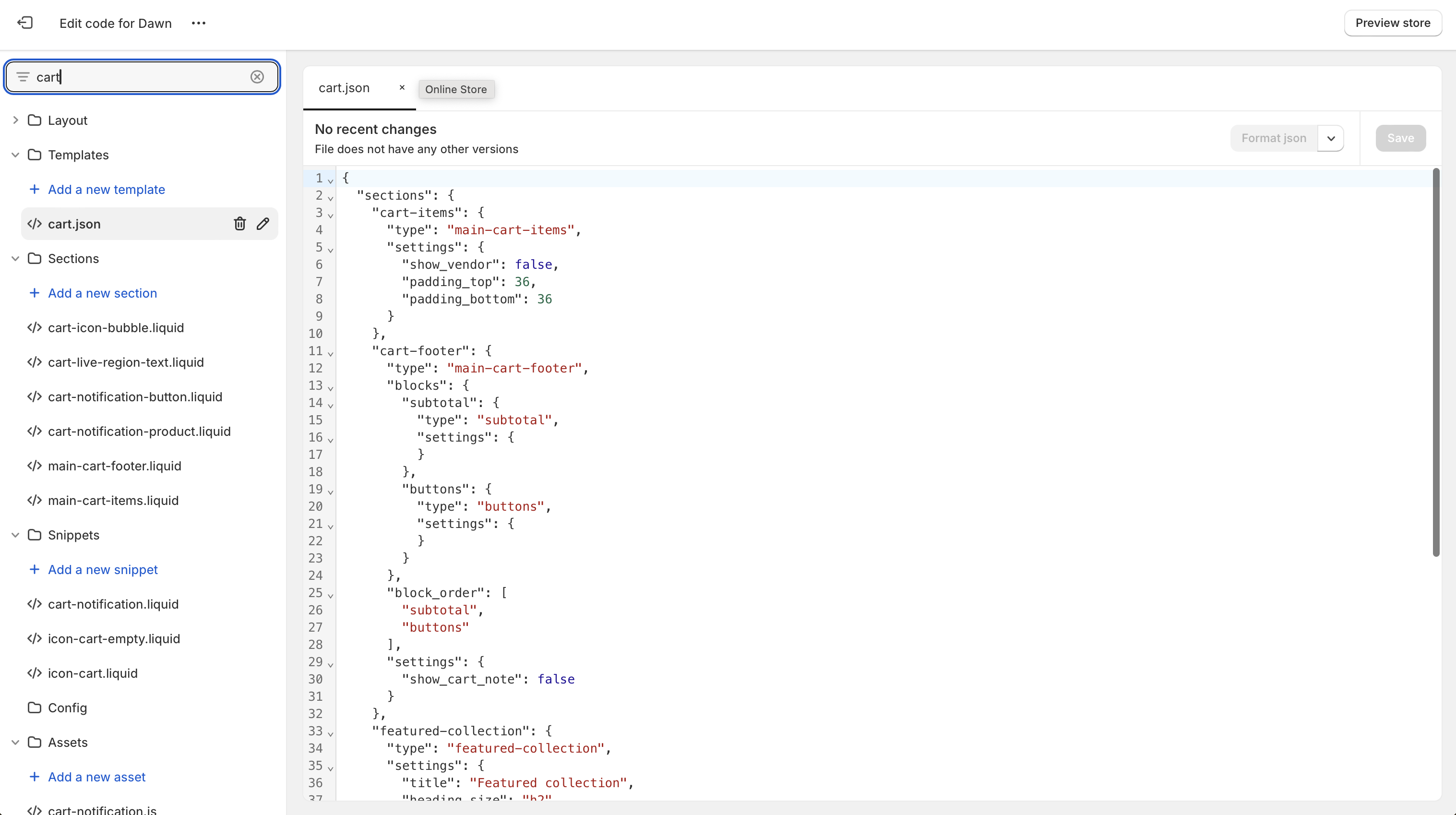
What code should I paste into the cart template?
A simple HTML paragraph is enough for a static message. If you only need one line of text, keep it simple and avoid overcomplicating the markup.
<p style="color: #333; font-size: 16px; margin: 0 0 12px;"><strong>Free shipping on orders over £50.</strong></p>
You can also use a heading or a styled notice box if you want it to stand out more.
<div style="background: #f6f6f6; padding: 12px 16px; border-radius: 6px; margin-bottom: 16px;">
  <p style="margin: 0;"><strong>Order before 2pm</strong> for same-day despatch.</p>
</div>
For merchants who want to manage the text later without editing code again, I prefer adding a theme setting in the section schema. That lets you update the message from the theme customiser instead of reopening the code editor every time.
How do I make the cart text editable in the theme customiser?
You can make the cart text editable by adding a setting to the section schema and then rendering that setting in the Liquid file. This is the best hybrid option if you are comfortable with code but want easier future edits.
Add a setting like this inside the section schema:
{
  "type": "text",
  "id": "cart_notice",
  "label": "Custom cart notice"
}
Then output it in the relevant part of the cart section:
{% if section.settings.cart_notice != blank %}
  <p class="cart-notice">{{ section.settings.cart_notice }}</p>
{% endif %}
Once saved, you can go to Online Store > Customise, open the cart template, and edit the text there. In my experience, this is a much better setup for merchants who change promotions regularly.
Where should I place the message on the cart page?
The best placement depends on the purpose of the message. Promotional text works best near the subtotal or checkout button, while instructional text often works better above the cart items or near notes.
- Above cart items - good for store-wide notices or fulfilment times
- Near subtotal - good for free shipping thresholds and discount reminders
- Above checkout button - good for urgency, dispatch deadlines, or trust messages
- Near cart notes - good for personalisation instructions or gift messages
If you are using cart upsells or a cart drawer, make sure the added text does not push key actions too far down the screen on mobile. Cart UX can get cluttered very quickly. I wrote more about this in this guide to Shopify cart drawer upsells.
How do I add text to the Shopify cart page without coding?
You can add text without coding by using your theme customiser, enabling cart notes, editing theme language, or installing a cart customisation app. This is the easiest method for most merchants and usually the safest one too.
Not every theme supports the same options, so your exact steps may vary. Dawn and other Online Store 2.0 themes are generally more flexible than older themes, but even then, some cart elements still require an app or a code tweak.
Can I use the Shopify theme customiser to add cart text?
Yes, some themes let you add or edit text directly in the customiser. This usually works if your theme includes a rich text block, announcement block, or custom liquid block on the cart template.
- Go to Online Store > Themes > Customise.
- Open the Cart template.
- Check whether your theme allows adding a block or section.
- If available, add a text, rich text, or custom liquid block.
- Enter your message and save.
This is the cleanest no-code option when your theme supports it. The limitation is that many themes still keep the cart fairly locked down, especially if the cart is driven mainly through a dedicated section file.
Can I use cart notes or language settings instead?
Yes, for some use cases. Cart notes let customers enter text, while the language editor lets you rename existing labels and phrases.
If you want a shopper-facing text box for instructions, go to the cart settings in your theme customiser and look for Enable order notes. Then, if you want to rename “Special instructions for seller”, go to Online Store > Themes > Edit default theme content or Edit languages and search for that phrase.
This is not the same as adding a standalone promotional message, but it is useful if your real goal is to collect information like gift messages, personalisation requests, or delivery notes.
When should I use an app instead?
You should use an app when you want more than a simple line of text. Apps are better if you need conditional messaging, cart attributes, upsells, free shipping bars, or a message that also appears in a cart drawer.
As a Shopify app developer, I am obviously biased towards apps when the use case is broader than plain content. But there is a practical reason for that. Apps can be updated, toggled, and tested without you reopening theme files every time your campaign changes.
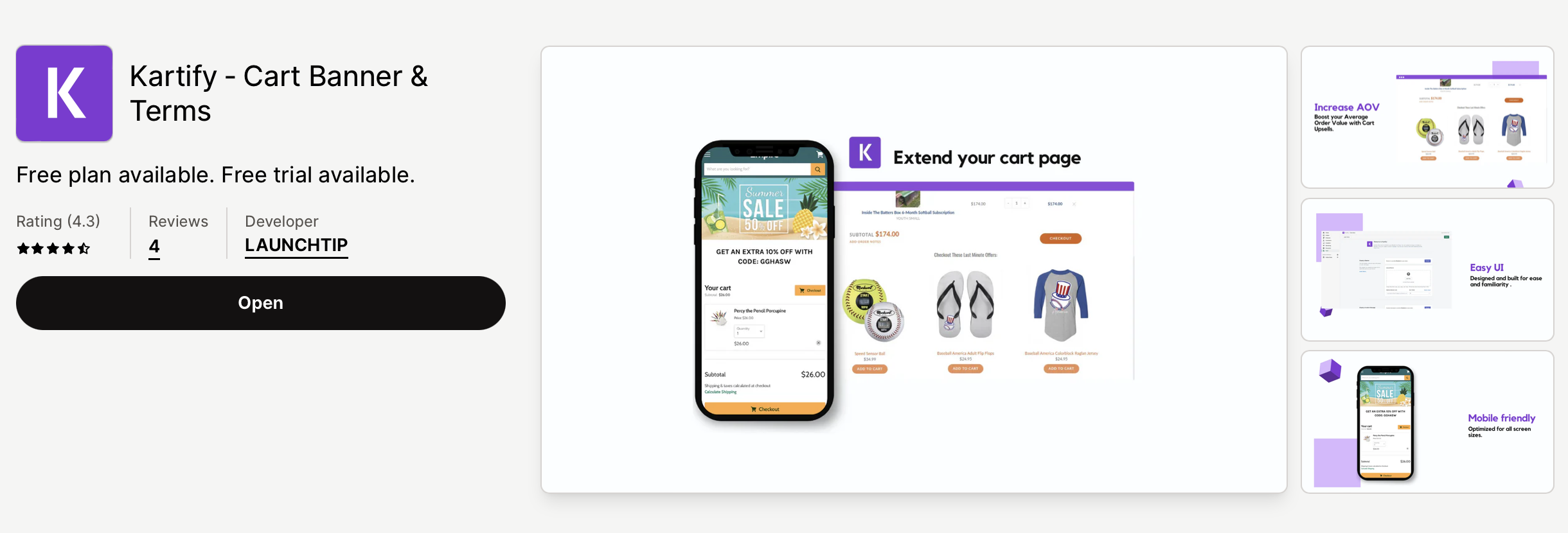
For example, Kartify is built specifically around cart customisation and slide cart UX. If you want messaging plus upsells, rewards progress, or more advanced cart presentation, that kind of app is usually more efficient than piecing everything together manually.
You can also browse Shopify's official cart customisation category here: Shopify App Store cart customisation apps.
What is the best method for different types of Shopify stores?
The best method depends on how often your message changes and how complex the cart experience is. Static stores can use code, while campaign-heavy stores usually benefit from apps.
| Store type | Best method | Why |
|---|---|---|
| Small store with one simple notice | Edit theme code | Fast, cheap, and precise |
| Non-technical merchant | Theme customiser or app | Lower risk and easier to maintain |
| Store with cart drawer and upsells | App | Better compatibility and more features |
| Personalised products store | Cart notes plus app or code | Handles instructions and custom fields better |
| High-growth DTC brand | App or schema-based code setup | Easier testing and campaign changes |
When I test stores that actively optimise AOV, the cart is rarely just a holding page. It is a conversion layer. That is why messaging often works best when paired with offers, social proof, or progress indicators. If that is your goal, read how to upsell on Shopify in 2026 and how to maximise revenue from your Shopify product pages.
What kind of text should I add to the cart page?
The best cart text is short, useful, and closely tied to purchase intent. Clarity beats cleverness on the cart page.
- Free shipping message - “Free shipping on orders over £50”
- Dispatch timing - “Order before 2pm for same-day despatch”
- Returns reassurance - “30-day returns on unused items”
- Custom order note - “Add gift instructions below”
- Promotion reminder - “Buy one more item to unlock 10% off”
- Seasonal notice - “Christmas delivery cut-off is 18 December”
Avoid stuffing the cart with too much copy. In my experience, one strong message performs better than five weak ones. If you need multiple notices, prioritise them visually and keep the most important one closest to the checkout action.
How do I add dynamic or conditional text to the Shopify cart page?
You can add dynamic cart text using Liquid conditions based on cart value, products, or other cart properties. This is useful if you want the message to change automatically.
For example, you can show a free shipping prompt only when the cart total is below a threshold:
{% if cart.total_price < 5000 %}
  <p>Spend {{ 5000 | minus: cart.total_price | money }} more to get free shipping.</p>
{% else %}
  <p><strong>You have unlocked free shipping.</strong></p>
{% endif %}
This type of dynamic messaging tends to outperform static text because it is immediately relevant. If you want to go further with this style of cart optimisation, you may also find this guide to cross-selling matching variants and this article on AI-powered Shopify upsells helpful.
What are the most common mistakes when adding text to the cart page?
The most common mistakes are editing the wrong cart file, adding text in a place that breaks mobile layout, and forgetting that many themes use cart drawers instead of a full cart page. Always check both desktop and mobile, and always test the actual cart flow.
-
Editing the wrong file - many merchants look for
cart.liquidwhen their theme uses section files instead - Ignoring cart drawers - your text may not appear if customers mainly use a slide cart
- Hard-coding promotions - then forgetting to remove them after the campaign ends
- Overstyling the message - which can make the cart look spammy or untrustworthy
- Not duplicating the theme first - still one of the easiest ways to create avoidable problems
I would also add one more mistake: using the cart page to compensate for unclear product pages. If your fulfilment, returns, or customisation details are critical, they should usually appear earlier too. The cart should reinforce key information, not introduce surprises.
Does adding text to the cart page help conversions?
Yes, it can help conversions when the message reduces uncertainty or creates a relevant incentive. Useful cart messaging improves confidence, while irrelevant messaging just adds noise.
There is no universal percentage uplift I can honestly claim across all stores, because results depend on the offer, placement, and traffic quality. But in my experience building Shopify apps and testing cart interfaces, messages tied to delivery clarity, free shipping thresholds, and next-step reassurance consistently perform better than generic promotional slogans.
If your focus is broader conversion optimisation rather than just one line of cart text, I would also read AI-powered upsells: the future of ecommerce conversion and how to optimise your Shopify store for AI shopping agents. The way shoppers evaluate trust and relevance is changing quickly.
Should I edit the cart page, cart drawer, or checkout?
You should edit the place your customers actually interact with. For many modern themes, that is the cart drawer first, not the dedicated cart page.
This is a big reason older tutorials are now incomplete. In 2026, a lot of Shopify stores use slide carts, AJAX carts, or mini-cart experiences. If your message only appears on /cart but most users go straight from the cart drawer to checkout, your change may have very little impact.
Also note that checkout customisation is more restricted than cart customisation unless you are on Shopify Plus and using the appropriate extensibility features. If your goal is simply to add a notice before payment, the cart is usually the easier and more accessible place to do it. If you are evaluating whether your store is ready for deeper checkout and platform changes, see when to upgrade your store to Shopify Plus.
My recommended approach as a Shopify app developer
If you want a quick answer, here it is: use code for a fixed message, and use an app for anything dynamic or campaign-driven. That is the decision framework I use most often.
For a simple static notice, a tiny theme edit is perfectly fine. For stores running promotions, testing upsells, or changing messaging every few weeks, I think a maintainable app-based setup is better for long-term flexibility and less likely to cause theme conflicts later.
If you are already customising the cart to improve AOV, do not stop at adding one line of text. Consider whether that space should also support cart recommendations, rewards messaging, or urgency elements. Done well, the cart becomes a meaningful revenue surface rather than just a stepping stone to checkout.
How do I add text to the Shopify cart page step by step?
To add text to the Shopify cart page quickly, either paste HTML into your cart section file or use your theme customiser if your theme supports text blocks. Duplicate your theme first, test on mobile, and check whether your store uses a cart drawer.
- Decide whether the message is static or dynamic.
- Check whether your theme supports cart blocks in the customiser.
- If not, duplicate your theme and open Edit code.
- Find the relevant file such as main-cart-items.liquid or cart.liquid.
- Paste your text in the right position.
- Preview on desktop and mobile.
- Test both the cart page and cart drawer.
- Publish only after confirming the checkout flow still works.
If you want the easiest possible route with extra cart features included, start by reviewing Kartify and the broader Shopify cart customisation app category. If you are collecting customer instructions rather than just showing a notice, Shopify's own help docs on themes and language editing are also worth checking via the Shopify theme documentation.
The key takeaway from my side is simple: the best cart text is relevant, visible, and easy to maintain. If you get those three things right, this is one of the quickest low-effort improvements you can make to a Shopify store.