

Migrating to Shopify is exciting, but URL redirects are one of the few migration tasks you really cannot afford to get wrong. If old URLs start returning 404 errors after launch, you can lose rankings, waste backlink equity, and frustrate customers who land on dead pages from Google, emails, or old social posts.
In my experience building Shopify apps and helping merchants clean up post-migration issues, 301 redirects are one of the highest-leverage technical fixes you can make before going live. They are not glamorous, but they protect the SEO value you have already built and make the move to Shopify feel seamless for shoppers.
This guide explains how to setup 301 redirects when migrating to Shopify, including the exact steps, CSV import workflow, common mistakes, and what to do if you are moving from platforms like WooCommerce, Magento, or BigCommerce.
What is a 301 redirect and why does it matter when migrating to Shopify?
A 301 redirect is a permanent redirect from an old URL to a new one. When you migrate to Shopify, it tells browsers and search engines that the old page has permanently moved, so visitors and rankings should be passed to the new URL instead of hitting a 404 page.
This matters because migration almost always changes URL structures. Shopify uses fixed patterns such as /products/, /collections/, and /pages/, so if your old platform used different paths, many URLs will no longer match by default.
From an SEO point of view, 301 redirects help preserve link equity, consolidate indexing signals, and reduce ranking volatility after launch. Current migration guidance commonly cites around 95-99% equity transfer when redirects are implemented properly, which is far better than letting old URLs die.
From a user perspective, redirects stop shoppers from landing on broken pages. That is especially important if your old URLs are still being clicked from Google results, Pinterest pins, affiliate links, product review sites, or email campaigns.
How do I setup 301 redirects in Shopify?
You can setup 301 redirects in Shopify using the built-in URL Redirects tool. For small migrations, create redirects manually. For large migrations, use a CSV import so you can map old URLs to new ones in bulk.
The exact admin path can vary slightly depending on Shopify's current navigation, but merchants will typically find redirects under Online Store > Navigation > View URL redirects or Content > Menus > URL redirects. Shopify's help docs cover the latest interface details at Shopify URL redirects documentation.
How do I create a manual 301 redirect in Shopify?
Manual redirects are best if you only have a handful of URLs to map. They are quick to create and useful for high-priority pages like top-selling products, best-performing blog posts, and major collections.
- Log in to your Shopify admin.
- Go to Online Store > Navigation.
- Click View URL redirects.
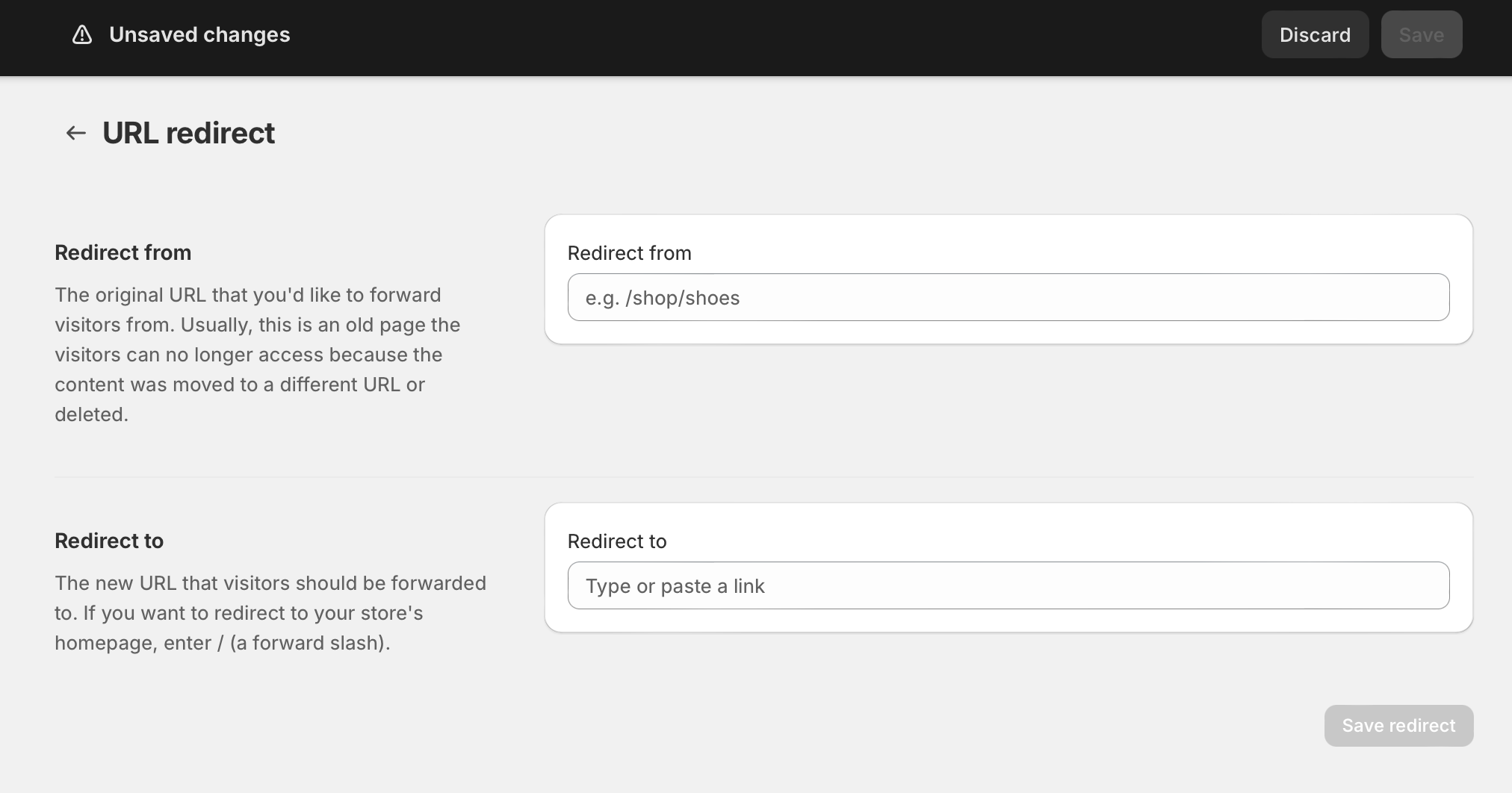
- Click Create URL redirect.
- In Redirect from, enter the old relative URL, such as /old-product.
- In Redirect to, enter the new Shopify URL, such as /products/new-product, or a full external URL if needed.
- Save the redirect.
Shopify treats these as permanent redirects for migration use cases. In practice, that is what you want for store moves, platform changes, and URL restructuring.
How do I bulk import redirects with a CSV?
Bulk import is the best option for serious migrations. If you are moving hundreds or thousands of URLs, CSV import is faster, safer, and easier to audit than entering redirects one by one.
- Prepare a CSV with two columns: Redirect from and Redirect to.
- Use relative paths for internal redirects, such as /category/blue-shirt to /products/blue-shirt.
- In Shopify admin, open URL redirects.
- Click Import and upload the CSV file.
- Review the import and confirm.
- Test a sample of imported URLs after completion.
For many stores, I recommend exporting a template first so the column names match Shopify's expected format. This avoids silly formatting issues that can delay launch day.
| Redirect from | Redirect to | Use case |
|---|---|---|
| /old-product | /products/new-product | Product URL changed |
| /category/shirts | /collections/shirts | Category to collection migration |
| /about-us | /pages/about-us | Static page moved into Shopify pages |
| /blog/summer-style-guide | /blogs/news/summer-style-guide | Blog structure changed |
Should redirects be set up on the old store or the new Shopify store?
Redirects need to catch traffic on the domain receiving the request. In most migrations, that means the redirects must exist where the old URLs are still being requested, which is often your live domain once it points to Shopify.
This point confuses a lot of merchants. If your domain has already been switched to Shopify, then requests to old paths on that domain will hit Shopify, so Shopify redirects can handle them. But if an old platform or subdomain is still receiving traffic, you may need redirects there as well until the cutover is complete.
In my experience, the safest approach is to finalise your redirect map before DNS cutover, then test immediately after the domain points to Shopify. Do not assume redirects are working just because the new site is live.
Which URLs should I redirect first during a Shopify migration?
The best redirect strategy is to prioritise pages with the most SEO value and commercial value first. That means top-traffic pages, pages with backlinks, top-selling products, and major collections should be mapped before lower-value URLs.
If you are short on time, do not start with random pages. Start with the URLs that generate revenue or organic visibility, then work down the list.
My recommended redirect priority order
I usually work through redirects in this order because it protects the pages that matter most to sales and rankings.
- Top organic landing pages from Google Search Console and Google Analytics
- Pages with strong backlinks from Ahrefs, Semrush, or similar tools
- Best-selling product pages
- Primary category or collection pages
- High-traffic blog posts
- Legacy campaign URLs still used in ads, email, or social
- Remaining informational pages
If you need a broader migration plan, my post on when to upgrade your store to Shopify Plus covers some of the operational thinking that also applies to larger replatforming projects.
What is the best URL mapping strategy when moving to Shopify?
The best strategy is a 1:1 redirect wherever possible. If the old page has a clear equivalent on Shopify, redirect it directly to that page instead of sending everything to the homepage or a generic collection.
Search engines and users both prefer close relevance. A discontinued product should usually redirect to the nearest equivalent product or its parent collection, not the homepage.
| Old URL type | Best redirect target | Good practice? |
|---|---|---|
| Old product URL | Equivalent new product URL | Best option |
| Old category URL | Equivalent Shopify collection | Best option |
| Deleted product with no replacement | Closest relevant collection | Usually acceptable |
| Old blog post URL | Matching Shopify blog post | Best option |
| Any old URL | Homepage | Weak option |
Here is a simple example:
| Old URL | New Shopify URL | Priority |
|---|---|---|
| /summer-jackets/ | /collections/summer-jackets | High |
| /summer-jackets/blue-jacket | /products/blue-jacket | High |
| /about-us | /pages/about-us | Medium |
Does Shopify create redirects automatically?
Shopify can create some redirects automatically, but you should not rely on automation alone during a migration. Automatic redirects usually help when you change a handle inside Shopify, but they do not replace a proper migration redirect plan from your old platform.
For example, if you rename a product handle in Shopify, Shopify may prompt you to create a URL redirect from the old handle to the new one. That is useful for ongoing store management, but it will not magically map all your Magento or WooCommerce URLs to the correct Shopify paths.
My rule is simple: assume nothing is covered until you verify it. That means checking imported redirects, testing old URLs, and monitoring crawl errors after launch.
What are Shopify's redirect limitations?
Shopify's built-in redirect tool is good for most migrations, but it does have limits. The main constraints are redirect volume, wildcard support, and complexity of URL pattern handling.
Recent guidance suggests Shopify can support very large redirect sets, with older references commonly mentioning 10,000 active redirects and more recent updates indicating support can reach 100,000 in some contexts. If you are migrating a very large catalogue, verify current limits with Shopify Support before launch.
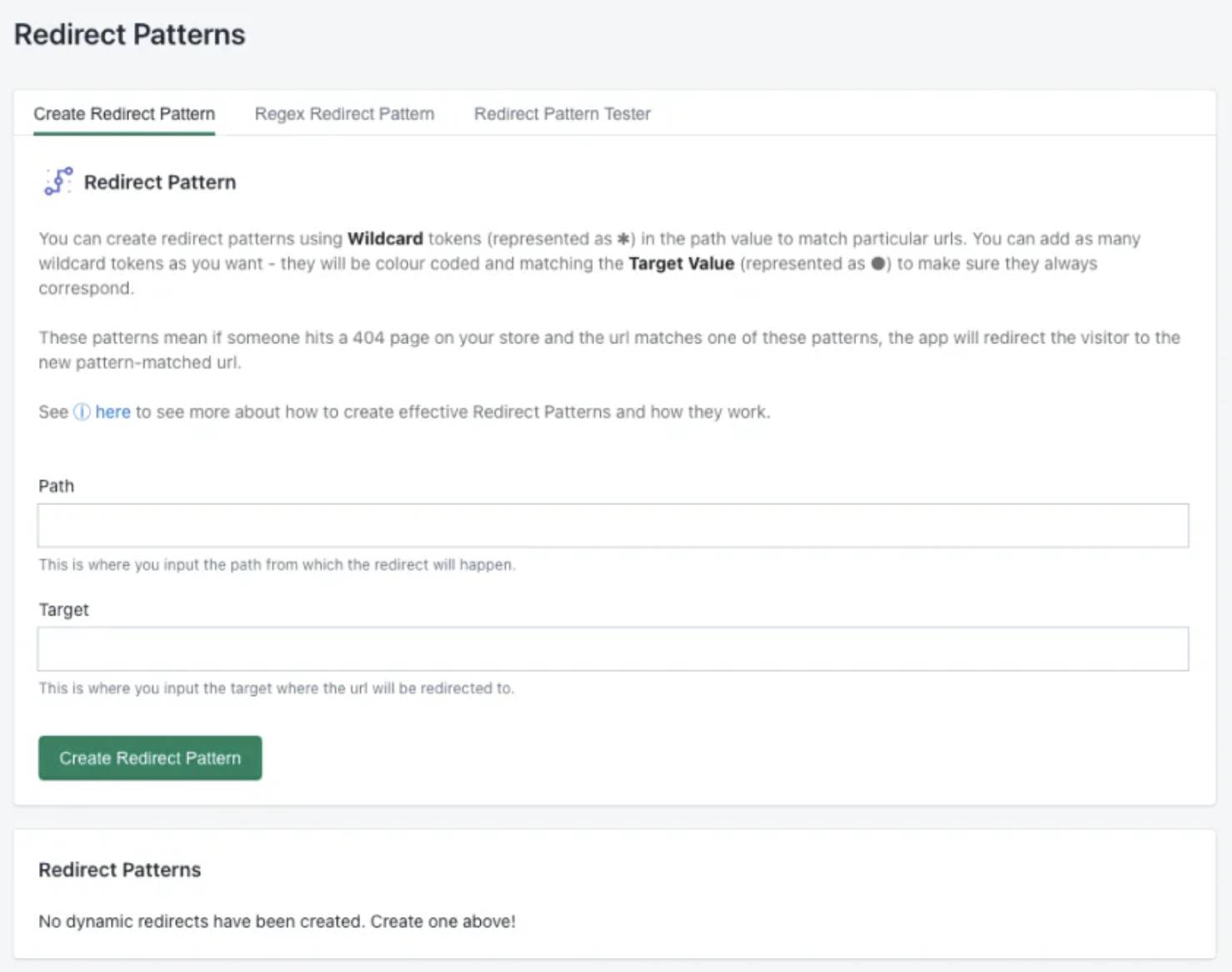
Shopify also does not natively support wildcard redirects in the same flexible way some server-level setups do. So if your old platform used lots of patterned URLs, bulk mapping can become more manual than expected.
For complex migrations with tens of thousands of URLs, wildcard needs, or ongoing 404 monitoring, an app can help. One option merchants often use is SC Easy Redirects, which adds bulk management and error tracking features.
How do I migrate redirects from WooCommerce, Magento, or another platform to Shopify?
The process is broadly the same across platforms: export or crawl the old URLs, map them to the new Shopify URLs, then import them into Shopify. What changes is how messy the old URL structure tends to be.
Magento stores often have deeply nested category and product URLs. WooCommerce stores may have custom permalink structures. BigCommerce and PrestaShop migrations often include older blog or filter URLs that no longer fit Shopify's cleaner structure.
In my experience, the biggest migration mistake is assuming product handles alone are enough. They are not. You need a proper URL inventory from the old site first.
My practical migration workflow
This is the workflow I would use on a real migration project.
- Crawl the old site with Screaming Frog.
- Export indexed pages from Google Search Console.
- Pull top landing pages from analytics.
- Export backlink data from your SEO tool of choice.
- Combine everything into one master spreadsheet.
- Create a matching column for the new Shopify URL.
- Mark pages as 1:1, nearest-match, merged, or retire.
- Import the final redirect sheet into Shopify.
- Test a representative sample before and after launch.
If you are also revisiting information architecture during the move, it is worth reading how to maximize revenue from your Shopify product pages because migration is often the best time to improve page quality, not just replicate old content.
How do I test 301 redirects after migrating to Shopify?
You should test redirects both manually and with crawling tools. The goal is to confirm that old URLs return a 301 status and land on the correct final destination, not a redirect chain or a soft 404.
Testing is where a lot of migrations fall down. The spreadsheet looks complete, but the live site tells a different story.
Manual testing checklist
For a smaller store, manually test your most valuable URLs first.
- Open old URLs in a browser and confirm they land on the correct new page
- Check that the redirect is a 301, not a 302
- Make sure there is only one hop where possible
- Test product, collection, page, and blog URLs separately
- Test mobile and desktop if your migration included theme or domain changes
Tools I recommend for redirect testing
These tools make testing faster and more reliable.
- Redirect Checker for spot checks
- Screaming Frog for bulk crawl validation
- Google Search Console for post-launch indexing and crawl errors
- PageSpeed Insights if you also want to review performance after launch
Once the site is live, keep checking Search Console for Not Found errors and indexing anomalies. That is often where missed redirects show up first.
For a related warning, I would also read the hidden truth about Shopify speed optimization scams. Migration periods attract rushed technical work, and redirects are one area where bad advice is common.
What are the most common 301 redirect mistakes when moving to Shopify?
The most common mistakes are redirecting everything to the homepage, forgetting blog URLs, creating chains, and missing high-value legacy pages. These errors are easy to make and expensive to fix after traffic drops.
I have seen migrations where the product catalogue was mapped carefully, but the blog was ignored completely. Six weeks later, the merchant wondered why organic traffic had cratered. It turned out dozens of ranking guides were returning 404s.
- Homepage dumping - sending many unrelated URLs to the homepage instead of the closest relevant page
- Redirect chains - old URL to intermediate URL to final URL, which wastes crawl budget and adds friction
- Ignoring non-product URLs - pages, blogs, guides, FAQs, and campaign landing pages matter too
- Forgetting image or file URLs - this can matter if old assets earned links
- Not testing after DNS changes - redirects can behave differently once the domain is live
- Deleting old pages too early - setting content to draft first can make it easier to capture existing paths
- Using 302s for permanent moves - migrations should normally use 301s
Do 301 redirects fully protect SEO during a Shopify migration?
No, redirects help a lot, but they do not guarantee zero ranking fluctuation. A migration can still affect SEO if content changes, internal linking changes, metadata is lost, or page relevance shifts.
That said, redirects are one of the strongest controls you have. They preserve the relationship between old URLs and new URLs, which gives Google a much clearer signal about what moved where.
In real-world migrations, I usually tell merchants to expect some short-term volatility, then monitor performance over 2 to 8 weeks depending on site size and crawl frequency. If redirects, canonicals, sitemap submission, and internal links are all handled properly, recovery is usually much smoother.
If AI visibility matters to you as well as Google rankings, read how to get your Shopify store into ChatGPT and how to optimise your Shopify store for AI shopping agents. Good site structure and clean URL handling help there too.
What should I do after launching my Shopify migration?
After launch, you should monitor redirects, crawl errors, and organic landing pages closely. The first two weeks after migration are when most redirect issues become visible.
I recommend treating launch as the start of the redirect process, not the end. You will almost always find missed URLs once real users, bots, affiliates, and email clicks start hitting the new site.
Post-launch migration checklist
This is the checklist I would use for any serious Shopify migration.
- Submit your sitemap in Google Search Console
- Monitor 404 errors daily for the first 1-2 weeks
- Check top old URLs and top new landing pages
- Update important backlinks where you control them
- Refresh links in email templates, ads, and social bios
- Review internal links so they point directly to final Shopify URLs
- Fix redirect chains if any appear during testing
- Keep your redirect spreadsheet as a living document
If you are also cleaning up customer flows after migration, how to manage Shopify customer data without losing sales is worth a read because platform moves often create hidden CRM and attribution issues too.
When should I use a Shopify redirect app instead of the native tool?
You should use an app if your migration is too large or complex for Shopify's native redirect manager. That usually means very high URL counts, wildcard needs, ongoing 404 monitoring, or team workflows that need more control.
For example, merchants with large catalogues, multiple historic URL patterns, or international storefront complexity may benefit from a dedicated redirect app. One option is SC Easy Redirects. If you are comparing migration tooling more broadly, the Shopify App Store is the best place to assess current options and reviews.
My view is simple: use the native tool unless you have a clear reason not to. For many small to mid-sized stores, Shopify's built-in redirects are enough if your mapping is clean.
How to setup 301 redirects when migrating to Shopify without losing traffic
The practical answer is to audit every existing URL, map each important page to its closest Shopify equivalent, import redirects before launch, and monitor errors after launch. That is the process that gives you the best chance of preserving rankings and revenue.
In my experience, merchants get into trouble when they treat redirects as a last-minute admin task. They are not. Redirects are part of your migration strategy, your SEO protection plan, and your customer experience all at once.
If you do the basics well - 1:1 mapping, clean CSV imports, proper testing, and post-launch monitoring - Shopify migrations are usually much smoother than merchants expect. The stores that lose traffic are often the ones that skipped this work, not the ones that moved platform.