
To set a default product image on Shopify, move the image you want to use into the first position in the product's media list. Shopify treats the first image as the featured image, and that is usually the one shown on product pages, collection pages, featured product sections, cart previews, and other theme areas.
I have worked on Shopify stores and built apps for merchants for years, and this is one of those small admin tasks that has a surprisingly big effect on click-through rate, first impressions, and overall product presentation. The good news is that in most stores, changing the default image is simple. The less good news is that variants, theme logic, and media types like video can make it look like Shopify is ignoring your choice.
This guide explains the exact steps, the common reasons it does not work as expected, and what to do if your theme keeps showing a variant image instead.
How do I set a default product image on Shopify?
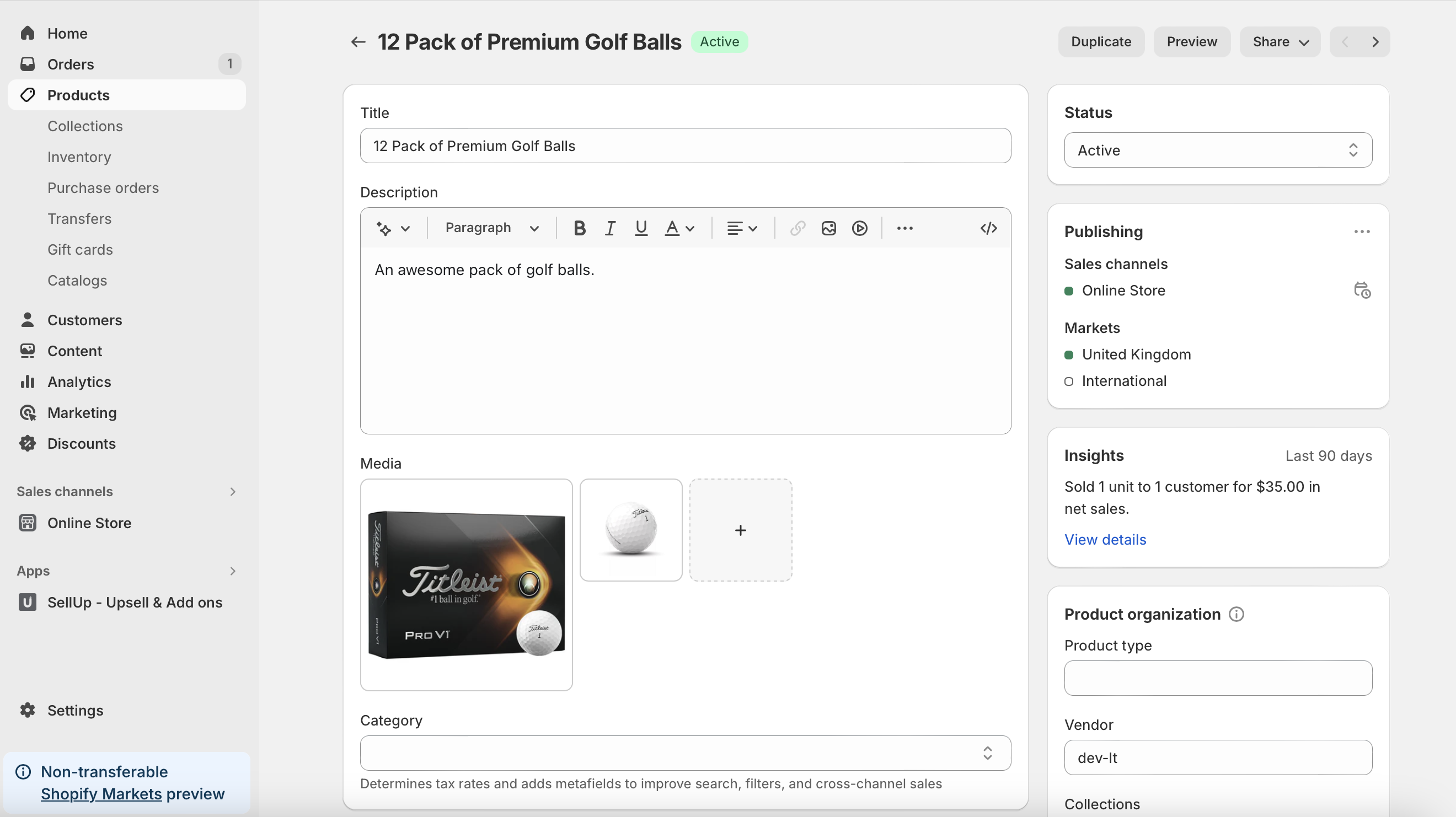
You set a default product image on Shopify by dragging your preferred image to the first position in the product media gallery. The first media item becomes the product's featured image in Shopify admin and in most themes.
For most merchants, that is all you need to do. Shopify's own product media behaviour is straightforward: first image = default image. If you are only trying to change the main image for one product, this is the fastest fix.
- Go to Shopify Admin > Products.
- Click the product you want to edit.
- In the Media section, find the image you want as the default.
- Drag and drop that image into the first position.
- Wait for the reorder to apply, then save if your admin prompts you to.
In current Shopify admin views, the featured image is usually the largest image shown first in the media strip. On mobile admin, you may also see an option such as Set as default depending on the interface and media type, which matches Shopify's help guidance at Shopify Help.
What does the default product image affect?
The default product image affects more than just the product page. In most Shopify themes, it is used anywhere the product needs a primary thumbnail.
That includes collection grids, featured collection sections, search results, cart line items, and sometimes social previews depending on how your theme or app outputs metadata. This is why I usually tell merchants to treat the featured image like a product's cover photo, not just another gallery image.
| Store area | Usually uses product featured image? | Notes |
|---|---|---|
| Product page main image | Usually yes | Unless variant image logic overrides it |
| Collection page thumbnail | Yes | Most themes use the first product image |
| Featured product section | Usually yes | Theme dependent |
| Cart item thumbnail | Often yes | May switch to variant image after selection |
| Checkout thumbnail | Often yes | Can reflect selected variant media |
| Social share preview | Sometimes | Depends on theme OG tags and page context |
If you are also working on how your products look across collections, it helps to keep your image dimensions consistent. I covered that separately in how to make images the same size on your Shopify store.
Why is Shopify showing the wrong default image?
If Shopify is showing the wrong image, the usual cause is variant image logic or theme code. The product's first image may be correct in admin, but your theme can still display the selected variant's media first.
This is exactly where many merchants get confused. They reorder the images correctly, refresh the product page, and still see a different image. In my experience building Shopify apps and troubleshooting storefronts, the issue is often not Shopify admin at all. It is the theme's product gallery behaviour.
- Variant image override - the theme loads the selected or first available variant image instead of the product featured image.
- Theme-specific gallery settings - some themes prioritise variant media automatically.
- Cached preview - browser or CDN caching can delay visible changes.
- Video or 3D media thumbnail - media types can create unexpected first thumbnails.
- App interference - product gallery, swatch, or personalisation apps can alter image selection.
Community threads ranking for this keyword often mention this exact problem, especially on themes like Sense, Origin, and some premium themes. If your product page always opens on the first variant image, you are likely dealing with theme logic rather than a misconfigured product.
How do I stop a variant image overriding the default product image?
To stop a variant image overriding the default product image, your theme needs to use the product featured media instead of the selected or first available variant featured media. This usually requires a small code edit.
A common pattern in Shopify themes is something like product.selected_or_first_available_variant.featured_media. If that is being used in the gallery logic, the theme will prioritise a variant image even when you have set a different featured image at product level.
In those cases, developers often change the logic to use product.featured_media instead. The exact file varies by theme, but it is often in a file such as snippets/product-media-gallery.liquid, main-product.liquid, or another product template snippet.
Important: only edit theme code if you are comfortable doing so, and always duplicate your theme first. You can do that from Online Store > Themes > ... > Duplicate.
- Go to Online Store > Themes.
- Duplicate your live theme.
- Open Edit code on the duplicate.
- Search for selected_or_first_available_variant or featured_media.
- Check whether the gallery is pulling from the variant instead of the product.
- Test the duplicate theme preview before publishing.
If you are not sure what you are changing, ask your theme developer or Shopify Support for guidance. I generally do not recommend random code snippets from forums unless you understand the theme structure first.
If your issue is closely tied to variant behaviour, my guide on turning automatic selection off for product variants may also help, because variant auto-selection often affects which image loads first.
How do I change the default image on mobile Shopify admin?
On mobile Shopify admin, you can usually change the default product image by opening the product media list and setting or moving your preferred image to the first position. The wording may vary slightly by device and app version.
Shopify's help documentation notes that on some mobile interfaces you can tap the media item, open the menu, and choose Set as default. On desktop, drag-and-drop reordering is still the most common workflow. If you manage products mainly from your phone, it is worth checking that the image order saved correctly by reopening the product after editing.
In practice, I still prefer desktop for media-heavy product work because it is easier to spot mistakes in image order, alt text, and variant assignments all at once.
How do I replace thumbnails for video or 3D model media?
You can replace Shopify's auto-generated thumbnails for videos and 3D models from the product media editor. This helps keep your product gallery looking more polished and on-brand.
This is still one of the most overlooked parts of Shopify media management. A product can have a great main image, but if the next thumbnail is an awkward frame from a video, the gallery looks messy. For conversion-focused stores, that visual inconsistency matters.
- Go to Products and open the product.
- In Media, click the video or 3D model.
- Click the menu in the top-right corner.
- Select Replace thumbnail.
- Choose an existing image or upload a new one.
- Exit the media preview and confirm the new thumbnail appears.
You can use a standard product image, a branded frame, or a clean screenshot from the video itself. Consistent thumbnails improve gallery scannability, especially on mobile where shoppers move quickly.
Can I set a store-wide default image for products with no image?
Shopify does not include a built-in global fallback image setting for all image-less products. If a product has no media, your theme usually shows a placeholder image instead.
There are really two different questions merchants ask here. One is, "How do I choose the main image for a product?" The other is, "How do I show a custom image when a product has no images at all?" The second one needs a theme asset change.
If your theme uses a file like default-image.jpg, you may be able to replace it with your own branded fallback image:
- Create a JPG called default-image.jpg.
- Go to Online Store > Themes > Edit code.
- Open the Assets folder.
- Rename the existing default-image.jpg if present.
- Upload your custom replacement.
- Clear your browser cache and test collection pages.
This is theme-dependent. Not every modern theme uses the same asset name or fallback method, so inspect the code before changing anything. If you want a safer route, ask your theme developer to implement a custom fallback image in the product card snippet.
What is the best image order for Shopify products?
The best image order puts your strongest selling image first, then follows with supporting angles, detail shots, lifestyle images, and size or feature graphics. The default image should be the one most likely to earn the click.
This is where I think many stores miss an easy win. They treat image order as admin housekeeping instead of merchandising. In reality, the first image is often your product's highest-visibility asset.
| Position | Best image type | Why it works |
|---|---|---|
| 1 | Clean hero shot | Best for collection click-through and instant recognition |
| 2 | Alternative angle | Builds confidence quickly |
| 3 | Close-up detail | Shows material, texture, finish, or craftsmanship |
| 4 | Lifestyle image | Helps shoppers imagine use or fit |
| 5 | Size guide or feature graphic | Reduces hesitation and support queries |
| 6+ | Video, UGC, extra angles | Adds depth without weakening the first impression |
For most stores, I recommend a clean product-on-background image first. If you lead with a collage, text-heavy graphic, or an inconsistent lifestyle shot, your collection pages often look less professional. If you need help getting image presentation right across the catalogue, see my guides on adding an image slider to products in Shopify and hiding variant images from the product page in Shopify.
How do I bulk manage product images more efficiently?
Shopify lets you reorder images product by product, but bulk image workflows usually need better file preparation and import discipline. There is no native one-click feature to set a custom featured image across hundreds of products in one go.
When I have seen merchants struggle with this, the root problem is usually upstream. Their filenames are inconsistent, images are uploaded in the wrong order, or variant images are mixed into the main gallery with no structure. Fixing that process saves far more time than manually reordering later.
- Name files consistently so your hero image is obvious before upload.
- Keep image dimensions uniform for cleaner grids.
- Separate variant-specific images from general gallery images where possible.
- Test one product template fully before importing hundreds.
If you are doing catalogue maintenance at scale, these guides will help: how to quickly bulk upload product images to Shopify in 2026, how to download all product images from your Shopify store in 2026, and how to import products with variants on Shopify.
Does changing the default product image help conversion?
Yes, changing the default product image can improve conversion if it leads to a clearer, more compelling first impression. It will not fix a weak product on its own, but it can absolutely improve engagement.
In my experience, the main image has the biggest impact on collection-page click-through and product-page trust. When I test stores, the best-performing default images are usually the ones that are clear, consistent, well-lit, and easy to understand at small sizes. Shoppers often decide in a second whether a product looks credible.
That matters even more on mobile, where thumbnails are small and attention is limited. A poor first image can make a perfectly good product look cheap or confusing. A strong featured image does the opposite.
What should I do if changing the image order does not work?
If reordering the media does not change the storefront image, check your theme, variant assignments, app conflicts, and cache. The admin order is only one part of the full image display logic.
Here is the troubleshooting sequence I normally recommend:
- Confirm the image is first in Shopify admin for that product.
- Preview the live theme and an unpublished theme to compare behaviour.
- Check whether a variant is preselected on page load.
- Inspect variant image assignments in the product setup.
- Disable or test around gallery and swatch apps.
- Clear cache or test in an incognito window.
- Review theme code for variant-first media logic.
If you are using a third-party theme, contact the theme developer first. They will usually know whether the theme intentionally opens on a variant image. If the issue appears across multiple themes or only in admin, then Shopify Community or Shopify Help docs are good next stops.
What is the difference between a featured image, variant image, and thumbnail?
A featured image is the product's main default image, a variant image is tied to a specific variant, and a thumbnail is the smaller preview shown in galleries or lists. These terms overlap in conversation, which is why image issues often sound more confusing than they are.
Here is the practical way to think about it:
- Featured image - the product-level main image, usually the first media item.
- Variant image - an image assigned to a specific size, colour, or style variant.
- Thumbnail - the small preview used in galleries, carts, and lists.
A product can have one featured image and many variant images. A thumbnail can represent either, depending on where it appears and what the theme is programmed to show.
How do I choose the best default product image for SEO and social sharing?
The best default product image for SEO and sharing is clear, relevant, high quality, and accurately represents the product. It should also match the intent of the page and your brand style.
While simply changing the first image will not magically boost rankings, it can improve user engagement, image search relevance, and shareability. I recommend using descriptive file names before upload, adding sensible alt text, and avoiding tiny or heavily compressed images.
If your concern is actually the image used when a product is shared on social platforms, that can involve Open Graph tags from your theme rather than just gallery order. If you are working on broader product page presentation, my guide on how to add a social share button on product page in Shopify is worth a look.
Final thoughts on setting a default product image in Shopify
For most Shopify stores, setting a default product image is as simple as moving your preferred image to the first position in the media list. If that does not work, the issue is usually variant image behaviour or theme code, not the product setup itself.
The reason this topic keeps appearing in Shopify Community threads is that the basic answer is easy, but the real-world storefront behaviour is not always. Themes can override product-level defaults, variant logic can take over, and media thumbnails can create visual clutter if they are not managed properly.
My advice is simple: start with the product media order, test the product page in your live theme, and if the wrong image still appears, inspect variant and theme logic next. That process solves the majority of cases I see.
For further reading, Shopify's official documentation on adding product media is the best baseline reference, and the Shopify Community discussion here shows how often theme-specific behaviour causes confusion.