

Adding an image slider to your Shopify products can elevate your online store’s visual appeal and enhance the customer experience. With an image slider, you can showcase multiple product images in a dynamic, engaging way, making it easier for customers to see all the details without navigating away from the product page.
Understanding Image Sliders and Their Benefits
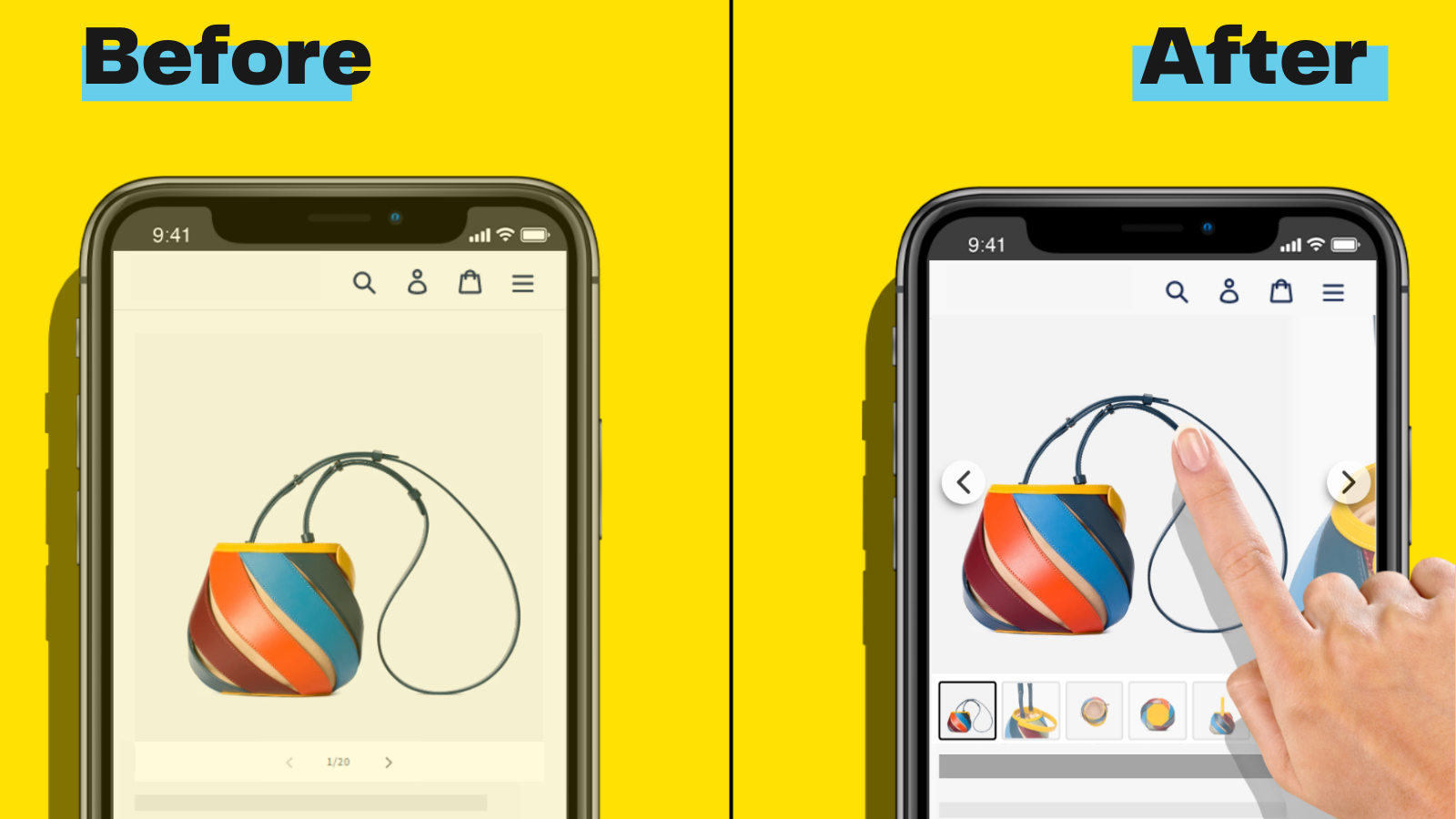
An image slider adds significant value to your Shopify store. It features multiple product images in an engaging way.
Why Use an Image Slider?
Using an image slider in your Shopify store enhances product visibility. Customers can see various angles and details without navigating away from the product page. This more interactive presentation keeps their attention longer than static images.
- Enhanced Visual Appeal: Image sliders create a modern and professional look. They make your store more visually appealing.
- Improved User Experience: Sliders allow customers to explore products quickly. They don’t need to click multiple links to see different images.
- Higher Engagement: Product page image galleries can significantly improve customer interaction. Research shows that 56% of users immediately explore product images after reaching a product details page.
- Efficient Space Utilization: Sliders show multiple images in the same space. This is especially valuable on mobile devices where screen space is limited.
- Showcase Varieties: Display different colors, styles, or usages of a product. For example, showing a dress in various colors helps customers make better decisions.
Preparing Images for Your Shopify Slider
Ensuring your images are properly prepared will enhance the effectiveness of your Shopify slider. Quality preparation also contributes to faster load times and a smoother user experience.
Optimize Image Sizes
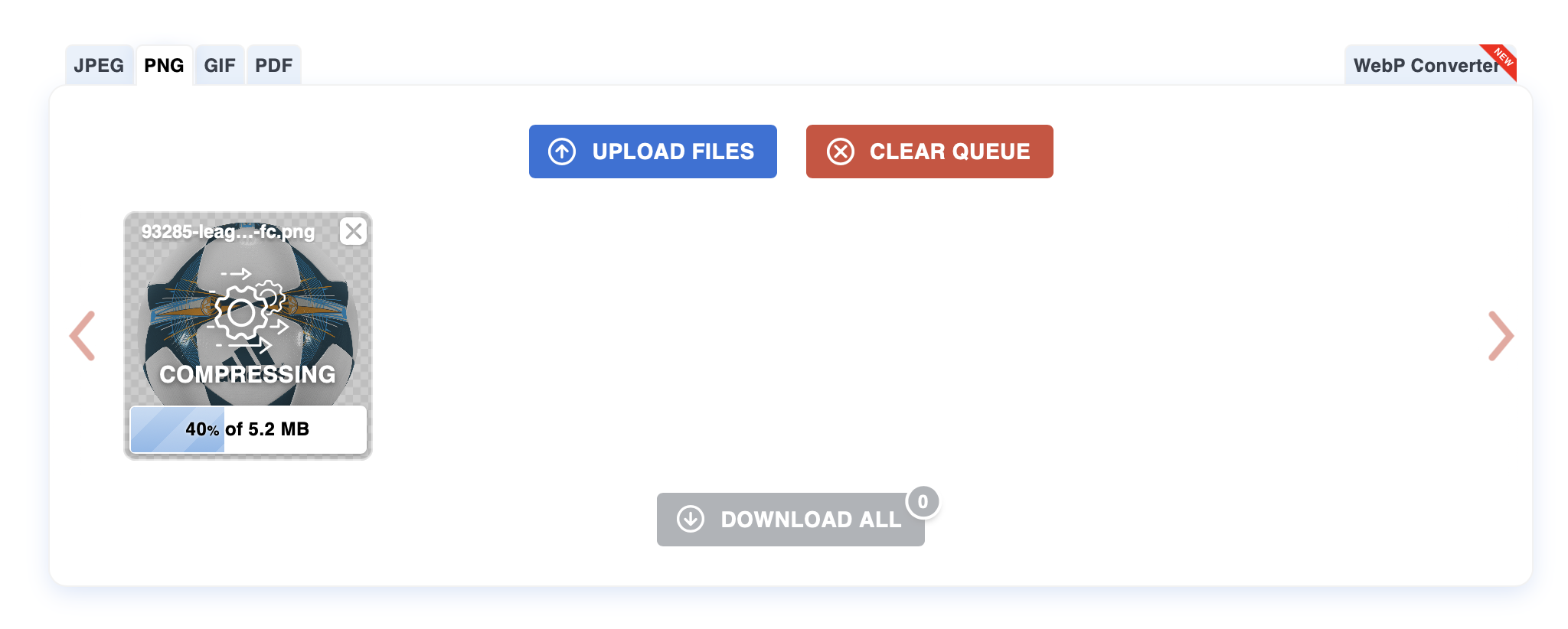
Resize images for optimal performance. For product images, Shopify recommends 2048 x 2048 pixels for square images. Images should be compressed to balance quality and loading speed. Aim for file sizes around 300 KB or smaller without sacrificing clarity. Use tools like TinyPNG or CompressPNG for effective compression.
Dimensions should match your theme’s recommendations, often around 2048×2048 pixels for square images. Images must exceed 800 x 800 pixels for the zoom feature to work properly.
While Shopify’s CDN automatically optimizes images on load and converts them to modern formats like WebP when browsers support it, it’s still beneficial to provide optimized images in the first instance to realize the most gains in performance.
Selecting the Right Images
Choose high-quality images that highlight key product features. Use well-lit and sharp photos showing different angles or variations (for example, colors or styles). Ensure images are consistent in style and resolution to maintain a professional look within the slider. Select images that tell a story or provide a comprehensive view of the product, aiding in customer decision-making.
Choosing the Right Image Slider App for Shopify
Selecting the best image slider app enhances your Shopify store’s visual appeal and customer experience. Evaluate available options to find the one that fits your needs.
What to Consider Before Choosing an App
Consider these factors to choose the right image slider app:
- Compatibility: Ensure the app is compatible with your store’s theme’s product pages and other installed apps. Look for apps that work with the latest Shopify 2.0 themes.
- Ease of Use: Look for a user-friendly interface to facilitate easy customization and management. Many modern apps offer one-click installation and drag-and-drop editors.
- Features: Assess the feature set, including animations, responsiveness, mobile-friendliness, image zoom capabilities, and auto-play options. Video integration and variant image support are increasingly important.
- Performance: Choose apps that don’t slow down page load times. Fast-loading sliders are essential as images now make up over half of a webpage’s total size.
- Customer Support: Check if the app provider offers reliable customer support for troubleshooting, ideally with responsive chat or email support.
- Reviews and Ratings: Read user reviews and ratings to gauge app performance and reliability, focusing on real user experiences from 2025.
Carefully selecting an image slider app tailored to your specific needs ensures a seamless and engaging customer experience.
Installing and Setting Up Your Image Slider
Adding an image slider on Shopify can greatly enhance your product presentation. Follow these steps to install and configure your image slider app for optimal performance.
Step-by-Step Installation Guide
- Access Shopify App Store: Log in to your Shopify admin panel. Click ‘Apps’ on the left sidebar, then ‘Visit the Shopify App Store.’
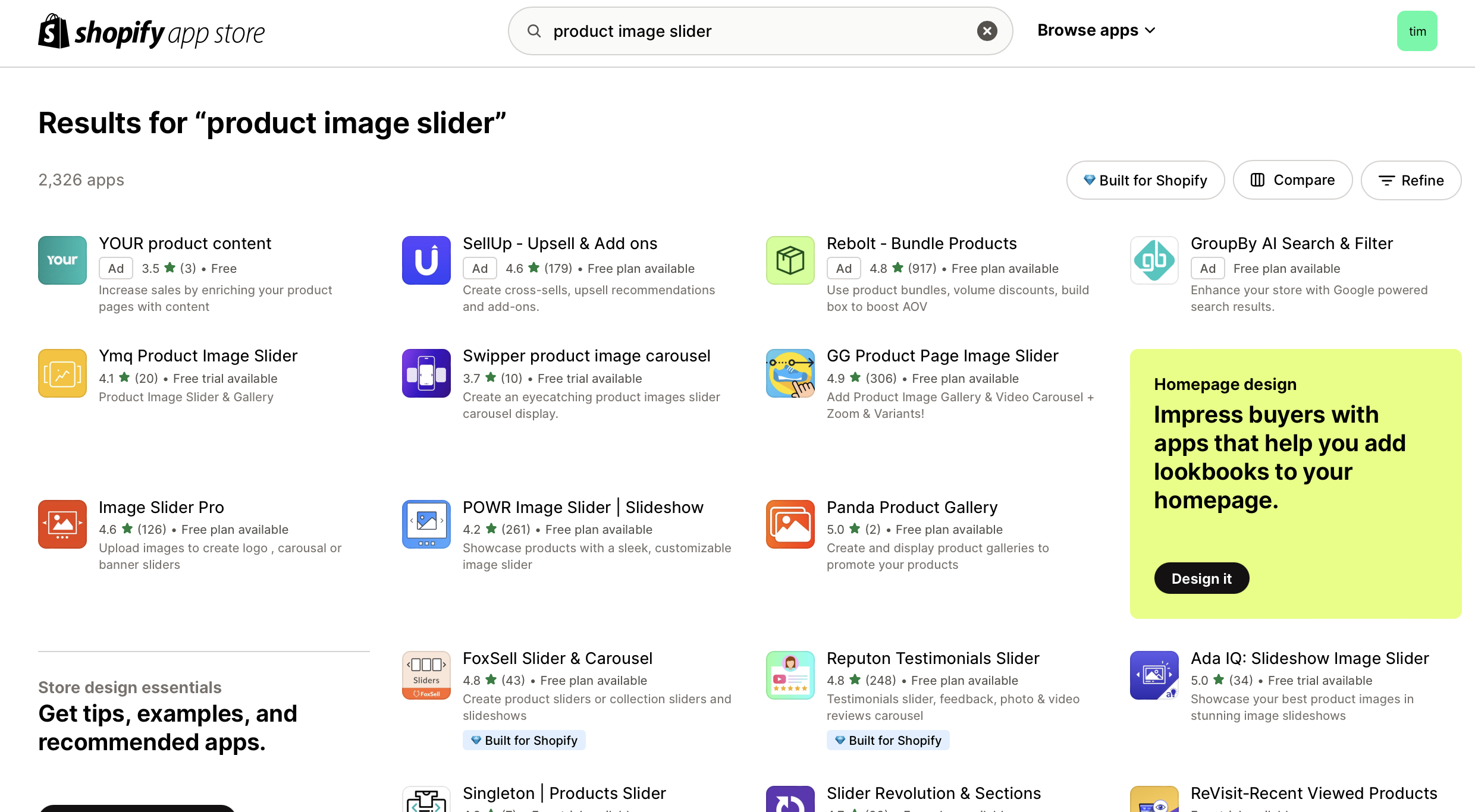
- Search for Image Slider App: Use the search bar to find a suitable image slider app by typing keywords like ‘product image slider,’ ‘product slider,’ or the specific name of the app you prefer.
- Select and Install: Choose an app that fits your needs. Popular options in 2025 include GG Product Page Image Slider, POWR Image Slider & Carousel, and Slider Revolution. Click ‘Add app,’ then ‘Install app’ to integrate it into your store.
- Authorize Permissions: Grant necessary permissions requested by the app for full functionality. Confirm integration by clicking ‘Install app.’
- Access App Dashboard: Once installed, navigate to the app via the ‘Apps’ section in the Shopify admin panel.
- Create New Slider: Click ‘Create New Slider’ or a similar option. Give your slider a relevant name for easy identification.
- Upload Images: Add high-quality images for your slider from your library or upload new ones. Ensure these images are optimized for faster load times at 2048 x 2048 pixels and around 300 KB.
- Set Display Options: Configure settings like slider dimensions, transition effects, and autoplay timing. Customize text overlays, buttons, and image links if needed. Also select the product to output on. You may need to position an App Extension on the product page through the Theme Editor and enable any App Embed present.
- Adjust Advanced Settings: Optimize features like responsiveness, navigation controls, touch gestures for mobile, and image zoom functionality. Confirm changes by saving settings.
Setting up a product image slider ensures your product pages remain engaging and visually appealing, helping to improve customer experience and increase conversions.
Conclusion
Adding an image slider to your Shopify products can significantly enhance your store’s visual appeal and customer experience. By following the steps outlined, you’ll ensure faster load times and smoother user interactions.
Remember to choose an image slider app that fits your needs, works with Shopify 2.0 themes, and optimize your images following current 2025 best practices. Implementing these strategies will not only make your product pages more engaging but also help increase conversions and customer satisfaction.