
Managing out of stock products on Shopify comes down to two practical options: hide them automatically with inventory and collection settings, or use apps and Shopify Flow to sort, hide, alert, and restock more intelligently. In my experience building Shopify apps and working with merchants across themes, product catalogues, and fulfilment setups, those are the only two approaches that consistently hold up in real stores.
Out-of-stock products are not just an inventory issue. They are a conversion issue, a merchandising issue, and sometimes an SEO issue too. If sold-out items dominate your collection pages, shoppers hit dead ends faster, product discovery gets worse, and your best in-stock products get buried.
The good news is that Shopify gives you enough flexibility to handle this well. You can keep things simple with native settings, or automate the whole process with tools like Shopify Flow, StockIQ, and dedicated low-stock alert apps.
In this guide, I’ll show you the two best methods, when to use each one, and the common mistakes I see merchants make when trying to manage sold-out products on Shopify.
Why is managing out of stock products on Shopify so important?
Managing stockouts properly improves conversion rates, protects SEO value, and creates a cleaner shopping experience. The wrong setup can frustrate customers, while the right setup helps them find available products faster.
Shopify stores lose sales in two ways when inventory runs out. First, the obvious one: customers cannot buy the item. Second, and often more damaging, they lose confidence in the store if too many product pages or collection grids are filled with unavailable items.
Industry research regularly shows that stock availability strongly affects conversion. The data points vary by study, but the pattern is consistent: shoppers abandon sessions when they repeatedly hit unavailable products. I have seen this especially on fashion, beauty, and seasonal stores where a few sold-out variants can quickly make a collection look neglected.
There is also a search visibility angle. If you simply delete products every time stock hits zero, you risk losing backlinks, rankings, and historical page authority. In many cases, it is better to hide, archive, unpublish, or push down products rather than remove them entirely. If you are dealing with products that should no longer be sold at all, my guide on archiving no longer available products in Shopify is worth reading next.
What are the 2 best methods for managing out of stock products on Shopify?
The two best methods are: Method 1 - use Shopify’s inventory tracking, product status, and automated collections to hide unavailable items; Method 2 - use apps or Shopify Flow to automate sorting, alerts, hiding, and restock notifications.
If you run a smaller catalogue, Method 1 is often enough. If you have a large catalogue, multiple locations, many variants, or regular replenishment cycles, Method 2 is usually the better long-term setup.
| Method | Best for | Main benefit | Main limitation |
|---|---|---|---|
| Method 1: Shopify settings | Small to mid-sized stores | No extra app cost | Less flexible for advanced workflows |
| Method 2: Apps or Shopify Flow | High-volume or fast-changing catalogues | Automation and better merchandising control | May require app spend or setup time |
How do I identify low stock products and get alerts on Shopify?
Shopify can track inventory, but it does not give every merchant a perfect low-stock alert workflow out of the box. For proper alerts, you will usually use Shopify Flow or a dedicated inventory alert app.
If you have been running your store for a while, you already know which products cannot afford to go out of stock. In most stores, a small number of bestsellers generate a disproportionate share of revenue, so even a brief stockout can hurt more than merchants expect.
In my experience, the real issue is usually not noticing a stock problem early enough. That is especially true when stores sell products with lots of variants. A product may still look available overall, while the best-selling size, colour, or bundle option is already gone.
For example, if you run a clothing store, you may not care that a T-shirt still has stock in XXL if Medium and Large are the variants that actually sell. That is why variant-level alerts matter far more than product-level alerts for many merchants.
How to identify low stock products?
The best way to identify low stock products is to track inventory at variant level and trigger alerts when quantities fall below a threshold. You can do this with Shopify Flow or a low-stock alert app.
Shopify’s native inventory tracking is solid, but it is not a full replenishment system. You can track quantities and stop selling at zero stock, but if you want proactive warnings such as “email me when any variant drops below 5 units”, you will usually need automation.
Shopify Flow is a good place to start. It lets you create workflows based on inventory changes, tags, product status, and more. I like it because it is flexible and sits natively inside the Shopify ecosystem, which usually means fewer moving parts than stitching together multiple external tools.
Alternatively, dedicated apps can be faster to set up and easier for non-technical teams. These are some of the stronger options currently available:
-
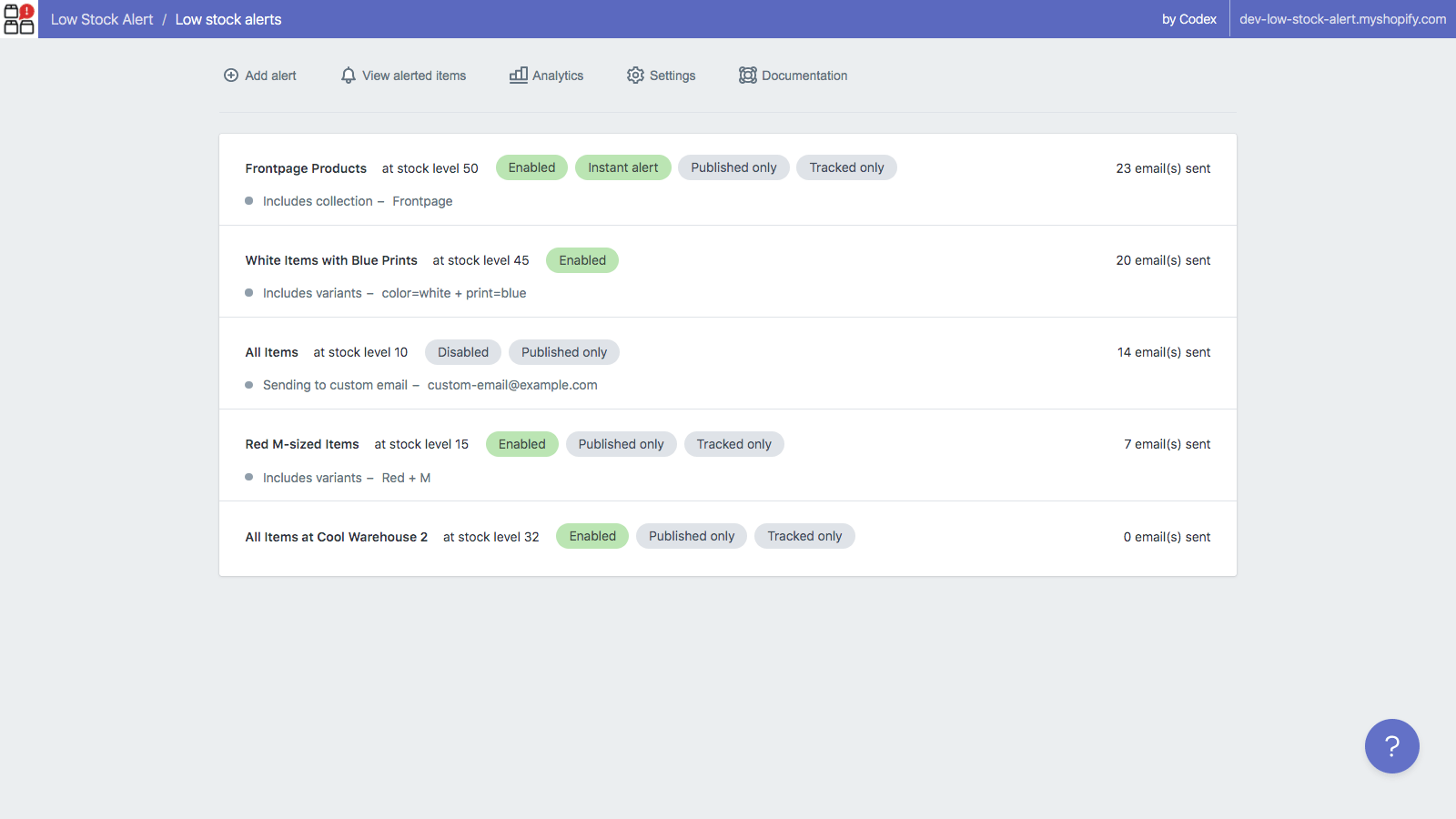
iAlert - Low Stock Alert - useful for rules-based low inventory alerts by email or Slack. Good if you want store-wide or product-specific thresholds. - LSA Low Stock Alert - suitable if you want daily or instant email notifications, including support for multiple locations.
-

Stockie Low Stock Alert - a strong option for scheduled alerts, collection-based monitoring, and reorder calculations. -

Stockbot Inventory Forecasting - better for stores that need demand forecasting and replenishment recommendations, not just alerts.
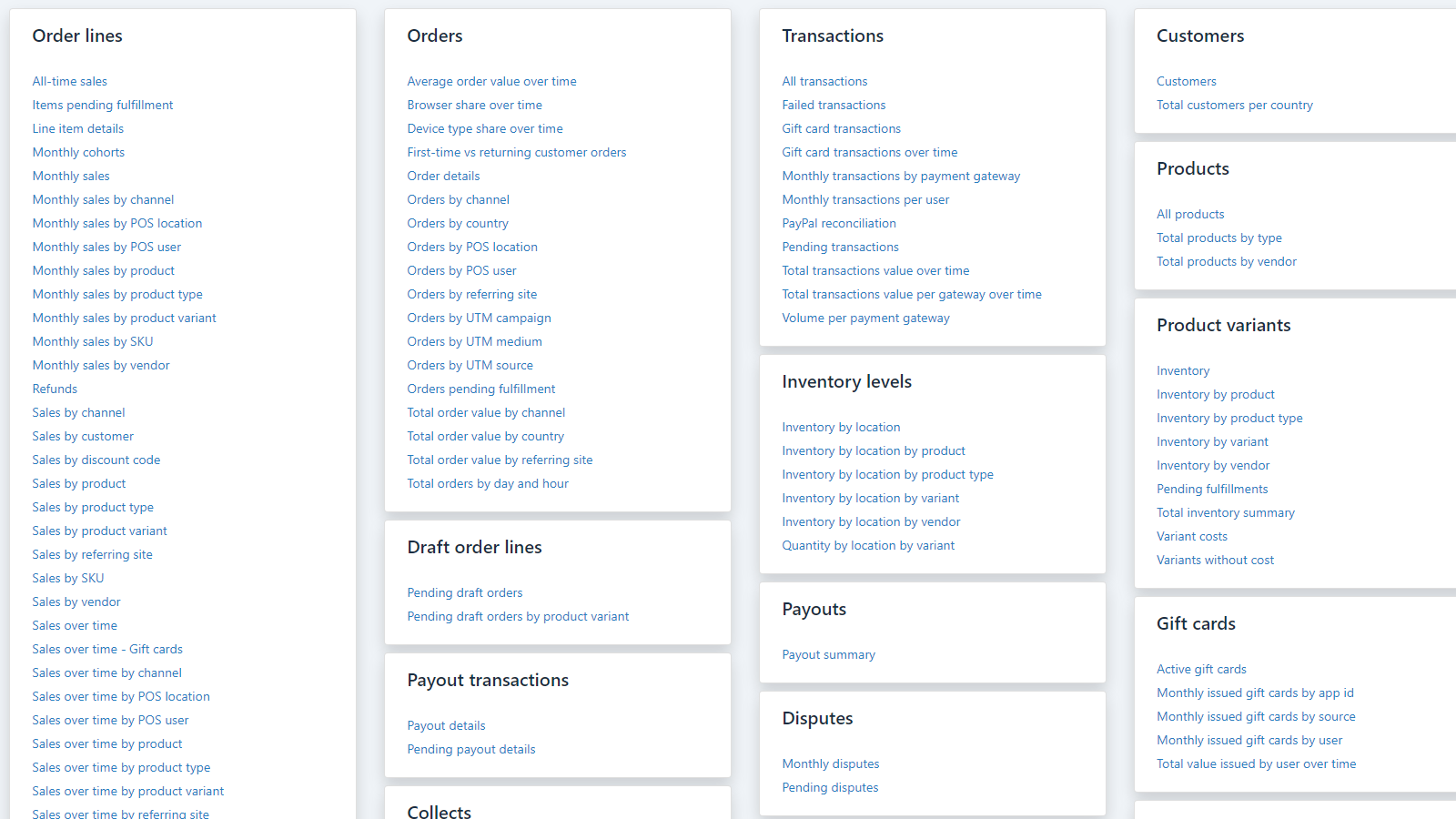
If your store has multiple locations, bundles, or a large SKU count, forecasting tools can be worth the extra cost. Simple alerts tell you that stock is low. Forecasting tools help you decide how much to reorder and when.
What are the benefits of identifying low stock products early?
Early low-stock alerts reduce lost sales, improve purchasing decisions, and make inventory management less reactive. They help you restock before customers start seeing unavailable products.
The sooner you know a product is approaching its threshold, the more options you have. You can reorder, transfer stock between locations, slow paid traffic to that product, or promote alternatives before the product fully sells out.
In practical terms, this means fewer emergency fixes and fewer awkward customer service conversations. It also helps you avoid situations where ads are still sending traffic to products that are effectively unsellable because the top variants are gone.
If inventory planning is part of a wider multi-store setup, you may also want to read how to connect and sync inventory across multiple Shopify stores. That becomes especially relevant once stockouts start happening across more than one storefront.
Method 1: How do I hide out of stock products using Shopify settings?
The simplest method is to enable inventory tracking, stop selling at zero stock, and use automated collections or product status changes to remove unavailable items from customer-facing pages. This is the best no-app option for many stores.
I usually recommend starting here before installing anything. Native Shopify settings cover more than many merchants realise, especially if your main goal is just to hide sold-out products rather than build a full inventory automation system.
Step 1: Turn on inventory tracking and stop overselling
Products need tracked inventory if you want Shopify to treat zero stock as unavailable. If “Continue selling when out of stock” is enabled, the product can still be purchased even at zero.
- Go to Products in your Shopify admin.
- Open the product or variant you want to manage.
- Scroll to the Inventory section.
- Enable Track quantity.
- Untick Continue selling when out of stock if you do not want overselling.
This sounds basic, but I still see stores miss it. If inventory is not tracked properly, every other sold-out workflow becomes unreliable.
There are valid reasons to allow overselling, such as pre-orders or made-to-order products. Shopify documents this in its help guide on selling when out of stock. But for standard physical inventory, I generally advise merchants to be careful with it unless lead times are clearly communicated.
Step 2: Use automated collections to exclude zero-stock products
Automated collections can hide out-of-stock products from collection pages without deleting or manually editing each product. This is one of the cleanest native Shopify methods.
- Go to Products > Collections.
- Create a new automated collection or edit an existing one.
- Add a condition based on inventory stock greater than 0 where relevant.
- Save the collection and test the front end.
This approach works well when you want sold-out products to disappear from collection grids but still exist as product pages. That can be useful if you want the page to remain indexed, collect back-in-stock signups, or preserve existing links.
If your theme or merchandising logic is more complex, you may prefer pushing sold-out products to the end rather than hiding them completely. That often gives a better balance between SEO preservation and customer experience.
Step 3: Use Draft, Archive, or Unlisted status when needed
Draft and Archive remove products from sales channels, while Unlisted can be useful when you want products hidden from browsing but still accessible by direct link. The right choice depends on whether the product is temporarily unavailable or gone for good.
For temporary stockouts, I usually prefer not to archive unless the product will be unavailable for a long time. For discontinued items, archiving is often cleaner. For SEO-sensitive products, keeping the URL alive can be the better move.
Shopify’s newer product visibility options have made this easier to handle. If you have not looked at that recently, my post on Shopify’s new Unlisted product status explains where it fits and when it is better than Draft or Active.
If you need to bulk change product visibility, use Shopify bulk actions rather than editing products one by one. That saves a huge amount of admin time once your catalogue grows.
Method 2: How do I automate out of stock product management with apps or Shopify Flow?
The advanced method is to use apps or Shopify Flow to automatically push sold-out products down, hide them, tag them, notify staff, and alert customers when stock returns. This is the best option for stores with larger catalogues or frequent stock changes.
This is where things get much more powerful. Instead of manually checking inventory and rearranging collections, you can build a system that reacts automatically whenever stock changes.
In my experience, automation becomes worth it surprisingly early. Once you have more than a few dozen active products, especially with variants, manual stock merchandising becomes inconsistent very quickly.
How can Shopify Flow help manage out of stock products?
Shopify Flow can trigger actions when inventory changes, such as tagging products, unpublishing them, or notifying your team. It is ideal if you want native automation without relying entirely on third-party apps.
A typical workflow looks like this:
- Trigger: Inventory quantity changed.
- Condition: inventory is less than or equal to 0.
- Action: unpublish product, add a tag, send an internal email, or move it into a specific workflow.
You can also reverse the logic for restocks. When inventory rises above a threshold again, Flow can republish the product or notify your team to review merchandising.

Shopify Flow is especially useful if you already use Shopify automation elsewhere for tagging, fulfilment, or customer segmentation.
What are the best Shopify apps for hiding or sorting sold-out products?
The best apps depend on whether you want to hide products, push them to the end of collections, or add customer-facing restock tools. For most stores, the strongest options are sorting apps plus a low-stock alert app.
Here are the apps I would look at first:
| App | Best for | App Store link |
|---|---|---|
| StockIQ | Pushing sold-out products to the bottom, hiding, and back-in-stock workflows | View app |
| Push Down Hide Out of Stock MB | Automatic sorting and hiding for sold-out items | View app |
| Autohide Soldout products | Automatically hiding sold-out products and republishing later | View app |
| Stockie Low Stock Alert | Inventory alerts and reorder planning | View app |
| Stockbot Inventory Forecasting | Forecasting future stockouts | View app |



If your main goal is merchandising, StockIQ is one of the more relevant tools because it is specifically built around pushing unavailable products down and controlling visibility. If your main goal is internal stock control, a low-stock alert tool may matter more.
How do I move out of stock products to the end of collections?
The best way to move out-of-stock products to the end of collections is either with a dedicated app or custom theme logic. Apps are easier to maintain, while code gives more control if your theme setup is stable.
Showing sold-out items at the top of a collection is rarely good merchandising. Customers want to find purchasable products first. In high-SKU stores, pushing unavailable items to the bottom often performs better than hiding them completely because it keeps the product visible without blocking discovery.
This is especially useful if you still want customers to join a waitlist or browse the product page. If that is your priority, you should also read how to notify a customer when an item is back in stock on Shopify and my roundup of the best back in stock apps for Shopify.
Method 2A: Using code to push sold-out products down
Theme code can loop through available products first and unavailable products second. This works, but it is theme-dependent and needs testing after theme updates.
The older Liquid approach still works in some themes:
{% for product in collection.products limit: settings.pagination_limit %}
  {% if product.available %}
    {% include 'product-loop' with collection.handle %}
  {% endif %}
{% endfor %}

{% for product in collection.products limit: settings.pagination_limit %}
  {% unless product.available %}
    {% include 'product-loop' with collection.handle %}
  {% endunless %}
{% endfor %}
That said, I would not present this as a universal fix in 2026. Many Online Store 2.0 themes use different snippets, sections, and pagination structures, so you may need to adapt the logic. If you are not comfortable editing Liquid, get a developer to test it on a duplicate theme first.
The biggest downside of code-based sorting is maintenance. Every theme update is a chance for the customisation to break, and I have seen merchants forget that the logic was added months earlier.
Method 2B: Using an app to push sold-out products down
Apps are the easiest way to keep sold-out products at the bottom automatically without touching theme code. They are usually the better choice for non-technical merchants.
StockIQ is one of the better-known options here. It is designed specifically for pushing down out-of-stock items, hiding products if needed, and supporting restock workflows. For merchants who want a set-and-forget solution, that is often easier than maintaining custom Liquid.
Push Down Hide Out of Stock MB and Autohide Soldout products are also worth considering if your needs are simpler. The main thing to compare is whether you want push down, hide, auto-publish on restock, or all three.
Should I hide, push down, archive, or keep selling out of stock products?
There is no single right answer. The best option depends on whether the item is temporarily sold out, permanently discontinued, available for pre-order, or still valuable for SEO and customer demand capture.
Here is the framework I use:
| Scenario | Best action | Why |
|---|---|---|
| Temporary stockout, restocking soon | Push down or keep visible with back-in-stock signup | Preserves demand and SEO value |
| Temporary stockout, no clear restock date | Hide from collections or unlist | Reduces frustration on collection pages |
| Discontinued product | Archive or redirect strategically | Keeps catalogue clean without deleting history |
| Pre-order or made-to-order item | Continue selling when out of stock | Lets you capture demand intentionally |
If you are running pre-orders, make sure your messaging is crystal clear. Customers are usually fine waiting if the lead time is obvious. They are much less forgiving when they think an item is in stock and only discover delays after checkout.
For longer shipping or replenishment windows, the same principle applies. My guide on managing long AliExpress shipping times on Shopify covers the communication side of that in more detail.
What mistakes should I avoid when managing sold-out products on Shopify?
The biggest mistakes are deleting products too quickly, leaving sold-out items at the top of collections, and failing to set up alerts before stock reaches zero. These are easy to fix, but they cost stores money when ignored.
- Deleting product pages immediately - this can waste SEO value and break links.
- Not tracking inventory at variant level - especially harmful for apparel and products with size or colour options.
- Allowing overselling by accident - usually caused by leaving “Continue selling when out of stock” enabled.
- No internal alert workflow - by the time you notice, the product has already been unavailable for days.
- Using code hacks without testing - theme updates can quietly undo your collection logic.
Another common issue is treating all stockouts the same. A bestseller that will return next week should not be handled the same way as a seasonal item that will not return for six months. The workflow should match the product lifecycle.
What is my recommended setup for most Shopify stores?
For most stores, the best setup is to start with native inventory tracking and automated collections, then add Flow or an app once stock management becomes too manual. That gives you a sensible balance between cost, control, and scalability.
If I were setting this up on a typical Shopify store today, I would do the following:
- Enable Track quantity on all physical products.
- Disable Continue selling when out of stock unless the product is intentionally pre-order.
- Use automated collections or app-based sorting to keep sold-out items from dominating collection pages.
- Install a low-stock alert app or configure Shopify Flow for internal notifications.
- Add back-in-stock capture for high-demand products.
- Archive or unlist products strategically instead of deleting them.
That setup is best for small stores that want simplicity and also scales reasonably well as the catalogue grows. Once you start managing hundreds or thousands of SKUs, automation stops being a nice extra and becomes essential.
If your store relies heavily on collections, merchandising, and product discovery, pushing sold-out products down is usually the sweet spot. If your store sells a smaller range of evergreen products, hiding them entirely can be cleaner.
Either way, the goal is the same: show customers what they can buy now, preserve demand for what they cannot, and avoid wasting SEO value in the process.