If you’ve been managing a Shopify store for any length of time, you’ve probably run into this frustrating scenario: you need to keep certain products active and purchasable, but you don’t want them showing up in search results, collections, or your main catalog. Maybe it’s a warranty replacement item, a VIP-only product, or a special add-on that should only be accessed through a specific link.
Until recently, your options were limited. You could mark products as Draft (making them unpurchasable), keep them Active (making them visible everywhere), or use complicated workarounds involving metafields and custom code. None of these solutions gave you the control you really needed: products were either visible everywhere or not functional at all.
That changed on October 21, 2025, when Shopify released a game-changing update: the Unlisted product status.
What Is the Unlisted Product Status?
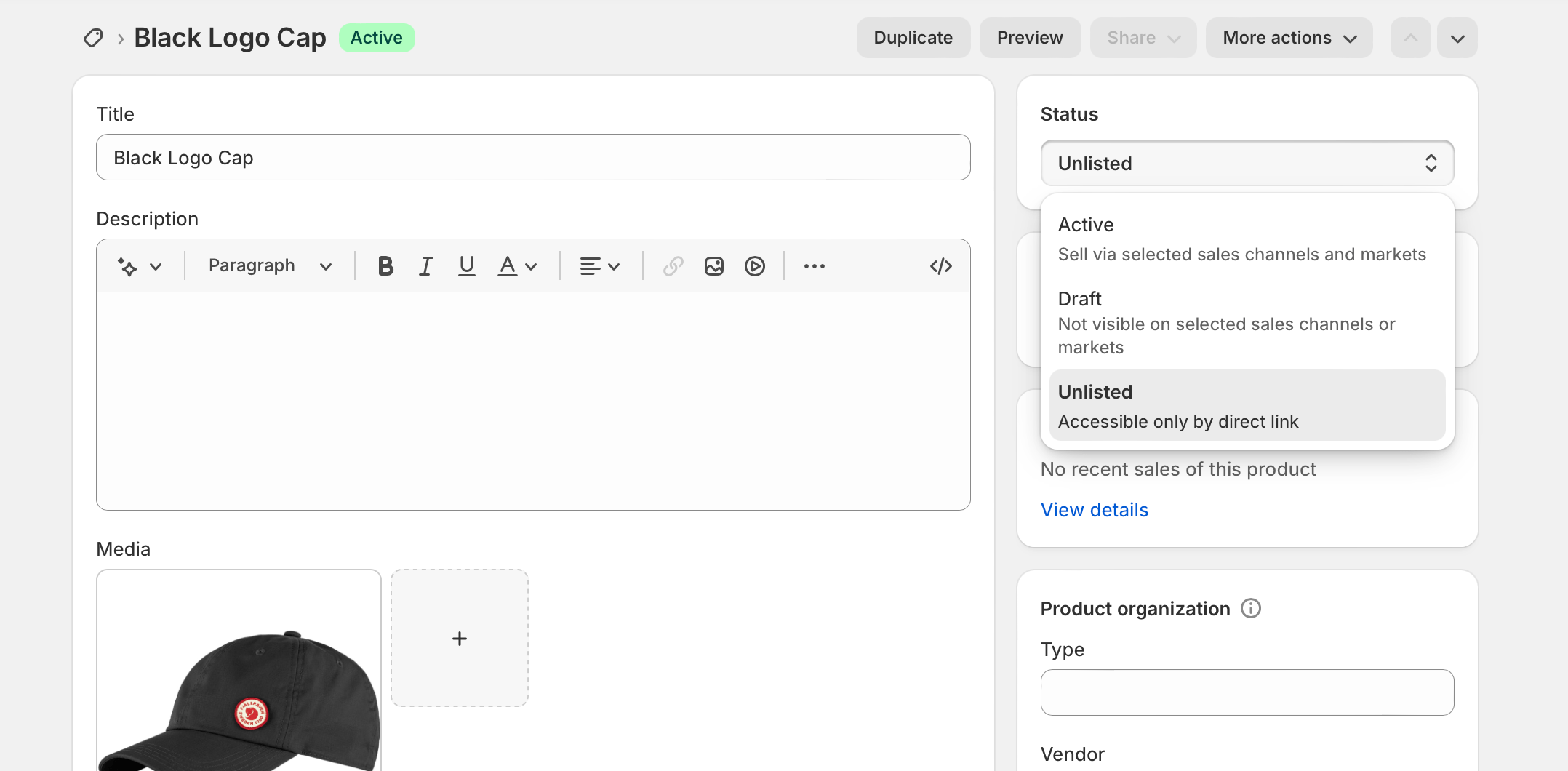
The Unlisted status is a new product visibility option that hides products from store search, collections, all sales channels, internet search engines, and Shopify Catalog while still allowing access via a direct URL. Think of it as a middle ground between public and private.
When you set a product to Unlisted, here’s what happens:
Where Your Product Will Be Hidden:
- On-site search results
- Product collections (including /collections/all)
- Sales channels (except your primary online store)
- Search engine results (Google, Bing, etc.)
- Shopify Catalog
- Product recommendations and AI-powered suggestions
Where Your Product Remains Accessible:
- Direct product URLs that you share
- Your Shopify admin (for management)
- Cart and checkout (if added via direct link)
- Storefront API and Liquid (when referenced by handle, ID, or metafield)
In other words, if someone has the exact product link, they can view and purchase it. But they won’t stumble upon it through search or browsing.
Why This Update Matters for Your Store
Before the Unlisted status, merchants were forced to choose between products being Active (visible everywhere) or Draft (not purchasable). This binary choice meant you either exposed products you wanted to keep private, or you couldn’t actually sell them.
Merchants previously had to use workarounds like the seo.hidden metafield, unpublishing from sales channels, and keeping products out of collections: a manual, error-prone process. The Unlisted status standardizes and simplifies what many store owners were already trying to accomplish through patchwork solutions.
Perfect Use Cases for Unlisted Products
Shopify designed the Unlisted status specifically for scenarios like private sales, warranties, add-ons, and promotional items you don’t want discovered outside their intended purpose.
Here are the most common situations where you’ll want to use this feature:
1. Private Sales and VIP Products
Running an exclusive sale for email subscribers or VIP customers? Create unlisted products and share the links only with your select audience. They get access to special pricing or limited items without cluttering your main storefront.
2. Warranty and Replacement Items
If you offer warranty replacements or exchanges, you can create unlisted products specifically for these purposes. Share the link with eligible customers through support tickets, ensuring only those who qualify can access and purchase replacements.
3. Add-Ons and Bundled Components
Products that should only be purchased alongside main items, like custom add-ons, warranty extensions, or bundle components, can be hidden from general discovery while remaining purchasable when linked directly.
4. Free Gifts with Purchase
Set up unlisted products for promotional gifts that should only be added to carts through specific campaigns or discount codes, preventing customers from adding them independently.
5. Custom Pricing Items
Products with customer-specific pricing, custom orders, or quote-based items can be unlisted and shared individually with each customer who has negotiated special terms.
6. Temporary or Beta Products
Testing new products with a select group before a full launch? Keep them unlisted while you gather feedback from early testers without impacting your regular catalog.
How to Set Products as Unlisted
Setting a product to Unlisted is straightforward and works just like changing any other product status:
In Your Shopify Admin:
- Go to Products in your Shopify admin
- Select the product you want to unlist
- Find the Status dropdown
- Select “Unlisted”
- Save your changes
Bulk Operations:
- Use the bulk editor to change multiple products at once
- Import/export via CSV with the Unlisted status
- Use Shopify Flow to automate status changes based on triggers
Technical Details for Developers
The Unlisted status is available in the 2025-10 GraphQL Admin API, REST Admin APIs, and Webhooks API.
Important Technical Notes:
Products with Unlisted status are returned in Storefront API and Liquid only when referenced individually by handle, ID, or metafield reference. This means your theme won’t accidentally display these products in loops or collections.
Previous versions of the Admin APIs (before 2025-10) will return unlisted products as “ACTIVE” and cannot change products from unlisted in older API versions. Keep this in mind if you’re working with legacy code or older apps.
Important Limitations to Know
While the Unlisted status is powerful, it’s not a perfect invisibility cloak. There are several ways unlisted products can still appear: through metafield or metaobject references (like “paired with” sections), in Google search results temporarily while the index updates, and in ChatGPT searches for a brief period.
Watch Out For:
Third-Party Apps: If you use apps that display products or handle catalog data, verify they recognize the new Unlisted status. Otherwise, these products might still appear in recommendations or pop-ups.
Shopify Flow Automations: Flow uses the latest API version (2025-10), so check any workflows that rely on product status to ensure they handle Unlisted products appropriately.
Custom Theme Code: If your theme has custom scripts that filter by product status or display “Active” products, you’ll need to update them to properly handle Unlisted items.
Search Engine Indexing: It takes time for search engines like Google to remove unlisted products from their index after you change the status. Be patient—it won’t happen instantly.
Unlisted vs. Previous Workarounds
You might be wondering: “Isn’t this just the same as using the seo.hidden metafield?” Not quite.
While you could previously hide products using the seo.hidden metafield, unpublishing from sales channels, and excluding from collections, the Unlisted status standardizes this process and integrates with Shopify’s catalog system that powers AI agents and custom Storefront API apps.
The key advantages of Unlisted over the old workarounds:
- Simpler Management: One status change instead of multiple steps
- Official Support: Built into the platform, not a hack
- Better Integration: Works with Shopify’s newest features and AI tools
- Clear Intent: Your team immediately understands a product is intentionally hidden
Automating with Shopify Flow
One of the most powerful aspects of the Unlisted status is automation potential. You can use Shopify Flow to automatically trigger status changes when stock levels or other conditions change.
Automation Ideas:
- Automatically unlist products when inventory reaches zero
- Relist products when stock is replenished
- Unlist items during specific date ranges (seasonal availability)
- Change status based on customer tags or purchase history
- Create VIP-only product access based on customer segments
SEO Considerations
Unlike Draft products, unlisted products can still be accessed by anyone with the URL. This means:
Positive SEO Impact:
- Cleaner site architecture without cluttering your main catalog
- Better focus on products you actually want to rank
- Reduced low-quality pages competing for attention
What Won’t Hurt You:
- Unlisted products won’t create duplicate content issues
- They’re properly hidden from search engines
- Your sitemap automatically excludes them
Best Practice: Share unlisted product links through email campaigns, SMS, support tickets, or private messages. Never post them publicly on social media or your website if you want to maintain exclusivity.
Migration Strategy for Existing Stores
If you’ve been using workarounds to hide products, here’s how to transition:
- Audit Your Current Setup: Identify all products using seo.hidden metafields or unpublished from channels
- Test First: Change a few products to Unlisted and verify your theme and apps handle them correctly
- Check Integrations: Confirm third-party apps recognize the new status
- Bulk Update: Once you’ve verified everything works, use bulk operations to migrate multiple products
- Update Documentation: Train your team on when and how to use the Unlisted status
Common Questions Answered
Q: Can customers still see unlisted products in their order history?
Yes, if they previously purchased an unlisted product, it will still appear in their order history and account.
Q: Will unlisted products show in Shopify POS?
Unlisted products are hidden from sales channels, but you can still access them through your POS if needed by searching for them directly in your back end.
Q: Can I share unlisted product links on social media?
Technically yes, but remember that once a link is public, anyone can access it. Use unlisted status for selective sharing through email or direct messages, not public social posts.
Q: Do unlisted products count toward my product limit?
Yes, unlisted products count toward your plan’s product limit just like active products.
Q: Will my email marketing platform still show unlisted products?
This depends on your platform and how it pulls product data. Check with your email service provider to confirm compatibility.
The Bottom Line
The Unlisted product status is one of those features that seems simple on the surface but solves a real problem that’s been frustrating merchants for years. It provides an official way to hide products without removing them completely, keeping your catalog cleaner while giving you more control over discoverability.
Whether you’re running exclusive sales, managing warranty items, or controlling add-on purchases, the Unlisted status gives you the flexibility you need without complicated workarounds.
Action Steps:
- Review your current product catalog for items that should be unlisted
- Test the feature on a few products first
- Verify your theme and apps handle unlisted products correctly
- Create a process for your team to use this feature consistently
- Consider automation opportunities with Shopify Flow
The Unlisted product status is available now in all Shopify stores. Log into your admin and start taking control of your product visibility today.