
Customizable add-ons and upsells on Shopify are best displayed on the product page, cart page, and in some cases post-purchase flows. If you want the short answer, the easiest route is to combine a product personalisation app with an upsell app so customers can both customise and increase basket value without friction.
In my experience building Shopify apps, this is one of the most overlooked conversion opportunities on a store. Merchants spend heavily to get traffic, then leave money on the table by showing generic products with no personalisation, no helpful add-ons, and no relevant upsell path. Done properly, custom add-ons feel useful, not pushy, and that is exactly why they work.
The search results for this topic are a bit messy right now. Some pages talk about checkout upsells, others focus on product options, and a few show theme sections rather than a complete setup. This guide brings those pieces together and explains how to display customizable add-ons and upsells on Shopify in a way that actually fits how customers shop in 2026.
What are customizable add-ons and upsells on Shopify?
Customizable add-ons are optional extras a customer can personalise or select alongside the main product. Upsells encourage the customer to upgrade, add a premium version, or buy a higher-value related item.
Examples are simple. A jewellery store might offer engraving, gift wrapping, or a premium chain upgrade. A print-on-demand store could offer custom text, faster production, or a matching accessory. A beauty brand might add a travel-size companion product or a bundle upgrade.
The key difference is intent. An add-on supports the main purchase, while an upsell increases the order value by moving the customer to a better or bigger purchase. In practice, many stores use both together, which is why tools like SellUp and personalisation apps often complement each other.
Why should you add customizable add-ons and upsells to Shopify?
You should add them because they can increase average order value, improve the shopping experience, and help customers buy the version of the product they actually want. Personalisation is no longer a novelty. It is part of what customers expect from modern ecommerce.
One widely cited benchmark from McKinsey found that 71% of consumers expect personalised interactions and 76% get frustrated when they do not get them. That matters on Shopify because product pages are often the first and best chance to show relevance. If the customer has to message support just to ask for engraving, gift wrap, or bundle options, you have already added friction.
In my own testing across Shopify stores, the best-performing offers usually share three traits. They are contextual, easy to understand, and easy to add in one click. A random upsell hurts conversion. A well-matched add-on that solves a real need often lifts revenue without hurting the main sale.
If you are specifically working on AOV, you may also want to read How to Upsell on Your Shopify Store: 6 Methods and How to Create Product Add-Ons for Your Shopify Store: 2 Easy Methods That Actually Work.
Where should you display customizable add-ons and upsells on Shopify?
The best places are the product page and cart page. These placements usually give the highest visibility with the lowest disruption to the buying journey.
That said, there is no single placement that works for every store. The right location depends on whether the offer needs explanation, whether it changes the base product, and how committed the customer already is.
Should you show them on the product page?
Yes. The product page is usually the best place for customisable add-ons because the customer is still deciding what to buy and is most open to configuration.
This is where I recommend showing things like engraving fields, dropdown options, colour swatches, checkbox add-ons, and matching accessories. If the add-on changes the product itself, the product page is almost always the cleanest place to present it.
Examples include:
- Text personalisation for gifts, jewellery, stationery, or apparel
- Upgrade options such as premium materials, larger sizes, or faster production
- Companion products such as cases, refills, spare parts, or gift boxes
- Visual selectors like swatches, image buttons, or live previews
If you want to build this into a broader upsell strategy, my guide on Shopify Upsell on the Product Page goes deeper into placement and setup.
Should you show them on the cart page or cart drawer?
Yes, especially for simple add-ons and last-minute upsells. The cart is ideal when the customer already committed to the main item and you want a low-friction extra.
Cart offers work best when they are easy to accept. Think gift wrap, shipping protection, frequently bought together items, or a discounted accessory. I would avoid asking for too much input here because long forms inside the cart often create drop-off.
Cart drawers can work especially well on mobile because the offer appears without sending the customer away from the page. If that is your setup, see How to Create Shopify Cart Drawer Upsells That Boost AOV.
Can you show customizable upsells at checkout?
Sometimes, but with limits. Shopify checkout customisation depends heavily on your plan and app capabilities. For many merchants, the more practical route is to use the cart page, cart drawer, or post-purchase offers instead.
This is one area where search results often confuse merchants. People search for checkout upsells, but what they really need is a workable placement before or after checkout. If you are not on Shopify Plus, your checkout customisation options are more restricted than your product and cart pages.
That is why I usually advise merchants to focus first on product page add-ons and cart-stage upsells. These are easier to control, easier to test, and available to far more stores.
Do popups and thank you pages work for add-ons?
Yes, if used carefully. Popups can capture attention, and thank you page or post-purchase offers can add extra revenue after the initial order is placed.
I only recommend popups when they are triggered intelligently, such as by cart value, product type, or quantity. Random interruptions usually underperform. For post-purchase, the strongest offers are simple, relevant, and time-sensitive.
If you want popup-based tactics, read 3 Upsell Popup Methods for Your Shopify Store That Actually Increase AOV.
What is the best way to display customizable add-ons and upsells on Shopify?
The best way is to combine an upsell app with a product personalisation app or a well-built theme section. That gives you both display control and customisation functionality.
In practical terms, you have three main methods. You can use a dedicated app, use theme sections through the Shopify theme editor, or build a custom solution in Liquid and app blocks. For most merchants, apps are the fastest and safest option because they reduce development time and make testing much easier.
Method 1: Use an upsell app like SellUp
SellUp is a straightforward way to show add-ons, cross-sells, and upsells on Shopify. It is especially useful when you want offers placed around the buying journey without custom coding.
Because I work in the Shopify app ecosystem, I care a lot about whether a tool is actually practical for merchants to maintain. With SellUp, the useful part here is that you can present a product as an offer and, when needed, redirect customers to the product page so they can complete the customisation there. That solves a common problem: the upsell gets the click, but the customer still needs a proper product page to choose options.

This approach works particularly well when the add-on is not just a simple checkbox. If a customer needs to enter text, upload a file, or choose from multiple product options, redirecting them to the relevant product page can be a cleaner experience than trying to cram everything into a tiny upsell card.
Method 2: Use a product customisation app
A product customisation app is best when the offer needs customer input like text, images, swatches, or complex option sets. It handles the personalisation layer that a pure upsell app may not cover on its own.
Three established options are Product Options & Customizer, Customify, and Zepto Product Personalizer. These apps are useful when you need more than a simple add-on product and want customers to configure the purchase directly.
| App | Best for | Strength | App Store |
|---|---|---|---|
 Product Options & Customizer |
Stores needing flexible option sets | Broad custom option support for add-ons and product configuration | View app |
 Customify |
Stores wanting visual personalisation | Advanced product design tools and customer-driven custom creation | View app |
 Zepto Product Personalizer |
Stores offering text, images, and detailed personalisation | Strong personalisation workflows for made-to-order products | View app |
In most cases, these apps do the heavy lifting for personalisation, while your upsell setup determines where and when the offer appears.
Method 3: Use theme editor sections for simple add-ons
Theme editor sections are best for simple visual upsells that do not require advanced logic. They can be a good low-cost option when you want to place an offer directly in the page layout.
This is the approach you often see in section-based tools and YouTube tutorials. It can work well for related products, bundle blocks, or a fixed add-on section under the buy buttons. The trade-off is that it is usually less dynamic than a dedicated app, especially if you want triggers, discounts, or product-specific rules.
If you only need a basic add-on section that can be managed in the Shopify theme editor, this route is worth considering. If you need targeting rules, analytics, and different offers for different products, an app is usually the better long-term choice.
How do I set up customizable add-ons and upsells in SellUp?
You can set them up in two simple steps: enable the redirect behaviour for the offer, then customise the call-to-action text so customers know they can personalise the item.
This is still one of the cleanest ways to use SellUp for customisable products, and it remains relevant because it bridges the gap between a compact upsell widget and a full product customisation page.
Step 1: Activate the customise flow
Turn on the setting that sends customers to the product page when they click the offer. This is ideal when the upsell product includes options that cannot be selected directly in the widget.

- Log in to your SellUp dashboard.
- Go to On-Page Offers.
- Find the Redirect to Product checkbox and enable it.
- Save the offer and test it on desktop and mobile.
Once enabled, the customer clicks the offer and lands on the product page where they can choose the relevant options. In my view, this is much better than forcing a complex customisation flow inside a tiny upsell card.
Step 2: Change the button text to match the intent
Your CTA should make it obvious that the customer is going to personalise or configure the product. Generic button text often lowers clicks because it does not explain the next step.
- In SellUp, go to Settings.
- Open Display Settings and then the Language tab.
- Find the Redirect to product label field.
- Replace it with a clearer CTA such as Customise, Make It Yours, or Personalise This Item.
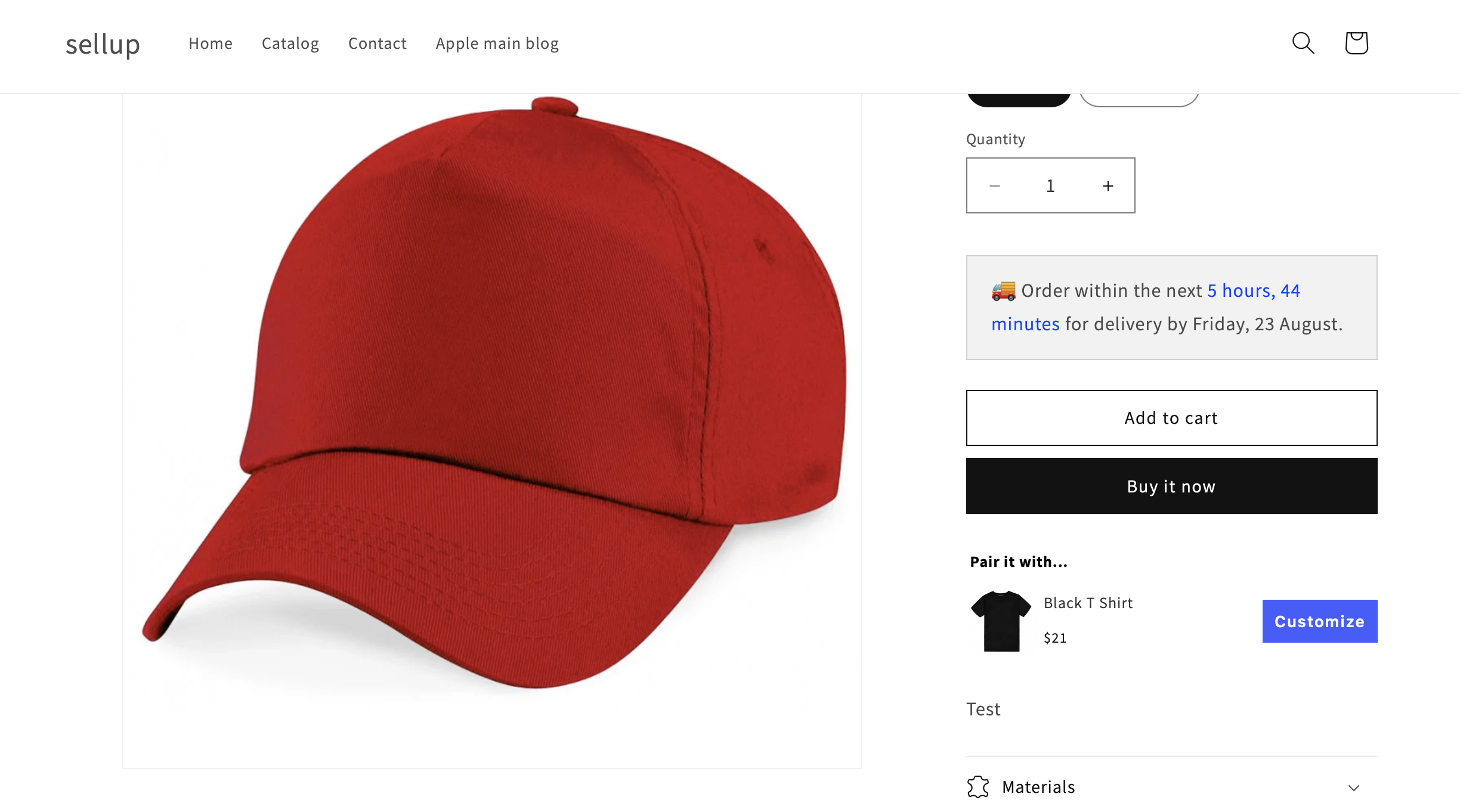
Small copy changes can make a real difference here. In testing, intent-led buttons usually outperform vague labels because the customer understands exactly what happens next.
What types of customizable add-ons and upsells work best?
The best ones are the offers that feel like a natural extension of the main product. If the add-on solves a problem, improves the giftability, or upgrades the result, it is far more likely to convert.
I would group the top-performing options into three buckets.
- Add-ons: gift wrap, engraving, monogramming, premium packaging, extended care, setup services
- Cross-sells: matching accessories, refill packs, complementary products, protective items, bundles
- Upsells: larger sizes, better materials, premium editions, faster fulfilment, multi-pack upgrades
For example, a candle brand might offer a gift box add-on and a wick trimmer cross-sell. A jewellery store might offer engraving and a higher-value chain upgrade. A supplement brand might use a subscribe and save upsell or a second bottle discount.
The strongest offers are relevant to the item already in the cart. That sounds obvious, but it is where many stores go wrong. They show whatever product has the highest margin rather than the most obvious fit.
How do you choose the right app for customizable add-ons and upsells?
Choose based on the complexity of the customisation, where you want the offer displayed, and how much control you need over targeting. The right app depends less on hype and more on the exact buying flow you want to create.
Here is the framework I use when evaluating Shopify apps for merchants.
| Need | Best solution | Why |
|---|---|---|
| Simple upsell on product or cart page | SellUp | Good for on-page offers, cross-sells and redirecting to customisable products |
| Advanced product personalisation | Zepto Product Personalizer or Customify | Better for text, image, and design-based customisation |
| Flexible option sets for many product types | Product Options & Customizer | Useful when you need dropdowns, checkboxes, swatches, and conditional options |
| Basic visual add-on section without much logic | Theme editor section | Simple to place and style, but usually less dynamic |
I also recommend checking app store ratings, support responsiveness, and whether the app works well with your theme. A flashy demo means very little if the app breaks your product page or slows down the buying flow.
What are the most common mistakes when displaying customizable add-ons on Shopify?
The biggest mistakes are showing too many options, placing offers too late, and making the add-on hard to understand. Complexity kills conversion faster than most merchants realise.
Here are the issues I see most often:
- Too many fields on the product page - customers get overwhelmed and delay the purchase
- Unclear pricing - customers do not know whether the customisation is included or extra
- Poor mobile layout - add-ons look fine on desktop but break on smaller screens
- Weak CTA copy - buttons like “Learn more” underperform against intent-led labels
- Irrelevant offers - showing unrelated products damages trust
- No testing - merchants install the app and never measure clicks, take rate, or AOV impact
In my experience, the best fix is simplification. Start with one or two high-intent add-ons, make the price clear, and test the placement before adding more complexity.
How can you optimise customizable add-ons and upsells for higher conversion?
Optimise by making the offer relevant, easy to add, and visually close to the main buying decision. Good placement and clear copy usually matter more than fancy design.
These are the tactics I recommend most often:
- Place the offer near the add to cart button on product pages.
- Use benefit-led copy such as “Add gift wrap for a ready-to-give order”.
- Show the extra cost clearly so there is no surprise later.
- Use images or swatches when the add-on is visual.
- Keep custom input fields short and easy to complete on mobile.
- Test product page vs cart page placement for the same offer.
- Track take rate and AOV, not just clicks.
If you are building a broader upsell system, you may also find 12 Best Upsell Apps for Your Shopify Store in 2026 and How to Show Recommended Products on Shopify in 2026 useful.
Are customizable add-ons and upsells worth it for small Shopify stores?
Yes, especially for small stores. They are often one of the fastest ways to increase revenue without increasing traffic spend.
Small merchants usually do not have the luxury of wasting paid traffic. If you can lift AOV with a relevant add-on, you improve the economics of every order. I have seen this work particularly well for gift stores, jewellery brands, print-on-demand shops, and niche DTC brands with strong product-market fit.
The trick is to start small. You do not need a huge matrix of rules on day one. One strong custom add-on and one relevant upsell can outperform a bloated setup with ten mediocre offers.
Which app combination do I recommend for most merchants?
For most merchants, I recommend pairing SellUp for offer placement with a dedicated customisation app if the product needs detailed personalisation. That gives you flexibility without overcomplicating the storefront.
If your store sells configurable products, use SellUp to surface the opportunity and send customers to the correct product page when necessary. Then use a tool like Product Options & Customizer, Customify, or Zepto Product Personalizer to handle the actual option logic.
That combination is usually best for small to mid-sized Shopify stores because it balances speed, flexibility, and maintainability. If your needs are simpler, a theme section may be enough. If your catalogue is highly personalised, you will likely want the app stack.
Either way, the goal is the same: make the add-on feel like part of the product, not an afterthought.
How do I get started today?
Start by choosing one product with a clear customisation opportunity and one upsell placement to test. Keep the first version simple and measure the result.
My recommended rollout is:
- Pick a best-selling product.
- Add one custom add-on customers actually want.
- Display it on the product page first.
- Add a cart-stage upsell for a complementary product.
- Review conversion rate, take rate, and AOV after 2-4 weeks.
- Only then expand to more products or more advanced rules.
That is the practical route I would take on most Shopify stores today. It is faster to launch, easier to optimise, and far more likely to produce a measurable lift than trying to build an over-engineered funnel from the start.