

If you want to hide product variants in Shopify without deleting them, the short answer is this: Shopify still does not offer a true native setting for hiding individual variants while keeping the rest of the product live. In practice, your options are a theme-level workaround, custom code, or a third-party app that controls variant visibility properly.
I have worked with Shopify stores for years and I also build Shopify apps myself, so I have seen this problem come up again and again. Merchants want to keep variant sales history, SKUs, reporting, and inventory records, but they do not want customers seeing discontinued, seasonal, region-specific, or temporarily unavailable options.
That is exactly where this guide comes in. I will show you what Shopify can do natively, where the platform falls short, and the best practical ways to hide variants without deleting them in 2026.
Can you hide individual product variants in Shopify without deleting them?
No, not natively. Shopify does not currently include a built-in feature that lets you hide a single variant from the storefront while keeping the product and the variant intact in admin.
This is the key point many articles gloss over. You can make a variant unavailable, set inventory to zero, or unpublish the whole product, but those are not the same as truly hiding one variant. If you need proper control, you will usually need theme customisation or an app like Camouflage: Hide Sold Variants.
That distinction matters because merchants often want to preserve data. Deleting a variant removes a lot of useful context from your catalogue management, and recreating it later can be messy if you rely on specific SKUs, inventory syncing, ERP mappings, or historical reporting.
Why would you hide variants instead of deleting them?
Hiding a variant is best when the option may return later or still matters operationally. Deleting should usually be the last resort.
In my experience building Shopify apps, merchants usually want to hide variants for one of five reasons:
- Seasonal stock such as winter colours or limited-edition packaging
- Temporary stock issues where the variant will be restocked soon
- Region-specific products that should only show in certain markets
- B2B or VIP variants visible only to tagged customers
- Catalogue cleanup where old options clutter the product page but should remain in records
This is especially important on stores with large variant sets. If your product pages already feel overloaded, you may also want to read How to Turn Automatic Selection Off for Product Variants on a Shopify Product Page and Hiding Variant Images from the Product Page in Shopify, because both issues often show up together.
What is the best way to hide product variants in Shopify?
The best method depends on why you want to hide the variant. For most non-technical merchants, an app is the safest option. For developers or stores with a simple requirement, theme code can work well.
Here is the practical breakdown I give merchants:
| Method | Best for | Difficulty | Can hide specific variants? | Main drawback |
|---|---|---|---|---|
| Inventory workaround | Basic sold-out handling | Easy | No, not reliably | Usually disables or marks sold out rather than hiding |
| Theme customiser | Themes with built-in variant picker controls | Easy to medium | Sometimes | Theme-dependent and limited |
| Theme code edits | Developers and custom stores | Medium to hard | Yes | Can break with theme updates |
| Shopify Flow | Automating product visibility rules | Medium | No, mainly product-level logic | Not true variant hiding |
| Third-party app | Most merchants | Easy | Yes | Monthly cost |
If you want the least risk and fastest setup, I would start with an app. If you want the lowest ongoing cost and are comfortable editing Liquid and JavaScript, custom theme logic can be a solid route.
How do I hide variants using Shopify's native settings?
You can only approximate variant hiding natively. Shopify's built-in inventory settings can make a variant unavailable, but in most themes they do not fully remove the option from the picker.
This is the oldest workaround and it is still worth knowing because it is free and quick to test.
Method 1: Using Shopify natively
This method works best for sold-out variants when your theme automatically hides or de-emphasises unavailable options. It will not give you precise control over arbitrary variants.
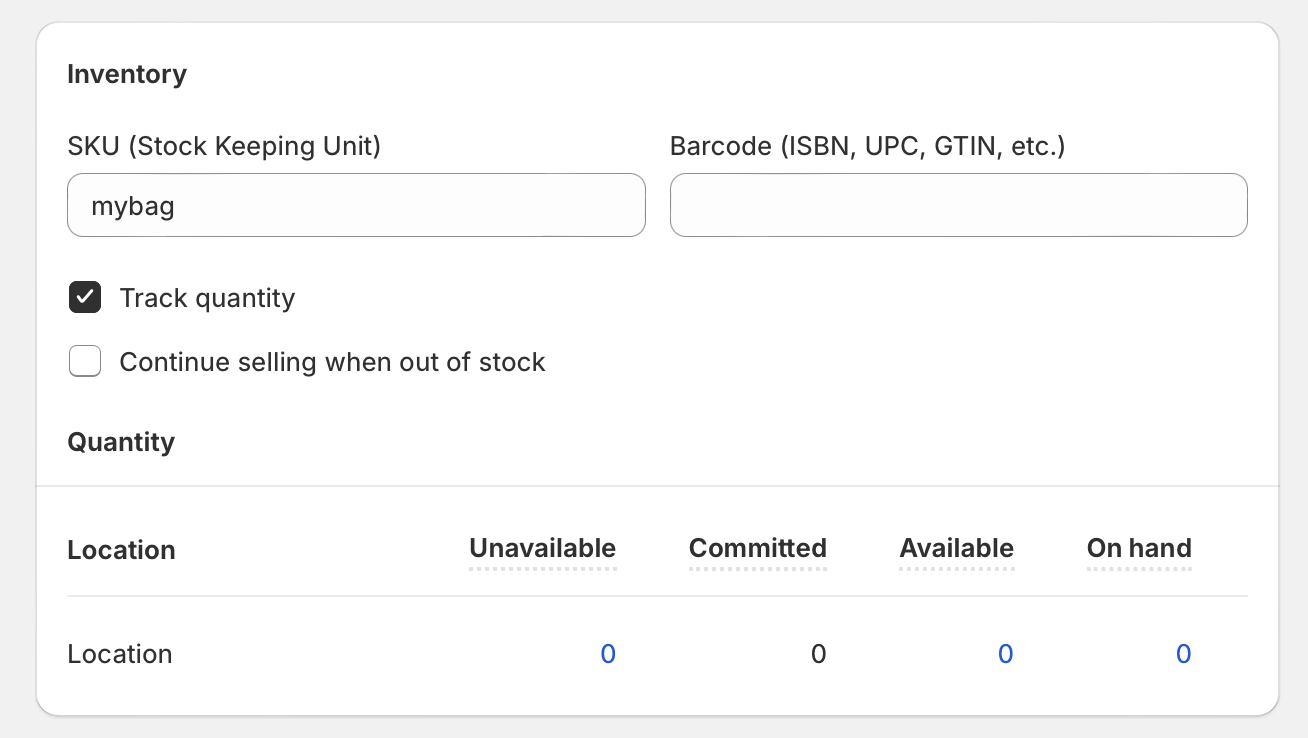
- In Shopify admin, go to Products and open the relevant product
- Scroll to the Variants section and click the variant you want to adjust
- Under inventory, enable Track quantity
- Set the available quantity to 0
- Make sure Continue selling when out of stock is unchecked
- Save the variant
On some themes, that variant will now appear as unavailable, greyed out, crossed through, or hidden. On other themes, it will still show normally but be unselectable. That is why I call this a workaround, not a real solution.
It is also worth checking your theme customiser first. In some Online Store 2.0 themes, you can go to Online Store > Themes > Customise, open the product template, and inspect the variant picker block. A few themes include simple visibility options via the editor, but this is theme-specific rather than standard Shopify behaviour.
What are the limitations of the native Shopify method?
The native method does not truly hide variants. It only changes availability, and your theme decides how that appears on the storefront.
That creates a few common problems:
- Customers still see cluttered selectors full of unavailable sizes or colours
- Theme behaviour varies widely between Dawn and custom themes
- You cannot hide variants by customer tag, country, or market
- You cannot easily hide a variant that is in stock but should not be shown
- Bulk management is weak unless you add custom tooling
So if your goal is to hide a discontinued size, a wholesale-only colour, or a market-restricted option, native Shopify is usually not worth relying on.
How do I hide Shopify variants with theme code?
Theme code lets you hide specific variants from the product page without deleting them. This is the best free route if you are comfortable editing Liquid and JavaScript.
In most themes, the variant picker is rendered from files such as product-variant-picker.liquid, product-variant-options.liquid, or sections/snippets tied to the product form. The exact file name varies by theme, which is why there is no universal one-line fix.
What does the code approach actually do?
It filters which variants or option values are rendered on the storefront. The variant still exists in Shopify admin, but the customer no longer sees it in the selector.
There are a few ways developers normally handle this:
- Hide variants where inventory is zero and continue selling is false
- Hide variants with a specific SKU pattern or option value
- Hide variants based on a metafield or custom rule
- Use JavaScript to remove unavailable options dynamically as customers switch selections
When I test this on client stores, the biggest challenge is not the logic itself. It is making sure the picker, URL selection, media gallery, and add-to-cart form all stay in sync after the hidden options are removed.
How should you do this safely?
Always duplicate your theme before editing code. A variant picker is a conversion-critical component, so even a small mistake can break product pages.
- Go to Online Store > Themes
- Duplicate your live theme
- Open Edit code on the duplicate
- Locate the product form and variant picker files
- Add conditional logic to exclude hidden variants
- Test every option combination on desktop and mobile
- Publish only after testing add-to-cart, dynamic checkout, and media switching
If your store already has a complicated product setup, especially one with image logic, default variant behaviour, or add-on logic, custom edits can quickly ripple into other areas. In that case, related fixes like How to Set a Default Product Image on Shopify in 2026 and How to Create Product Add-Ons for Your Shopify Store are worth reviewing too.
Can Shopify Flow hide product variants automatically?
No, not in the way most merchants mean. Shopify Flow is excellent for automation, but it is not a true variant visibility tool.

Flow can help with product-level publishing and unpublishing, tagging, notifications, and operational workflows. For example, you could build a workflow that flags products when all variants are out of stock, or unpublishes a product from a sales channel once inventory reaches a threshold.
Method 2: Use Shopify Flow
Use Shopify Flow when your actual goal is product automation, not variant hiding. It is useful, but it solves a different problem.
- Install or open Shopify Flow
- Choose a template or create a workflow from scratch
- Set a trigger such as inventory quantity changed
- Add conditions for product or inventory rules
- Run an action such as tagging, sending an alert, or unpublishing a product
The limitation is obvious: Flow generally acts on products and admin data, not on the storefront variant picker itself. So while it can support your process, it usually cannot replace an app or theme customisation for this specific use case.
If you hide products with Flow, be careful about SEO and user experience. Unpublished products can create broken journeys from ads, collections, or internal links. If that is relevant to your store, it is also worth reviewing your collection handling with Managing Out of Stock Products on Shopify.
What is the easiest app to hide variants in Shopify?
The easiest dedicated app option is Camouflage. It is specifically built for hiding variants without deleting them, which makes it more relevant than broad out-of-stock management apps.
For most merchants, this is the route I would recommend first because it avoids theme edits and usually works better across custom themes. It also keeps your variant history, reporting, and inventory structure intact.
Method 3: Use a third-party app
Apps are the most practical option if you want flexibility without code. They are especially useful when you need rules based on stock, customer tags, locations, or custom storefront conditions.
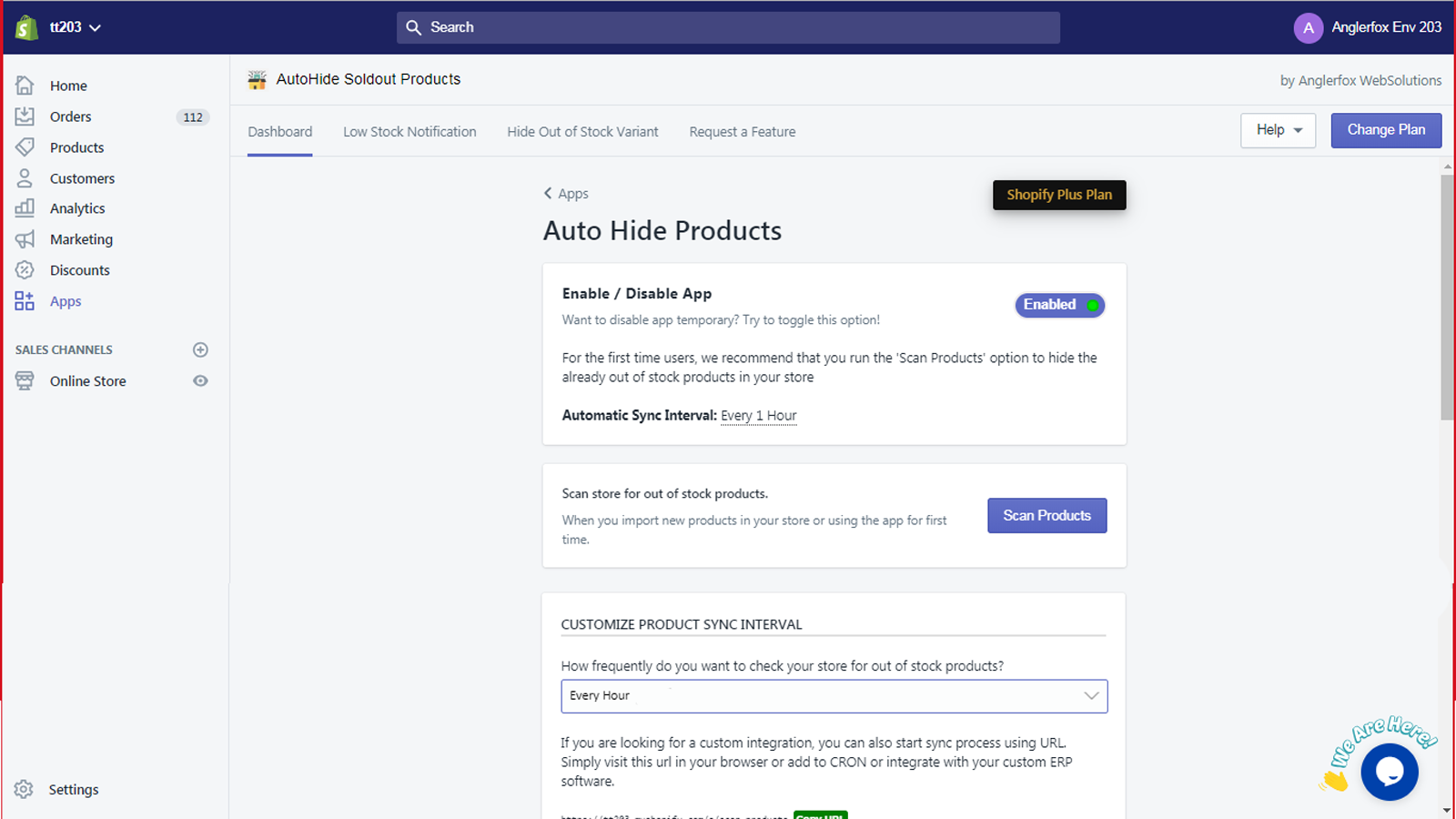
| App | Best for | Variant-specific hiding | App link |
|---|---|---|---|
| Camouflage: Hide Sold Variants | Hiding specific variants by rules | Yes | View app |
| Nada: Sort & Hide Out-of-Stock | Hiding or sorting sold-out products | Mainly product-focused | View app |
| Push Down & Hide Out of Stock | Pushing sold-out items to collection bottoms | Mainly product-focused | View app |
| Out-of-Stock Police (StockIQ) | Inventory visibility and stock workflows | Mostly product-focused | View app |
Here are the main options worth considering.
Camouflage: Hide Sold Variants
Camouflage is the closest fit for this exact problem. If your aim is to hide individual variants without deleting them, this is usually the first app I would test.

It is designed to hide sold-out variants, disable specific variants, or style them differently based on rules. That makes it useful not just for stock issues, but also for country-specific offers, customer-tag logic, and selective catalogue control.
Camouflage: Hide Sold Variants is the most relevant option here because it focuses on variant-level visibility, not just product-level stock management.
Nada: Sort & Hide Out-of-Stock
Nada is best for collection management rather than true variant hiding. It is useful if your main pain point is sold-out products cluttering collections.

Nada: Sort & Hide Out-of-Stock can automatically hide or sort out-of-stock items and is handy for stores with fast-moving inventory. But if you specifically need to hide one size or one colour while keeping the product live, it is not as precise as Camouflage.
Push Down & Hide Out of Stock
This app is best for preserving product visibility while reducing clutter in collections. It is more about merchandising than variant control.

Push Down & Hide Out of Stock is useful when you do not want products disappearing entirely, but you want in-stock items prioritised. Again, that is a solid merchandising tool, but not a dedicated hidden-variant solution.
Out-of-Stock Police (StockIQ)
StockIQ is useful for broader inventory visibility workflows. It is a better fit for stores managing lots of sold-out products across collections and channels.

Out-of-Stock Police (StockIQ) can help automate out-of-stock handling, but it is generally stronger at the product and collection level than the individual variant level.
Which method do I recommend in real stores?
For most merchants, I recommend an app first, code second, and native workarounds last. That order gives you the best balance of speed, reliability, and maintainability.
Here is my honest take based on the type of store:
| Store type | Recommended method | Why |
|---|---|---|
| Small store with a standard theme | Try native settings, then app | Fastest way to see if your theme already handles unavailable variants cleanly |
| Growing DTC brand | App | Reliable, low maintenance, no need to risk theme errors |
| Custom theme or dev resources available | Theme code | Most flexible and avoids another monthly app cost |
| Large catalogue with automation needs | App plus Flow | Best combination for visibility rules and operational workflows |
In my experience, merchants often underestimate the maintenance cost of custom code. A free code tweak can become expensive later if a theme update breaks your picker during a busy sales period.
How do hidden variants affect SEO and analytics?
Hidden variants usually have minimal direct SEO impact, but implementation matters. The main risk comes from broken product logic, not from the act of hiding an option itself.
Most Shopify variant URLs are parameter-based rather than fully separate indexable pages, so hiding a variant from the picker does not usually create a major SEO issue on its own. The bigger risks are:
- Broken internal links to unavailable variant states
- Confusing structured data if availability and picker logic do not match
- Poor UX if customers land on a hidden variant URL and the page behaves oddly
- Lost tracking consistency if variant IDs are changed by deletion and recreation
This is one reason I prefer hiding over deleting when possible. Keeping the original variant intact helps preserve historical reporting, SKU continuity, and operational consistency.
What should you test after hiding variants?
You should test the full product page flow, not just whether the variant disappears. Hidden variants can affect media, URLs, add-to-cart behaviour, and third-party apps.
My minimum testing checklist looks like this:
- Desktop and mobile product pages
- Variant picker behaviour across all option combinations
- Add to cart and dynamic checkout buttons
- Product images when switching options
- Direct links to variant URLs
- Collection cards and quick view modals
- Apps that rely on variant IDs, such as reviews, bundles, subscriptions, or upsells
If you use upsell logic tied to variants, test that carefully. Variant visibility can affect recommendation widgets and bundle selectors, especially on stores using cross-sell tooling.
What are the most common mistakes when hiding variants?
The biggest mistake is assuming unavailable means hidden. In Shopify, those are different things.
Other common mistakes include:
- Editing the live theme instead of a duplicate
- Hiding the whole product when only one variant should disappear
- Deleting variants prematurely and losing reporting continuity
- Ignoring market or customer-specific requirements
- Not testing variant URLs after code or app changes
I also see merchants create too many near-duplicate products just to avoid variant limitations. That can work in edge cases, but it usually creates more catalogue and SEO complexity than it solves. If variant structure is becoming a broader issue in your store, How to Remove the 100-Variant Limit on Shopify may help you think through your options.
So, what should you do next?
If you only need to hide sold-out variants and your theme already supports it, start with the free native workaround. If that does not fully remove the variant from the storefront, move straight to an app or a code solution.
My practical recommendation is simple:
- Test the inventory-zero native method on a duplicate product
- Check whether your theme customiser offers variant picker visibility controls
- If not, try Camouflage: Hide Sold Variants first
- If you need complete control and have developer help, implement a theme code solution
- Use Shopify Flow only for supporting automation, not as the main hiding mechanism
That approach is the most realistic for most Shopify merchants in 2026. Shopify still has not added a proper native archive or hide setting for individual variants, so the best answer remains the same: use the right workaround for your store size, theme complexity, and maintenance tolerance.