
Shopify does not have a built-in vacation mode toggle. If you want to pause sales while you are away, the practical options are password protection, Pause and Build, or a third-party app that hides purchasing options.
In my experience building Shopify apps and working with merchants who run lean teams, this catches people out every year. Store owners assume there is a simple holiday switch in admin, but there is not. The good news is that there are still several reliable ways to put your store into a temporary holding pattern without creating a messy customer experience.
This guide explains exactly how to set vacation mode for your Shopify store, which method to use for short breaks versus longer pauses, and what to do before you leave so you do not come back to angry emails, abandoned baskets, or delayed fulfilment problems.
Can you put your Shopify store in vacation mode?
No, Shopify does not offer a native vacation mode setting. Instead, you need to use a workaround such as password protecting the storefront, switching to Pause and Build, or using an app to disable buy buttons and show a notice.
This is consistent with Shopify's own guidance in its official help documentation. For most merchants, the right option depends on one thing: do you want customers to browse while you are away, or do you want to fully close access?
What is the best way to set vacation mode on Shopify?
The best Shopify vacation mode method depends on how long you are away and whether you still want traffic. For a short break, password protection is the simplest. For a longer pause, Pause and Build is usually better. If you want the store to stay visible but stop purchases, an app-based approach is the most flexible.
When I tested these approaches against real merchant use cases, I found that there is no single best option for everyone. A solo founder taking 5 days off needs something very different from a seasonal business pausing sales for 6 weeks.
| Method | Best for | Customers can browse? | Customers can buy? | Cost | Main drawback |
|---|---|---|---|---|---|
| Password protection | Short breaks and full closure | No | No | Included in Shopify | Blocks the whole storefront |
| Pause and Build | Longer pauses | Yes | No | $9/month according to Shopify guidance | You must choose a new plan to resume |
| Vacation mode app | Keeping store visible with custom messaging | Yes | Usually no, depending on setup | Varies by app | Extra app dependency |
| Disable shipping methods | Emergency workaround only | Yes | Checkout blocked late in process | Included | Poor customer experience |
How do I password protect my Shopify store for a short holiday?
Password protection is the quickest way to put your Shopify store on vacation mode. It blocks visitors from accessing products, pages, and checkout unless they have the password, while still letting you manage orders in admin.
This is the option I usually recommend for short holidays, illness, family emergencies, or stocktake periods. It is simple, reversible, and supported directly by Shopify.
How to enable password protection in Shopify
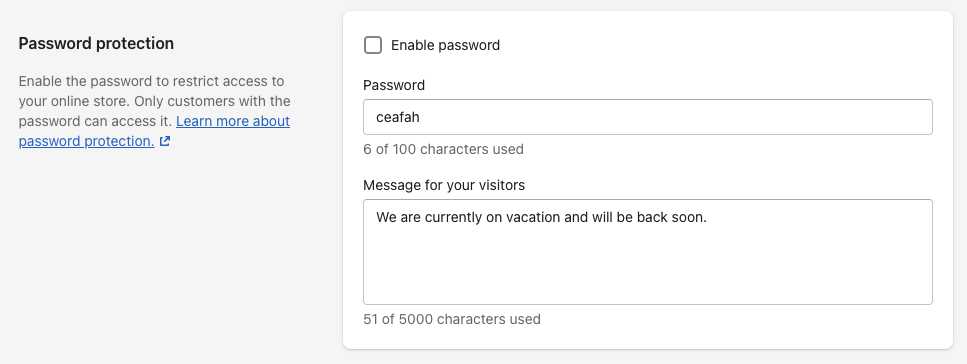
You can enable Shopify password protection in a few clicks. Once active, visitors will see your password page and your custom message instead of your normal storefront.
- Log in to your Shopify admin.
- Go to Online Store.
- Click Preferences.
- Scroll to the Password protection section.
- Tick Restrict access to visitors with the password.
- Enter a strong password.
- Add a clear message explaining that you are away and when orders will resume.
- Click Save.
To turn it off when you return, repeat the same steps and untick the password option. That is it.
What should your Shopify vacation message say?
Your vacation message should explain the situation in one or two lines. Include when you will reopen, whether existing orders are still being processed, and how customers can contact you if needed.
Here is a simple example:
We are currently away until 24 July 2026. Orders will resume processing when we return. For urgent questions, please email [email protected].
In my experience, the most important thing is clarity. Customers are far more forgiving of delays when you set expectations early.
What are the pros and cons of password protection?
Password protection is best for a full pause, but it is not ideal if you still want SEO traffic to browse products. It is a blunt tool, which is exactly why it works well for short breaks.
- Pros: easy to set up, free, fully blocks new orders, clear customer message
- Cons: customers cannot browse, product pages are hidden, less useful if you still want to collect demand
How do I use Pause and Build for a longer Shopify break?
Pause and Build keeps your storefront visible but disables checkout. It is the best long-term option if you want customers to keep browsing your catalogue while preventing purchases.
This is the method Shopify itself recommends for longer pauses. It is especially useful for seasonal stores, merchants taking an extended leave, or brands doing a larger operational reset.
How to switch to Pause and Build
You can activate Pause and Build from your Shopify plan settings. You will still be able to access admin and edit your store, but purchase-related features are disabled.
- Log in as the store owner.
- Go to Settings.
- Click Plan.
- Select Deactivate store.
- Choose Pause and Build.
- Confirm the change.
According to Shopify documentation, Pause and Build costs $9 USD per month. When you are ready to reopen, you will need to choose a new paid plan and start a new billing cycle.
What gets disabled on Pause and Build?
Pause and Build disables checkout and several sales-related features. Customers can still browse, but they cannot complete purchases.
- Online store checkout is disabled
- POS is disabled
- Discounts are disabled
- Abandoned checkout recovery is disabled
- Gift cards are affected
- Third-party sales channel publishing may be disabled
One detail many guides miss is that third-party app subscriptions can continue billing while your store is paused. If you are taking a proper break, review your app stack before switching plans.
When is Pause and Build better than password protection?
Pause and Build is better when you still want your products and brand pages visible. It is a stronger option for SEO continuity, customer browsing, and keeping your store looking active.
If your store depends on search traffic, this is often the least disruptive choice. Customers can still discover products, and you can invite them to return later or join your email list.
How do I keep my Shopify store live but stop people ordering?
The best way to keep your store visible while preventing purchases is to use a vacation mode app. These apps typically hide buy buttons, replace add-to-cart actions, and show a sitewide notice explaining that you are temporarily away.
This is the most polished option if you want to preserve browsing and brand trust. It is also the closest thing to a true vacation mode.
Is Magical Vacation Mode worth using?
Magical Vacation Mode is a lightweight Shopify app designed specifically for this use case. It lets you disable purchasing options, show a custom storewide message, and collect emails while your shop is paused.


For merchants who want a simple switch without editing theme code, I think this is a sensible option. The original post referenced pricing of $4.99 per year, but app pricing can change, so always verify the latest plan on the Shopify App Store listing.
- Disable buy buttons and purchasing options
- Show a custom sitewide vacation message
- Collect customer emails for your return announcement
In my experience, apps like this are best for DTC brands that still want to market, collect interest, and avoid a dead storefront.
Can I use a delivery message instead of fully closing the store?
Yes, and for many merchants this is the most profitable option. Instead of stopping orders completely, you can keep selling and make your extended fulfilment time obvious on product pages.
This works especially well if you are only away for a few days and can tolerate a backlog. It is also useful if you have help packing orders or your products are made to order.
One of the easiest ways to do this is with Delivery Timer, which I built for exactly this kind of expectation setting. You can change the message to explain that orders placed now will ship after a certain date, rather than pretending normal dispatch times still apply.


If this is the route you take, you should also read how to show estimated delivery date on your Shopify store. Clear delivery expectations reduce support tickets and help protect conversion rate when dispatch is slower than usual.
Should you disable shipping methods to block checkout?
You can disable shipping methods as a workaround, but I do not recommend it unless you have no better option. It blocks checkout late in the buying journey, which creates a frustrating customer experience.
The original article mentioned this method, and technically it works. But from a conversion and brand perspective, it is messy. Customers can add products, start checkout, and only then discover they cannot complete the order.
- You may create avoidable abandoned checkouts
- You may trigger confused support emails
- You may need to disable abandoned cart emails temporarily
If you need to restrict fulfilment by geography for operational reasons, a more targeted solution is to restrict shipping countries on certain products or collections in Shopify rather than breaking checkout for everyone.
What should you do before putting your Shopify store on holiday mode?
The setup is only half the job. Before you go away, you should update customer messaging, review automations, and make sure existing orders are under control.
This is where most vacation mode guides are too thin. In practice, the operational checklist matters more than the toggle you choose.
Pre-holiday Shopify checklist
Use this checklist before activating vacation mode. It will save you a lot of stress later.
- Fulfil or communicate all outstanding orders before you leave.
- Update your homepage banner with your return date.
- Add a note to product pages if customers can still browse or buy.
- Pause paid ads if you are fully closing the store.
- Update your automated email flows so they match your temporary status.
- Review app charges if switching to Pause and Build.
- Turn off abandoned cart emails if checkout will be blocked.
- Update your contact page and chat widget with slower response times.
- Brief any VA or team member on urgent issues.
- Test the storefront on mobile after changes go live.
If you customise post-purchase messaging, it is also worth reviewing your Shopify order status page so customers see accurate information after ordering.
How do I handle customer support while I am away?
The best approach is to reduce surprises and set response expectations clearly. Even if you are pausing orders, customers may still email about existing purchases, returns, or restocks.
In my experience, one auto-reply email and one visible storefront message solve most of the problem. You do not need a complex helpdesk setup for a short break.
What should your auto-reply say?
Your auto-reply should state when you are away, when you will respond, and whether orders are being processed. Keep it short and factual.
Thanks for your message. We are currently away until 24 July 2026 and replies may take longer than usual. If your query is about an existing order, please include your order number and we will respond as soon as possible.
If customer notes are important to your workflow, especially for made-to-order products, make sure nothing gets missed while you are away. I have seen merchants rely heavily on order notes, which is why tools like NoteDesk exist in the ecosystem.
Should you hire a VA to run your Shopify store during a holiday?
Yes, if your store has enough order volume to justify it. A virtual assistant can cover customer support, monitor urgent issues, and keep operations moving while you take a proper break.
For lower-volume stores, this may be overkill. But once you are doing consistent daily sales, a VA can be cheaper than lost revenue or reputation damage.
Where can you find a Shopify VA?
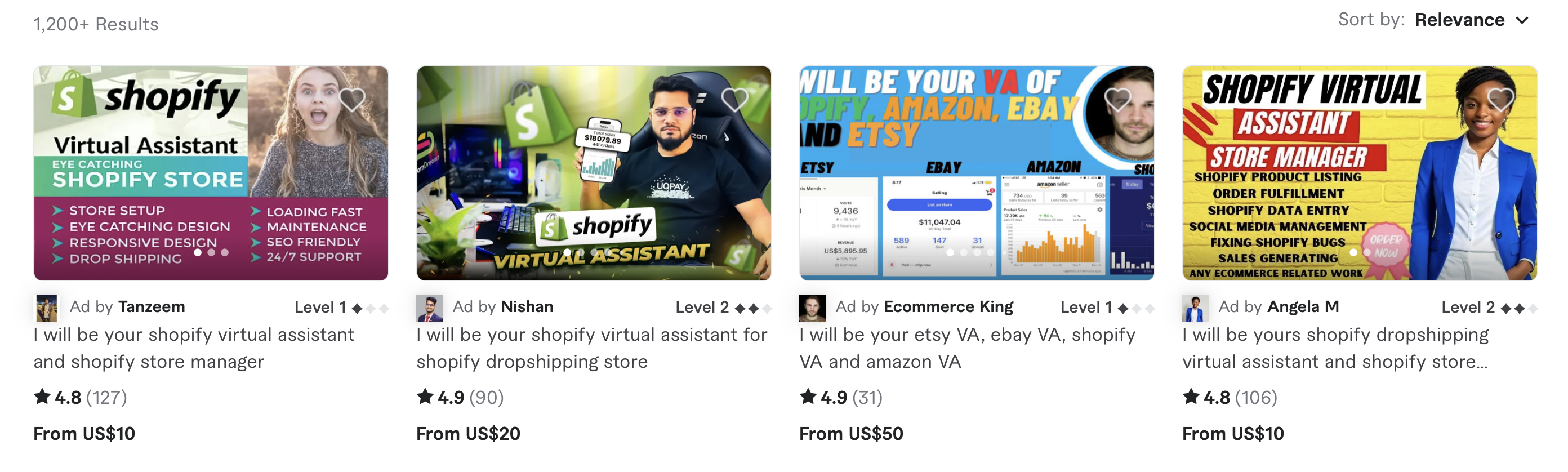
Upwork and Fiverr are the most common places to find short-term Shopify support. Look for people with proven experience in Shopify admin, customer service, and order handling.
Upwork tends to be better for ongoing or more experienced support. Fiverr can work for smaller one-off tasks. Either way, give them a written SOP before you leave.
A simple SOP should include refund rules, response templates, shipping exceptions, and who to escalate to if something breaks.
Will Shopify vacation mode affect SEO or traffic?
Yes, it can, depending on the method you choose. Password protection is the most restrictive and effectively hides the storefront from normal browsing. Pause and Build usually preserves more visibility because customers can still access the site.
If SEO matters to your business, I usually advise against fully locking the store unless the break is short. A visible storefront with clear messaging is often the better long-term choice.
If you are making theme changes before or after your break, keep the customer experience clean and fast. Related tweaks like adding dark mode to your Shopify store or simplifying the purchase flow with skip cart and go straight to checkout are best done when you are available to monitor results.
How do I turn vacation mode off when I come back?
To turn Shopify vacation mode off, reverse the method you used. Remove password protection, switch back from Pause and Build to a paid plan, or disable your vacation app settings.
Before reopening fully, test the storefront as if you were a customer. I always recommend checking product pages, cart, checkout, email flows, and any app blocks or banners you added temporarily.
- Disable password protection or switch off your app rules.
- Re-enable checkout if you used Pause and Build.
- Restore shipping and payment settings if you changed them.
- Turn ads and email campaigns back on.
- Remove vacation notices from homepage, product pages, and emails.
- Send a back-in-business email to your list if you collected addresses while away.
What is my recommended Shopify vacation mode setup?
For most stores, my recommendation is simple. Use password protection for breaks under a week, use Pause and Build for anything longer, and use an app or delivery messaging if you want to keep browsing live without taking new orders.
That recommendation comes from seeing how real merchants behave, not just from reading help docs. The best setup is the one that matches your fulfilment reality and communicates it honestly to customers.
If you can still ship with a delay, I would usually keep the store live and make dispatch times obvious. If you cannot fulfil at all, close cleanly rather than letting customers discover problems at checkout.
Final thoughts on how to set vacation mode for your Shopify store
The biggest mistake is not taking a break because you think your store cannot cope without you. It can, as long as you choose the right setup and communicate clearly.
Shopify may not have a one-click holiday mode, but it does give you enough flexibility to pause sales properly. Whether you choose password protection, Pause and Build, Magical Vacation Mode, or a messaging-first approach with Delivery Timer, the real goal is the same: protect customer trust while giving yourself time away from the business.
If you are a solo merchant, that is not a luxury. It is operational maintenance.