
Adding products to specific pages on Shopify is usually done in one of two ways: by using collections or by adding featured product and featured collection sections in the theme editor. In my experience building Shopify apps and helping merchants customise storefronts, collections are the best option for most stores, while custom page templates are better when you want tighter control over exactly what appears where.
A lot of articles on this topic blur together three different tasks: adding a new product to Shopify, showing products on a specific page, and adding extra products to an existing product page. They are related, but not the same thing. This guide covers all three so you can choose the right method without wasting time in the theme editor.
If your goal is simple, this is the short version: create the product, group it into a collection, then display that collection on a page or in navigation. If you want a homepage, landing page, or custom page to show hand-picked items, use the theme customiser and add a product section directly.
What is the best way to add products to specific pages on Shopify?
The best way to add products to specific pages on Shopify is to use collections. Collections are Shopify's native system for grouping products, and they are easier to manage, more scalable, and better for SEO than manually placing products one by one on lots of pages.
When I test store setups, manual collections work best for curated ranges like "New In" or "Staff Picks", while automated collections are better for larger catalogues where products need to appear based on tags, product type, vendor, or price. If you only need to highlight one product or one small block of products on a page, then a theme section is often quicker.
| Method | Best for | Pros | Cons |
|---|---|---|---|
| Collections | Category pages, navigation pages, SEO landing pages | Scalable, easy to update, works natively with Shopify | Needs some setup if you want custom layouts |
| Featured product section | Homepage, sales pages, custom content pages | Fast to add, visually flexible | Manual, not ideal for large product groups |
| Featured collection section | Landing pages showing a selected product range | Easy visual merchandising, theme-based | Limited by theme section options |
| Custom product template | Specific product pages with unique layouts | Highly customisable, great for conversion optimisation | More setup, can be confusing for beginners |
How do I add a new product in Shopify first?
Before a product can appear on a specific page, it needs to exist in your Shopify catalogue. You add it from the Products area in Shopify admin, then make sure it is available to the Online Store sales channel.
This sounds obvious, but it is one of the most common reasons products do not show up where merchants expect. In support threads and store audits, I regularly see products created correctly but not published to Online Store, not assigned to the right collection, or missing a template setting.
How to add a product in Shopify admin
Adding a product in Shopify takes a few minutes. The essentials are title, description, media, pricing, and availability.
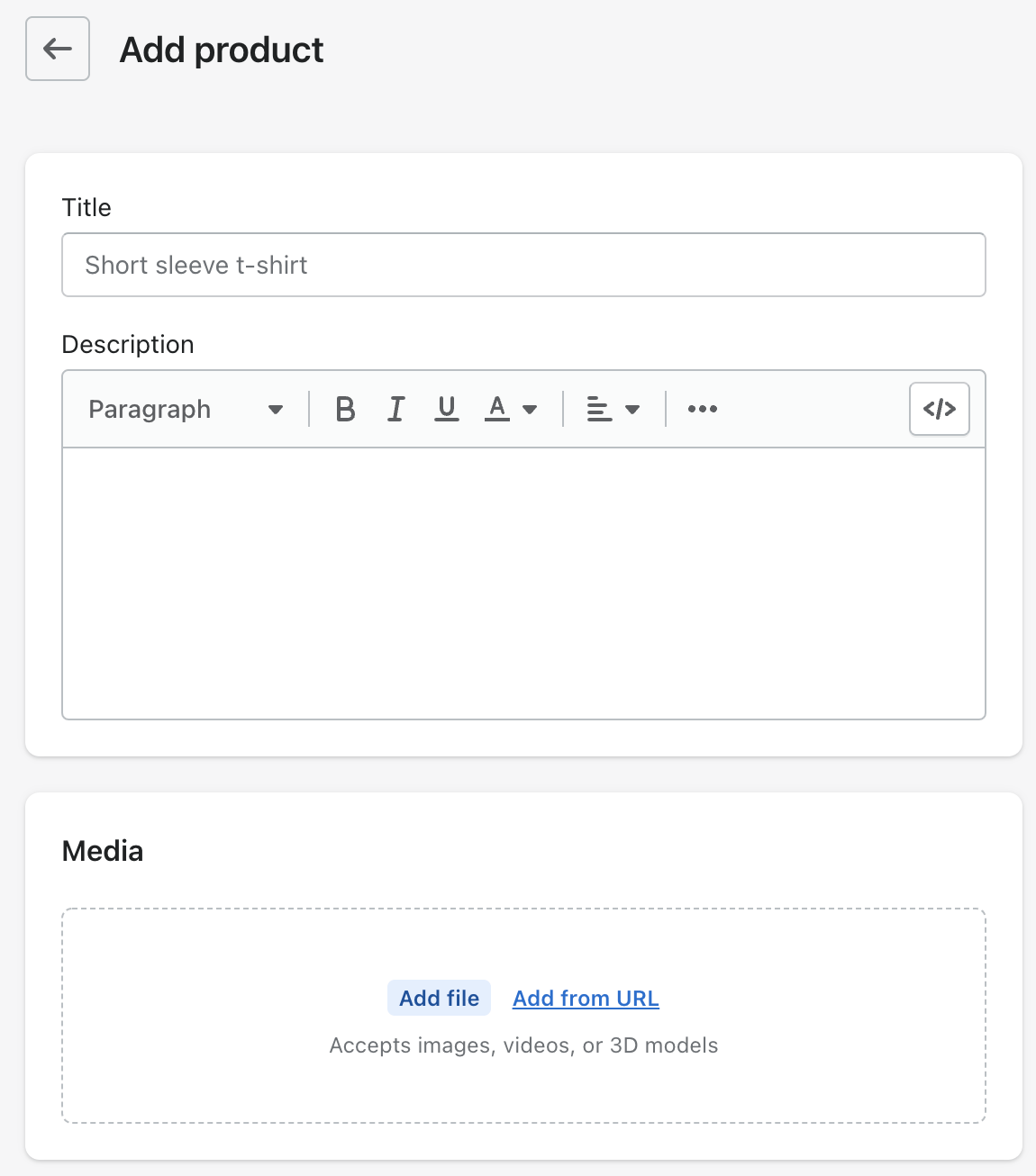
- Log in to your Shopify admin.
- Go to Products.
- Click Add product.
- Enter the product title and description.
- Upload product images or other media.
- Add the price, compare-at price if needed, and cost per item if you track margins.
- Set inventory, SKU, barcode, and shipping details.
- Add variants like size or colour if relevant.
- Check sales channel availability and make sure Online Store is selected.
- Click Save.
You have now created a product in Shopify. If you want it to appear on a specific page, the next step is deciding whether that page should show one product, several hand-picked products, or an entire collection.
What product details matter most before displaying it on a page?
The most important details are product status, sales channel availability, media, and collection assignment. If any of these are wrong, the product may not display properly or convert poorly once it does.
In my experience, merchants often rush the product setup and then blame the theme. A page can only sell well if the product has clear images, a useful description, and the right variant and inventory settings. Shopify's own help docs also emphasise adding and updating products from the Products area before worrying about storefront placement.
How do I add products to a specific page using collections?
To add products to a specific page using collections, create a collection, add the right products to it, and then link or display that collection where you want. This is the standard Shopify approach and usually the most maintainable one.
Collections are especially good when you want a page like "Summer Dresses", "Best Sellers", or "Under £50". Instead of editing the page every time you add stock, you update the collection once and the page updates automatically.
How do I create a collection in Shopify?
A Shopify collection is a group of products displayed together on a collection page. You can create it manually or automate it with conditions.
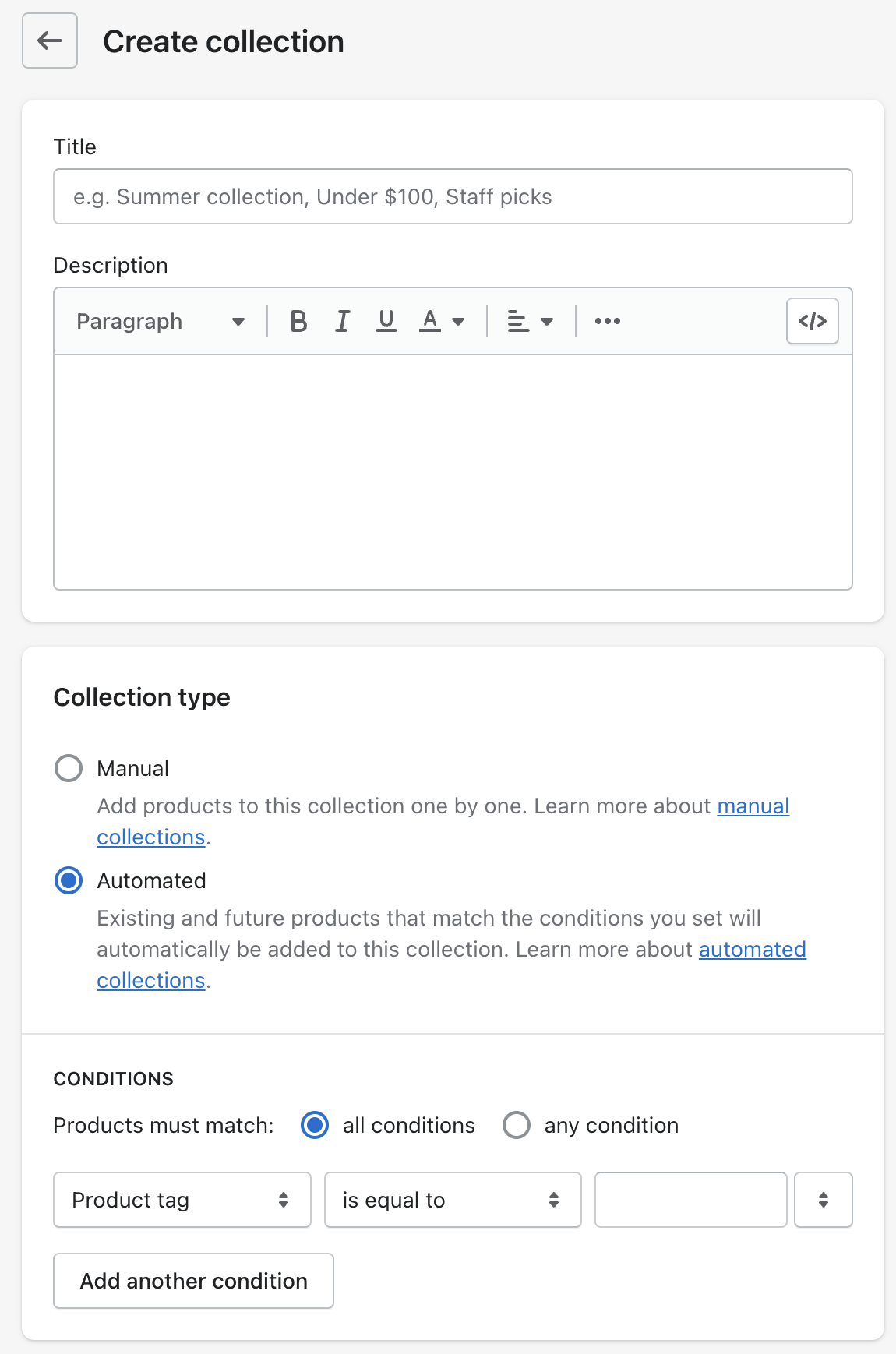
- In Shopify admin, go to Products > Collections.
- Click Create collection.
- Add a collection title and description.
- Choose Manual or Automated.
- If automated, set the conditions such as product tag, type, vendor, or price.
- Choose the sort order, such as best selling or newest.
- Save the collection.
Shopify supports up to 60 conditions for automated collections, which is more than enough for most stores. For growing catalogues, automated collections are usually the smarter long-term choice because new matching products can appear without manual work.
Should I use a manual or automated collection?
Use a manual collection when you want full control. Use an automated collection when products should be included by rules. That is the practical difference.
I usually recommend manual collections for campaign pages, gift guides, and tightly curated edits. I recommend automated collections for category pages, seasonal inventory, and stores with frequent product imports. If your products already use consistent tags and product types, automation saves a lot of admin time.
| Collection type | Best use case | Example |
|---|---|---|
| Manual | Curated selections | Gift guide, editor's picks, launch collection |
| Automated | Rule-based product grouping | All products tagged "organic" or all products under £25 |
How do I make that collection appear on a specific page?
Once the collection exists, you can show it on a page by linking to the collection URL, adding it to navigation, or inserting a featured collection section in the theme editor. Which option you choose depends on whether you want a dedicated collection page or a content page with products embedded.
For a standard category experience, I would usually just link to the collection page itself. For homepage merchandising or campaign pages, I would add a featured collection section inside the theme customiser.
How do I add products directly to a page in Shopify?
To add products directly to a page in Shopify, use the theme editor and add a Featured Product or Featured Collection section. This is the easiest native method when you want products on the homepage, a landing page, or a custom page template.
This is the answer many merchants are actually looking for when they say "specific pages". They do not always mean collection pages. Often they mean a page like About, a seasonal landing page, or a custom sales page where they want products to appear alongside text, banners, and images.
How to add a featured product or featured collection section
The theme customiser lets you place product blocks on supported templates. Most modern Online Store 2.0 themes make this straightforward.
- Go to Online Store > Themes.
- Click Customize on your live theme.
- Use the top dropdown to select the page or template you want to edit.
- Click Add section.
- Choose Featured product or Featured collection.
- Select the product or collection you want to display.
- Adjust settings such as layout, button text, image ratio, and product count.
- Save your changes.
If your theme does not let you add sections to regular pages, create a new page template first and assign it to that page. This is why some Reddit and Shopify Community answers mention templates rather than products directly. They are talking about the page structure needed to hold those product sections.
Why can't I add products to every page type?
You cannot always add product sections to every page because your theme controls which templates support sections. Online Store 2.0 themes are much better at this than older themes.
In practical terms, if you are using a newer Shopify theme, you can usually create a custom template for almost any page and add sections there. If you are on an older theme, you may need code edits or an app. This is one reason theme choice matters more than many merchants realise.
How do I create a custom page template for specific products?
To customise how products appear on certain pages, create a new template and assign it only where needed. This is the cleanest way to avoid changing every product page across your whole store.
In my experience, this is one of the most useful Shopify features for conversion optimisation. You can build one product template for standard items, another for bundles, and another for high-ticket products with richer content blocks.
- Go to Online Store > Themes > Customize.
- Open the template selector at the top.
- Choose the relevant page type, such as Products or Pages.
- Click Create template.
- Give it a descriptive name.
- Add the sections you want, such as featured collection, rich text, image banner, or related products.
- Save the template.
- Go back to the product or page in admin and assign that new template.
This approach is particularly useful if you want only certain products to show add-ons, trust content, downloadable files, or upsell blocks. If you need to enrich product content further, you might also want to read our guide on how to add a spec sheet to a product description in Shopify.
How do I add additional products to the same product page?
To add additional products to the same product page, use product add-ons, related products, bundles, or upsell blocks. This is different from creating a collection because the goal is to increase basket size on a single product page.
This is an area I know especially well because I build Shopify upsell apps. When I test product pages, the best-performing setups usually show relevant add-ons rather than random extra items. A matching accessory, gift wrap option, or upgrade tends to convert better than a generic product carousel.
For a deeper walkthrough, see our guide on how to create product add-ons for your Shopify store. You can also improve merchandising with related products on a Shopify product page or create stronger offers with product sets on Shopify.
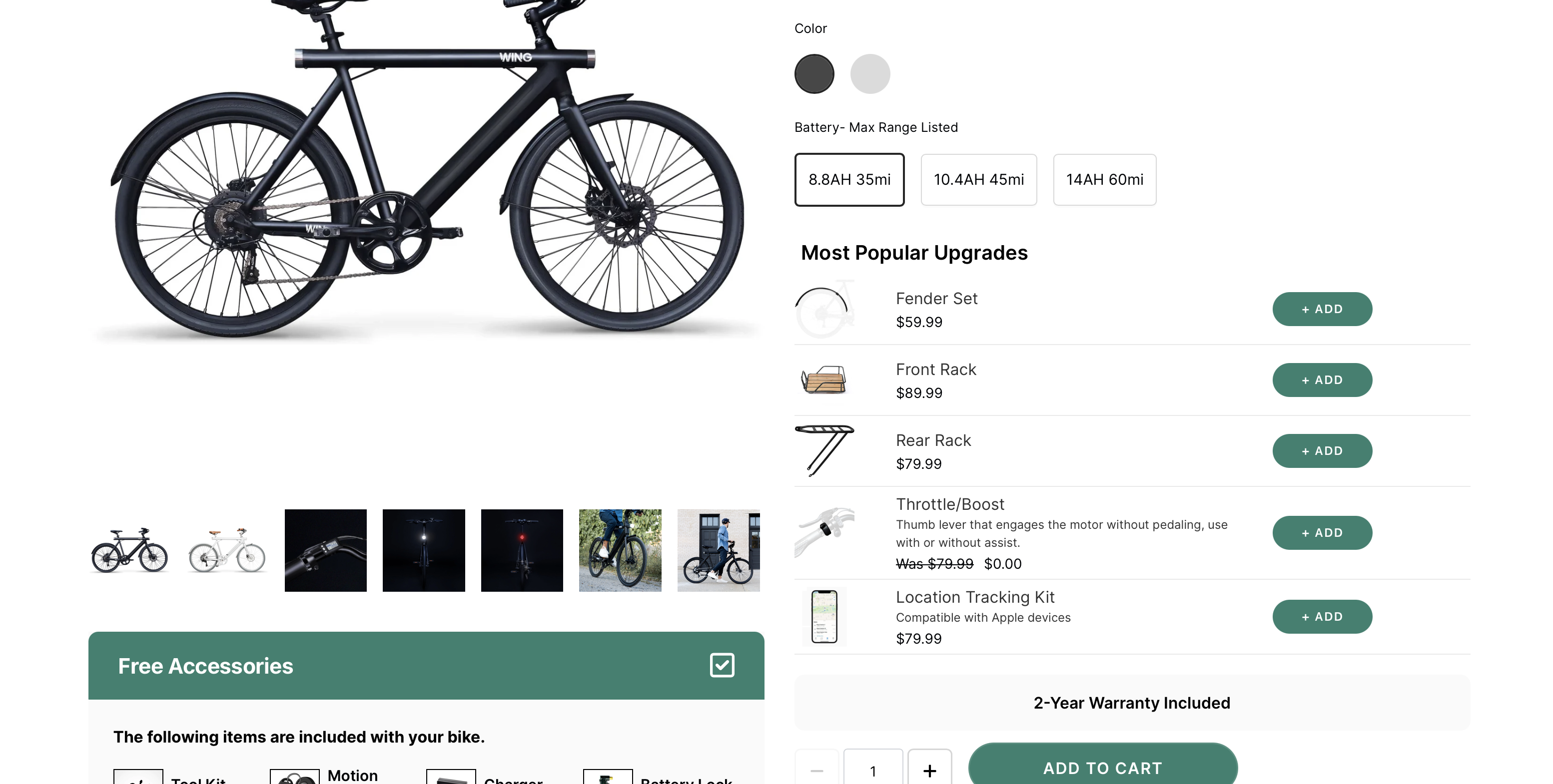
If you want an app-based method, the original post referenced Show Add On Products on Shopify. I would only use an app here if your theme cannot handle the merchandising natively or you need more control over conditional add-ons.

Show Add On Products on Shopify is positioned around showing add-on products by category. If you test any upsell app, I strongly recommend measuring average order value, attach rate, and whether the extra offer slows down the page. Not worth it unless it lifts revenue more than it adds friction.
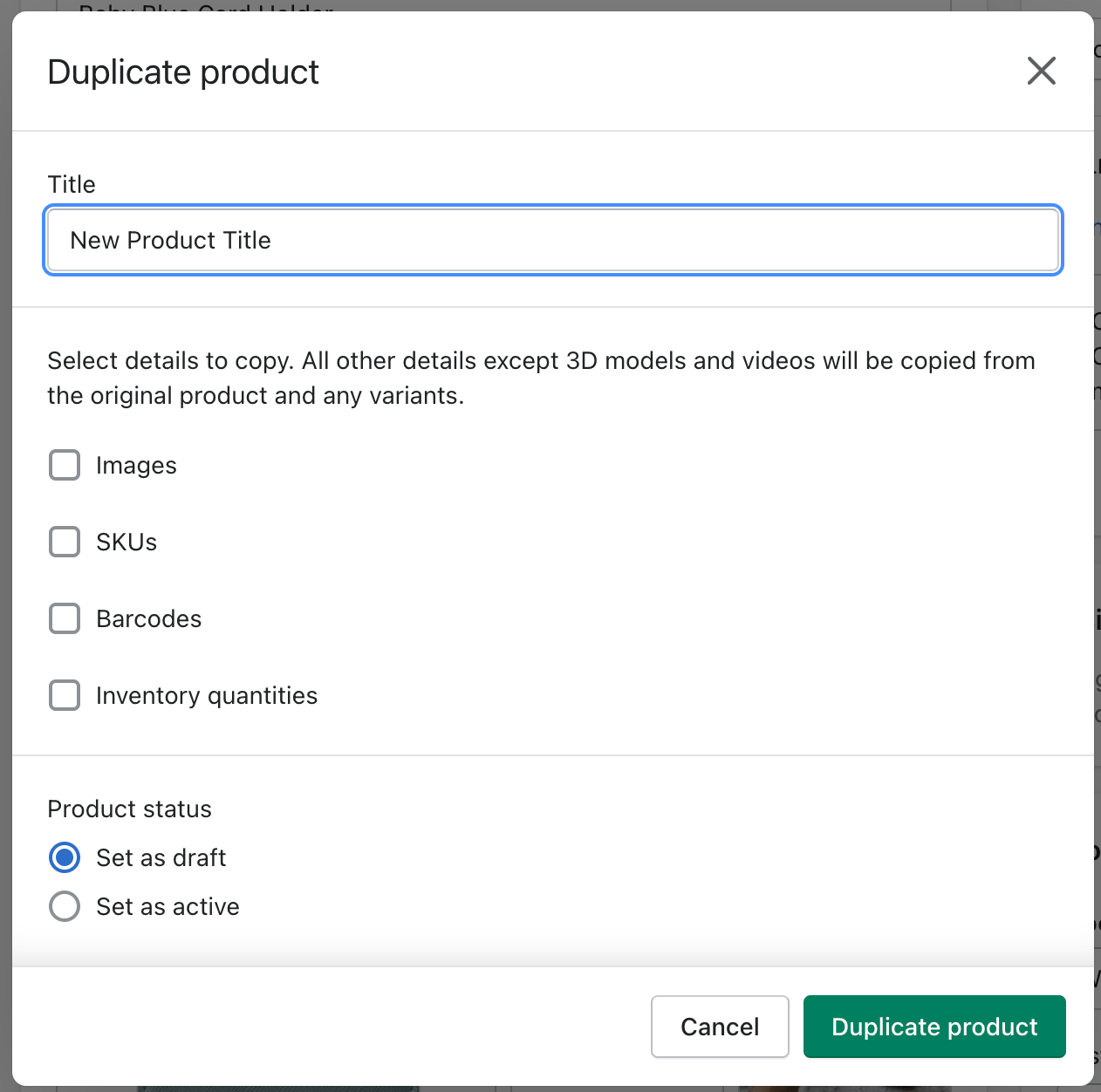
How do I duplicate a product to save time?
Duplicating a product is the fastest way to create similar items without re-entering everything from scratch. It is ideal when you are adding variants as separate products, launching similar styles, or creating near-identical listings for bundles and packs.
I use duplication constantly in test stores because it reduces setup time and keeps product structures consistent. Just be careful with duplicated SEO titles, URLs, and images. Those are the details merchants often forget to update.
- Go to Products in Shopify admin.
- Open the product you want to copy.
- Click Duplicate.
- Enter a new product name.
- Choose whether to copy images, inventory, SKU details, and other data.
- Click Duplicate product.
- Edit the duplicate before publishing it.
Duplicate products are useful, but they are not a substitute for collections. Duplication helps you create products faster. Collections help you organise and display them on the right pages.
How do I show all products on one page in Shopify?
To show all products on one page in Shopify, create an automated collection that includes all products, then link to that collection page. This is the simplest native approach.
You can create an automated collection using a broad rule, or in many stores you may already have an "All" collection built into the theme or navigation setup. Just be aware that for larger catalogues, a single all-products page can become unwieldy for users and weaker for SEO than well-structured category collections.
If your goal is navigation rather than SEO, adding a clear View All Products button in Shopify can work well. I generally prefer this over forcing every visitor through a huge catalogue page.
What are the most common reasons products do not appear on a specific page?
The most common reasons are wrong sales channel availability, missing collection assignment, template issues, and theme limitations. Most display problems come down to setup rather than bugs.
When merchants message me saying "Shopify is not showing my products", the fix is usually one of the checks below.
- Product is not published to the Online Store sales channel.
- Product status is draft rather than active.
- Collection conditions do not match the product data.
- Manual collection exists but the product was never added.
- Template assignment is wrong on the page or product.
- Theme section is pointing to the wrong product or collection.
- Inventory or market settings are affecting visibility.
- App blocks or custom code are conflicting with the theme.
If you are working on product page merchandising, it can also help to review adjacent elements like the cart and add-to-cart flow. For example, if you are changing purchase behaviour, these guides on adding multiple products to the cart with one button and adding text to the Shopify cart page can support the wider setup.
What is the best page structure for SEO and conversions?
The best page structure uses collections for discoverability and custom sections for merchandising. In other words, use collections to organise products, then use the theme editor to present them in a way that converts.
From an SEO perspective, collection pages are usually stronger than random standalone pages with product blocks because they have a clearer structure, internal linking, and a more obvious search intent match. From a conversion perspective, landing pages with selected products can outperform standard collection pages when the traffic source is specific, such as ads, email campaigns, or influencer traffic.
My usual recommendation is this:
- Use collections for category and search-intent pages.
- Use featured collections on the homepage and campaign pages.
- Use custom templates for products that need unique selling content.
- Use add-ons and related products to increase average order value.
If you want a simple way to spotlight products on the homepage, our article on how to add featured products on Shopify is a good next step.
Should I use an app or just Shopify's built-in features?
Most stores can do this with Shopify's built-in features. You only need an app when you want more advanced merchandising, dynamic upsells, conditional logic, or richer layout controls than your theme supports.
As an app developer, I will be honest here: native Shopify should be your first choice for basic product placement. Apps make sense when they solve a real limitation, not when they replace something Shopify already does well enough. If your theme can handle featured products, collections, and templates, start there.
Where apps become useful is when you need things like category-based add-ons, one-click upsells, bundle logic, or post-purchase merchandising. That is where specialist tools can justify their cost.
Go ahead and create
The easiest way to add products to specific pages on Shopify is to create the right collection and display it through navigation or the theme editor. If you only need to place one product or one product group on a page, use a Featured Product or Featured Collection section instead.
The big takeaway from my experience is that organisation matters more than shortcuts. A well-structured catalogue with sensible collections, clean templates, and relevant product add-ons is easier to manage and usually converts better. Start with Shopify's native tools, then layer in apps only when you genuinely need more control.
For official guidance, you can also review Shopify's documentation on adding and updating products and browse Shopify Community threads discussing how to make products appear on specific pages. Those are useful references, but if you follow the collection and template methods above, you will cover what most merchants actually need.