
Shopify does not support multi-product add-to-cart natively, but you can absolutely do it with custom code using the Cart AJAX API or with a Shopify app. In practice, the best method depends on whether you want full control, faster setup, or bundle-style merchandising.
In my experience building Shopify apps and working with merchants on cart flows, this comes up constantly for bundles, product add-ons, B2B order forms, and landing pages where one click should add a complete set. It is a smart conversion play because it reduces friction and can increase average order value without forcing customers through multiple product pages.
If you are trying to add a main product plus one or more extras in a single click, the most reliable modern approach is to send an items array to Shopify's AJAX Cart API via /cart/add.js. If you would rather avoid code, apps like SellUp and Bundler can handle the experience much faster.
Why would you want one button to add multiple products?
One-button multi-add is best for bundles, kits, cross-sells, and wholesale ordering. It removes extra clicks and makes the buying journey feel much more intentional.
Common use cases include a skincare routine with three products, a camera bundle with accessories, a gift box, or a product page that adds the main item plus a warranty or refill. I have also seen it used on collection pages for quick bulk ordering, especially in B2B stores where customers already know what they want.
From a conversion point of view, this matters because every extra click creates drop-off. Shopify merchants often focus on theme tweaks, but simplifying the cart action itself can have a bigger impact than cosmetic changes. If you are also working on product page upsells, my guide on how to create product add-ons for your Shopify store pairs nicely with this setup.
What are your options for adding multiple products with one click?
You have three realistic options: custom AJAX code, a traditional cart form approach, or an app. For most modern Online Store 2.0 themes, AJAX is the best option.
| Method | Best for | Difficulty | Pros | Cons |
|---|---|---|---|---|
| AJAX Cart API | Custom bundles, add-ons, product page logic | Medium | Fast, flexible, works with cart drawers, no page reload | Needs theme edits and testing |
| Cart form with multiple inputs | Simple order forms, collection bulk order pages | Medium | No advanced JS required, can work as fallback | Less reliable on modern themes, clunky UX |
| App | Non-technical merchants, quick setup | Easy | Fast launch, support included, often mobile optimised | Monthly cost, less control |
Most of the ranking pages in search results are forum threads, which tells you something important: merchants are still piecing this together from scattered snippets. That gives you an opportunity to implement it properly and avoid the brittle solutions that break when your theme updates.
How do I add multiple products to the cart with custom code?
The modern way is to post an array of line items to /cart/add.js. Each item needs a variant ID and a quantity.
This is the approach I would recommend for most stores in 2026 because it works cleanly with AJAX carts and cart drawers. It also scales better if you want to pull related variant IDs from metafields instead of hardcoding everything into your theme.
How do I find the correct variant IDs?
You need variant IDs, not product IDs. The easiest way to get them is to open the product URL and append .json to the end.
For example, if your product is at /products/example-product, visit /products/example-product.json. Shopify will return product data including all variants and their IDs. This is still one of the quickest ways to verify the exact variant you need before wiring up your button.
If your bundle changes based on the selected variant, make sure your script uses the currently selected variant rather than a static ID. That is where a lot of merchants get caught out. The button works, but it adds the wrong size or colour because the script is not reading the live product form state.
What does the AJAX multi-add code look like?
The core implementation is a fetch request that sends an items array. Shopify then adds all valid items in a single request.
async function addMultipleToCart(items) {
  const payload = {
    items: items,
    sections: 'cart-drawer,cart-icon-bubble',
    sections_url: window.location.pathname
  };

  try {
    const response = await fetch(`${window.Shopify.routes.root}cart/add.js`, {
      method: 'POST',
      headers: {
        'Content-Type': 'application/json'
      },
      body: JSON.stringify(payload)
    });

    if (!response.ok) {
      throw new Error('Failed to add items to cart');
    }

    const result = await response.json();
    console.log('Added to cart:', result);

    // Update cart drawer or cart icon here if your theme supports section rendering
    // Example: inject result.sections['cart-icon-bubble'] into the DOM
  } catch (error) {
    console.error(error);
  }
}

document.querySelector('#add-multiple-to-cart').addEventListener('click', function(e) {
  e.preventDefault();

  addMultipleToCart([
    { id: 41540038525094, quantity: 1 },
    { id: 12345678901234, quantity: 1 }
  ]);
});
This example adds two variants with one click. In a real store, I usually wire the first ID to the selected main product variant and the second or third IDs to add-ons, free gifts, or companion items.
How do I make this work on a product page?
You should attach the script to your product form or custom button. On Dawn and similar themes, that often means working around the built-in product-form.js behaviour rather than creating a completely separate form.
A practical setup is to render add-on variant IDs into the page using Liquid, then let JavaScript build the final items array when the customer clicks the button. If you use metafields, you can manage the linked products in the Shopify admin instead of editing code every time.
<button id="add-multiple-to-cart" type="button">Add bundle to cart</button>

<script>
  window.bundleConfig = {
    addonVariantIds: [12345678901234, 98765432109876]
  };
</script>
That is a much cleaner long-term approach than hardcoding IDs directly into JavaScript. In my experience, anything that lets merchants update bundle logic from the admin is easier to maintain, especially once a store has dozens of products.
What if I want the selected main variant plus fixed extras?
You can combine the live selected variant with pre-defined add-ons. This is one of the most common use cases.
For example, a customer selects a size and colour for the main product, then your script reads that selected variant ID and adds it alongside a care kit or accessory. If you are already using custom URLs for cart actions, you might also want to read my guide on creating a unique URL to add a product to the Shopify cart, although AJAX is usually better for this specific use case.
Can I add multiple products without JavaScript?
Yes, but I would treat it as a fallback rather than the ideal solution. The older form-based method can still work for bulk order pages and simple collection forms.
The original approach many merchants used was a cart form with quantity inputs like updates[variant_id]. That is still useful if you want an order form style layout where customers enter quantities for several products at once and submit them together.
What does the classic Shopify form approach look like?
This method is best for collection order forms and wholesale-style pages. It is less elegant than AJAX, but still relevant in some stores.
Below is the still-relevant version of the classic collection-based form from the original article. I would only use this if you specifically want a quantity table rather than a single bundle button.
{% paginate collection.products by 100 %}
<form action="/cart" method="post">
  {% if collection.products_count > 0 %}
    <table>
      <tbody>
      {% for product in collection.products %}
        {% if product.available %}
          {% for variant in product.variants %}
            {% if variant.available %}
              <tr>
                <td>{{ product.title }}{% unless variant.title contains 'Default' %} - {{ variant.title }}{% endunless %}</td>
                <td>{{ variant.price | money }}</td>
                <td>
                  <input name="updates[{{ variant.id }}]" min="0" type="number" value="0" />
                </td>
              </tr>
            {% endif %}
          {% endfor %}
        {% endif %}
      {% endfor %}
      </tbody>
    </table>
    <input type="submit" value="Add to cart" />
  {% endif %}
</form>
{% endpaginate %}
This is workable for wholesale and restaurant supply style stores, but it is not what most merchants mean when they ask for one button to add multiple products. For that, use the AJAX method above.
What are the common problems when adding multiple products in one click?
The biggest issues are wrong variant IDs, theme conflicts, and cart drawer updates. Most failed implementations are not API problems. They are theme integration problems.
- Using product IDs instead of variant IDs - Shopify cart requests need variant IDs.
- Ignoring selected options - if the customer chooses a different size or colour, your script must use that live variant.
- Cart drawer not refreshing - adding the products works, but the UI does not update until refresh.
- Selling out linked items - if an add-on variant is unavailable, the whole experience can fail or partially add.
- Hardcoded bundle logic - every merch change becomes a developer task.
When I test this on client stores, I always check both the network request and the front-end response. If the API call succeeds but the customer sees nothing happen, the issue is usually section rendering or your theme's cart event listeners.
How do I update the cart drawer after adding multiple products?
You need to re-render the cart sections your theme uses. Many modern themes rely on section HTML being returned and swapped into the page after AJAX cart actions.
The Shopify AJAX Cart API supports a sections parameter, which is why you will often see values like cart-drawer and cart-icon-bubble in examples. This lets you update the mini cart without forcing a page reload. Shopify documents this behaviour in its AJAX Cart API reference.
If your theme uses custom web components, the exact section IDs may differ. That is why I always inspect the theme code first before dropping in a generic snippet from a forum thread.
Should I use metafields for dynamic bundle logic?
Yes, metafields are usually the best way to make multi-add scalable. They let you assign related products or variant references in the Shopify admin without editing theme files every time.
A strong setup is to create a product metafield that stores related variant IDs or product references, then render those into the product template. Your JavaScript reads the values and builds the items array on click. This is far more maintainable than hardcoding IDs across several templates.
If your goal is more of a curated product set than a hidden bundle, you may also want to see my guide on how to combine multiple products into product sets on Shopify. That article covers the merchandising side, while this one focuses on the actual cart action.
What is the best app for adding multiple products to cart on Shopify?
The best app depends on whether you want upsells, bundles, or a floating button experience. For most stores, I would start with an app if you want speed and minimal theme editing.
Apps are especially useful if you are not comfortable editing Liquid and JavaScript, or if you want built-in reporting and support. They are also helpful when you want to test the idea quickly before investing in a custom implementation.
SellUp
SellUp is best for upsells and one-click add-on flows near the add-to-cart button. I built SellUp specifically for merchants who want to increase AOV without cluttering the product page.

Instead of forcing customers to visit separate product pages, SellUp can present relevant products as add-ons that can be included in the same buying moment. For stores that want a practical upsell layer rather than full bundle architecture, it is often the fastest route to launch.
Bundler
Bundler is best for dedicated bundle offers and mix-and-match promotions. It is a strong choice if your main goal is selling grouped products as a package.
Bundler is well suited to stores selling gift sets, starter kits, and volume offers. If you want discounts and bundle logic managed from an app dashboard rather than custom code, it is one of the more obvious options to test.
How do app-based options compare?
Apps trade flexibility for speed. That is usually a fair trade for smaller teams.
| App | Best for | Strength | Potential drawback |
|---|---|---|---|
| SellUp | Upsells and add-ons | Simple one-click revenue boosts | Less suited to complex bundle inventory rules |
| Bundler | Bundles and product sets | Bundle-focused setup and promotions | May be more than you need for a simple add-on |
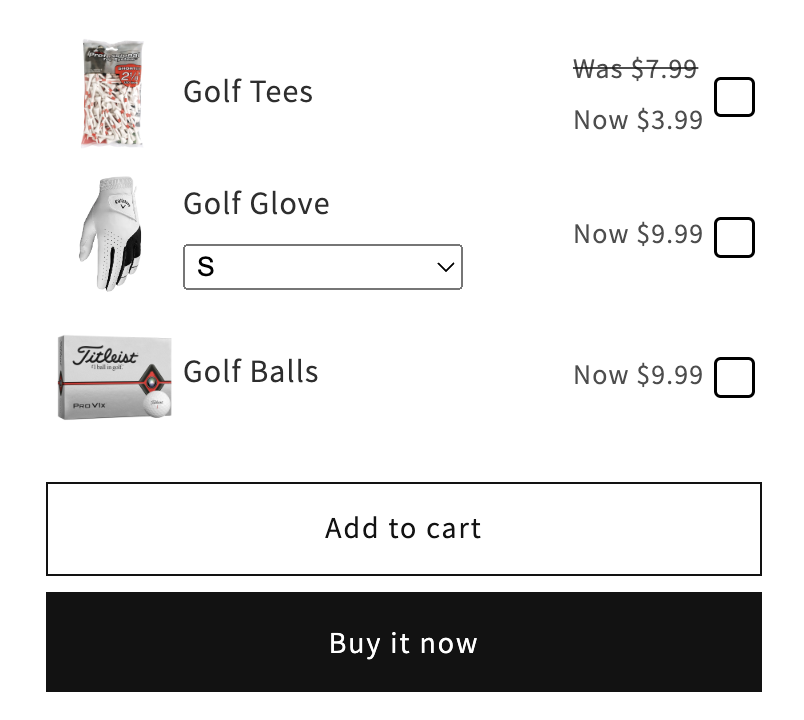
If your store is experimenting with add-ons rather than formal bundles, you should also read how to create product add-ons for your Shopify store. It covers the strategic side of deciding what to offer alongside the main product.
Is custom code or an app better?
Custom code is better for control, while apps are better for speed. That is the simplest honest answer.
In my experience building Shopify apps, custom code makes sense when your offer logic is unique, when you need tight integration with your theme, or when you want to avoid recurring app costs. Apps make sense when you want to launch quickly, hand off maintenance, and avoid debugging theme-specific cart behaviour.
| If you want... | Choose... |
|---|---|
| Full control over the button, variants, and UI | Custom AJAX code |
| Fast setup with minimal developer work | App |
| Wholesale quantity tables | Cart form approach |
| Bundle management from the Shopify admin | App or metafield-driven custom build |
What are the best practices before you publish?
Test the flow on mobile, test sold-out variants, and test your cart drawer. A multi-add button that only works on desktop is worse than not having one.
- Check variant mapping - confirm the right size, colour, or option is being added.
- Test partial failures - see what happens if one linked item is out of stock.
- Verify cart UI updates - especially if you use a drawer cart.
- Measure AOV and conversion rate - do not assume the feature is helping.
- Keep the offer clear - label exactly what the button adds.
I also recommend being explicit in the button copy. Something like Add bundle to cart or Add all 3 items performs better than a vague standard add-to-cart button when multiple products are involved.
If you are refining the wider product page experience as well, these guides can help: how to add a plus/minus button to quantity selector in Shopify and how to make the add-to-cart button shake on Shopify for free. Those tweaks are not required, but they can support a stronger buying flow.
Can one button add an entire collection to cart?
Yes, but it is usually only sensible for curated sets or wholesale use cases. Adding a whole collection blindly can create a poor customer experience if the collection is large or changes often.
If you really want this, the older collection form method is more practical because it lets customers choose quantities before submitting. For a fixed set of products, I would treat it as a bundle instead and use the AJAX approach with a controlled list of variant IDs.
That distinction matters. A bundle is intentional and predictable. A collection is dynamic and can change as products are added or removed, which makes maintenance and customer expectations harder to manage.
Final thoughts on adding multiple products with one button
The best modern solution is the Shopify AJAX Cart API, especially if your store uses a cart drawer and you want a smooth one-click experience. It is reliable, fast, and flexible enough for bundles, add-ons, and custom product sets.
If you want the quickest route, use an app like SellUp or Bundler. If you want full control and you are comfortable editing theme code, build it with /cart/add.js and make the linked products dynamic with metafields.
Either way, the key is not just getting the code to work. The real goal is to create a clearer buying path, reduce friction, and lift AOV in a way that feels natural for customers.