

If you are trying to work out how to assign boxes for shipping to products on Shopify, the short answer is this: Shopify still does not fully support true product-specific box assignment for checkout rate calculations natively. You can set up saved packages and a default package in Shopify, but if you need accurate box selection by product, variant, or mixed-cart order, you will usually need a shipping app or a workaround.
I have spent years building Shopify apps and working with merchants on real fulfilment problems, and this is one of those areas where Shopify is better than it used to be, but still not perfect. The confusion usually comes from the fact that Shopify lets you create packages, and in some contexts assign package information to variants, but that does not mean every checkout can automatically choose the perfect box for every order combination.
That gap matters. If your boxes are too large, you can overpay for shipping. If your boxes are too small, fulfilment slows down and staff start making manual packing decisions. If your live rates are wrong, conversion rate can suffer because shoppers see a price at checkout that feels inflated or inconsistent.
Can Shopify natively assign a specific box to a specific product?
No, not in the way most merchants expect. Shopify can store package presets and use a default package, but it does not offer a robust native system that automatically assigns a unique shipping box to each product for all checkout scenarios.
This is where a lot of help docs and forum answers get mixed together. Shopify's own packaging settings are useful for saved package dimensions, buying labels faster, and improving some shipping calculations. But for multi-item carts, box packing logic, or different packaging by product type, merchants still rely on apps, shipping rules, or manual approximations.
In practical terms, if you sell posters in tubes, mugs in small cartons, and gift sets in larger boxes, Shopify will not reliably evaluate every cart and decide the ideal packaging setup on its own. That is why you still see so many merchants discussing package assignment in the Shopify Community and looking for app-based solutions.
How do I set up packages in Shopify?
You can set up packages in Shopify from Settings - Shipping and delivery - Packages. This is the right starting point for any store, even if you later install an app for advanced box assignment.
Shopify's package setup lets you create named package types with dimensions and weight. This helps with shipping label purchase workflows, store defaults, and some carrier-calculated rate scenarios. It does not fully replace a packing engine, but it is still worth configuring properly.
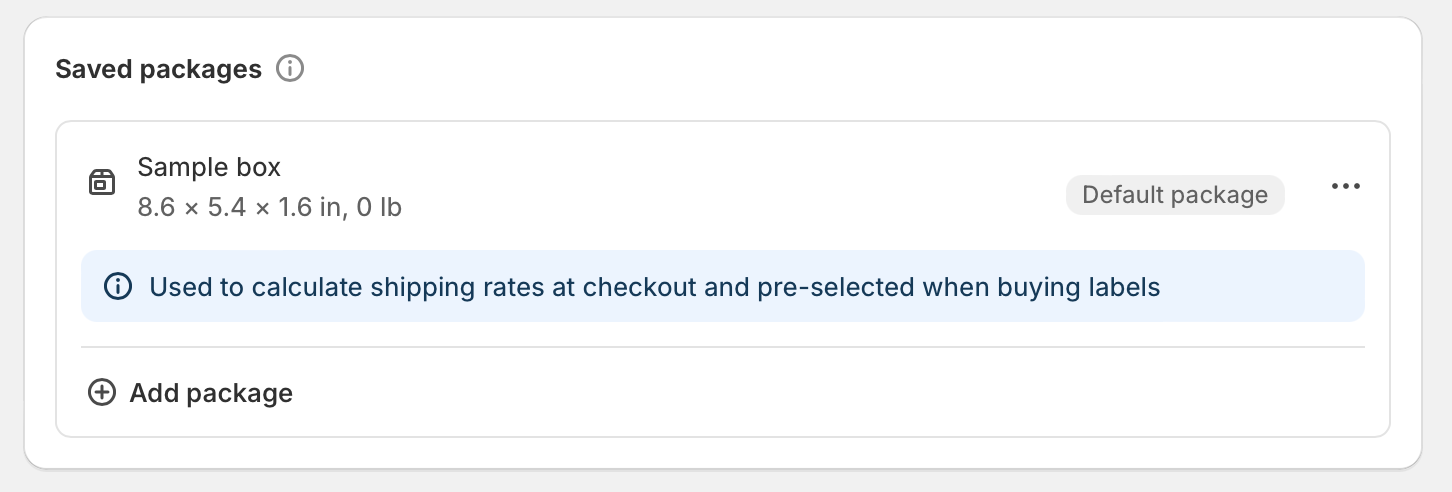
- In your Shopify admin, go to Settings.
- Click Shipping and delivery.
- Find the Packages section.
- Click Add package.
- Enter a clear package name, such as Small Box 20x15x10cm or Mailer 30x22cm.
- Choose the package type and enter dimensions and weight.
- Optionally set one package as your default package.
- Save it and repeat for every common packaging format you use.
Shopify documents this process in its own guide on setting up packages. If you have not done this yet, do it before testing any advanced shipping logic, because your package data is the foundation for everything else.
What is the default package in Shopify, and why does it matter?
The default package is the package Shopify falls back to for many checkout rate calculations and label workflows. If your default package is unrealistic, your shipping rates can be wrong.
This is one of the most common mistakes I see. Merchants often leave a default package that is too large, too heavy, or just generic. Then they wonder why carrier-calculated rates look high, especially on smaller orders.
If you only sell products that fit one standard box, the default package might be enough. But as soon as you have different product sizes, fragile items, or bundles, relying on one default package becomes a blunt instrument rather than an accurate shipping model.
How do I assign boxes to products on Shopify without an app?
Without an app, you are really using workarounds rather than true box assignment. The best native options are saved packages, product tags plus shipping rules, and adjusted product weights.
These methods can work surprisingly well for simple stores. They are less effective for stores with mixed carts, unusual dimensions, or products that can ship in multiple packaging formats depending on quantity.
1. Use saved packages and a sensible default package
This is the easiest native setup. It works best when most orders fit into one of a few standard package sizes.
Create all your common box types in Shopify, then choose the package that best reflects your average order. This will not assign a specific box to each product, but it gives Shopify a better baseline for rate calculations and label purchasing.
2. Adjust product weights to include packaging
This workaround helps with weight-based rates. You add the box or mailer weight into the product's listed weight so checkout rates are closer to reality.
For example, if a candle weighs 600g and the protective box adds 180g, you might set the product weight to 780g. This does not solve dimensional weight issues, but it can reduce undercharging or overcharging when your shipping rates are mainly weight-driven.
In my experience, this is best for small catalogues where each SKU always ships in the same packaging. It becomes messy fast if you have lots of variants or products that can be packed together.
3. Use product tags with shipping rules
Product tags can help simulate packaging logic. You tag items as things like box, bubble-mailer, or oversized, then build matching shipping rules in an app or profile setup.
This is a common workaround mentioned in Shopify community threads because it gives you more control without changing every product manually. It is not a true packing engine, but it can be good enough if your packaging decisions are rule-based rather than dimensional.
4. Create shipping profiles for special product groups
Shipping profiles are useful when some products need completely different treatment. For example, furniture, frozen goods, and letterbox items should not usually share the same shipping logic.
You can separate products into profiles and apply different rates or fulfilment rules. This does not assign a literal box to each product, but it can stop obviously wrong shipping charges from appearing at checkout.
If you need more control over shipping logic generally, you might also want to read my guide on how to add a new shipping carrier in Shopify.
What are the limitations of Shopify's native packaging setup?
The biggest limitation is that Shopify is not a full cartonisation engine. It does not reliably calculate the ideal box combination for every possible cart.
That matters because real-world shipping is not just about single products. Customers buy two mugs, one candle, and a refill pack together. They buy bundles, subscriptions, and mixed-size products. The packing decision depends on dimensions, fragility, carrier rules, and whether items can be packed together.
- No true per-product box dropdown for checkout logic in the way many merchants want
- Default package reliance can skew live carrier rates
- Mixed-cart orders are where native logic struggles most
- Dimensional weight is hard to model with weight-only workarounds
- Operational packing rules like "never combine these products" are not handled well natively
If your store has any complexity at all, this is usually the moment an app starts paying for itself.
What is the best app for assigning boxes to products on Shopify?
The best app depends on how complex your shipping is. For most merchants, the best options are apps that can apply box rules by product, dimensions, weight, or cart contents.
Based on current merchant discussions and the tools most often recommended for this use case, I would shortlist Boxify, Parcelify, Advanced Shipping Rules, and Multi Carrier Shipping Label. The first two are the most directly aligned with the specific problem of assigning packaging logic to products.
| App | Best for | Key strength | Pricing example |
|---|---|---|---|
| Boxify | Stores needing box packing logic | Matches products and orders to saved box sizes | Historically around $19/month |
| Parcelify | Stores needing advanced shipping rules | Flexible control over rates and packaging scenarios | Varies by plan |
| Advanced Shipping Rules | Rule-heavy catalogues | Conditional shipping rules by product and cart data | From about $9/month on Lite plans |
| Multi Carrier Shipping Label | Carrier integrations plus packing | Box selection, labels, tracking, multi-carrier workflows | Varies by plan |
From a practical point of view, Boxify is often the cleanest answer if your main concern is box selection and rate accuracy. Parcelify is strong when shipping rules are more complex and packaging is just one part of the logic.
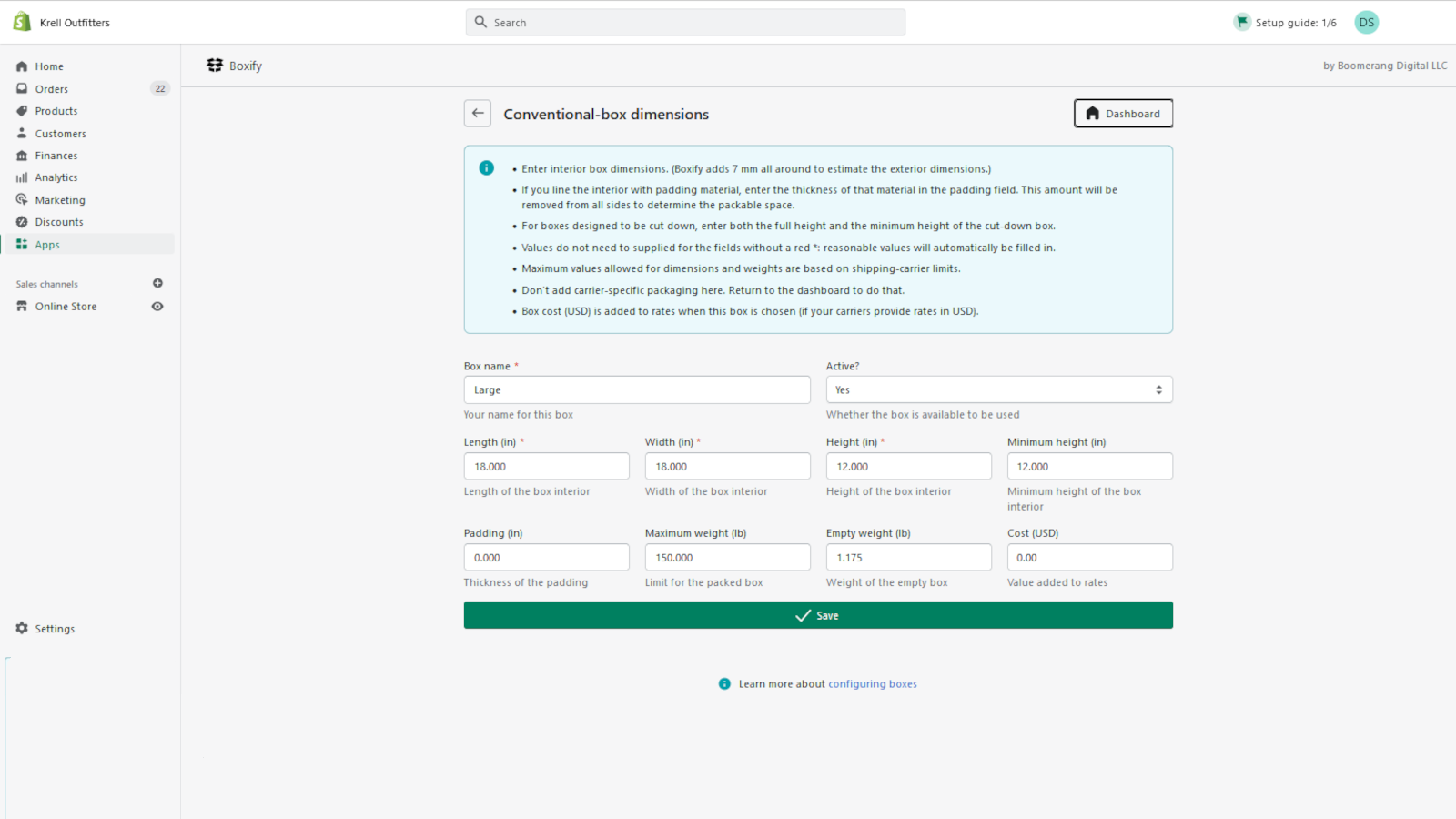
Boxify
Boxify is built specifically around box packing and shipping rate accuracy. It is a strong fit if your problem is that Shopify's default package logic is too simplistic.

With Boxify, you can define products, dimensions, and available box sizes so the app can choose a more realistic package setup. That is especially useful if you ship with carriers that price heavily on parcel dimensions, not just weight.
When I have seen merchants adopt Boxify successfully, it is usually because their products have clear physical dimensions and they need checkout rates that reflect real packaging. It is not worth it unless your shipping errors are costing enough to justify the monthly fee.
Parcelify
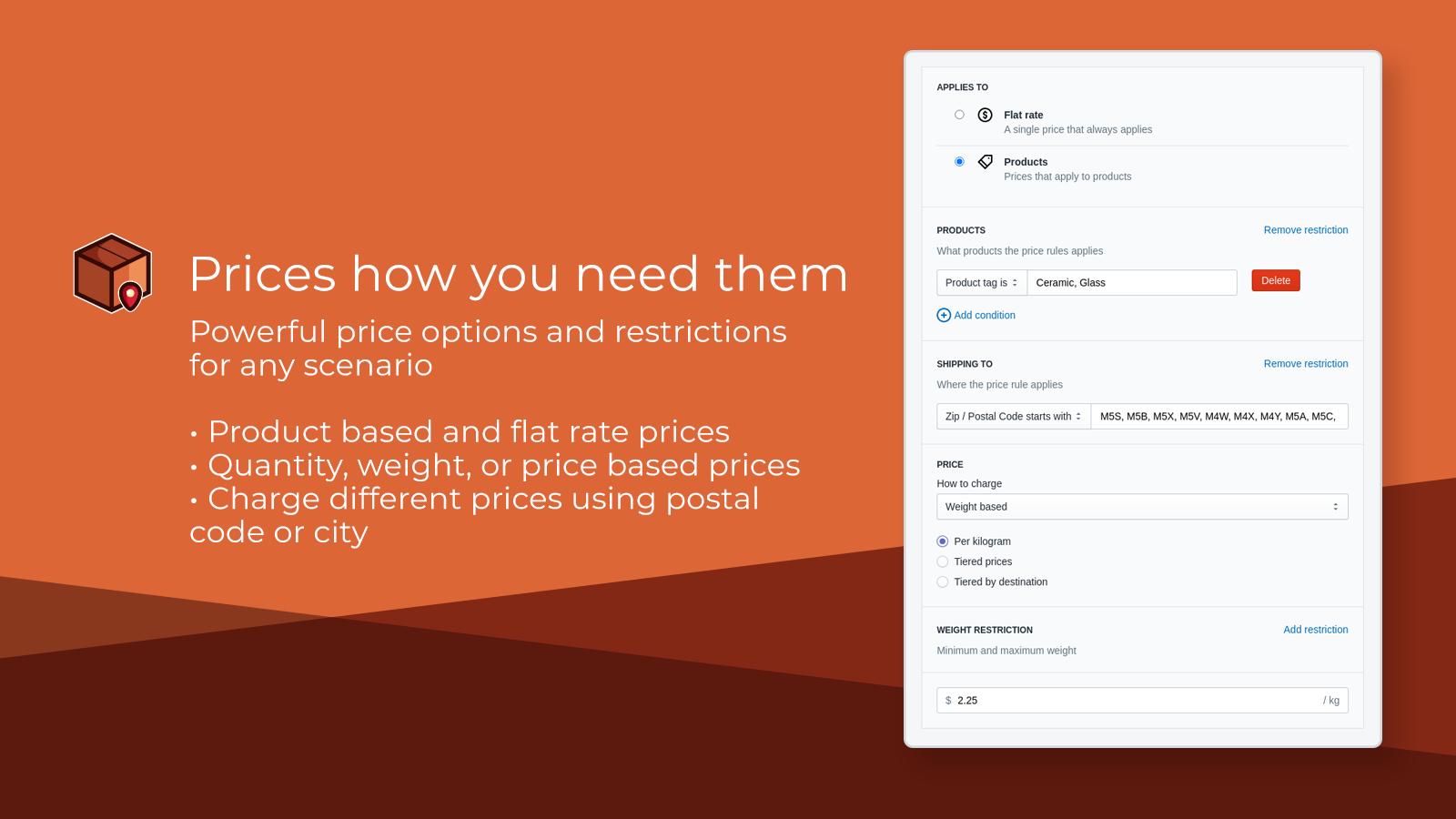
Parcelify is best known for flexible shipping rules. It can help merchants approximate or manage product-specific packaging scenarios more accurately than Shopify alone.

Parcelify is often recommended in community discussions because it gives merchants more control over rate logic, conditions, and packaging-related rules. If your shipping setup depends on product tags, collections, customer location, or cart combinations, it can be a very practical option.
In my view, Parcelify is best for stores with exceptions. If your catalogue has a lot of edge cases, it can be easier to model those with rules than with pure box-packing logic.
How do I choose between native Shopify setup and an app?
Use Shopify's native setup if your packaging is simple. Use an app if the wrong box choice affects profit, conversion, or fulfilment speed.
I would usually draw the line like this:
| Situation | Native Shopify is enough? | Use an app? |
|---|---|---|
| You sell mostly one product size | Yes | Usually no |
| You use flat rates only | Yes | Usually no |
| You need live carrier rates by box size | Sometimes | Usually yes |
| Orders contain mixed-size items | No | Yes |
| You ship fragile or oversized products | Rarely | Yes |
| Your team manually corrects packaging often | No | Yes |
If you are still early-stage and trying to keep app costs down, start with native packages plus weight adjustments. Once you notice repeated fulfilment issues or margin leakage, move to an app.
How can I improve shipping accuracy if I sell multiple product types?
The best approach is to combine packaging data, shipping profiles, and rule-based logic. There is rarely one setting that fixes everything.
For stores with broad catalogues, I usually recommend this order of operations:
- Audit your top 20 best-selling SKUs by shipping volume.
- Measure actual packed dimensions, not just product dimensions.
- Create standard package types in Shopify.
- Update product weights to include packaging where relevant.
- Separate awkward products into shipping profiles.
- Install a box or rule-based shipping app if live rates are still off.
- Test mixed carts with two, three, and five-item orders.
This is the same kind of practical testing I encourage for any shipping project. It is similar to the logic behind showing more accurate delivery information on the storefront too. If that is relevant, my guide on how to show shipping on the product page in Shopify pairs well with this topic.
Does Shopify provide boxes for shipping?
Shopify does not generally provide your physical shipping boxes. Shopify lets you save package dimensions in admin, and in some regions merchants can buy shipping labels through Shopify Shipping, but the actual packaging materials are your responsibility.
This is a common People Also Ask question, and it is worth clearing up because merchants sometimes confuse package settings with packaging supply. Shopify helps with software-side shipping setup. It does not normally act as your packaging supplier.
How do I set up shipping for products on Shopify more accurately?
Accurate shipping on Shopify comes from combining correct product data, realistic package settings, and the right rate method. Box assignment is only one part of the system.
Make sure you also check:
- Product weights are correct and include packaging when needed
- Shipping zones match where you actually ship
- Carrier-calculated rates are enabled if you need live pricing
- Shipping profiles separate special products
- Handling fees cover packing materials or labour if required
If your shipping setup includes restrictions by item or destination, my guide on how to restrict shipping countries on certain products or collections in Shopify may help. And if you need to exclude certain products from free shipping promotions, see how to exclude products from free shipping in Shopify.
What are the real benefits of assigning the right box to each product?
The right box improves margin, fulfilment speed, and customer experience. It is not just an operations detail.
When merchants get packaging right, they usually see improvements in four areas:
- Lower shipping costs because they avoid oversized parcels and dimensional surcharges
- Better checkout conversion because live rates feel more reasonable
- Fewer damaged deliveries because products are packed more appropriately
- Faster fulfilment because staff know exactly what packaging to use
In my experience building Shopify apps, merchants often underestimate how much poor packaging logic hurts profitability. A difference of just a few pounds per parcel can quietly wipe out margin across hundreds of monthly orders.
What is my recommended setup for most Shopify stores?
My recommendation is to start simple, then add an app only when your catalogue or shipping costs justify it. Most stores do not need enterprise-grade cartonisation on day one.
For a small store, I would do this:
- Set up all common package sizes in Shopify.
- Choose a realistic default package.
- Update product weights to include packaging.
- Use shipping profiles for oversized or special items.
- Test checkout rates on your top products.
For a growing store with mixed carts, I would add Boxify or Parcelify and compare results over a week of real orders. That gives you actual data on whether the app reduces shipping mismatches enough to pay for itself.
Final answer: how to assign boxes for shipping to products on Shopify
The most accurate answer is that Shopify only partially supports this natively. You can create packages and improve your setup with default packaging, product weights, and shipping profiles, but true product-specific box assignment for automatic checkout calculations usually requires an app.
If your store is simple, native Shopify settings may be enough. If you need accurate rates for different box sizes, mixed carts, or carrier-based pricing, use a specialist app such as Boxify or Parcelify.
That is the honest answer I would give any merchant today. Shopify has improved its packaging tools, but if your business depends on precise box assignment, you still need more than the default settings.


