
Showing shipping on the product page in Shopify is one of the simplest ways to reduce hesitation before checkout. In my experience building Shopify apps for merchants, clear shipping messaging near the buy box often improves trust faster than almost any design tweak.
Shoppers want answers before they add to cart. They want to know how much shipping costs, whether free shipping applies, and when the order is likely to arrive. If that information is hidden until checkout, you create unnecessary friction.
This guide covers the best ways to show shipping on Shopify product pages, including a quick no-code method, theme code options, shipping policy blocks, and app-based approaches for more advanced delivery messaging.
Why should you show shipping on the product page in Shopify?
You should show shipping on the product page because it increases transparency, reduces support queries, and helps more shoppers reach checkout with confidence. It also answers one of the biggest pre-purchase questions before a customer has to hunt for it.
In practice, shipping uncertainty is a conversion killer. A shopper might love the product, agree with the price, and still leave because they cannot quickly work out delivery timing or shipping cost expectations. I have seen this repeatedly across stores selling everything from low-ticket impulse buys to bulky products with complex fulfilment rules.
It matters even more in 2026 because customer expectations are higher than ever. Fast delivery, clear fulfilment windows, and visible shipping thresholds are now standard. If your product page does not answer shipping questions early, many shoppers will simply compare you with a store that does.
What shipping information should you show on a Shopify product page?
The best shipping information to show is the delivery estimate, shipping cost or free shipping threshold, and a link or expandable section for your shipping policy. You do not need to show everything at once, but you should cover the essentials.
For most stores, I recommend showing shipping in three layers. First, show a short message near the add to cart button. Second, add a more detailed expandable block or icon list. Third, link to the full shipping policy for edge cases.
Useful examples include:
- Estimated delivery date: “Order today, arrives between Tuesday and Friday”
- Shipping cost message: “Free shipping over £50” or “Shipping calculated at checkout”
- Dispatch speed: “Ships in 1-2 business days”
- Location-specific note: “UK delivery only” or “International shipping available”
- Returns and shipping policy access: a collapsible “Shipping & Returns” block
If you need to get more specific with delivery promises, you might also want to read How to Show Estimated Delivery Date on Your Shopify Store, where I cover delivery date messaging in more depth.
How do I show shipping on the product page in Shopify without an app?
The easiest no-app method is to use a Custom Liquid block in the theme customiser. This works well for static shipping text such as free shipping messages, dispatch times, or simple delivery notes.
For most merchants, this is the fastest solution because it does not require editing core theme files. It is ideal if your shipping message is the same for all products, or if you only need a lightweight badge near the price or add to cart button.
How do I add a shipping message with a Custom Liquid block?
Go to Online Store, Themes, Customize, open a product template, and add a Custom Liquid block inside the product information area. Then paste in a short snippet and place it close to the buy box.
- In Shopify admin, go to Online Store > Themes.
- Click Customize on your live theme or a duplicate.
- Open a product page template.
- In the Product information section, click Add block.
- Select Custom Liquid.
- Paste your shipping message code.
- Save and preview on desktop and mobile.
Here is a simple example for a free shipping badge:
<div style="background:#1f7a3d;color:#fff;padding:8px 12px;border-radius:6px;font-weight:600;display:inline-block;">
  Fast & Free Shipping on orders over {{ '50.00' | money }}
</div>
You can also use this approach for a dispatch message:
<p style="margin:0;">Ships in 1-2 business days from our UK warehouse.</p>This method is best for simple, static messaging. It does not calculate live shipping rates for each customer, but for many stores that is perfectly fine. A clear message is often better than no message at all.
Can I show different shipping messages by country or condition?
Yes, you can conditionally show shipping text in Liquid, although it is still not the same as true live checkout rates. This is useful for country-specific free shipping banners or product-specific notices.
For example, you can use Shopify request data or product tags to vary the message:
{% if request.location.country_iso == 'GB' %}
  <p>Free UK shipping on orders over {{ '50.00' | money }}.</p>
{% else %}
  <p>International shipping available. Rates shown at checkout.</p>
{% endif %}
I like this approach for stores with one main market and a secondary international audience. It keeps the product page relevant without overcomplicating the theme.
How do I show shipping and returns automatically in Shopify?
If you want a built-in option, set up your shipping policy in Shopify and enable the Shipping & Returns block in your theme. This is the closest thing to an official native method for many Online Store 2.0 themes.
This is especially useful if you have seen a “Shipping & Returns” dropdown on your product page but nothing appears inside it. In that case, the issue is usually that the policy has not been filled in, or the block is not correctly enabled in the theme editor.
- Go to Settings > Policies in Shopify admin.
- Add your Shipping policy content.
- Go to Online Store > Themes > Customize.
- Open your product template.
- Enable or add the Shipping & Returns block if your theme supports it.
- Save and preview.
This method is good for policy content, but it is not enough on its own for most stores. A policy block is helpful, but shoppers still benefit from a short shipping summary near the price or add to cart button.
For official setup guidance, Shopify’s documentation on shipping and order fulfilment is worth bookmarking.
Can I show dynamic shipping rates on the product page in Shopify?
Yes, but with limitations. You can build a shipping estimator on the product page, though exact checkout-level accuracy is harder to achieve outside checkout itself.
This is where many articles gloss over the reality. Shopify product pages do not naturally expose the same full rate logic you see at checkout, especially when rates depend on location, cart contents, profiles, or carrier calculations. In my experience, this is why many merchants start with custom code and later move to an app.
If you want a shipping estimator, the usual approach is to collect a postcode or ZIP code and then use JavaScript to request rates. You should always test this on a duplicate theme first.
What does a custom shipping estimator look like?
A custom estimator usually includes an input for postcode, a button, and a results area that fetches shipping rates asynchronously. It is more advanced than a Custom Liquid message and usually needs developer help.
<div id="shipping-estimator">
  <label for="zip-input">Enter postcode:</label>
  <input id="zip-input" type="text">
  <button type="button" onclick="getRates()">Get shipping rates</button>
  <div id="rates"></div>
</div>

<script>
async function getRates() {
  const zip = document.getElementById('zip-input').value;
  const response = await fetch('/cart/shipping_rates.json', {
    method: 'POST',
    headers: {'Content-Type': 'application/json'},
    body: JSON.stringify({ shipping_address: { zip: zip } })
  });
  const data = await response.json();
  document.getElementById('rates').innerHTML = JSON.stringify(data);
}
</script>
This is only a starting point, not a plug-and-play production solution. Real-world implementations usually need better error handling, cart context, styling, and logic for variants, quantities, and shipping profiles.
If your store has complex fulfilment rules, I would usually avoid building this from scratch unless you have a developer maintaining the theme. A shipping message or delivery timer often gives a better return with less risk.
What is the best way to show free shipping on a Shopify product page?
The best way to show free shipping is to place a short, obvious message near the price or add to cart button and repeat it in the cart if you use a threshold. This keeps the offer visible at the point of decision.
Free shipping messaging works because it is simple. It does not ask the customer to calculate anything mentally. If the threshold matters, say it clearly. If every order qualifies, make that unmistakable.
Examples I like:
- Free UK shipping on orders over £50
- Free shipping today
- Spend £12 more to unlock free shipping
If your strategy depends on excluding certain products or collections, read How to Exclude Products from Free Shipping in Shopify. If you want to combine shipping incentives with discounts, this guide on combining a discount code with free shipping in Shopify is also useful.
What are the benefits of showing shipping times on the product page?
Showing shipping times on the product page improves transparency, sets expectations, and can lift conversion by reducing uncertainty. It also cuts down on repetitive support questions.
The original version of this article touched on the main benefits, and they are still valid. What has changed is that these benefits matter even more now because ecommerce shoppers compare stores quickly and expect delivery information earlier in the buying journey.
- Transparency. Customers can immediately see how long delivery is likely to take. That makes the buying decision easier and reduces hidden surprises later.
- Higher trust. A store that clearly explains dispatch and delivery feels more credible. In my experience, even a simple “ships in 24 hours” line can make a product page feel more polished and trustworthy.
- Better customer satisfaction. If expectations are set properly, customers are less likely to feel misled when orders take a normal amount of time to arrive.
- Fewer support tickets. One of the most common pre-sale questions is still “When will this arrive?” Product page shipping messaging removes a chunk of those enquiries before they happen.
- Stronger conversion rate. Stores that answer fulfilment questions early tend to lose fewer shoppers between product page and checkout.
There is also a practical operations benefit. Accurate delivery messaging reduces refund pressure and chargeback risk, especially for made-to-order, personalised, or international orders where lead times vary.
Where should shipping information appear on the product page?
The best place to show shipping information is close to the buy box, ideally below the price or above the add to cart button. Customers should not need to scroll to find it.
Placement matters as much as wording. I have tested stores where the shipping message existed, but conversion still suffered because it was buried in an accordion far below the fold. On mobile, this problem gets worse.
Good placements include:
- Below the price for free shipping or dispatch notes
- Above the add to cart button for urgency and delivery estimates
- Inside a collapsible block for shipping and returns detail
- Near variant selectors if delivery differs by product option
If you are working on the wider product page layout, my advice is to treat shipping as part of the core buy box, not an afterthought. It belongs alongside price, stock status, and key trust signals.
Should you use an app to show shipping on Shopify product pages?
Yes, if you need dynamic delivery dates, cut-off timers, geo-targeted messaging, or an easier setup than custom code. For anything beyond static text, apps are usually the more practical option.
The reason is simple. Theme code can handle basic messages, but once you want business-day logic, holiday exclusions, countdowns, product rules, or location-aware delivery windows, maintenance becomes a headache. As a Shopify app developer, I have seen merchants spend more on one-off theme edits than they would on months of a specialist app.
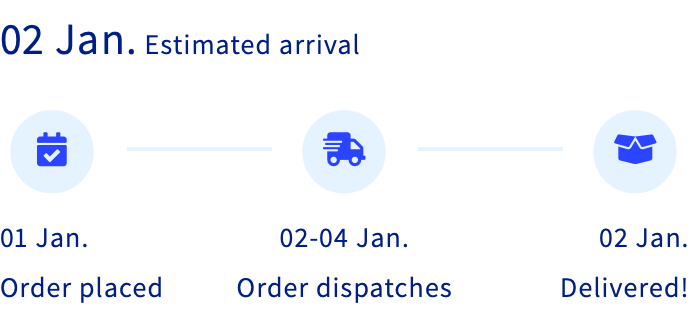
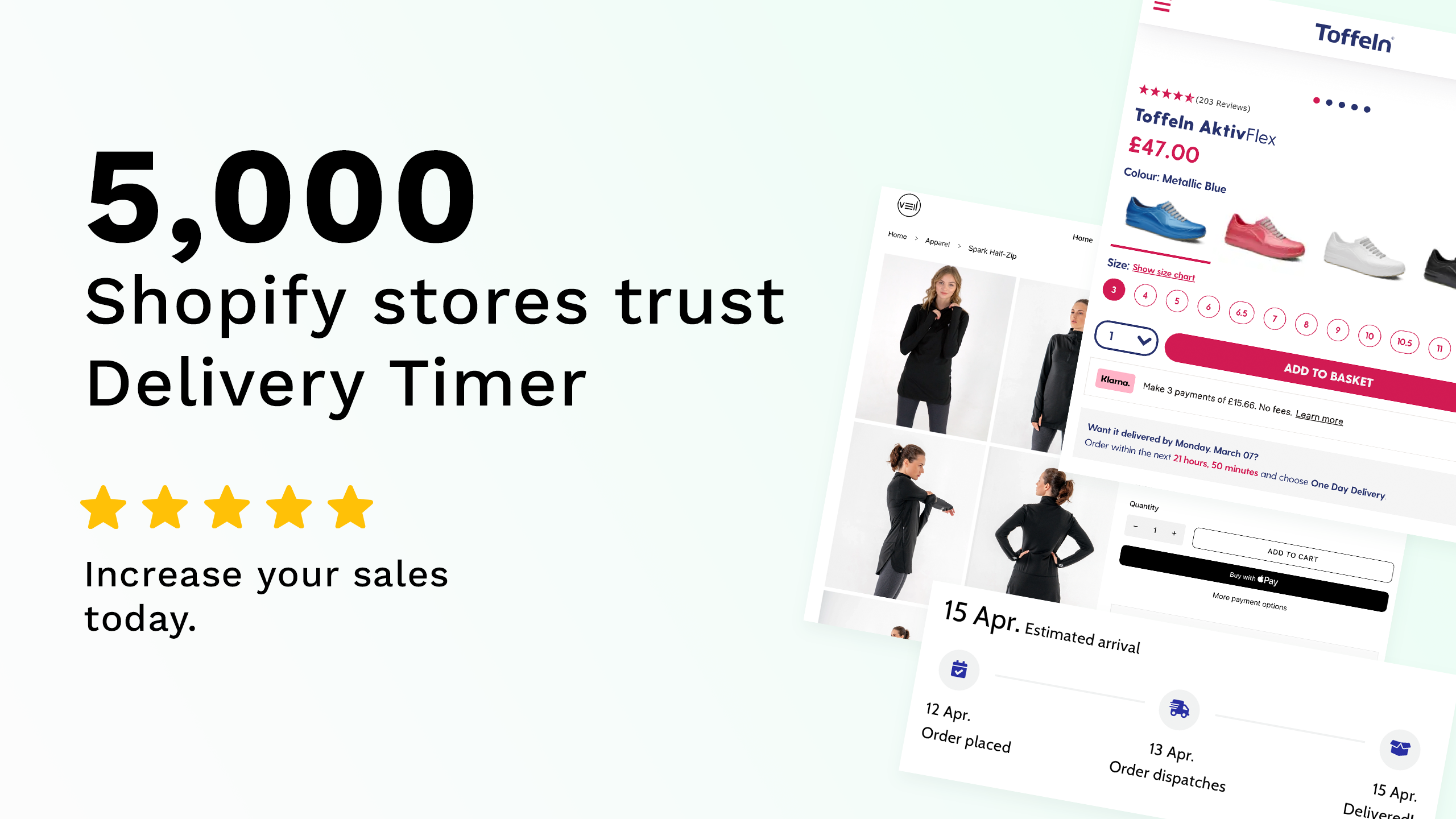
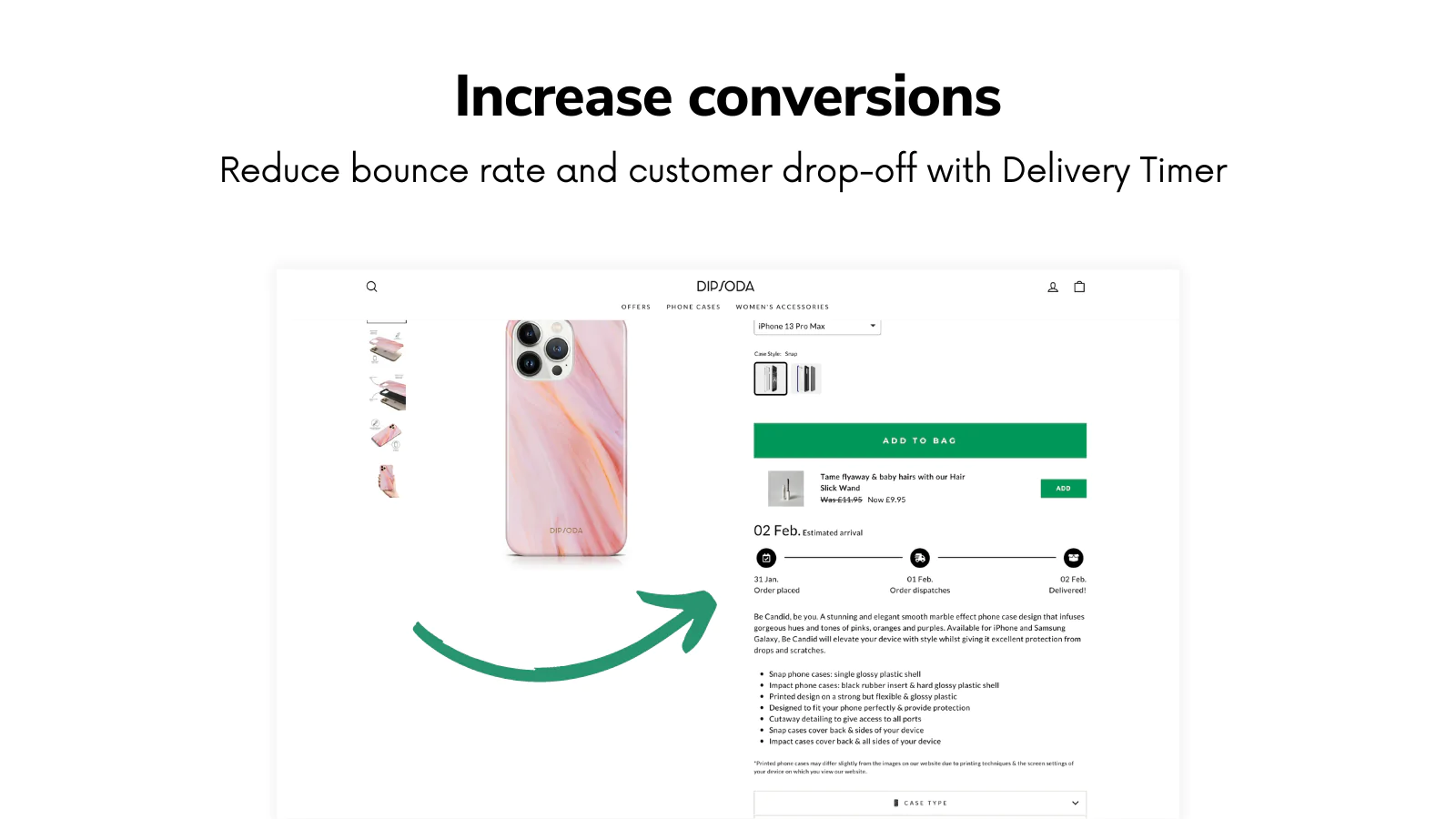
Delivery Timer is built specifically for this use case. It lets merchants show estimated delivery dates, shipping countdowns, and clear delivery messaging on product pages without custom theme engineering.

What I like about this approach is that it is easier to manage over time. You can update messaging, rules, and display logic without reopening theme files every time your shipping setup changes. That matters a lot for stores running promotions, seasonal dispatch cut-offs, or multiple delivery promises.
You can install it from the Shopify App Store here: Delivery Timer.
Which method is best for showing shipping on the product page?
The best method depends on how complex your shipping setup is. Simple stores can use a Custom Liquid block, while stores with variable delivery promises usually need an app or custom development.
| Method | Best for | Pros | Cons |
|---|---|---|---|
| Custom Liquid block | Simple free shipping or static text | Fast, no app needed, easy to place near buy box | Not truly dynamic, manual updates needed |
| Shipping policy block | Stores that want native policy content | Built into Shopify themes, useful for returns and policies | Not prominent enough on its own, limited persuasion value |
| Custom code estimator | Advanced stores with developer support | Can collect postcode and estimate rates | Higher maintenance, harder to match checkout accuracy |
| App-based solution | Best for most growing stores | Flexible, dynamic, easier to manage, better UX | Monthly app cost, depends on app features |
If you also want to show order timing more clearly, my guide on adding text next to shipping methods on the shipping page in Shopify pairs nicely with product page shipping messaging.
What mistakes should you avoid when showing shipping on Shopify product pages?
The biggest mistakes are being vague, hiding the message, and promising delivery times you cannot reliably meet. Shipping messaging only helps if it is both visible and credible.
- Do not bury shipping info in a footer or a long returns page
- Do not overpromise with unrealistic delivery dates
- Do not ignore mobile layout when placing the message
- Do not rely only on checkout to explain shipping costs
- Do not forget exceptions for pre-orders, bulky items, or restricted destinations
If shipping varies by product or destination, your messaging should reflect that. Stores with restricted shipping rules may also find this guide helpful: How to Restrict Shipping Countries on Certain Products or Collections in Shopify.
How do I choose the right shipping message for my store?
Choose the message that answers the main objection your customers have before checkout. For some stores that is delivery speed, for others it is free shipping, and for others it is dispatch reliability.
Here is how I think about it:
| Store type | Best message angle | Example |
|---|---|---|
| Impulse purchase store | Speed and immediacy | Order within 3 hours for dispatch today |
| High AOV DTC brand | Trust and premium fulfilment | Tracked delivery in 2-4 business days |
| Made-to-order store | Expectation setting | Handmade to order - ships in 5-7 business days |
| Discount-led store | Free shipping threshold | Free shipping when you spend £50 |
In my experience, the strongest product page shipping messages are short, specific, and close to the action button. You do not need a paragraph. You need clarity.
How to show shipping on the product page in Shopify step by step
If you want the fastest practical setup, start with a visible shipping message, then add policy content, and only move to dynamic tools if your store needs them. That gives you the biggest win with the least complexity.
- Decide what you need to show - free shipping, dispatch time, delivery estimate, or policy details.
- Add a Custom Liquid block in the product information area for a short message.
- Set up your shipping policy in Shopify Settings and enable the Shipping & Returns block if your theme supports it.
- Test mobile placement so the message appears near the buy box.
- Use an app if you need countdowns, business-day estimates, or more advanced rules.
- Track impact on conversion rate, add-to-cart rate, and support enquiries over the next 2-4 weeks.
This is the same order I would recommend to most merchants today. Start simple, measure the effect, and only add complexity if it clearly solves a real problem.
Is showing shipping on the product page worth it?
Yes, for most Shopify stores it is absolutely worth it. It improves clarity before checkout, supports conversion, and reduces avoidable friction in the buying journey.
Customers expect to know when an order is likely to arrive before they begin checkout. That expectation is now normal, not a bonus. Shipping transparency is part of a good product page experience, just like clear pricing, reviews, and stock information.
My practical recommendation is simple. If you are not showing any shipping information on your product pages today, fix that first. A short message near the buy box can make an immediate difference, and if you need more advanced delivery messaging, an app such as Delivery Timer is usually the quickest route to a polished result.
If you want to go further with your shipping setup, Shopify’s own shipping and fulfilment documentation is a solid reference, and for post-purchase tracking you may also want to look at 17TRACK.
Ultimately, the best product pages remove uncertainty. Showing shipping on the product page does exactly that.