
Adding text next to shipping method on the shipping page in Shopify is usually done by editing the built-in Shipping method notice translation in your theme or checkout language settings. For most stores, this is the fastest no-code method and it works without editing theme files or touching checkout code.
I have worked on Shopify stores and built Shopify apps for years, and this is one of those small checkout tweaks that comes up surprisingly often. Merchants want to show VAT notes, delivery expectations, regional restrictions, or a short policy message right where customers choose a shipping option.
The good news is that the search intent here is simple: most merchants do not need a custom app or Shopify Plus just to show one extra message near shipping methods. But if you need conditional text, different messages by shipping option, or more advanced checkout logic, there are better modern options too.
How do I add text next to the shipping method in Shopify?
You can add text near the shipping methods in Shopify by editing the Shipping method notice field in your store's language editor. This is the standard no-code method and is the same approach commonly recommended across Shopify Community threads and store support documentation.
Here are the steps I recommend following:
- In Shopify admin, go to Online Store > Themes.
- Next to your live theme, click Actions and then Edit default theme content or Edit languages.
- Use the search translations bar and search for Shipping method notice.
- If needed, look under Checkout & system.
- Add the message you want customers to see.
- Click Save.
In most checkouts, that text appears under the available shipping methods on the shipping step. Despite how the keyword is phrased, it is usually shown below or alongside the shipping options area, not literally inline beside each radio button.
What is the exact Shopify setting to edit?
The exact setting is called Shipping method notice. If you only need one general message for the shipping step, this is the setting you want.
This matters because a lot of merchants waste time looking for a shipping block in the theme customiser or trying to edit checkout code that they cannot access. In my experience, the language editor is the correct place to start for this specific change.
Depending on your admin version, you may also see a route through Settings > Checkout and then checkout language. Shopify has adjusted labels over time, so if one path looks different, use the theme language search and search for the phrase directly.
Step-by-step: how to add a shipping method notice in Shopify
The process takes about 2 to 5 minutes if you know where to look. The main friction point is that the translation list is long, so search is much quicker than browsing manually.
1. Open your active theme language editor
Go to Online Store > Themes, then click Actions > Edit default theme content. This opens the translation editor used for storefront and checkout text.
On some stores, the button label may still appear as Edit languages. That is normal.
2. Search for “Shipping method notice”
Use the search bar at the top and type Shipping method notice. This is much faster than scrolling through the full list.
If search does not find it immediately, check the Checkout & system section. On some themes or admin layouts, the wording can appear slightly differently, but the target string is usually there.
3. Add your message
Enter the text you want to display. Keep it short, clear, and useful.
Good examples include:
- Free standard shipping on UK orders over £50 after discounts.
- Remote area delivery may take 2-4 extra business days.
- VAT and duties may apply for orders shipped outside the UK.
- Express orders placed after 2pm ship the next working day.
4. Save and test in checkout
Click Save and test the live checkout flow. Use a real product, valid shipping address, and a shipping profile that actually returns rates.
I always recommend testing on mobile and desktop because the checkout layout can wrap differently. A message that looks neat on desktop can feel heavy on mobile if it is too long.
Where does the text appear on the checkout?
The text usually appears under the shipping methods section during the shipping step of checkout. It is close enough to the options that customers will see it before choosing a rate.
This is important because some merchants expect to attach a unique note to each individual method, such as one message for standard shipping and another for express. The built-in notice does not usually work like that. It is best for a single shared message that applies to the shipping step overall.
If your requirement is truly per-method messaging, skip ahead to the app and Checkout Extensibility section below.
Why would you want to add text next to the shipping method?
The main reason is to reduce uncertainty at the exact moment a customer is deciding how their order will arrive. A short, well-placed message can improve clarity, trust, and sometimes even conversion rate.
In my experience building Shopify apps, merchants usually want this for one of five reasons: delivery times, tax or duty notes, cut-off times, holiday delays, or special shipping conditions. These are all details customers tend to ask support about if you do not surface them early enough.
| Use case | Example text | Why it helps |
|---|---|---|
| Delivery expectations | Standard delivery takes 3-5 working days. | Reduces “where is my order?” questions |
| Tax and duties | Import VAT may be charged on EU deliveries. | Prevents surprises after purchase |
| Express cut-off | Express orders after 2pm ship next business day. | Sets realistic fulfilment expectations |
| Remote areas | Highlands and islands may require extra transit time. | Improves transparency for affected customers |
| Promotion details | Free shipping applies after discounts and before taxes. | Avoids checkout confusion |
What are the limitations of the built-in Shopify method?
The built-in method is best for one general notice, not advanced checkout logic. If you need dynamic content, the native translation field will feel limited very quickly.
Here are the main limitations I see merchants run into:
- No per-shipping-rate text in the standard setup
- No conditional logic by country, cart value, or customer tag
- No rich checkout layout control beyond the message itself
- No advanced targeting for local delivery, pickup, or specific methods in most cases
If your message applies to everyone, this is fine. If you need to show one warning for express shipping and another for international tracked shipping, you are likely moving into checkout app extension territory.
Can all Shopify plans add text on the shipping page?
Yes, the language editor method generally works across Shopify plans because it is a translation change rather than a checkout code customisation. This is why it is the best first option for most merchants.
However, there is a difference between editing existing checkout text and building custom checkout experiences. Shopify's modern checkout customisation model is based on Checkout Extensibility, and some advanced capabilities depend on app blocks, extension targets, and your plan setup.
Since checkout.liquid customisations have been phased out for checkout customisation use cases, I would not recommend older tutorials that suggest editing checkout code directly. Those are outdated for most stores in 2026.
What is the best way to add more advanced shipping messages in Shopify checkout?
The best advanced option is to use a checkout app built on Checkout Extensibility. This is the right route if you need conditional warnings, banners, or text that changes based on shipping context.
As a Shopify app developer, I prefer this approach over hacks because it is upgrade-safe, supported by Shopify, and less likely to break when checkout changes. It is also the only realistic path if you want something more sophisticated than one shared notice.
Shopify's developer documentation on checkout customisation is here: Checkout UI extensions.
Should you use an app for this?
You should use an app only if the built-in notice is too limited for your use case. For a single line of informational text, an app is usually overkill.
That said, I have seen plenty of stores where an app makes sense. Examples include stores that need hazmat warnings, country-specific legal notices, or messages triggered by certain delivery methods.
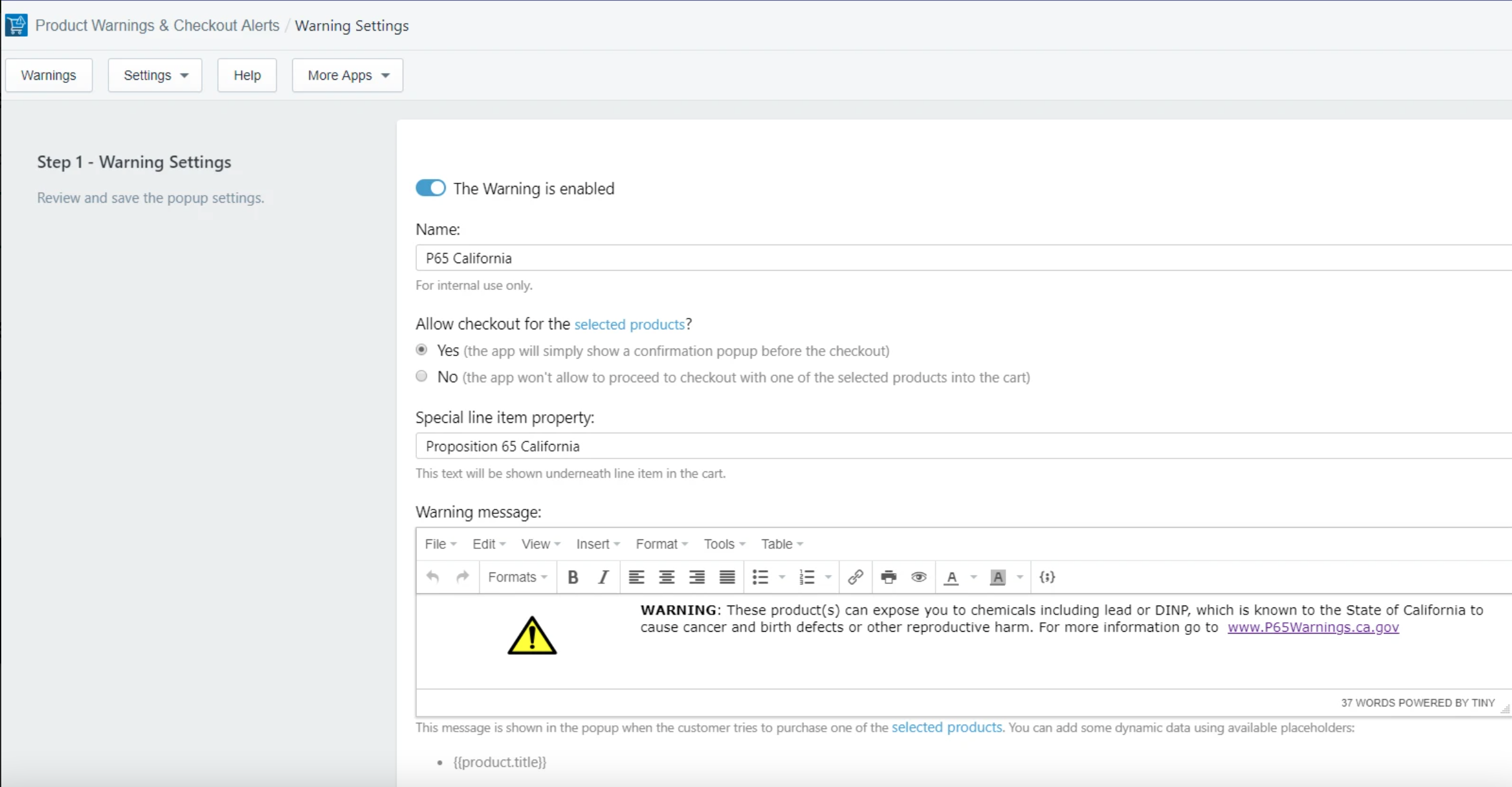
Example app: Product Warnings on Checkout
Product Warnings on Checkout is designed for merchants who need to show warnings or notices during checkout. It is more suitable when your message depends on the product, order contents, or checkout context rather than being one static line.

You can view it on the Shopify App Store here: Product Warnings on Checkout.
I would categorise this as worth considering if your shipping message is tied to product restrictions, compliance text, or checkout warnings. It is not worth it unless you have a real need for dynamic behaviour.
Built-in notice vs app: which option is better?
The built-in notice is best for most stores because it is free, quick, and easy to maintain. An app is better when you need logic, targeting, or more control over how the message is displayed.
| Option | Best for | Pros | Cons |
|---|---|---|---|
| Shipping method notice | One general checkout message | Free, fast to set up, no code | Static text only |
| Checkout app | Conditional or advanced messaging | Flexible, scalable, upgrade-safe | Extra cost, more setup |
| Custom checkout extension | Complex Plus or app-led requirements | Maximum control | Requires development work |
What kind of text should you add next to shipping methods?
The best text is specific, short, and operationally true. If the message is vague or promotional, customers tend to ignore it.
When I test checkout messaging, the strongest results usually come from text that answers a real objection. For example, when will it arrive?, will I pay extra fees?, or does free shipping still apply after discounts?
Good examples
- Orders placed after 2pm ship the next working day.
- International orders may be subject to customs charges.
- Free delivery applies to orders over £75 after discounts.
- Personalised items require 2 extra working days to dispatch.
Bad examples
- We care about your order and always try our best.
- Shipping information available on our website.
- Fast shipping available.
The bad examples are too generic. They do not actually help the customer make a decision.
How do I test whether the shipping notice is showing correctly?
You should test the notice using a full checkout scenario with a real shippable product and a valid address. This is the only reliable way to confirm it appears where you expect.
Here is the checklist I use:
- Add a physical product to cart
- Go to checkout
- Enter a shipping address that triggers live or manual rates
- Check the shipping step on desktop
- Check the same step on mobile
- Test with discount codes if your notice mentions thresholds
- Test international addresses if your message mentions duties or VAT
If you sell across multiple markets, test at least one address per major region. I have seen merchants add a shipping note that made perfect sense for the UK but confused EU and US customers.
What if the Shipping method notice field is missing?
If the field seems missing, the first thing to do is search for it directly in the language editor. In many cases, it is there but buried under the long list of checkout strings.
If you still cannot find it, try these fixes:
- Search for shipping and scan nearby entries
- Check whether you are editing the live theme
- Try the route via Settings > Checkout if available in your admin
- Preview a live checkout to confirm the store is using standard checkout flow
- Review Shopify help resources or ask Shopify Support if your admin layout differs
Shopify's help centre is a useful reference point for checkout customisation and translation behaviour: Shopify checkout settings.
Can I show delivery time instead of a generic shipping note?
Yes, but the best place depends on what you are trying to achieve. If you want a general delivery expectation during checkout, the shipping method notice can work well.
If you want delivery timing shown earlier, such as on the product page or in the cart, that often performs better because it answers the question before the customer reaches checkout. I have covered that in more detail here: How to Show Shipping on the Product Page in Shopify.
For many stores, the strongest setup is to show delivery messaging in three places: the product page, the cart, and the shipping step. That repetition reduces confusion without relying on a single checkout message to do all the work.
Are there better places than checkout to add important shipping information?
Yes, and in some cases checkout is actually too late. If the information affects purchase intent, show it earlier in the journey as well.
For example, if you need customers to accept a policy or see an important disclaimer before paying, you may also want to add messaging on the cart page. These guides may help depending on your setup:
- How to Add Text to the Shopify Cart Page: 2 Methods That Actually Work in 2026
- How to Add a Disclaimer to the Cart on a Shopify Store
- How to Combine a Discount Code with Free Shipping in Shopify
I often advise merchants to think of checkout messaging as reinforcement, not the first and only place to explain a potentially sensitive shipping rule.
Does adding text near shipping methods help conversion?
It can help conversion if the message removes friction or uncertainty. It will not magically lift sales on its own, but it can reduce hesitation at a high-intent stage.
Industry data still consistently shows that checkout friction and unexpected costs are major causes of abandonment. A concise message about shipping thresholds, timelines, or extra fees can prevent the kind of last-minute surprise that kills a sale.
In my experience, the biggest wins come from messages that clarify one of these points:
- When the order will ship
- Whether free shipping applies
- Whether taxes or duties may still be due
- Whether remote areas take longer
By contrast, generic promotional copy at checkout rarely moves the needle. Utility beats fluff.
My recommended setup for most Shopify stores
For most merchants, I recommend starting with the Shipping method notice translation and keeping the message to one sentence. That gives you the fastest implementation with the lowest maintenance burden.
If that solves the problem, stop there. If you later need different text by market, product type, or shipping option, then look at a checkout app or custom extension.
My practical rule is simple:
- Use the built-in notice for one shared message
- Use an app for conditional warnings or richer checkout messaging
- Use earlier-page messaging too if the information affects purchase decisions
Frequently asked questions
Can I add different text for each shipping method in Shopify?
Not with the standard Shipping method notice field alone. That field is generally a shared message for the shipping step, so you would need an app or custom checkout extension for per-method text.
Can I edit the shipping page on Shopify without code?
Yes, for this use case you can usually do it without code by editing the checkout language or theme language strings. This is the easiest method for adding a simple message near shipping options.
Does this work on Shopify Basic?
Usually yes, because it relies on translation editing rather than direct checkout code access. Always test your live checkout after saving changes.
Can I add VAT text or customs warnings here?
Yes, and that is one of the most common uses. Just make sure the wording is accurate for the regions you ship to.
Can I style the message heavily?
Not much with the built-in translation field. If you need banners, icons, conditional layouts, or stronger visual treatment, use a checkout app or extension-based solution.
Final thoughts on adding text next to shipping method on the shipping page in Shopify
The simplest answer is still the right one: search for Shipping method notice in your Shopify language editor and add your text there. That is the quickest, most reliable no-code fix for the vast majority of stores.
From what I have seen working with Shopify merchants, this small change is most effective when the message is specific, honest, and close to the decision point. Do that well, test it properly, and you can make checkout feel a lot clearer without overcomplicating your setup.
If you outgrow the built-in option, then move to a checkout app built for Checkout Extensibility. Just do not start there unless your requirements actually need it.