


If you need to download all product images from your Shopify store, the short answer is this: Shopify does not offer a native bulk image download button. In practice, the fastest options are a Shopify app, a CSV export plus downloader workflow, or a browser extension if your catalogue is small.
I work on Shopify apps myself, and this is one of those annoyingly common merchant tasks that Shopify still only partially supports. You can export product data easily enough, but the default export gives you image URLs, not a tidy folder of actual image files. If you have a few products, that is manageable. If you have hundreds or thousands, it becomes a mess very quickly.
In this guide, I will show you the best ways to export Shopify product images, when each method makes sense, and which tools are worth using in 2026. I will also cover the difference between product media, Shopify Files, and image URLs, because that is where a lot of confusion starts.
How do I download all product images from my Shopify store?
The best way to download all product images from Shopify is to use a bulk export app such as CS - Export Product Images, Mega Media Exporter, or Filey. If you do not want an app, you can export a CSV with image URLs and then batch-download those files separately.
That is the practical answer most merchants need. In my experience building Shopify tools, there are really four workable routes: manual downloads from admin, CSV export, a browser extension, or a dedicated Shopify app. The right choice depends on catalogue size, how often you need exports, and whether you need original resolution files organised by product.
Why would you want to bulk download Shopify product images?
Merchants usually bulk download product images for backup, migration, vendor sharing, or catalogue cleanup. It is also useful when you want to audit missing images, rename assets, or prepare content for marketplaces and printed catalogues.
I have seen this come up repeatedly with stores moving between workflows. A merchant starts with Shopify as the single source of truth, then suddenly needs to send a product pack to a distributor, hand assets to a designer, or archive media before a theme rebuild. At that point, discovering that Shopify only gives you URLs by default is frustrating.
- Local backup: keep a copy of your product photography outside Shopify
- Supplier and sales rep sharing: send images alongside SKUs and product data
- Store migration: move assets to another platform or another Shopify store
- Image audits: find products with missing, duplicate, or incorrect media
- Creative reuse: prepare folders for ads, email, catalogues, or social content
If you are doing a broader cleanup project, it is also worth reviewing related workflows like order tracking automation and customer data management. Media exports often happen as part of a much larger operations tidy-up.
Does Shopify let you download product images in bulk natively?
No, Shopify does not currently provide a native one-click bulk download for all product images. You can export product data as CSV, but that file contains image source URLs rather than a downloadable zip of your actual image files.
This is the key limitation that most ranking pages mention, and it is still true in 2026. Shopify makes it easy to manage product media inside admin, but not to extract everything in a merchant-friendly folder structure. If all you need is a few images, native tools are fine. If you need a proper archive, you will almost certainly want an app or a script.
There is also a separate area in Shopify called Content - Files. That includes files uploaded to your store, but it is not the same thing as saying "all product images". Some merchants mix these up, so it is worth being precise before you start exporting.
What is the best method for your store size?
The best method depends on scale. Manual download works for tiny catalogues, CSV export works for flexible DIY workflows, and apps are best for most serious stores because they save time and reduce mistakes.
| Method | Best for | Difficulty | Main limitation |
|---|---|---|---|
| Manual admin download | 1-20 images | Easy | Very slow for large catalogues |
| CSV export + downloader | Small to medium stores | Medium | Needs an extra tool or script |
| Chrome extension | Quick one-off exports | Easy | Can be inconsistent on large stores |
| Shopify app | Medium to large stores | Easy | Usually paid beyond free limits |
| Developer script | Technical users | Advanced | Takes setup time and testing |
My general rule is simple. If you are exporting more than 100 images, skip manual methods. If this is something you will do more than once per quarter, use an app and save yourself the hassle.
How do I manually download product images from Shopify admin?
You can manually download a product image by opening a product in Shopify admin, scrolling to the Media section, and clicking the image download option. This works, but it is only realistic for very small image sets.
- Log in to your Shopify admin.
- Go to Products.
- Open the product you want.
- Scroll to the Media section.
- Select the image and use the download option if available.
- Repeat for each image.
This method is fine if you need a handful of assets for a designer or marketplace listing. It is not efficient for a real catalogue backup. I only recommend it when speed of setup matters more than speed of execution.
How do I export Shopify image URLs using CSV?
The CSV method exports your product data, including an Image Src column with product image URLs. It is one of the best free workflows because it gives you a structured list of assets, even though it does not download the files directly.
- In Shopify admin, go to Products.
- Click Export.
- Choose to export all products or a filtered selection.
- Download the CSV file.
- Open the CSV and locate the Image Src column.
- Use those URLs with a downloader tool, spreadsheet workflow, or script.
This is the method I usually suggest to technically confident merchants who want a free route. The export is easy, but the second half matters: you still need a way to turn those URLs into actual files on your computer. That can be a downloader extension, a command line script, or an app that handles the process for you.
If your store has lots of variants and multiple images per product, expect the CSV to be a little messy at first. Shopify's export structure is useful, but not always elegant. You may need to sort by handle, SKU, or image position before sending the file to a supplier.
What is the easiest app to bulk download Shopify product images?
The easiest apps are the ones that scan your catalogue, let you filter what you need, and then export images as a zip or structured file set. For most merchants, the strongest options are CS - Export Product Images, Mega Media Exporter, Filey, and WTE - Images Manager.
As a Shopify app developer, I always look for two things in utility apps like this: how much admin time they actually save and whether the export structure is usable afterwards. Fancy features mean very little if the output is chaotic. The best tools reduce repetitive clicking and give you files organised in a way your team can actually use.
| App | Best for | What it does well | App link |
|---|---|---|---|
| CS - Export Product Images | High-resolution product image exports | Bulk downloads, original quality, zip export | View app |
| Mega Media Exporter | Large catalogues with filters | Groups by product, filters by collection, vendor, variant, date | View app |
| Filey | Simple file backups | One-click export and backup workflow | View app |
| WTE - Images Manager | Image auditing and spreadsheet workflows | Exports image data, helps identify missing records, cleanup tasks | View app |
| Store Images Management app | Spreadsheet-led image handling | Useful for image management workflows and exports | View app |
CS - Export Product Images
CS - Export Product Images is one of the best options if your main goal is to download original high-resolution product images without quality loss. It is especially useful when image fidelity matters for design, print, or migration work.

Based on what merchants consistently ask for in support forums, this app aligns well with search intent. People are not just asking for URLs. They want the actual files, in full quality, with as little friction as possible.
Mega Media Exporter
Mega Media Exporter is a strong fit for stores with larger catalogues because it supports more advanced filtering. If you only want images from a specific vendor, collection, date range, or variant set, this is the kind of workflow that saves hours.

In my experience, filtering is where bulk export tools either become genuinely useful or just another admin layer. For merchants with seasonal collections, archived products, or multiple suppliers, targeted exports are far more practical than downloading everything every time.
Filey
Filey is a good option if you want a simple backup-style workflow. It is often mentioned because it lowers the technical barrier and is straightforward for merchants who just want files downloaded without much configuration.

For solo founders and smaller teams, simplicity matters more than feature depth. If you are not trying to build a complex media ops process, a basic export and backup app can be the right call.
WTE - Images Manager
WTE - Images Manager is useful when you need more than just downloading. It can help with image management, spreadsheet exports, and identifying records where media is missing or inconsistent.

This is the closest match to the original post's angle, and it is still relevant. A lot of merchants do not just want images exported. They want to audit their catalogue, spot missing images, and clean up bad data at the same time.
Can I use a Chrome extension to download Shopify images?
Yes, a Chrome extension can work well for quick exports. The most commonly recommended option is the Image Downloader Chrome extension, which is widely used for grabbing multiple images from a page.
This method is best for one-off jobs and smaller catalogues. It is not my first recommendation for stores with thousands of assets, but it is a handy free option if you need something immediately and do not want to install a Shopify app.
- Install the Image Downloader extension from the Chrome Web Store.
- Open your Shopify admin and navigate to a product page or relevant area.
- Launch the extension.
- Select the images you want.
- Download them to your computer.
The main catch is that browser extensions often pull in other page images too, not just product media. You may end up sorting through thumbnails, icons, and duplicate asset sizes. For small tasks that is acceptable. For serious exports, it gets messy fast.
How do I download all files from Shopify Files?
If your assets are stored in Shopify Files rather than only attached to products, the best-known workflow is to use Matrixify. Shopify does not offer a native bulk download for Files either.
This matters because some merchants are not actually trying to export product media alone. They want everything from Content - Files, including PDFs, marketing images, and other uploaded assets. That is a slightly different job from exporting product images.
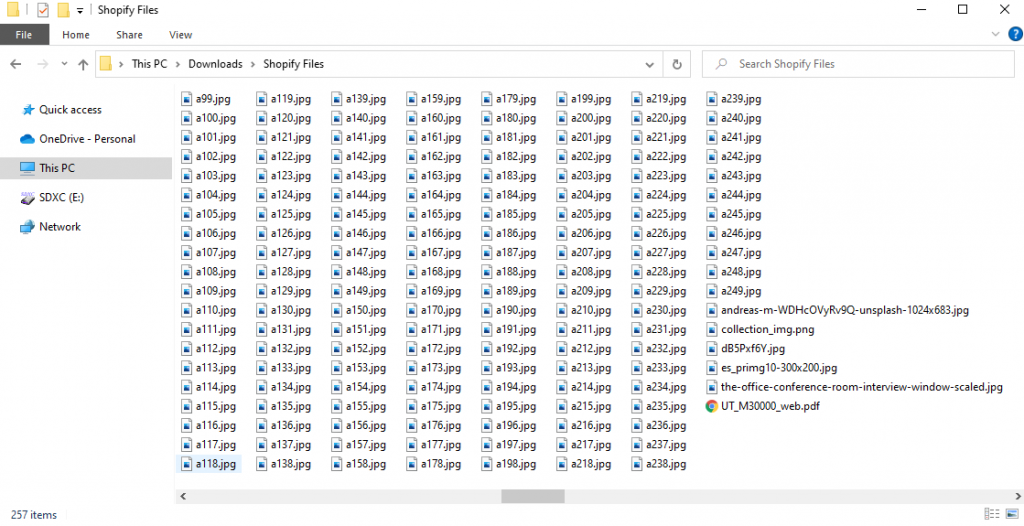
Matrixify's documented workflow is to export file names and links, then use those links to download the assets. It is a solid option for more advanced merchants and agencies who already use spreadsheets heavily.
If you are evaluating broader store operations at the same time, you may also find our guide on when to upgrade to Shopify Plus useful, especially if your catalogue and operations complexity are increasing together.
How do I use JavaScript or a script to download Shopify image URLs?
If you are comfortable with code, you can export image URLs and then use a script to download them in bulk. This is the most flexible option, but it is also the least beginner-friendly.
Developers usually take one of two approaches. They either scrape image URLs from product pages or use exported CSV data and run a downloader command against the Image Src values. I would only recommend this if you are already comfortable with spreadsheets, terminal commands, or browser developer tools.
- Pros: flexible, cheap, scalable, custom naming possible
- Cons: technical setup, debugging time, risk of messy outputs
In my own work, scripts are brilliant for repeatable internal processes. For most merchants, though, a purpose-built app is more cost-effective once you factor in your time. Saving £20 or £30 on an app is rarely worth an hour of troubleshooting.
What if I need to identify missing images or delete images in bulk?
If your goal is not just downloading but also auditing and cleaning up your media library, a specialist image management app is the better choice. This is where tools like WTE - Images Manager become more useful than a simple downloader.
One of the strongest points from the original article still holds up: merchants often need to find products with missing images or remove incorrect uploads in bulk. Shopify's built-in tools are limited here. You can manage media product by product, but that is not efficient at scale.
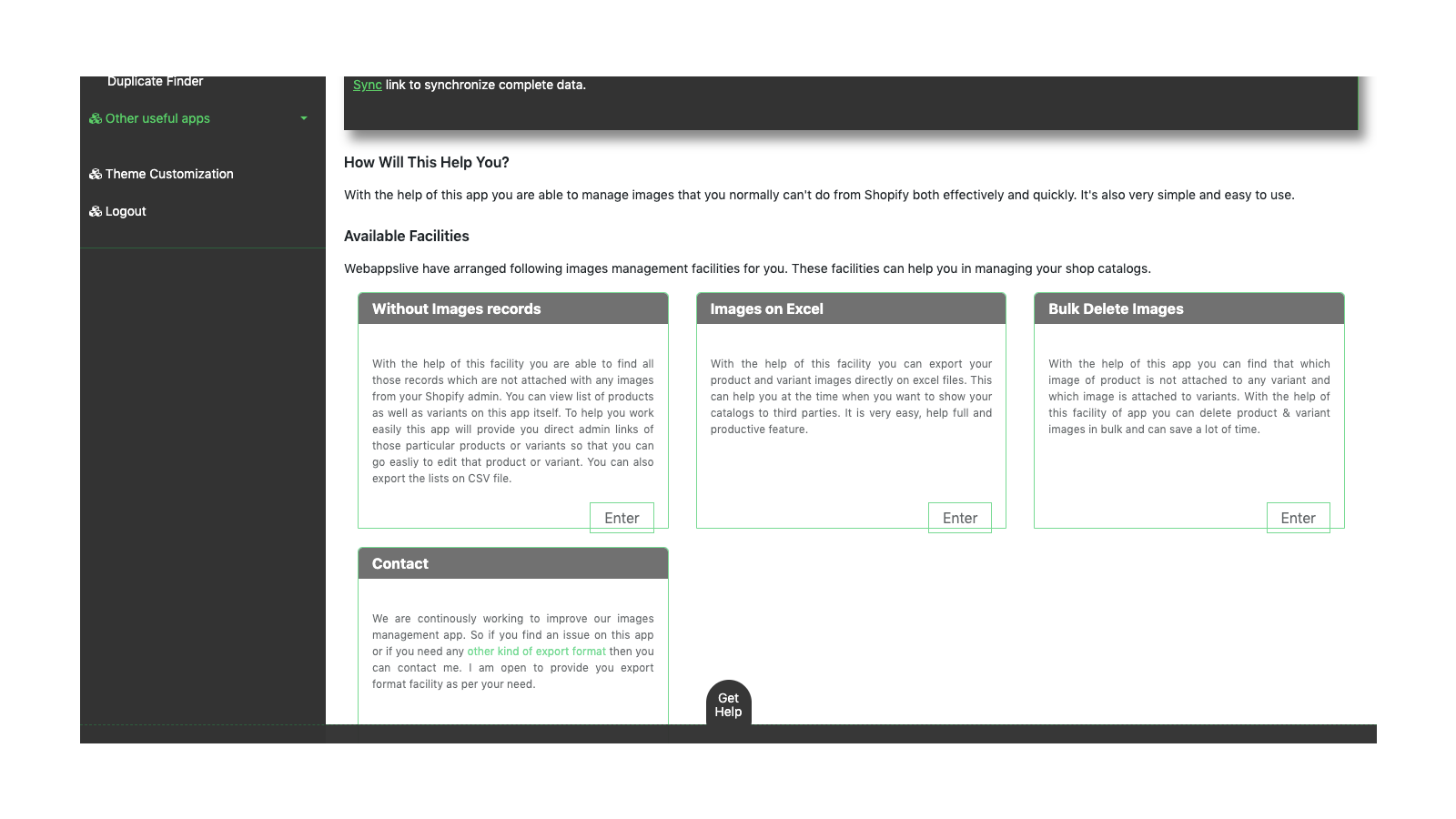
If you are cleaning up your product catalogue more broadly, it is worth reading how to maximise revenue from your product pages. Better image management usually improves both operations and conversion rate.
Which method do I recommend in 2026?
For most merchants in 2026, I recommend using a Shopify app for bulk image export. It is the fastest, least error-prone option, and it matches the real search intent behind this keyword far better than manual workarounds.
Here is my honest take based on the kinds of merchant problems I see most often:
- Best for small stores: manual download or Chrome extension
- Best free-ish workflow: CSV export plus downloader tool
- Best for large stores: Mega Media Exporter or CS - Export Product Images
- Best for file backups: Filey
- Best for image audits: WTE - Images Manager
If I were advising a merchant with 500+ SKUs, I would not suggest doing this manually. If I were advising a merchant with 10 products, I would not push them into a paid app unless they also needed backup and cleanup features. The right answer is not always the most feature-rich tool. It is the one that removes the most friction for your actual workflow.
How can I avoid image export headaches in future?
The best way to avoid future export headaches is to keep your image library organised from the start. Use consistent filenames, maintain clean product data, and periodically back up important media instead of waiting for a crisis.
When I test Shopify stores, I often find image chaos is really a symptom of broader catalogue management issues. Merchants upload assets with inconsistent naming, duplicate product photos, and no backup process, then only notice the problem when they need a vendor pack urgently.
- Name files consistently before upload
- Keep master copies locally or in cloud storage
- Audit missing images every quarter
- Use collections, vendors, and tags consistently for easier filtered exports
- Back up before major theme or catalogue changes
If your broader goal is to make your store easier for both humans and machines to understand, I would also look at how to get your Shopify store into ChatGPT and how to optimise your Shopify store for AI shopping agents. Better product data and cleaner media workflows help more than just admin operations.
What are the most common mistakes when downloading Shopify product images?
The most common mistakes are assuming Shopify exports actual files, forgetting about Shopify Files versus product media, and downloading compressed thumbnails instead of original-resolution images. These issues cause most of the frustration merchants run into.
Here are the pitfalls I see most often:
- Expecting the product CSV to contain image files rather than URLs
- Using a page scraper that captures thumbnails instead of full-size assets
- Forgetting variant-specific images when exporting
- Not checking export filters by collection, vendor, or status
- Leaving backups too late until after a catalogue cleanup or migration
A quick test export first is always worth it. Download 5 to 10 products, inspect the filenames and image quality, then run the full export. That small check can save a lot of rework.
Final thoughts on downloading all Shopify product images
Downloading all product images from Shopify is absolutely doable, but Shopify still does not make it as simple as it should. For most stores, the best route is a dedicated export app. For lighter needs, a CSV export or Chrome extension can be enough.
The original post was right about one thing that still matters now: image management is not just about downloads. It is also about organisation, backup, and catalogue quality control. If you treat exports as part of a proper media workflow rather than a one-off task, you will save yourself a lot of admin pain later.
If you are already improving your store operations, you might also want to read our guides on cart drawer upsells and how to upsell on Shopify in 2026. Clean product data, good imagery, and better merchandising tend to go hand in hand.


