

If you need to know how to resend staff account invites in Shopify, the short answer is this: Shopify still does not offer a direct resend button for staff invites. The current workaround is to remove the pending staff account and invite the same user again, which triggers a fresh email.
That sounds a bit clunky, but in practice it works. I have run into this with client stores, development stores, and even when onboarding testers for my own Shopify apps, and the same pattern keeps coming up: the invite email was missed, filtered, or the wrong login flow confused the person receiving it.
This guide covers the exact workaround, what has changed in Shopify's admin over time, common problems like Google SSO prompts, and how to tell the difference between staff invites and customer account invites. If you want the up-to-date answer rather than forum guesswork, this is the version I would follow in 2026.
Can you resend a staff account invite in Shopify?
No, Shopify does not currently provide a native "Resend" option for staff account invites. If a staff member has not received or used the email, the practical fix is to delete the pending invite and send a new one.
This is the key point most merchants are searching for, and it matches what Shopify community replies have said for years. Despite Shopify improving lots of admin workflows, staff invites still behave differently from customer invites, where a resend option does exist in some contexts.
In my experience building Shopify apps and helping merchants configure stores, this causes confusion because people assume all account invitations work the same way. They do not. Customer account invites and staff account invites are separate systems, and Shopify treats them differently in the admin.
How do I resend staff account invites in Shopify step by step?
The way to resend a Shopify staff invite is to remove the invited user and then add them again with the same email address. This sends a brand new invitation email.
Here is the cleanest way to do it.
- Log in to your Shopify admin.
- Go to Settings.
- Open Users or, on some admin views and older documentation, Plans and permissions then Staff accounts.
- Click the staff member whose invite is still pending.
- Select Manage staff access and then Remove account.
- Confirm the removal.
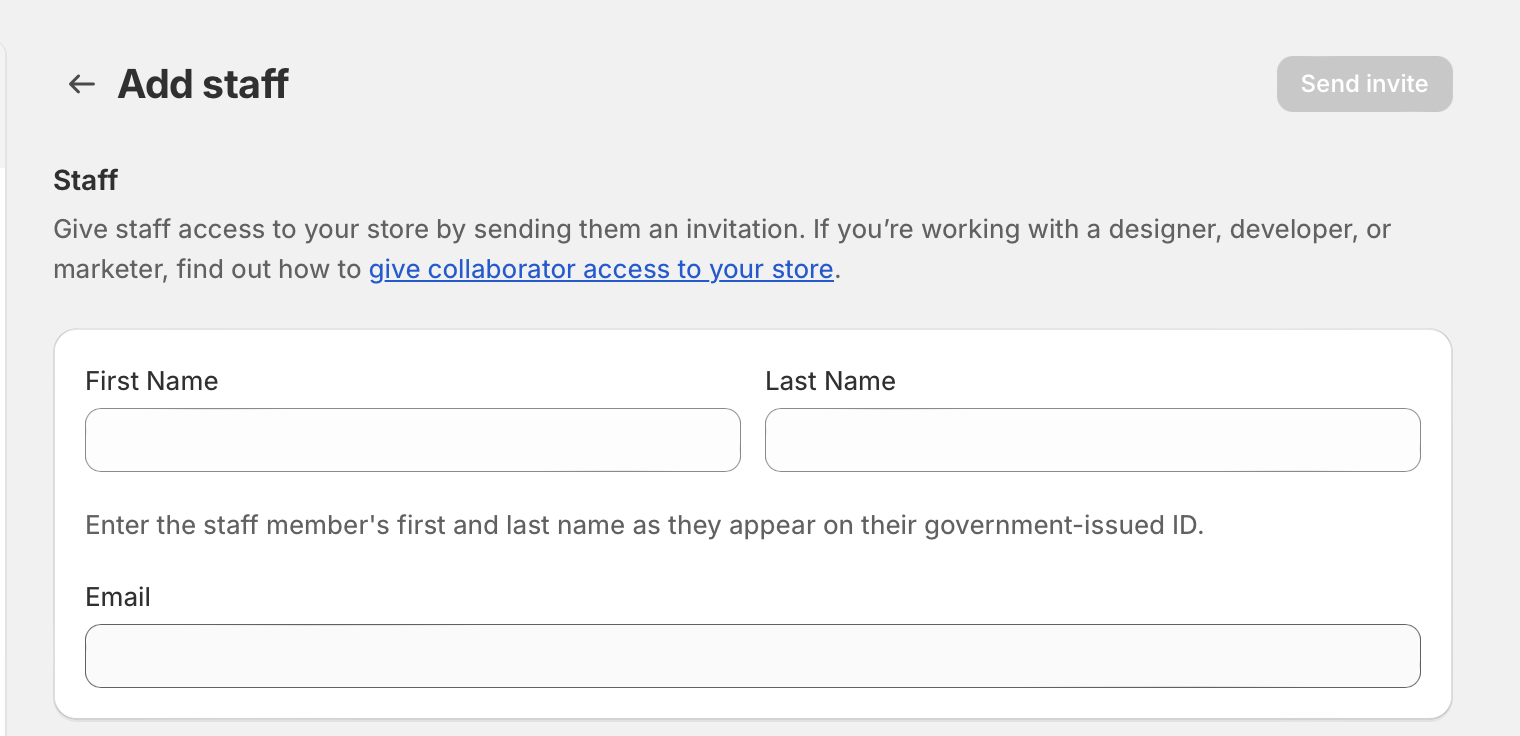
- Go back and click Add users or Add staff.
- Enter the same email address.
- Reassign the correct roles and permissions.
- Click Send invite.
The new invite invalidates the old process. Tell your staff member to use only the latest email they receive. If they click an older link after you have removed and re-added them, it may not work as expected.
Where is the staff invite setting in Shopify admin?
The staff invite area is usually found under Settings > Users in the current Shopify admin. Older help articles and community posts may refer to Settings > Plans and permissions > Staff accounts.
This matters because many ranking pages are based on older admin navigation. If you are following a 2020 or 2021 screenshot and cannot find the menu, that is probably why.
Shopify has renamed and reorganised parts of the admin over time, but the underlying process is broadly the same. If you can access the list of staff users and invited users, you are in the right place.
Why is Shopify not showing a resend button for staff invites?
Shopify does not show a resend button because staff invitations are not designed with a one-click reissue workflow in the same way customer invites are. The platform expects merchants to remove and recreate the invite if needed.
I agree that it is not ideal. From a product design point of view, it would be simpler if Shopify added a proper resend action that preserved roles and permissions, but as of the latest available information, that feature is still not confirmed for staff accounts.
This is why so many forum threads on the topic all point to the same workaround. The search intent here is straightforward: merchants want a resend button, but the real answer is that the workaround is the actual process.
What should I check before removing and re-inviting a staff member?
Before you delete the pending invite, check the basics first. In many cases, the staff member simply missed the email or it landed in spam.
Ask them to search their inbox and junk folder for messages from [email protected]. Also ask them to search for your store name, because some email clients surface the sender poorly and make the message harder to spot.
- Check spam and junk folders.
- Confirm the email address is correct in Shopify admin.
- Ask whether they already clicked an old invite and got confused during sign-in.
- Check whether their company email system blocks automated emails.
- Make sure they are using the most recent invitation email.
If all of that checks out and they still cannot access it, removing and re-adding them is the next step.
Do Shopify staff account invites expire?
Based on the latest research, staff invite links do not appear to expire automatically in the simple seven-day way many older articles suggest. However, once you remove the pending account, the old invite becomes invalid and the user must use the new email.
This is one area where a lot of content online is outdated. Older posts often say staff invitations expire after seven days. That may reflect older behaviour or merchant assumptions, but the more recent guidance indicates the bigger issue is not automatic expiry. It is that old links become unusable after the account is removed and recreated.
So if you are updating internal SOPs for your team, I would not rely on the old seven-day rule. I would instead tell staff to use the newest invite and ignore previous emails.
How do I remove and re-add a pending staff account safely?
You can safely remove a pending staff account as long as you are prepared to set up the permissions again from scratch. The email address can usually be re-used immediately.
This is the one part merchants often overlook. When you delete the pending account, Shopify may not preserve the exact role configuration you had before, depending on how your store is set up. If the person needed access to orders, products, apps, or themes, you should note those permissions before removing them.
- Open the invited staff profile.
- Review the assigned permissions or role.
- Take a quick screenshot if needed.
- Remove the account.
- Recreate the user with the same email.
- Reapply the correct permissions.
On larger stores, this matters even more. I have seen merchants accidentally re-invite someone with broader access than intended because they were in a rush to get the email out again. Security should come before speed.
What happens to permissions when I resend a Shopify staff invite?
When you use the remove-and-reinvite workaround, you may need to reconfigure permissions manually. Shopify does not treat this like a simple resend of the same pending invitation.
That means the process is not just about email delivery. It is also an access-control task. If you run a store with multiple staff, agencies, or freelancers, make sure each user only gets the permissions they genuinely need.
In my experience, this is where store owners should slow down. Staff permissions affect orders, discounts, apps, customers, and theme changes, so it is worth double-checking the access level before clicking send.
Which permissions should you review before re-inviting?
The best permissions setup is the minimum access needed for the role. Re-inviting a user is a good moment to tighten permissions if they were too broad before.
- Orders - for support or fulfilment staff
- Products - for merchandising teams
- Customers - for customer service staff
- Apps and channels - only if they need to manage installed apps
- Themes and online store - usually for developers or designers only
- Discounts and marketing - for campaign managers
If the person is a contractor, I usually recommend giving them the narrowest access possible. You can always expand permissions later.
What if Shopify asks for a password when removing a Google SSO user?
If Shopify prompts for a password while you are trying to remove a staff user who signs in with Google, the usual fix is to go to Manage account and set a password first. Google sign-in can still remain active afterwards.
This is a niche issue, but it catches people off guard. A store owner assumes the user is Google-only, then Shopify asks for a password during the account management flow.
The workaround is simple:
- Open the relevant account settings.
- Go to Manage account.
- Set a password if Shopify requires one.
- Return to the user removal flow.
- Remove and re-invite the staff member.
Setting a password does not necessarily mean abandoning Google SSO. It just satisfies the account requirement for that action.
How is a staff invite different from a customer account invite in Shopify?
Staff invites and customer account invites are different workflows in Shopify. Customer accounts may show a Resend account invite option, but staff accounts generally do not.
This difference causes a lot of the confusion in search results. Some articles talk about resending account invites in Shopify as if the process is universal, but those instructions often apply to customers, not staff users.
| Invite type | Who it is for | Direct resend option? | Typical location |
|---|---|---|---|
| Staff account invite | Employees, freelancers, agencies | No | Settings > Users |
| Customer account invite | Shoppers creating store accounts | Sometimes yes | Customers > customer profile > More actions |
If your issue is actually with customer account emails rather than staff access, you may also want to check related email workflows in Shopify. I have covered similar admin tasks in guides like how to check emails sent to your customers from Shopify and how to disable order confirmation in Shopify settings.
What should staff do to accept the new invite successfully?
Once you send the fresh invitation, the staff member should open only the newest email and complete the setup from there. Using an older invite can lead to failed sign-ins or confusing account prompts.
I usually send the person a quick message alongside the invite with three instructions: use the latest email, open it in a clean browser session, and avoid mixing personal and work Shopify logins if possible. That simple message prevents a surprising number of support headaches.
- Open the newest Shopify invite email.
- Use an incognito/private window if login issues persist.
- Avoid being signed into the wrong Shopify account already.
- Complete the account creation flow fully before closing the tab.
If they still cannot get in, try a different email address. In some cases, that is faster than spending another half hour troubleshooting a strict corporate inbox.
What if the staff invite email still does not arrive?
If the new invite still does not arrive, the most likely causes are email filtering, a typo, or an account-specific Shopify issue. At that point, you should test a different email address or contact Shopify Support.
Here is the order I would follow:
- Verify the spelling of the email address.
- Re-invite using a different email address, ideally a Gmail or another reliable inbox for testing.
- Ask the recipient's IT team whether messages from Shopify are being blocked.
- Contact Shopify Support if the issue appears store-specific.
Shopify Support is still the right escalation path if the same store repeatedly fails to send staff invites. You can point them to the fact that you already removed and recreated the user, which saves time during the support conversation.
For official documentation, see the Shopify Help Centre guide on inviting users and the related Shopify Community thread discussing the workaround.
What is the fastest way to fix a failed Shopify staff invite?
The fastest fix is to remove the pending staff account, re-add it immediately, and tell the user to use the latest email only. For most merchants, that resolves the problem in a few minutes.
Here is a quick comparison of the common options.
| Approach | Works for staff invites? | Speed | Notes |
|---|---|---|---|
| Look for a resend button | No | Fast to check | Usually not available for staff accounts |
| Wait for the old email | Sometimes | Slow | Only useful if it is delayed, not blocked |
| Remove and re-invite | Yes | Fast | Best current workaround |
| Use a different email address | Yes | Fast | Useful if company inboxes are filtering emails |
| Contact Shopify Support | Yes | Medium | Best for repeated or account-specific issues |
How many staff accounts can you add in Shopify?
The number of staff accounts you can add depends on your Shopify pricing plan. If you cannot add or re-add a user, it may be because you have reached your plan limit rather than an email problem.
This is worth checking before you start troubleshooting the invite itself. On some stores, the issue is not delivery at all. The store simply has no remaining staff slots available.
Because Shopify plan details change over time, I recommend checking the latest plan documentation in your admin or Shopify pricing pages rather than relying on an old blog post. Plan limits can change, and Shopify occasionally updates naming and access rules.
What are the best practices for managing staff accounts in Shopify?
The best way to manage staff accounts in Shopify is to keep permissions tight, use role-based access, and review invited users regularly. Good account hygiene prevents both security issues and admin clutter.
As someone who works on Shopify apps, I see a lot of stores where old freelancers still have access months later. Re-inviting staff is a small admin task, but it is a good reminder to review who can actually access your store.
- Use role-based permissions instead of giving broad access to everyone.
- Remove old contractors and agencies once work is complete.
- Document who needs access to which areas.
- Review pending invites regularly so they do not sit forgotten.
- Use a secure company process for onboarding and offboarding.
If your team also manages customer communication inside Shopify, related admin guides may help, such as how to send an invoice to a customer in Shopify and how to send checkout and payment invoice links for draft orders.
When should you contact Shopify Support?
You should contact Shopify Support if re-inviting the user does not work, the email never arrives after multiple attempts, or the admin shows unusual account errors. Support is especially useful when the issue appears tied to your store rather than the recipient's inbox.
Before contacting support, gather a few details:
- The email address used
- The time the invite was sent
- Whether you removed and re-added the user already
- Any error messages shown in admin
- Whether the user uses Google SSO
That gives support enough context to skip the obvious first steps and get to the real problem faster.
Is the remove-and-reinvite workaround still current in 2026?
Yes, based on the latest available research, the remove-and-reinvite method is still the current workaround in 2026. There is still no confirmed direct resend feature for Shopify staff invites.
That is the most important update to take away from this article. If you searched hoping Shopify had quietly added a resend button since the older community threads, there is no strong evidence of that for staff accounts.
So the answer remains simple: delete the pending staff user, recreate them, reassign permissions, and send a new invite.
Final answer: how do I resend staff account invites in Shopify?
To resend a staff account invite in Shopify, go to Settings, open the invited user, remove the pending account, then add the same email address again and send a fresh invite. Shopify does not currently provide a direct resend button for staff invites.
It is not the most elegant workflow, but it is the one that works. In my experience, once you know that Shopify staff invites require a full re-invite rather than a resend, the problem becomes much easier to fix.
If you are working through broader account setup issues, you may also find these LaunchTip guides useful: how to approve customer accounts upon creation in Shopify and adding a My Account link in the header and footer on Shopify.