The Shopify Checkout Guide: Everything You Need to Know in 2026

· Updated
15 min read
The Shopify Checkout Guide: Everything You Need to Know in 2026
Table of Contents

TL;DR

Shopify Checkout is the most important conversion step on your store, and small changes here can have an outsized effect on revenue. The best setup for most merchants is simple: enable guest checkout, reduce required fields, offer trusted payment methods, clarify shipping and policies, and test the full journey regularly on mobile and desktop. In 2026, the smartest way to customise checkout is through Shopify’s modern checkout editor and extensibility tools rather than fragile legacy custom code.

Shopify Checkout is the final and most important conversion step in your store. It is where shoppers move from browsing to buying, enter their contact and delivery details, choose payment and shipping methods, and place the order.

In my experience building Shopify apps and working with merchants on conversion problems, checkout friction is one of the most expensive hidden issues on a store. A slow, confusing or poorly configured checkout quietly kills revenue, while a clean, fast and trustworthy one can improve conversion without changing your traffic at all.

This guide explains how Shopify Checkout works, what you can customise, which settings matter most, what is available on standard plans versus Shopify Plus, and how to optimise checkout for more completed orders in 2026.

What is Shopify Checkout?

Shopify Checkout is Shopify’s secure checkout system for collecting customer information, taking payment, validating inventory, and creating orders. It is designed to be fast, mobile-friendly, PCI-compliant, and tightly integrated with the rest of the Shopify platform.

Once a customer adds products to cart and proceeds to checkout, Shopify handles the sensitive part of the purchase journey. That includes contact details, shipping address, delivery method, payment data, tax calculation, discount application, and policy visibility. This separation is one reason Shopify has historically converted well compared with many self-hosted setups.

It is also worth clearing up a common confusion. Shopify Checkout is not just Shopify Payments. Shopify Payments is one payment provider option, while Shopify Checkout is the broader checkout experience and infrastructure around the transaction.

Why does Shopify Checkout matter so much for conversion?

Checkout matters because every bit of friction is concentrated at the point of purchase. If customers hesitate here, you lose the sale after doing all the hard work of getting them to product pages and into the basket.

In practice, the biggest checkout wins usually come from reducing form friction, offering trusted payment methods, improving mobile usability, and making delivery choices clearer. I have seen stores spend weeks tweaking product pages while ignoring a checkout that asks for too much information or hides the best payment option below the fold.

If you are working on broader conversion improvements, I would also read How to Optimize Shopify Checkout & Increase Conversions: 3 Methods and How to Optimize Your Conversion Rate on Shopify: 2026 Guide. Checkout is not the only lever, but it is often the highest-intent one.

How do I access Shopify checkout settings?

You can access Shopify checkout settings from either the Settings area or the theme customiser. Most merchants use the Settings route first, then jump into the checkout editor for branding and layout changes.

The two main paths are:

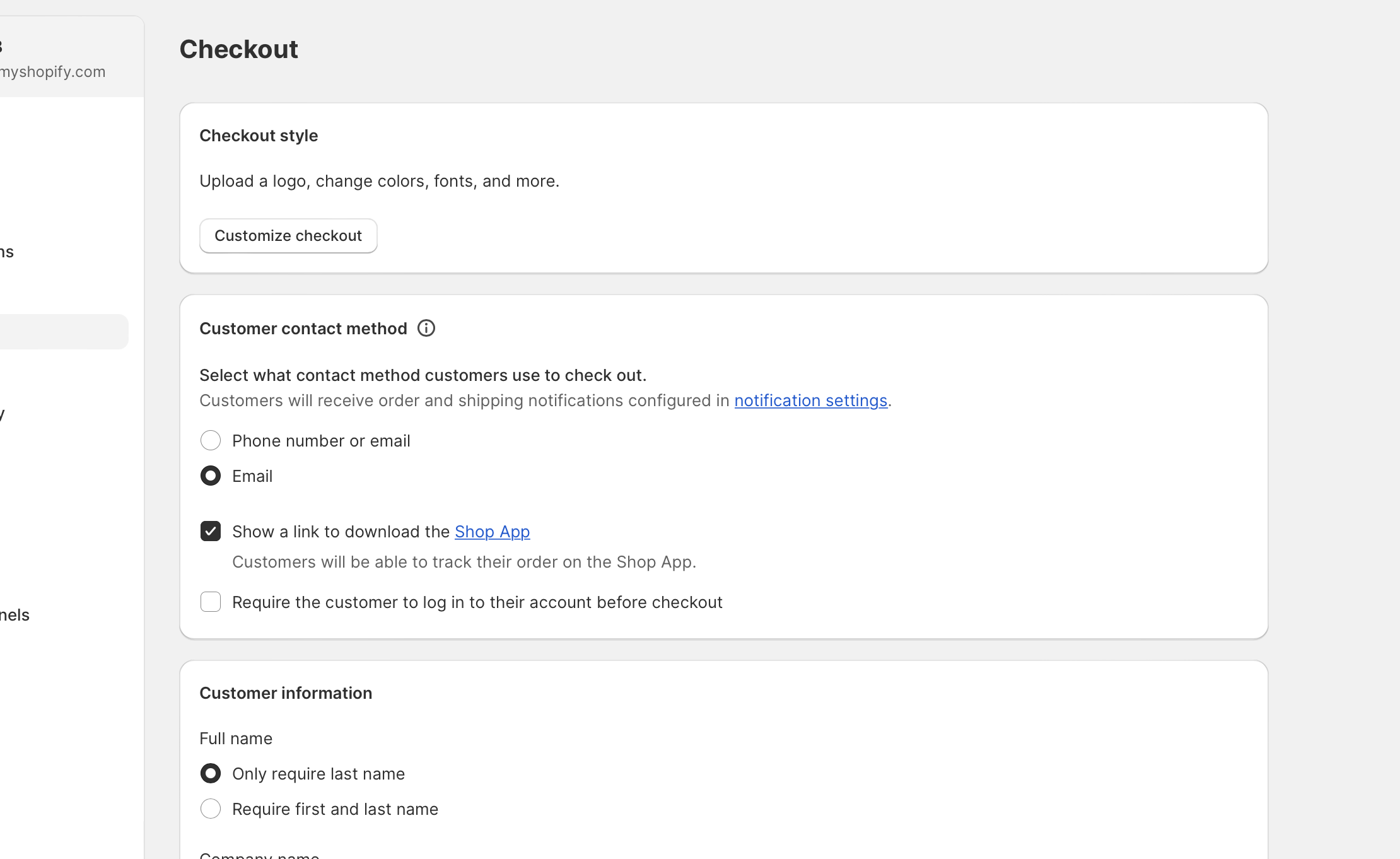
  1. Settings route: Shopify admin > Settings > Checkout
  2. Theme route: Online Store > Themes > Customise > Checkout and customer accounts

The Settings area is where you manage customer contact preferences, form options, marketing opt-ins, tipping, order processing, policies, and related rules. The editor is where you manage the visual side of checkout, thank you pages, order status pages, and customer account branding.

How do I customise the Shopify checkout?

You can customise Shopify Checkout visually using the checkout and accounts editor. This lets you match checkout more closely to your brand without touching fragile legacy code.

Shopify checkout settings screen

From the editor, you can typically change logo, colours, typography, background treatments, and parts of the order summary presentation. Shopify also supports modern checkout configurations that are more upgrade-safe than the old checkout.liquid approach, which is exactly the direction the platform has been pushing merchants and app developers towards.

In 2026, the key idea is this: use checkout extensibility, not brittle theme hacks. As an app developer, I strongly prefer Shopify’s extension model because it is safer for merchants, easier to maintain, and far less likely to break when Shopify ships platform updates.

Useful visual customisations include:

  • Adding your logo for brand continuity
  • Using brand colours and fonts to keep checkout feeling consistent
  • Improving contrast and readability for accessibility and mobile use
  • Making the order summary clearer so customers can review items confidently

Do not overdo it. Best practice is branded but restrained. The goal is trust and clarity, not turning checkout into another marketing page.

What is checkout extensibility and why does it matter?

Checkout extensibility is Shopify’s modern framework for extending checkout with apps and approved components. It replaces older, riskier approaches and is the standard way to add functionality in a future-proof way.

This matters because merchants increasingly want to add things like custom fields, delivery messaging, upsells, trust elements, validation logic, loyalty prompts, or post-purchase offers without compromising performance or upgradeability. Shopify’s extension framework makes that possible while preserving compatibility with features like Shop Pay and one-page checkout.

The main building blocks include:

  • UI Extensions for checkout interface components
  • Shopify Functions for business logic and rules
  • Web Pixel Extensions for event tracking and analytics
  • Payments Extensions for payment-related enhancements

If you want ideas for what can be added safely, see 6 Best Checkout Apps to Extend the Shopify Checkout. That article covers practical extension use cases rather than theoretical platform features.

What can I edit in Shopify checkout form options?

You can configure which customer information Shopify collects and which fields are optional or required. This is one of the highest-impact areas for conversion because unnecessary fields create friction immediately.

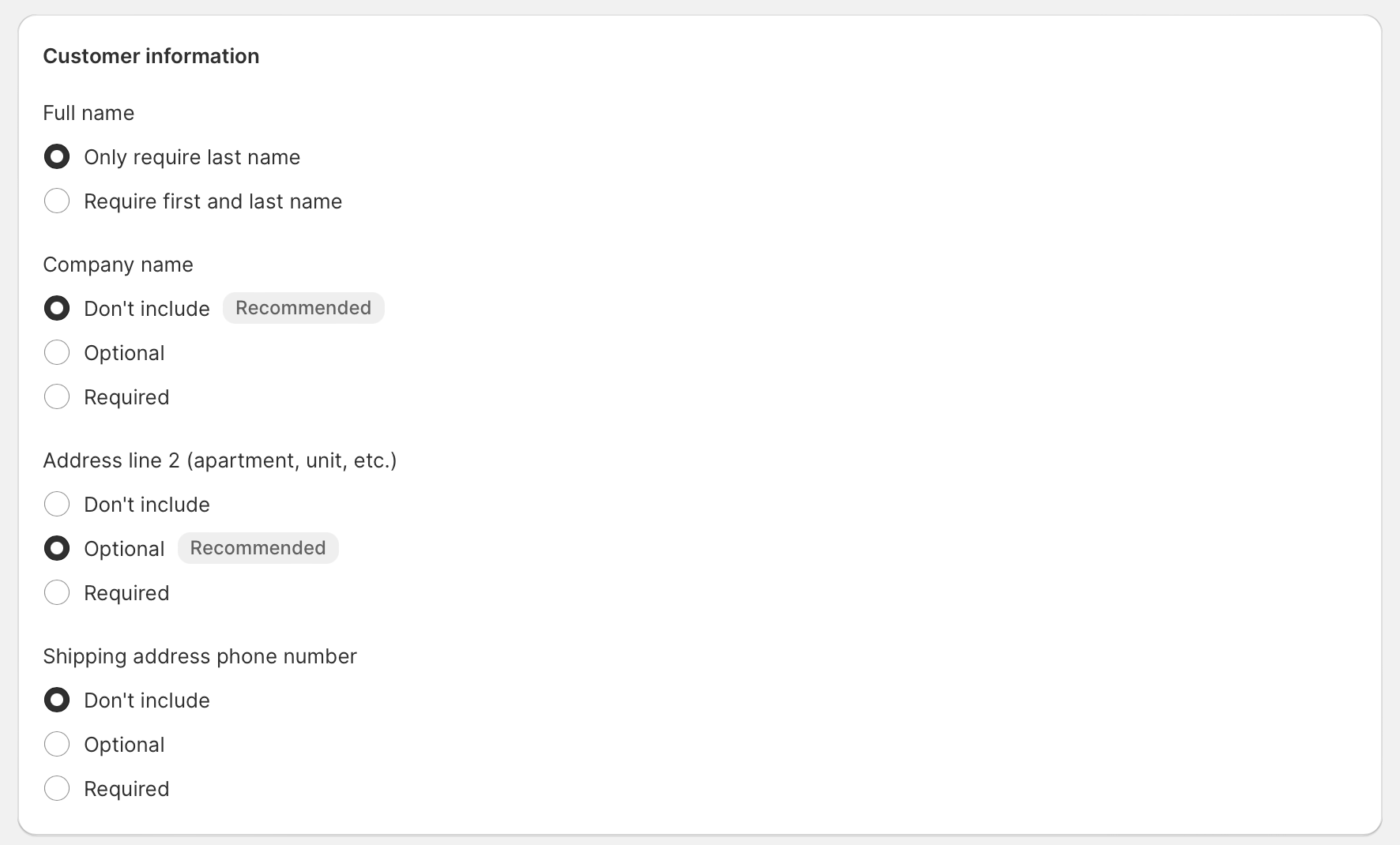
The relevant settings usually sit under Settings > Checkout, where you can adjust customer information preferences and related form behaviour. Depending on your setup, you can control things like email or phone collection, company name, address line 2, and whether a shipping phone number is required.

Shopify customer information form options

My rule here is simple: ask for the minimum information needed to fulfil the order well. Every extra field should justify its existence. If a field helps operations but hurts conversion, you need to measure whether it is truly worth it.

Good examples of sensible configuration:

  • Require email if your post-purchase communication is email-led
  • Collect phone number only if it improves delivery success or SMS updates
  • Keep address line 2 optional
  • Only ask for company name if you genuinely serve B2B buyers

For stores that need more advanced logic, apps and extensions can add custom validation, conditional fields, and extra data capture. Just be careful not to recreate the same friction you were trying to remove.

Should I use guest checkout?

Yes, in most cases guest checkout should be available. Forcing account creation before purchase usually reduces conversion unless you have a very specific business model.

Shoppers want speed. They do not want to stop and create a password just to buy one item. In my experience, guest checkout plus a post-purchase account invitation works far better than pushing registration upfront.

Should I collect email, phone, or both?

The best choice depends on how you communicate order updates and marketing messages. Email is the default for most stores, while phone is useful if you actively use SMS or need courier contact support.

If you collect both, make sure there is a clear reason. More fields do not equal better data if they reduce completed orders.

How do I set up tipping options for online orders?

Shopify lets you enable tipping directly in checkout. This is most useful for service-led brands, food businesses, local delivery stores, and merchants whose customers already expect a gratuity option.

To enable it, go to Settings > Checkout and look for the Tipping section. You can offer preset percentages or allow a custom tip amount.

Tipping is not right for every brand. If the offer feels out of place, it can create awkwardness rather than value. But for the right merchant, it is a clean built-in feature that adds revenue without needing custom development.

If this is relevant to your business, we have a dedicated guide here: How to Enable "Tips" on Your Shopify Store’s Checkout in 2026.

How do I customise payment methods and delivery options at checkout?

You customise payment methods in Settings > Payments and delivery options in Settings > Shipping and delivery. These choices have a direct impact on trust, cost perception, and checkout completion rate.

At a minimum, most stores should offer Shop Pay, major card payments, and at least one widely recognised accelerated payment method where available, such as Apple Pay, Google Pay, or PayPal. The more familiar the options look, the less hesitation customers feel at the final step.

For delivery, clarity matters as much as price. Customers should understand when the order will arrive, what each shipping option costs, and whether any thresholds or restrictions apply. Surprises here are a common source of abandonment.

Advanced customisation can include:

  • Hiding irrelevant payment methods
  • Reordering shipping or payment options
  • Renaming methods for clarity
  • Conditionally showing options based on cart value, location, or product type

Some of these deeper checkout customisations are limited by plan or require app-based extensions. If you are evaluating plan costs alongside checkout features, read The Complete Guide to Shopify’s Pricing and Fees: 2026.

What is the difference between one-page checkout and three-page checkout?

One-page checkout keeps contact, shipping, and payment steps on a single page, while three-page checkout separates them into stages. Shopify has increasingly leaned into one-page checkout for speed and mobile convenience.

For many stores, one-page checkout feels faster because customers can see the entire process at once. It reduces page loads and can make the journey feel more modern. That said, some merchants still prefer more segmented flows if they want a stronger sense of progression or have unusual shipping logic.

My view is practical rather than ideological. Use the layout that produces fewer drop-offs for your audience. If your products are simple and your customers are mobile-heavy, one-page checkout is often a strong fit.

How do I improve checkout conversion on Shopify?

The best way to improve Shopify checkout conversion is to reduce friction, increase trust, and shorten time to purchase. Most gains come from a handful of operational and UX changes rather than flashy redesigns.

Here are the checkout improvements I would prioritise first:

  • Enable express payment methods such as Shop Pay and PayPal
  • Keep guest checkout available
  • Reduce required fields to the essentials
  • Use address autocomplete to reduce typing and input errors
  • Show clear delivery expectations, not vague shipping copy
  • Make policies accessible so customers feel protected
  • Optimise for mobile first, because that is where a lot of checkout pain happens
  • Test the full journey regularly on real devices

Address autocomplete is especially underrated. It sounds minor, but removing manual address entry friction can noticeably improve completion rate, especially on mobile. If you want a quick implementation angle, read How to Enable Address Autocomplete on Shopify in 2026: Quick Guide.

For stores focused on reducing drop-off more broadly, this guide is also relevant: How to Reduce Abandoned Carts in Shopify: 2026 Guide.

What are the biggest checkout mistakes merchants make?

The biggest mistakes are adding friction, hiding key information, and failing to test. Most checkout losses are not caused by one catastrophic problem. They come from several small annoyances stacking up.

The most common issues I see are:

  • Too many required fields
  • Slow mobile experience
  • Weak payment choice coverage
  • Unexpected shipping costs
  • No clear returns or refund policy
  • Over-customisation that distracts from completing the order
  • Never placing test orders after changes

As a developer, I would add one more. Installing too many apps that all want space in checkout can create clutter fast. Every extension should earn its place.

How do I add store policies to Shopify checkout?

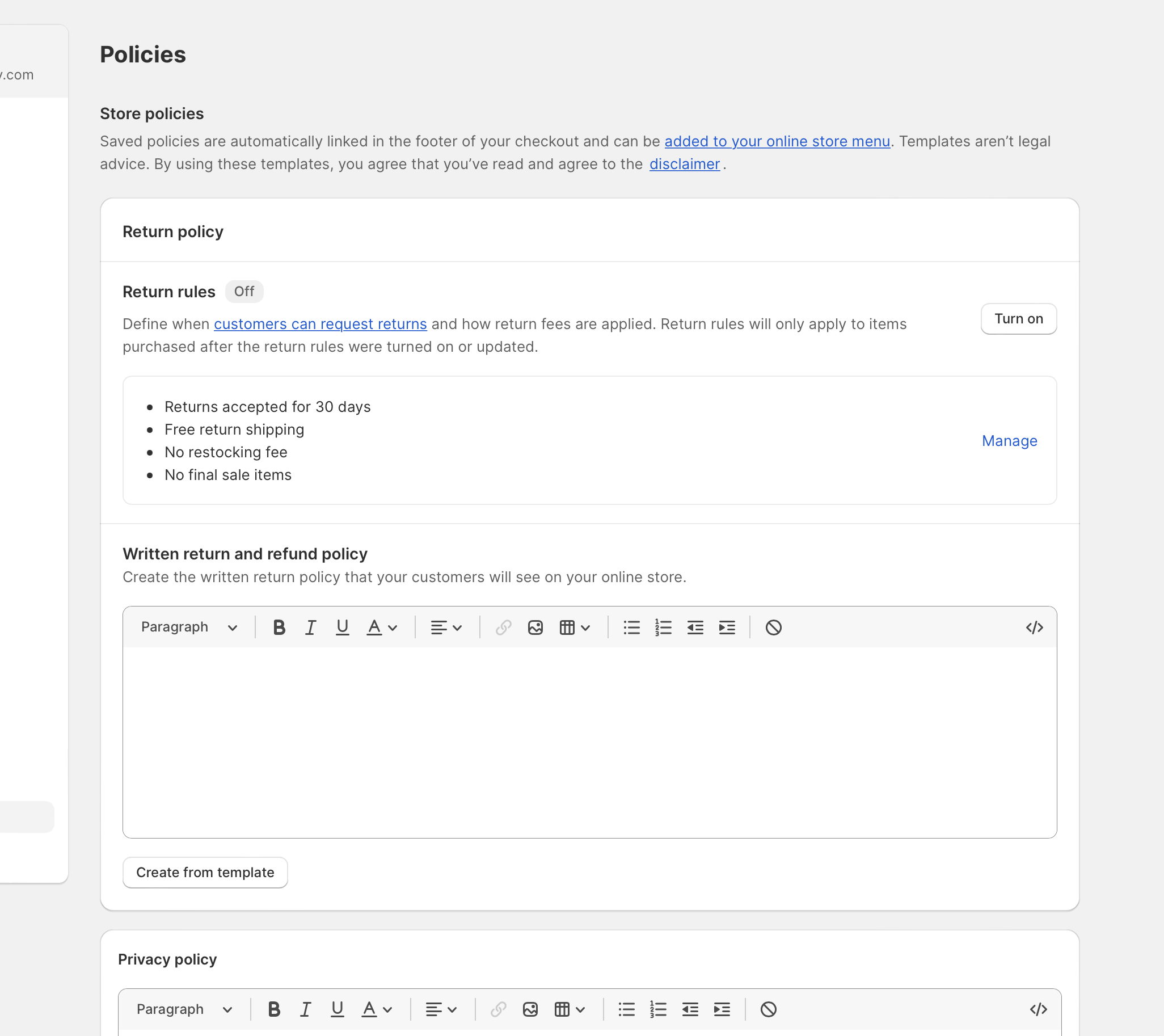
You add store policies in Settings > Policies, and Shopify can surface them during checkout. Clear policies improve trust and reduce purchase anxiety, especially for first-time buyers.

Shopify store policies settings

The core policies most stores should maintain are:

  • Refund policy
  • Privacy policy
  • Terms of service
  • Shipping policy

Shopify provides templates to help you get started, but do not just paste them in and forget about them. Your policies should reflect how your business actually operates. A strong refund policy is not just legal housekeeping. It can be a conversion asset.

How do I set up order processing and archiving?

Order processing settings help you control what happens after the customer places an order. This includes fulfilment behaviour, confirmation flows, and whether orders are archived automatically.

Go to Settings > Checkout and review the Order processing section. Depending on your setup, you can manage things like automatic archiving, post-purchase customer journey settings, and fulfilment-related preferences.

This is not the flashiest part of checkout, but it matters. A smooth post-purchase experience reduces support load and gives customers confidence that the order is in hand. In operational terms, good order processing settings save time every single day.

Can I translate Shopify checkout or localise it for different markets?

Yes, Shopify checkout can be localised for language and market-specific experiences. This is increasingly important for stores selling internationally.

Localisation can include checkout language, address formats, currency handling, tax presentation, and market-specific delivery expectations. If you sell across borders, make sure your checkout does not feel like an afterthought compared with the rest of your storefront.

In my experience, international conversion often suffers not because the product is wrong, but because checkout suddenly feels unfamiliar or unclear. Local language and expected payment methods can make a real difference.

What checkout features are available on Shopify Plus?

Shopify Plus gives merchants more advanced control over checkout behaviour and customisation. It is designed for higher-volume brands that need deeper flexibility, more automation, and more sophisticated checkout logic.

Exactly what you need will depend on your store, but Plus is generally where merchants look when they want more powerful checkout-level customisation, B2B support, or complex operational rules. It is usually not worth upgrading just because you want prettier checkout branding. It makes more sense when checkout complexity is tied to revenue scale.

Area Standard Shopify plans Shopify Plus
Basic checkout branding Available Available
Express payment options Available Available
Checkout extensions Some app-based options Broader advanced use cases
Deep checkout logic customisation Limited More advanced
Enterprise workflows and scale Not ideal Best fit

If you are deciding whether Plus is justified, base it on revenue, operational complexity, and checkout requirements, not hype.

Should I add upsells or cross-sells in checkout?

Yes, but only if they are relevant and low-friction. Checkout upsells can lift average order value, but they should never distract from completing the original purchase.

As someone who has built upsell apps, I have a strong opinion here: the best checkout upsells feel helpful, not opportunistic. Good examples include small accessories, shipping protection, gift wrap, or a simple complementary add-on. Bad examples are aggressive offers that interrupt payment intent.

If upsells are part of your strategy, keep them:

  • Highly relevant
  • Easy to accept or ignore
  • Priced sensibly
  • Placed where they do not slow the core checkout flow

For stores that want to increase AOV before checkout, product page and cart upsells are often safer places to start. We cover related tactics in guides like How to Create a "Complete the Look" Section in Shopify.

How do I place a test order on Shopify?

You should place a test order every time you make a meaningful checkout change. Testing is the easiest way to catch broken logic, missing rates, odd mobile layouts, and payment issues before customers do.

Run through the journey as if you were a customer. Add a product to cart, proceed to checkout, enter details, select shipping, apply discounts, and complete the order using a test payment setup where appropriate. Test on desktop and mobile, and if you sell internationally, test different markets too.

I recommend checking at least these scenarios:

  • Standard purchase with no discount
  • Purchase with a discount code
  • Express payment flow
  • Mobile checkout
  • Different shipping zones
  • Out-of-stock or edge-case inventory behaviour

One thing merchants often forget is that checkout can break operationally without looking broken visually. A shipping rule conflict or payment method issue can cost sales quietly unless you test the full path.

What is the best Shopify checkout setup for most stores?

The best Shopify checkout setup is simple, fast, mobile-friendly, and trustworthy. Most stores do best with minimal fields, strong payment coverage, clear shipping information, and restrained branding.

Checkout element Best practice Why it matters
Guest checkout Enable it Reduces friction for first-time buyers
Contact fields Ask for essentials only Shorter forms usually convert better
Payment methods Offer trusted options Improves confidence and speed
Shipping clarity Show costs and timing clearly Prevents abandonment at the last step
Branding Keep it clean and consistent Builds trust without distraction
Mobile usability Prioritise it A large share of checkout traffic is mobile
Testing Test after every major change Catches hidden conversion issues early

If you want the shortest version of my recommendation, it is this: remove friction before you add features. Most stores need a cleaner checkout more than they need a cleverer one.

Final thoughts on Shopify Checkout

Shopify Checkout is already strong out of the box, but the details still matter. The merchants who get the best results are usually the ones who treat checkout as an ongoing optimisation project rather than a one-time setup task.

In my experience building Shopify apps, the highest-impact improvements are often boring on paper: fewer fields, better payment options, clearer delivery messaging, stronger policy visibility, and regular testing. Those changes do not look glamorous in a screenshot, but they directly affect whether customers finish buying.

If you are updating your store this year, review your checkout with fresh eyes. Go through it on your phone, trim anything unnecessary, test every payment and shipping scenario, and only add extensions that clearly improve the buying experience. That is how you turn checkout from a bottleneck into a conversion asset.

Share this article

Related Articles