

Adding Google reCAPTCHA in Shopify is usually not something you need to do manually. In most stores, Shopify already enables CAPTCHA protection by default for key areas like the contact form, customer login, account registration, and password reset pages. If you are searching for how to add Google reCAPTCHA in Shopify, the practical answer in 2026 is this: check your Spam protection settings first, because Shopify now handles most of it natively.
That said, there is still some confusion around this topic. I see merchants mixing up Google reCAPTCHA, hCaptcha, Shopify's own anti-bot protections, and custom form protection for newsletter popups or third-party builders. In my experience building Shopify apps, that confusion is completely understandable because Shopify's protection has changed over time and older tutorials are now outdated.
This guide explains what Shopify includes by default, where to enable or disable CAPTCHA, what Shopify Plus merchants can do at checkout, and how to add Google reCAPTCHA to custom forms if you really need it.
How do I add Google reCAPTCHA in Shopify?
You add or manage Shopify's built-in CAPTCHA by going to Online Store > Preferences > Spam protection. For most merchants, there is no theme code to install and no Google key to generate for standard Shopify forms.
Here are the exact steps I recommend:
- Log in to your Shopify admin.
- Go to Online Store and then Preferences.
- Scroll to the Spam protection section.
- Enable or disable protection for the available areas, such as:
- Contact and comment forms
- Login, create account, and password recovery pages
- Click Save.
If your store has checkout protection options available, you may also see a separate section for checkout protection. This is especially relevant if you are dealing with bot orders or abuse during checkout.
For official guidance, Shopify covers this in its Online Store Preferences documentation.
Does Shopify use Google reCAPTCHA or hCaptcha?
Shopify can use reCAPTCHA or hCaptcha depending on the context, store setup, and region. The key point is that Shopify handles this natively for standard protected pages, so merchants usually do not need to wire it up themselves.
Older articles often say "add Google reCAPTCHA to Shopify" because that was the language merchants searched for. In reality, Shopify's current spam protection is broader than that. Some Shopify help docs refer to hCaptcha, while other merchant discussions and legacy settings still refer to Google reCAPTCHA.
From a merchant point of view, the practical takeaway is simple: use Shopify's built-in spam protection first. It is easier to maintain, less likely to break after theme updates, and better aligned with Shopify's own forms and security stack.
What pages does Shopify protect by default?
Shopify protects the pages most commonly targeted by bots, including contact forms and customer account pages. This covers the majority of spam issues I see on smaller and mid-sized stores.
The main protected areas are:
- Contact forms
- Blog comment forms, where applicable
- Customer login
- Create account
- Password recovery
Shopify also includes anti-bot protections at checkout, but checkout customisation is more limited than standard storefront pages. If you are getting fake orders, card testing, or repeated bot checkouts, that is a slightly different problem than ordinary contact form spam.
If spam is hitting your forms specifically, you should also review your form setup and validation. I covered a broader anti-spam approach in How to Prevent Spam on Your Shopify Contact Form in 2026.
Where do I enable or disable CAPTCHA in Shopify?
You manage CAPTCHA in Shopify from the Preferences page in admin. This is the first place I check whenever a merchant tells me they want to "install reCAPTCHA".
The path is:
Shopify admin > Online Store > Preferences > Spam protection
In that section, Shopify lets you toggle protection for supported areas. If you disable it, standard Shopify forms may become more vulnerable to spam submissions. If you enable it, suspicious visitors can be challenged while normal customers often continue without friction.
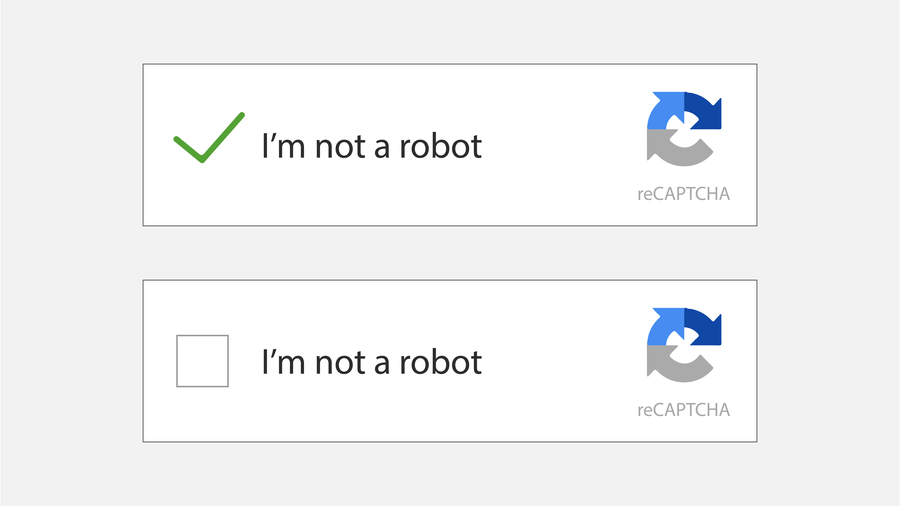
In my experience, most merchants should leave these settings enabled unless they have a very specific compatibility issue. Turning protection off to fix one edge case often creates a much bigger spam problem a few days later.
Why is CAPTCHA important for a Shopify store?
CAPTCHA helps block automated abuse without adding much friction for genuine customers. It is especially useful for spam form submissions, fake account creation, and some types of bot-driven checkout abuse.
Modern CAPTCHA systems do not always force users to click pictures of traffic lights or bicycles. Many implementations are invisible or behaviour-based, which means real users often never notice them. That is one reason Shopify's native setup is usually the best starting point.
As a developer, I like native protections because they reduce maintenance overhead. Less custom code usually means fewer theme conflicts, faster troubleshooting, and lower risk during theme updates.
What problems can CAPTCHA reduce?
CAPTCHA is most effective against basic automated abuse. It will not solve every fraud problem, but it can significantly reduce low-quality bot traffic and nuisance submissions.
- Spam contact form messages
- Fake customer account registrations
- Password reset abuse
- Comment spam
- Some bot-driven checkout attempts
If your issue is fraudulent orders rather than form spam, you will usually need a wider approach involving Shopify Protect, fraud analysis, address verification, and in some cases customer login requirements.
Can I add reCAPTCHA to Shopify checkout?
Checkout CAPTCHA options are limited on standard Shopify plans. Shopify controls checkout much more tightly than theme pages, so you cannot freely inject whatever CAPTCHA workflow you want into checkout.
For many stores, Shopify already applies checkout protections behind the scenes. Some merchants also see a checkout protection setting in Preferences. If you are on Shopify Plus, you may have more advanced options depending on your checkout setup and current Shopify capabilities.
When merchants ask me about checkout CAPTCHA, it is usually because they are dealing with bot orders or card testing attacks. In those cases, I would not rely on CAPTCHA alone. You should also look at:
- Requiring customer accounts where appropriate
- Monitoring fraud signals in Shopify admin
- Using Shopify Flow on eligible plans to flag risky patterns
- Reviewing payment gateway fraud tools
If your checkout issue is linked to friction or abandoned carts rather than abuse, this guide may help: How to Reduce Abandoned Carts in Shopify: 2026 Guide.
Do I need to add code to my Shopify theme?
No, not for standard Shopify forms. If you are protecting the built-in contact form or customer account pages, you usually do not need to edit your theme code at all.
Shopify injects required resources through its own rendering system, commonly via content_for_header and native form handling. That is why so many old tutorials are now unnecessary. They were written for a different era of Shopify, or they apply only to custom forms built outside Shopify's standard form system.
As a rule, I only recommend manual code when a merchant is using:
- A custom contact form not based on Shopify's native form objects
- A page builder form
- A third-party newsletter form
- A custom app proxy or embedded form
If you are editing theme code for any security-related feature, test it on a duplicate theme first. The same advice applies when adding scripts or tags to your storefront. If you need help with safe theme edits, see How to Add a HTML Tag to the Home Page in Shopify.
How do I add Google reCAPTCHA to a custom Shopify form?
If your form is custom, you may need to manually integrate Google reCAPTCHA. This is most common with newsletter forms, popup forms, landing page builders, or third-party embedded forms that Shopify does not protect automatically.
In that case, the usual route is to register your domain with Google reCAPTCHA and add the client-side script to your theme or page template. Google provides setup guidance here: reCAPTCHA v3 introduction.
Important: client-side code alone is not enough for robust protection. Server-side verification is the real security check. This is one reason manual reCAPTCHA setups on Shopify can be awkward unless the form submits to an app, external endpoint, or custom backend you control.
Step 1: Register your domain with Google reCAPTCHA
Create a free reCAPTCHA key pair in Google's admin console. You will receive a site key and a secret key.
- Go to the Google reCAPTCHA page.
- Register your store domain.
- Choose the reCAPTCHA version that suits your form setup.
- Save your site key and secret key.
If you are using a pure front-end form with no backend verification, be aware that this is weaker than a full server-side implementation.
Step 2: Add the reCAPTCHA script
Add Google's script to the page where your custom form loads. A common approach is placing it before the closing </head> tag.
<script src="https://www.google.com/recaptcha/api.js?onload=onloadCallback&render=explicit" async defer></script>This loads the reCAPTCHA library asynchronously so it does not block the page render.
Step 3: Add a container inside your form
Your form needs a target element where reCAPTCHA will render. This is typically a simple div.
<div id="re-captcha"></div>I also recommend disabling the submit button until verification completes if you are using a visible widget.
Step 4: Initialise reCAPTCHA with your site key
Render the widget and control form submission with JavaScript. Replace the placeholder site key with your own.
<script>
var actCallback = function (response) {
  $('#contactFormSubmit').prop("disabled", false);
  $('#re-captcha').remove();
};
var expCallback = function() {
  $('#contactFormSubmit').prop("disabled", true);
};
var onloadCallback = function () {
  grecaptcha.render(document.getElementById("re-captcha"), {
    'sitekey': "123456789",
    'theme': "light",
    'callback': actCallback,
    'expired-callback': expCallback
  });
}
</script>
This pattern is often used for custom contact forms where the submit button should remain disabled until the challenge is complete.
That said, if you are not comfortable editing Liquid and JavaScript, an app is often the safer option.
What is the best option for custom form spam protection?
The best option depends on how your form is built. If it is a standard Shopify form, use Shopify's native protection. If it is a custom or third-party form, use either manual Google reCAPTCHA integration or a specialist anti-spam app.
When I test stores with custom page builders, the problem is often not CAPTCHA itself. The real issue is that the form bypasses Shopify's native protections. Once that happens, merchants need to either rebuild the form using native Shopify form objects or add protection at the form provider level.
| Scenario | Best option | Why |
|---|---|---|
| Native Shopify contact form | Use Shopify Spam protection | No code, easiest to maintain |
| Customer login or account pages | Use Shopify native CAPTCHA | Already integrated with Shopify accounts |
| Custom page builder form | Add Google reCAPTCHA manually or use the builder's anti-spam tools | Shopify may not protect it automatically |
| Embedded third-party form | Enable anti-spam in the third-party platform | Validation usually happens outside Shopify |
| Checkout bot abuse | Use Shopify checkout protection plus fraud controls | Checkout is tightly controlled by Shopify |
Should I use a Shopify app for reCAPTCHA?
You probably do not need an app for standard forms, but apps can help with edge cases. I only suggest an app when the native settings are not enough or when the store uses custom forms that Shopify does not protect well.
One example is reCAPTCHA spambuster, which is designed to add extra spam protection to Shopify stores. At the time of writing, it lists pricing from $3/month with a free trial available.
If you want a visual reference, here is a screenshot from its Shopify App Store listing:
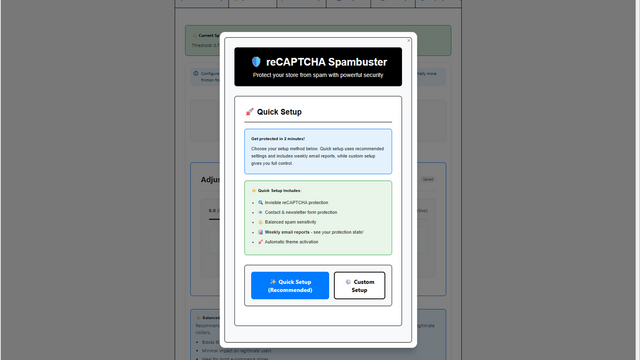
My honest view is that an app is not worth it unless your spam issue sits outside Shopify's built-in coverage or you need a faster no-code fix for a custom form setup. Otherwise, native protection is simpler and cheaper.
What are the pros and cons of Shopify's native CAPTCHA vs manual Google reCAPTCHA?
Shopify's native CAPTCHA is best for most merchants because it is built in and low maintenance. Manual Google reCAPTCHA is more flexible, but it is also more technical and easier to misconfigure.
| Option | Pros | Cons |
|---|---|---|
| Shopify native CAPTCHA | Built in, quick to enable, works with standard Shopify forms, low maintenance | Limited control, not automatic for every custom form |
| Manual Google reCAPTCHA | Flexible, works on custom forms, can be tailored to specific workflows | Needs setup, may require server-side verification, more fragile after theme changes |
| Shopify app | No-code in many cases, can extend protection to extra areas | Monthly cost, app dependency, variable quality |
In my experience, native first, app second, custom code last is the right order for most merchants.
What should I do if CAPTCHA is not showing on my Shopify store?
If CAPTCHA is not showing, the most common reason is that the form is not a standard Shopify form or the setting is disabled. This is usually a configuration issue rather than a platform bug.
Here is the troubleshooting checklist I use:
- Confirm Spam protection is enabled in Online Store > Preferences.
- Check whether the form is a native Shopify form or a custom third-party form.
- Test on a duplicate theme to rule out theme code conflicts.
- Temporarily disable any app that modifies forms or customer accounts.
- Inspect the theme for missing Shopify form attributes if you built the form manually.
- Test in an incognito window and on another device.
Shopify's developer documentation on CAPTCHA for themes is useful if you are working with custom forms and theme code: Shopify CAPTCHA developer docs.
Can CAPTCHA hurt conversion rates?
Yes, badly implemented CAPTCHA can reduce conversions, but Shopify's native setup is usually low friction. That is one reason I prefer invisible or behaviour-based protection wherever possible.
If you force every visitor through a visible challenge on a high-intent page, some users will abandon. This is especially true on mobile. The best balance is usually challenge suspicious traffic while keeping the path smooth for legitimate customers.
That same principle applies to other conversion elements on Shopify. If you are trying to protect forms without adding unnecessary friction, it helps to think about the wider customer journey too. For example, checkout UX improvements like address autocomplete on Shopify can reduce friction while your anti-spam tools handle abuse in the background.
What is my recommended setup for most Shopify stores?
The best setup for most stores is to keep Shopify's built-in spam protection enabled and avoid manual code unless you truly need it. That is the lowest-risk option and the one I would use on a fresh store today.
My recommendation is:
- Leave Shopify Spam protection enabled
- Use native Shopify forms where possible
- Only add Google reCAPTCHA manually for custom forms
- Use an app only when native protection does not cover the use case
- Test all changes on a duplicate theme first
If you are also tightening up tracking or scripts on your store, keep those changes isolated and documented. I see too many merchants stack multiple edits into one publish and then struggle to identify what caused the problem. If you are adding scripts elsewhere in Shopify, this related guide may help: How to Add Conversion Tracking Code to the Checkout Page Only in Shopify.
Final thoughts on adding Google reCAPTCHA in Shopify
The answer to how to add Google reCAPTCHA in Shopify is usually simpler than most articles make it sound. For standard Shopify forms, you normally do not add anything manually. You just check your Spam protection settings in admin and let Shopify handle it.
If you are running a custom form, then yes, manual Google reCAPTCHA setup can make sense. But once you move beyond Shopify's native forms, you also take on more responsibility for maintenance, testing, and verification logic.
In my experience building Shopify apps, the stores that stay stable over time are usually the ones that use native Shopify features wherever possible and only add custom code when there is a clear business reason. For CAPTCHA, that advice still holds up in 2026.