


Running an online store involves more than just listing products and processing orders. One crucial aspect that often gets overlooked is invoicing. Whether it’s for keeping records straight, ensuring compliance, or providing customers with detailed transaction summaries, invoices play a vital role in e-commerce.
For Shopify store owners, invoicing can sometimes seem like a daunting task, especially when dealing with bulk orders. But don’t worry—there are streamlined solutions available. In this guide, we’ll walk you through how to send invoices to your customers seamlessly, whether you prefer doing it manually, automating the process with apps, or using Shopify’s built-in features.
Let’s make invoicing simple and efficient for your Shopify store!
How to Send an Invoice to a Customer in Shopify
When a customer places an order on your Shopify store, they might request an invoice. Shopify provides several ways to handle invoicing, from manual generation to automated apps. Here’s a comprehensive guide to streamline the process and make invoicing a breeze.
Generating a Basic Invoice
For occasional invoices, Shopify’s invoice generator is a handy tool. You can easily create and send professional invoices directly from your admin panel. For a quicker solution, check out Shopify’s free order invoice generator here.
Automating Invoice Emails
Printing and manually sending invoices can be labor-intensive. Automating this process is much more efficient. Here are some excellent apps to help you email invoices directly to your customers.
Best Apps to Email Invoices to Shopify Customers in 2025
Several apps can automate invoice emailing, but some stand out for their functionality and customer support.
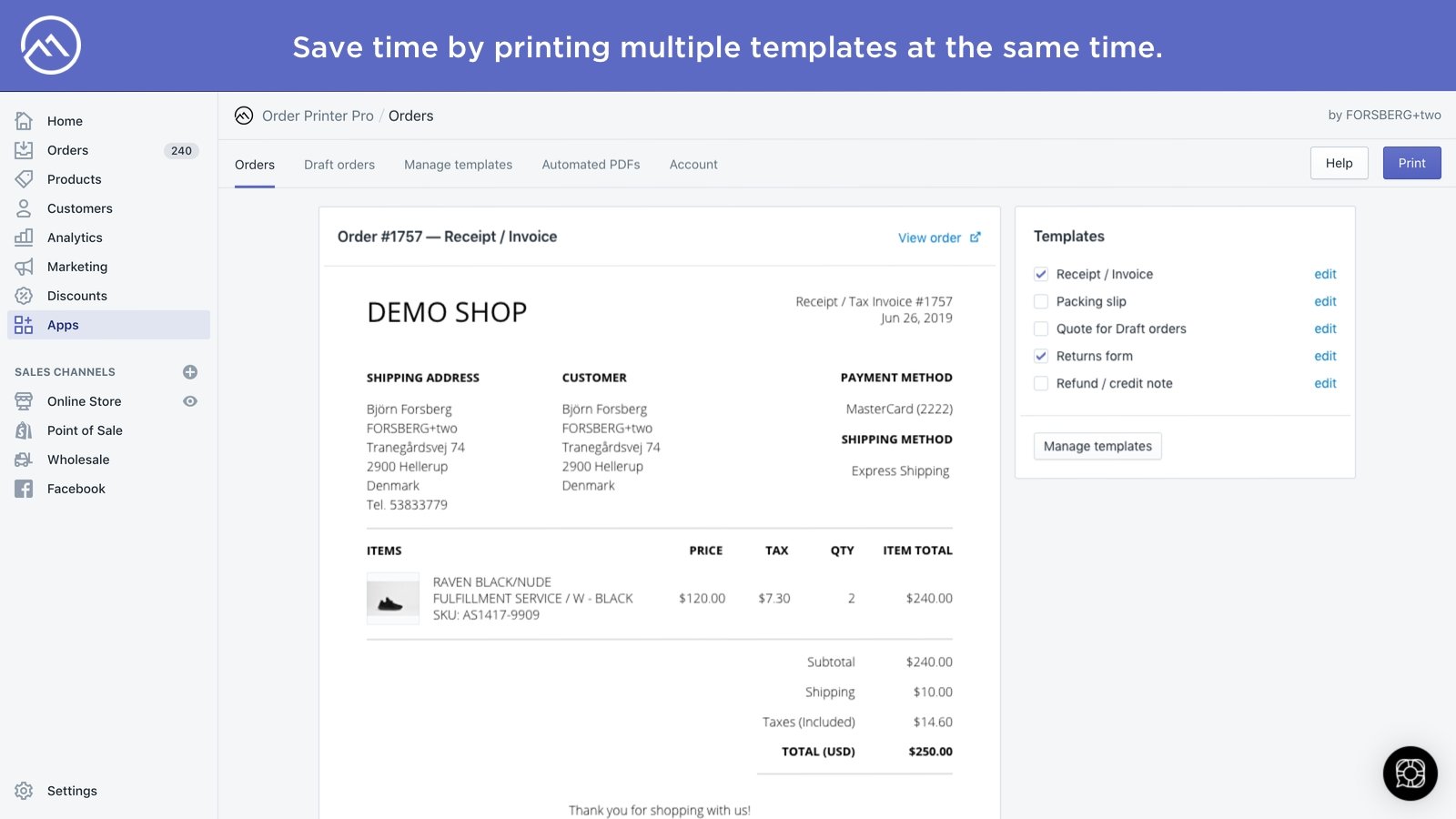
Order Printer Pro: This highly-rated app allows you to create PDF invoices, packing slips, return forms, quotes, and receipts. You can include download links in your emails to send these documents to your customers. It supports Draft Orders, bulk printing, and can display only the fulfilled items for orders with multiple shipments. The app offers a free plan for up to 50 orders per month, with paid plans starting at $10/month.
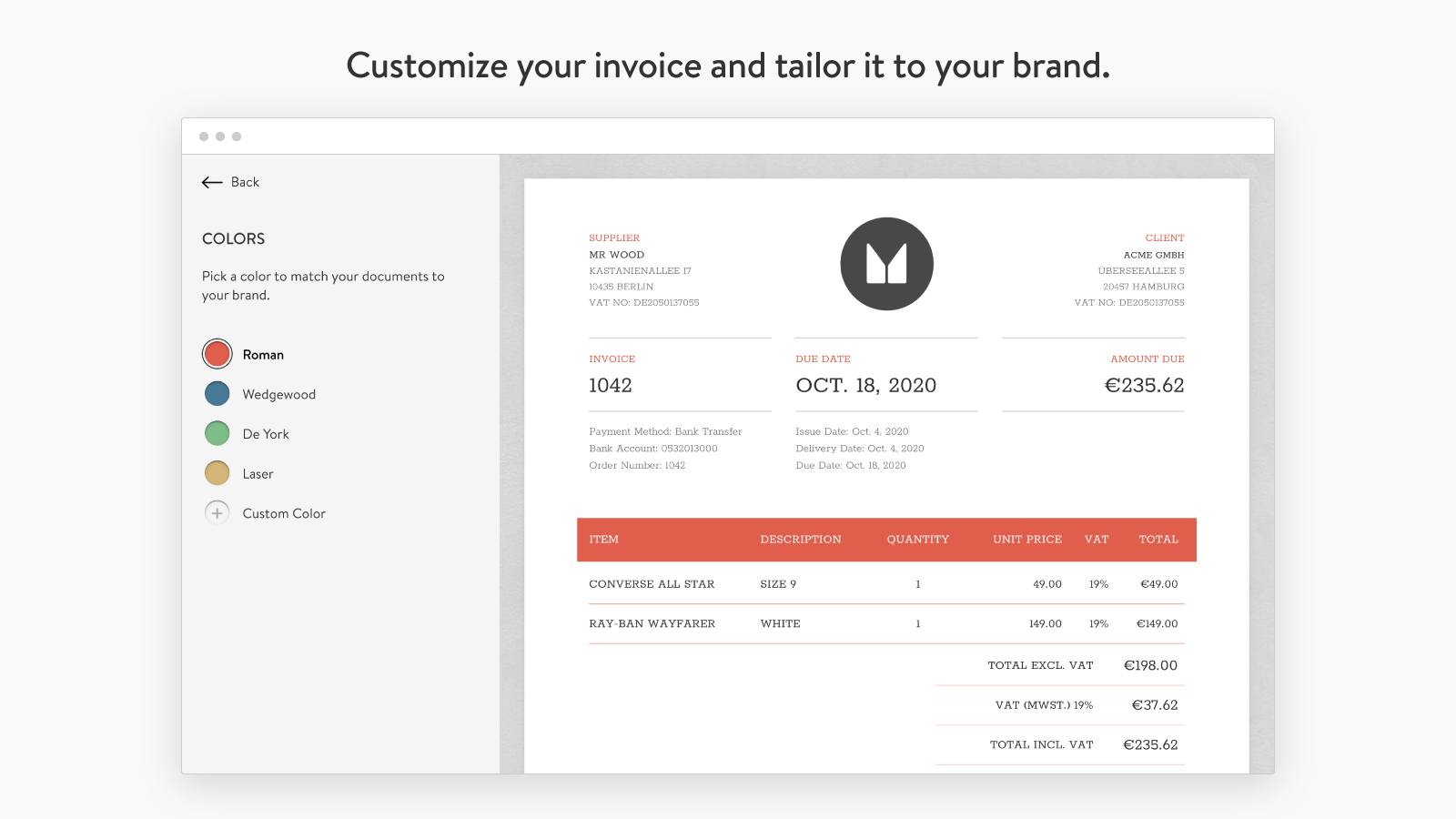
Sufio: Sufio automates invoicing for Shopify store owners, creating and sending professional invoices automatically. It ensures worldwide compliance, meeting global regulations for B2B and B2C sales. The app includes multi-language and multi-currency support, and you can customize the invoices to match your store’s theme. Plans start at $29/month.
Simple Invoice: A minimalistic and user-friendly option, Simple Invoice offers professional invoice templates that are easy to customize. It’s free for up to 50 invoices per month, with paid plans at $9.99/month for unlimited invoices. The app integrates seamlessly with Shopify and allows automatic invoice delivery.
Invoicify: This fully automated invoicing solution creates and sends invoices for every order placed. It offers a free plan and highly customizable templates with multi-language support. Paid plans include dedicated account management and 24/7 support.
Sending Invoices Through the Admin Panel
You can also send invoices directly from the Shopify admin panel by creating a draft order and providing customers with a secure checkout link. Here’s how:
- Go to Orders > Drafts in your Shopify admin and either open an existing draft order or create a new one.
- Select Send Invoice from the invoice section.
- Type a personalized message to include in the order invoice.
- Select Review Invoice.
- After reviewing, click Send Invoice.
Important Notes:
- If you add a new product to the order after sending the invoice, the additional shipping rates won’t be automatically updated in the invoice.
- Draft orders created on or after April 1, 2025, are automatically deleted after 1 year of inactivity to optimize performance. Any edit to the draft order resets this timer.
- When using Shopify Markets for international sales, the invoice currency is determined by the customer’s shipping address and associated market.
Staying Organized
To manage your daily tasks and to-dos efficiently, consider using NoteDesk, a free task management app designed for Shopify stores.


